
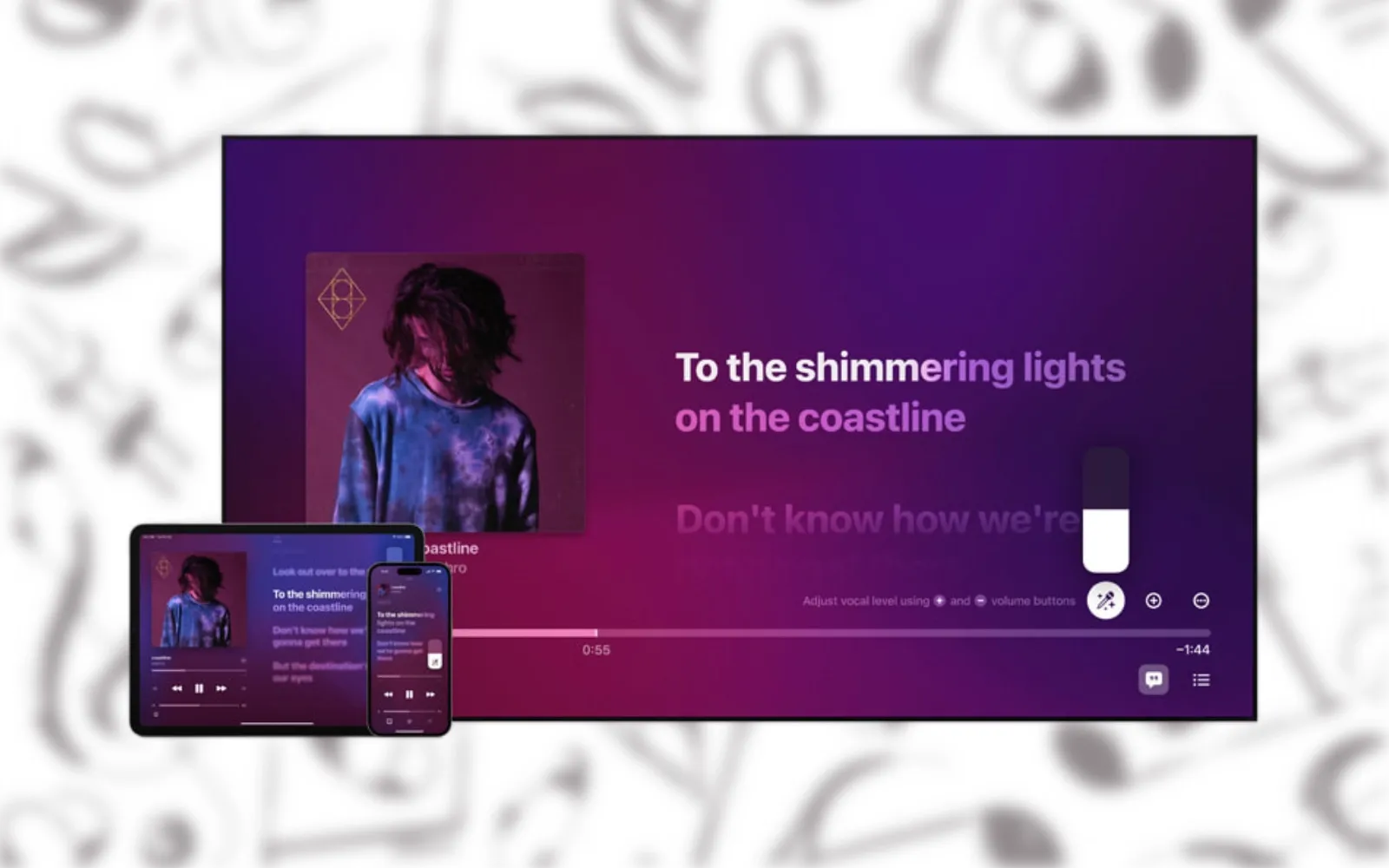
I was halfway through butchering "Bohemian Rhapsody" when I realized what Apple had pulled off. My iPhone, sitting in its MagSafe mount six feet away, was picking up my voice and routing it through my TV speakers with enough reverb to make me sound like I belonged in a stadium. Or at least a very forgiving bar.
Apple Music Sing has existed since late 2022, doing that neat trick where it dims the original vocals so you can sing lead. What changed with tvOS 26 is that your iPhone can now function as an actual wireless microphone, mixing your voice into the music in real time. It's the feature karaoke enthusiasts have been requesting since Sing launched, and Apple finally delivered it with the tvOS 26 update in September 2025.
Here's the thing though: setting it up isn't entirely obvious, and there are some gotchas that took me a few frustrated evenings to work through.
What You Actually Need
The iPhone mic feature requires specific hardware. You need an Apple TV 4K (3rd generation) running tvOS 26 or later, plus an iPhone 11 or newer running iOS 26. The 1st and 2nd generation Apple TV 4K models can run tvOS 26 and display lyrics, but they lack the processing power for the live microphone mixing.
I tried this on my older Apple TV 4K (2nd gen) first. The Sing button appeared, the lyrics worked, but the microphone option was simply missing. Took me twenty minutes of digging through settings before I realized the feature was hardware-gated. Classic Apple move—they mention this exactly nowhere in the marketing.
The Wireless Speaker Problem
Here's the friction that caught me off guard: Apple Music Sing's microphone mode does not work with HomePods or any AirPlay speakers set as your default audio output. The feature requires your Apple TV to output audio through your TV speakers or a wired audio system connected via HDMI, optical, or eARC.
If you've configured HomePods as your permanent Apple TV speakers (as I had), you'll need to temporarily switch your audio output back to the TV before the mic option appears. Go to Settings, then Video and Audio, then Audio Output, and select your television or connected soundbar.
The reason makes technical sense once you think about it: routing your microphone audio to wireless speakers introduces latency, and even a 200-millisecond delay between when you sing and when you hear yourself would make karaoke unusable. Your voice would trail behind the music like a bad echo. Apple solved this by restricting the feature to wired audio paths where latency stays under the threshold where your brain notices.
Getting Into Sing Mode
Open the Music app on your Apple TV 4K (3rd generation) and navigate to any song with lyrics. Start playback, then press the clickpad or touch surface to bring up the playback controls. Swipe down on the remote to reveal additional options, and you'll see a microphone icon with a plus sign.
Select that microphone icon and a QR code appears on screen. Here's where it gets clever: scan the QR code with your iPhone camera, and a Continuity Microphone app clip opens automatically. No download required, no App Store involved. The pairing happens in about three seconds.
Once connected, your iPhone displays controls for mic volume and reverb intensity. The reverb slider goes from zero (dry, unprocessed voice) to maximum (cathedral-level echo). Somewhere around 40% sounded best to me—enough to smooth out the rough edges without making everything sound underwater.
Up to 30 additional people can scan that same QR code and join the party. Only one person uses the microphone at any moment, but everyone else gets access to emoji reactions they can tap to show on the TV screen and the ability to add songs to the queue. It's genuinely social in a way that most Apple features aren't.
Join The Inner Circle For Serious Apple Users
Exclusive Apple tips. Free to join.
The Sound Quality Reality
Let me be honest about the audio: your voice coming through TV speakers will never sound as polished as a dedicated karaoke system with proper microphones and mixing hardware. The iPhone mic picks up room noise, the compression is noticeable, and if you're standing more than about six feet from your iPhone, the audio gets thin.
That said, for casual family karaoke nights, it works remarkably well. The vocal isolation technology Apple uses to strip the original singer's voice has improved significantly since Sing launched. Most pop and rock tracks sound clean with the vocals reduced, though songs with complex harmonies or heavy effects sometimes leave artifacts. I noticed some ghostly backing vocals bleeding through on a few Queen tracks.
The best results came from Apple's curated Sing playlists, where tracks are specifically optimized with note-by-note lyric syncing. The Apple Music Sing section in the Music app surfaces these playlists organized by genre, decade, and mood.
For Those Who Want More
Affiliate disclosure: some links in this article are Amazon Associate links. If you buy through them, Zone of Mac may earn a small commission at no extra cost to you, and we only recommend products that genuinely bring value to your Apple setup.


If you're serious about karaoke nights and want dedicated wireless microphones with their own speakers (bypassing the latency issue entirely), a standalone mixer system handles the job better than Apple's built-in solution. The Rybozen Wireless Microphone Karaoke Mixer System includes two UHF wireless mics, echo and tone controls, and HDMI passthrough so you can keep using Apple Music Sing for lyrics while your voice goes through dedicated hardware. The catch is complexity: you're managing two audio paths, and setup takes longer than just scanning a QR code. Here's where to get the Rybozen Wireless Microphone Karaoke Mixer System https://www.amazon.com/dp/B07MFV1KRB?tag=zoneofmac-20
For most people, the iPhone-as-microphone approach handles casual karaoke perfectly well without extra gear.
The Hidden Visualizer
One feature Apple buried in the interface: there's a full-screen visualizer mode for Sing. While a song plays with Apple Music Sing active, bring up the playback controls and look for the three-dot menu. Select it and choose "Visual Effects." The lyrics remain on screen while animated backgrounds pulse with the music.
It's not exactly the visualizers from the classic iTunes era, but it transforms the TV into something that feels more like a stage production than a lyrics teleprompter. Combined with the Continuity Camera feature that shows your face on screen (select "Sing with Camera" from the same menu), you can create a surprisingly polished performance recording.
What About Accessibility
VoiceOver reads the Sing interface, though navigation takes longer than sighted users might expect. The bigger accessibility consideration is the visual lyrics themselves—there's no audio description option that reads lyrics aloud, so blind or low-vision users are left following along by ear.
For users with hearing impairments, the translated lyrics and phonetic pronunciation features work well. You can enable romaji for Japanese songs or pinyin for Mandarin tracks, which makes singing along to K-pop or anime themes substantially easier even if you don't read the original scripts.
The reverb feature could benefit users who are self-conscious about their voice, as the added processing masks pitch imperfections. That's not an accessibility feature per se, but it lowers the barrier for people who might otherwise skip karaoke entirely.
The Part Where I Tell You What to Do
If you have an Apple TV 4K (3rd generation), an iPhone 11 or newer, and an Apple Music subscription, the iPhone microphone feature is worth trying for free at your next gathering. It's not professional-grade karaoke, but it's free, it's already built into hardware you own, and the setup takes under a minute once you know the audio output gotcha.
Make sure your Apple TV audio routes through your TV or a wired speaker system before you start—that single requirement trips up most people. If you've gone all-in on HomePods as your entertainment system speakers, you'll either need to switch back temporarily or invest in a voice-controlled smart home setup that keeps your Apple TV flexible for multiple uses.
The curated Sing playlists are your friend. Apple's audio engineers have optimized those tracks specifically for vocal isolation, so start there before diving into your personal library. And keep the reverb around 40%—trust me on this one.
Now go murder some Metallica. Everyone does eventually.

Related Posts
Apple TV+ Dropped Six April Premieres and Three Actually Deliver
Apr 10, 2026
HomeKit Ceiling Fans That Earn a Spot in Your Apple Home
Apr 07, 2026
The Apple TV 4K Settings You Skipped Are Ruining Your Movies
Apr 06, 2026