

Apple Home can function as a legitimate alarm system right now, using contact sensors on your doors and windows, motion detectors in hallways, and a HomePod that blasts an alarm tone the moment something opens when nobody is home. The setup takes about twenty minutes and costs less than two months of a typical monitoring subscription. But the gap between a sensor that works and a system that actually catches an intruder comes down to where you place each sensor, how you configure the automations, and which sensors respond fast enough to matter.
Most HomeKit alarm guides skip the hard part. They show you how to pair a sensor but never explain why a Thread-based sensor on your back door triggers an automation in under a second while a Bluetooth sensor on the same door can take four or five seconds to register. That delay is the difference between a HomePod siren firing before someone steps inside and firing after they have already walked through your kitchen.
What You Need Before You Start
A HomeKit alarm system has four components: a home hub, at least one contact sensor, an optional motion sensor, and a speaker to act as the siren.
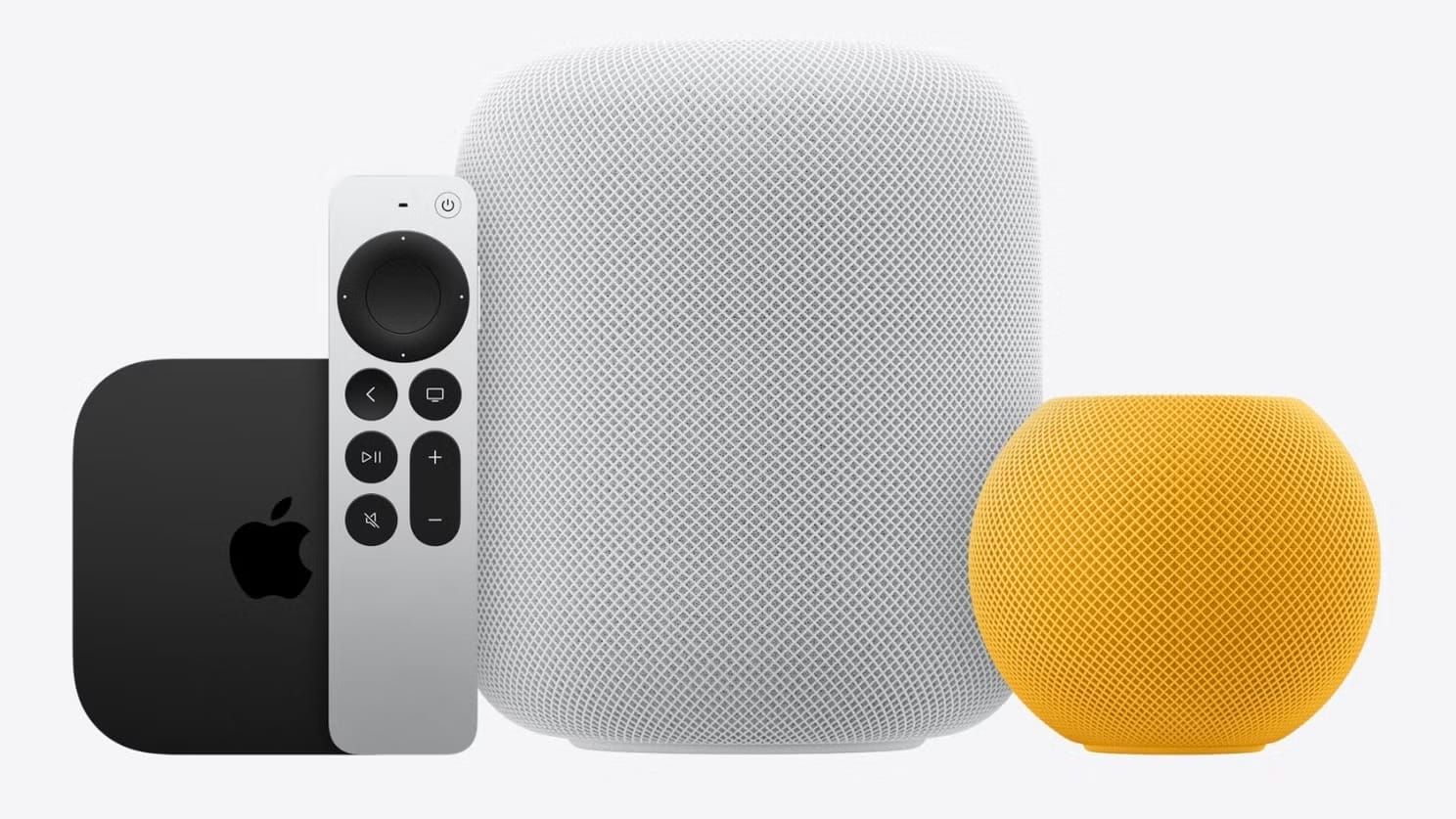
The home hub is the brain. Apple TV 4K (2021 or later), HomePod (2nd generation), or HomePod mini all qualify, and each one doubles as a Thread border router for Matter-based sensors. If you already own any of these devices, you have the hub covered. The hub stays powered at home, runs your automations locally even when your iPhone is miles away, and communicates with Thread sensors through a low-power mesh network that blankets your house. If you are starting from scratch, the complete HomeKit setup guide on Zone of Mac walks through the initial Apple Home configuration step by step.
Contact sensors are the non-negotiable layer. Every exterior door needs one. These two-piece magnetic sensors mount on the door frame and the door itself, and the moment they separate, your automation fires. Motion sensors add a second layer for interior coverage, catching movement in hallways and common areas if someone gets past a door without triggering the contact sensor. You can start with contact sensors alone and add motion sensors later.
For the siren, any HomePod or HomePod mini works. You will create a scene that plays an alarm sound through the speaker at full volume. Apple Music subscribers can use siren tracks directly through the Home app automation, but even without a subscription, you can use a Shortcut to trigger audio playback. A HomePod mini at full volume in a quiet house is startling enough to send someone running.
Why Thread Sensors Are the Only Serious Option
Thread is a low-power mesh networking protocol that Apple, Google, and Samsung all back through the Matter smart home standard. A Thread sensor communicates with your home hub through a mesh of nearby Thread devices, so the signal hops between nodes instead of relying on a single Bluetooth or Wi-Fi connection. That mesh architecture gives you two things a security system demands: speed and reliability.
In practice, a Thread contact sensor registers a door opening and delivers that event to your home hub in roughly 200 to 400 milliseconds. Older Bluetooth-only HomeKit sensors can take two to five seconds for the same event, and Wi-Fi sensors sometimes miss events entirely during network congestion. For an alarm system, latency is everything. A sensor that takes three seconds to report is three seconds of someone walking through your home before the siren fires.
Matter is the application layer that rides on top of Thread. When a sensor says "Matter over Thread" on the box, it means the sensor speaks the Matter protocol and uses Thread as its radio connection. Apple Home supports Matter natively, so these sensors pair through the Home app with a simple QR code scan. Apple's guide to pairing Matter accessories covers the exact steps if you have not paired a Matter device before.
Affiliate disclosure: some links in this article are Amazon Associate links. If you buy through them, Zone of Mac may earn a small commission at no extra cost to you, and we only recommend products that genuinely bring value to your Apple setup.
Picking the Right Contact Sensor for Your Doors
The Aqara Door and Window Sensor P2 is one of the first contact sensors built natively on Matter over Thread, and it shows. The CR123A battery inside is rated for up to five years, which means you mount it on your front door and realistically forget about it until 2031. The high-precision Hall effect sensor inside detects open and closed states with almost zero false positives, and the Aqara Home app adds a remote alarm notification on top of whatever HomeKit automation you configure. For a HomeKit alarm build where you want to cover every exterior door without replacing batteries twice a year, the Aqara P2 is the sensor to start with.
You can grab the Aqara Door and Window Sensor P2 on Amazon
The Eve Door and Window sensor takes a different approach that appeals to privacy-conscious Apple Home users. Eve processes everything locally through Thread with no cloud account required, no data ever leaves your home network, and the Eve app does not even have a login screen. The sensor body is compact enough to sit on a narrow window frame without looking out of place, and the magnetic alignment between the sensor and the magnet has a satisfying snap that tells you immediately whether the two halves are close enough to register as closed. Battery life runs about a year on a replaceable half-AA cell, which is shorter than the Aqara but still reasonable for a device you check once a year.
Pick up the Eve Door and Window sensor here
Here is a side-by-side look at the two sensors that work best for a HomeKit alarm build:
| Attribute | Aqara Door & Window Sensor P2 | Eve Door & Window (Matter) |
|---|---|---|
| Protocol | Matter over Thread | Matter over Thread |
| Battery | CR123A (up to 5 years) | ½ AA ER14250 (~1 year) |
| Built-in Alarm | Remote alarm via Aqara app | No |
| Best For | Long-term coverage, fewer battery swaps | Privacy-focused homes, no cloud required |
Building the Alarm Automation Step by Step
Once your sensors are paired in Apple Home, the alarm system comes together through two layers: a scene that acts as the siren, and an automation that triggers that scene when a sensor detects activity.
Create the Siren Scene
Open the Home app on your iPhone. Tap the plus icon in the upper-right corner, then tap Add Scene, then Custom. Name it something clear like "Alarm Siren" so you recognize it later. Tap Add Accessories and select every HomePod and HomePod mini in your home. On the next screen, tap each HomePod, select Play Audio, then Choose Audio. Search Apple Music for "alarm siren" or "security alarm" and pick a track that loops. Set the volume to 100%. Tap Done.
Test the scene once by tapping it in the Home app. You want to confirm every speaker fires simultaneously and the volume is genuinely uncomfortable. If any HomePod does not play, check that it appears as "Connected" under Home Settings. If your HomePod is being uncooperative, the HomePod troubleshooting guide covers every common fix.
Wire the Sensor to the Siren
In the Home app, tap the plus icon again and select Add Automation. Choose "A Sensor Detects Something" from the trigger list. Select the contact sensor on your front door. On the condition screen, set it to trigger "When Opens." This is important: also set the condition to "When Nobody Is Home" so the alarm does not fire every time you walk in from grabbing the mail. Apple Home uses the location of every household member's iPhone to determine occupancy.
On the action screen, select your Alarm Siren scene. You can also add secondary actions here: turn all interior lights to 100% brightness, for instance, which disorients an intruder and makes it obvious the house is occupied. Tap Done. Repeat this automation for every contact sensor you installed: back door, garage entry, basement windows, sliding glass doors. Each sensor gets its own automation pointing to the same Alarm Siren scene. Apple's automation guide has the full reference for all available trigger conditions.
For motion sensors, create a separate automation with the same Alarm Siren scene but set it to trigger during a specific time window, like 11 PM to 6 AM. Motion sensors firing during normal waking hours would be maddening. The late-night time restriction gives you an interior detection layer that only activates when everyone should be asleep.
Join The Inner Circle For Serious Apple Users
Exclusive Apple tips. Free to join.
Check your inbox for a confirmation link.
Something went wrong. Please try again.
Sensor Placement That Actually Catches Someone
Placement matters more than the number of sensors you buy. Start with your front door and back door. These are the two most common entry points for break-ins. Then add your garage-to-house door if you have an attached garage, because that is the third most common entry point that people forget about entirely. Sliding glass doors on ground-floor patios come next.
Mount the larger sensor half on the fixed frame and the smaller magnet on the moving door or window. The gap between the two halves when the door is closed should be less than 20 millimeters. Too much gap and the sensor may not register as closed, which means it will either miss openings or fire false alarms. Press firmly on the adhesive and leave it for 24 hours before testing. The adhesive bond strengthens significantly after the first day. If you mount a sensor on a window that gets direct afternoon sun, the adhesive on the magnet half occasionally loosens after a few months. A small strip of 3M VHB tape underneath solves that permanently.
For motion sensors, the hallway between your bedrooms and your living area is the highest-value position. An intruder moving through a house at night almost always passes through that central corridor. Avoid pointing motion sensors directly at windows, because headlights from passing cars can trigger false positives on some PIR sensors. If you have already set up HomeKit automations for your thermostat or window shades, you know how placement and timing conditions prevent automations from misfiring. The same principles apply to alarm sensors.
Getting Notifications Right Without Alert Fatigue
Apple Home sends notifications to every household member when an automation fires, but the default notification can get buried. Open the Home app, go to Home Settings, then Safety and Security. Make sure Activity Notifications is on for your sensors. This gives you a separate push notification for each sensor event, independent of the automation. Apple's notification settings guide explains every toggle if you want granular control over which sensors send alerts.
Consider creating a second automation that sends a specific notification when the alarm triggers. You can use the Shortcuts app to build an automation that sends a text message or calls your phone when the siren scene activates. That way, even if you miss the push notification, your phone rings. This is not as seamless as a professional monitoring service, but it costs nothing beyond the sensors.
Pairing your alarm sensors with a HomeKit Secure Video doorbell adds a visual layer. When a contact sensor on your front door fires, you get the alarm siren and a video clip from the doorbell in the same moment. The Zone of Mac doorbell guide covers which doorbells record locally and which require iCloud storage.
Accessibility and Clarity
Apple Home's alarm automation setup is fully compatible with VoiceOver on iPhone and iPad. Every button, toggle, and sensor name in the Home app is labeled for screen readers, so visually impaired users can build and modify alarm automations independently. The sensor hardware itself relies on magnetic separation rather than visual indicators, meaning there is no color-coded LED you need to see to confirm the sensor is working. The Home app's status text reads "Open" or "Closed" in plain text that VoiceOver announces clearly.
For users with hearing limitations, the alarm system pairs well with Apple Home's smart lighting automations. Setting all lights to flash on and off when the alarm triggers provides a visual alert that works alongside the audio siren. The automation builder in the Home app uses a predictable, sequential layout: trigger, condition, action. There are no nested menus or hidden options that increase cognitive load, and each step is clearly labeled with what it does before you confirm it.
Quick-Action Checklist
- Confirm your home hub: Apple TV 4K (2021+), HomePod (2nd gen), or HomePod mini, powered on and connected to Wi-Fi
- Buy Thread-based contact sensors for every exterior door (Aqara P2 or Eve Door and Window)
- Pair each sensor in the Home app: tap the plus icon, Add Accessory, scan the Matter QR code
- Create the Alarm Siren scene: Home app, plus icon, Add Scene, Custom, add all HomePods, Play Audio, search for alarm sound, volume 100%
- Test the scene manually to confirm every speaker fires
- Create one automation per sensor: A Sensor Detects Something, trigger on Opens, condition When Nobody Is Home, action Alarm Siren scene
- Add motion sensor automations with a time restriction (11 PM to 6 AM)
- Enable Activity Notifications in Home Settings for each sensor
- Mount sensors with less than 20mm gap between halves, magnet on the door, sensor on the frame
- Wait 24 hours for adhesive to cure, then test every door and window by opening it while the automation is armed

Blaine Locklair
Founder of Zone of Mac with 25 years of web development experience. Every guide on the site is verified against Apple's current documentation, tested with real hardware, and written to be fully accessible to all readers.
follow me :
Related Posts
HomeKit Smart Blinds That Earn a Spot in Your Apple Home
Apr 10, 2026
Apple TV+ Dropped Six April Premieres and Three Actually Deliver
Apr 10, 2026
HomeKit Ceiling Fans That Earn a Spot in Your Apple Home
Apr 07, 2026