

A Smart Thermostat That Only Holds One Temperature Is a Waste
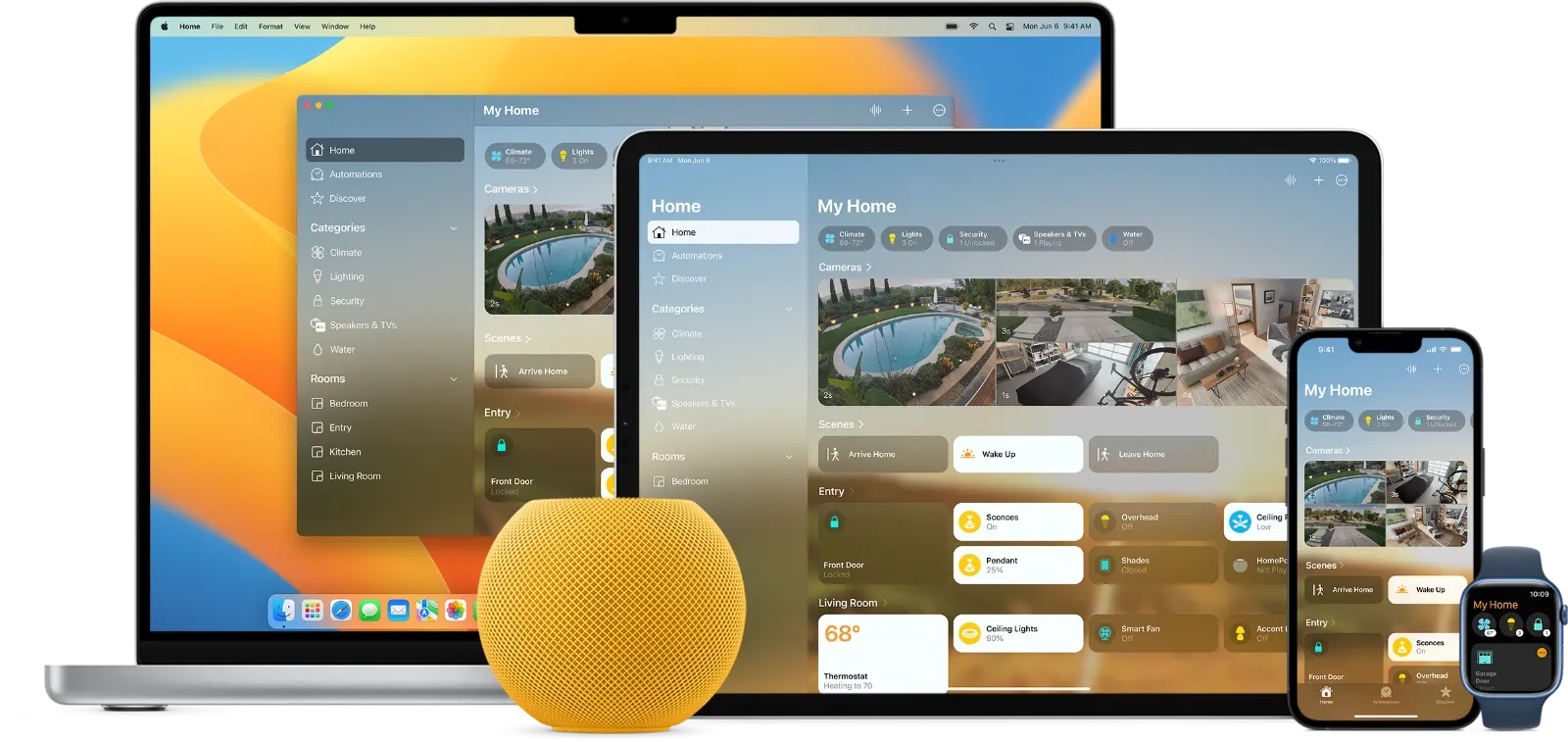
The Apple Home app in iOS 26 can turn a compatible thermostat into a fully automated climate system that responds to your schedule, adjusts when you leave the house, and shifts room by room if you add occupancy sensors. Most people who buy a HomeKit thermostat pair it once, set a single temperature, and never touch the Home app’s automation tab. That means the thermostat’s most valuable capability, the part that actually saves energy and keeps different rooms comfortable, goes completely unused.
The complication is that Apple gives you four separate ways to automate temperature, and picking the wrong combination creates conflicts where automations overwrite each other. Adaptive Temperature, location-based triggers, time-based schedules, and accessory-triggered rules each solve a different problem. Getting them to cooperate takes about fifteen minutes of deliberate setup, and the difference between a thermostat that reacts and one that anticipates is significant.
What You Need Before You Start
Any HomeKit-compatible or Matter-over-Thread thermostat works with the Apple Home app. The ecobee Smart Thermostat Premium, the Ecobee Enhanced, and the new Eve Thermostat announced at CES 2026 are the most popular choices among Apple users. You also need a home hub: an Apple TV 4K, a HomePod, or a HomePod mini. The home hub stays powered on in your house and runs automations even when your iPhone is out of range. Without it, location-based and time-based automations will not fire.
Make sure every member of your household has accepted the Home invitation in the Apple Home app and has enabled Share My Location under Settings > Privacy & Security > Location Services > Share My Location. Apple Home uses the combined location of all household members to determine the “home” and “away” states that drive your automations. If even one person in the household has location sharing off, the system may never trigger “everyone has left,” and your away automation sits idle.
If you are setting up your first smart home accessories, the complete walkthrough at Zone of Mac covers every step from unboxing to room assignment: set up your Apple HomeKit smart home from scratch.
Adaptive Temperature: The Hands-Off Option in iOS 26
iOS 26 introduced Adaptive Temperature, a single toggle that handles the most common automation scenario without requiring you to build individual rules. Open the Apple Home app, tap your thermostat tile, tap the gear icon in the upper-right corner, and look for Adaptive Temperature under the device settings. Toggle it on and grant it permission to switch between Cool, Heat, Auto, and Off modes on its own.
Adaptive Temperature uses Activity History to detect three occupancy states. “Home” keeps your set comfort temperature active. “Away” drops to an energy-saving target once the app detects nobody is in the house. “Extended Away” kicks in after 24 hours of no activity or when every household member is a significant distance from home, lowering the temperature further. The feature does not require GPS location sharing to function. It reads motion data from HomeKit-compatible sensors and from the home hub’s own activity logs.
For most single-thermostat households, Adaptive Temperature alone handles 80 percent of what you would otherwise build manually. The remaining 20 percent, room-specific adjustments, scheduled overrides for unusual days, and Siri triggers for immediate comfort changes, requires the custom automations described in the next sections.
One quirk worth noting: not every thermostat manufacturer has shipped a firmware update that exposes the Adaptive Temperature toggle in the Apple Home app. If you do not see it, check for a firmware update in the manufacturer’s own app first. The feature is part of Apple’s HomeKit framework (documented in Apple Developer Documentation for HomeKit), but the thermostat itself must advertise support for the characteristic.
Location-Based Automations: Adjusting for Arrivals and Departures
Open the Apple Home app and tap the Automation tab at the bottom. Tap the plus icon, then choose “People Arrive” or “People Leave” as the trigger. Select whether the automation fires when the first person arrives, the last person leaves, or when a specific household member’s location changes. Set the thermostat as the accessory, pick the target temperature or mode, and save.
A practical two-automation setup: create a “Last Person Leaves” automation that sets the thermostat to 60°F in winter (or turns off cooling in summer), and a “First Person Arrives” automation that restores your comfort temperature 15 minutes before the typical arrival time. The 15-minute lead time matters because most HVAC systems need time to bring a room from the energy-saving temperature to the comfort target. You can set this offset by choosing a specific time trigger paired with a location condition, or by simply setting the arrival automation to fire at a slightly earlier geofence radius.
Location automations depend on every household member sharing their location through the Apple Home app, not through Find My. These are separate permissions. A household where one member has Home location sharing disabled will never trigger the “last person leaves” condition, because the system cannot confirm that person actually left.
Affiliate disclosure: some links in this article are Amazon Associate links. If you buy through them, Zone of Mac may earn a small commission at no extra cost to you, and we only recommend products that genuinely bring value to your Apple setup.
The Thermostat That Runs the Whole Apple Home Ecosystem
The reason the ecobee Smart Thermostat Premium dominates HomeKit thermostat recommendations is not just temperature control. It ships with a built-in SmartSensor for room occupancy detection, an air quality monitor that pushes alerts to your iPhone, and onboard Siri, making it a secondary smart speaker in whatever room you mount it. The built-in speaker supports AirPlay, so you can cast music from Apple Music or ask Siri for the weather without reaching for your phone. When the display dims at night, there is a subtle backlight glow on the touch interface that is bright enough to tap without fumbling but not bright enough to light up a dark hallway. The physical click when you press the side button to wake the screen has a satisfying, deliberate resistance, like pressing a doorbell.
For HomeKit automations specifically, ecobee’s integration handles the full range of thermostat characteristics that the Apple Home app exposes: target temperature, heating-cooling mode, current humidity readout, and fan speed. The included SmartSensor plugs directly into the automation workflow described above, acting as the occupancy trigger for room-level temperature shifts. You can grab the ecobee Smart Thermostat Premium on Amazon.
Sensor-Driven Automations: Adjusting by Room
A single thermostat controls one HVAC zone, but sensors let you approximate room-level awareness. Place a door or window sensor on the rooms where you want the thermostat to react. When the sensor detects a door opening (indicating someone entered), create an automation that adjusts the thermostat’s target temperature for that part of the day. When the sensor detects the door closing and no motion follows for 30 minutes, a second automation drops the temperature back to the energy-saving baseline.
This is where the ecobee Smart Sensor for Doors & Windows 2-Pack becomes essential. Each sensor monitors both open/close state and ambient temperature in the room where it is placed. Inside the Apple Home app, that temperature reading appears as a separate accessory, meaning you can build a condition-based automation like “if bedroom sensor reads above 74°F and the bedroom door is open, set the thermostat to Cool at 71°F.” That kind of granularity is normally reserved for multi-zone HVAC systems.
One practical edge case: if you mount a sensor on a window that you open regularly for fresh air, the automation will fire every time the window opens. Prevent nuisance triggers by adding a time condition (only between 10 PM and 6 AM, for example) or by creating a separate “fresh air” scene that pauses the automation until you deactivate it manually.
Pick up the ecobee Smart Sensor for Doors & Windows 2-Pack on Amazon.
Time-Based Schedules: The Backup Layer
Time-based automations run at a fixed clock time on the days you specify. These are useful as a safety net beneath Adaptive Temperature and location automations. A “weekday morning” automation that sets 72°F at 6:00 AM ensures the house is warm by the time you wake up, regardless of whether the location trigger fired correctly. A “weeknight wind-down” automation that drops to 67°F at 10:30 PM saves energy during sleeping hours.
In the Automation tab, tap the plus icon, choose “A Time of Day Occurs,” set your time and day selection, then choose the thermostat and your desired temperature. You can add a condition: “Only when someone is home.” That single condition prevents the automation from heating an empty house on a weekday when everyone left early for a trip.
If you have already built window shade automations in Apple Home, thermostat schedules pair well with them. A morning automation that opens shades to let sunlight warm the room, combined with a thermostat automation that delays heating by 30 minutes, reduces HVAC runtime on sunny days. Zone of Mac has a dedicated guide for shade automations: automate your window shades with HomeKit scenes and Siri.
Siri Shortcuts for Immediate Overrides
Scenes are the fastest way to override any running automation. Create a scene called “Movie Night” that sets the thermostat to 70°F, dims the lights, and closes the shades. Saying “Hey Siri, Movie Night” activates the entire group at once. The scene overrides whatever automation was controlling the thermostat until the next automation fires or until you manually change the temperature.
For one-off adjustments, Siri responds to direct commands: “Hey Siri, set the thermostat to 74” works from any Apple device in the household, including the ecobee’s own built-in Siri if you have a HomePod acting as the home hub. The command takes about two seconds to register on the thermostat display, with a brief lag while the Home app confirms the instruction through the home hub.
This table compares four HomeKit thermostat automation methods so you can match each approach to your household's needs.
| Automation Method | Trigger | Best For | Requires |
|---|---|---|---|
| Adaptive Temperature | Occupancy activity history | Single-thermostat homes with predictable routines | iOS 26, compatible thermostat firmware |
| Location-Based | Household member GPS | Homes where everyone carries an iPhone | All members sharing location in Home app |
| Sensor-Driven | Door/window/motion sensors | Multi-room awareness on a single HVAC zone | HomeKit sensors placed in target rooms |
| Time-Based Schedule | Clock time and day of week | Safety-net layer beneath other automations | Home hub running on local network |
Join The Inner Circle For Serious Apple Users
Exclusive Apple tips. Free to join.
Check your inbox for a confirmation link.
Something went wrong. Please try again.
Accessibility and Clarity
Siri voice control makes HomeKit thermostat automations fully accessible to users with limited mobility or vision. Every automation described in this article can be created and triggered entirely through voice commands, without needing to navigate the Home app’s touch interface. VoiceOver reads thermostat status, current temperature, and automation names aloud on iPhone, iPad, and Mac. The ecobee’s physical side button and the large, high-contrast touch display make manual adjustments possible for users who find small on-screen controls difficult. The Apple Home app’s automation interface uses a predictable, linear flow: choose trigger, choose accessory, choose action. Each step presents one decision at a time, which reduces cognitive load for users with ADHD or processing differences. Temperature readouts use large numerals with strong contrast against the background, and the ecobee’s display automatically adjusts brightness based on ambient light, preventing glare in dark rooms and improving readability in bright spaces.
Quick-Action Checklist
- Open Apple Home app > tap your thermostat > gear icon > enable Adaptive Temperature (iOS 26)
- Automation tab > plus icon > “People Leave” > Last Person > set thermostat to 60°F (winter) or Off (summer)
- Automation tab > plus icon > “People Arrive” > First Person > set thermostat to 72°F
- Place sensors in key rooms > Automation tab > plus icon > “An Accessory is Controlled” > sensor opens > set thermostat temperature
- Create “Movie Night” scene: thermostat 70°F, lights dimmed, shades closed
- Test each automation by toggling household members’ locations in Settings > Privacy > Location Services
- Verify home hub status: Home app > Home Settings > Home Hubs & Bridges > confirm “Connected”

Blaine Locklair
Founder of Zone of Mac with 25 years of web development experience. Every guide on the site is verified against Apple's current documentation, tested with real hardware, and written to be fully accessible to all readers.
follow me :
Related Posts
HomeKit Smart Blinds That Earn a Spot in Your Apple Home
Apr 10, 2026
Apple TV+ Dropped Six April Premieres and Three Actually Deliver
Apr 10, 2026
HomeKit Ceiling Fans That Earn a Spot in Your Apple Home
Apr 07, 2026