
Updated January 28, 2026 at 2:37PM EST
macOS Tahoe delivers a comprehensive suite of accessibility features that help users with vision, hearing, mobility, and cognitive differences work effectively on their Mac. VoiceOver provides a complete screen-reading experience, Voice Control lets you operate your entire system through spoken commands, and the new Accessibility Reader transforms how you consume text-heavy content. You can access all of these tools through System Settings, then Accessibility in the sidebar.
Key Takeaways
- Press Command-F5 to instantly toggle VoiceOver, the built-in screen reader that describes everything on screen
- Open System Settings, then Accessibility, then Voice Control to enable hands-free Mac operation through spoken commands
- The new Accessibility Reader in macOS Tahoe lets you customize font size, spacing, and colors in any app
- Live Captions provide real-time transcription of spoken audio from any source, including video calls
- Zoom features let you magnify portions of your screen up to 40x their original size
- Sticky Keys allows you to press modifier keys sequentially instead of holding them simultaneously
At-A-Glance: Mac Accessibility Categories
The following table summarizes the five main accessibility categories available in macOS Tahoe and their primary functions for users with different needs.
| Category | Primary Functions | Best For |
|---|---|---|
| Vision | VoiceOver, Zoom, Display settings, Accessibility Reader | Users with low vision or blindness |
| Hearing | Live Captions, Audio adjustments, Made for iPhone hearing devices | Users who are deaf or hard of hearing |
| Mobility | Voice Control, Switch Control, Keyboard navigation, Pointer Control | Users with motor impairments |
| Speech | Live Speech, Personal Voice, Vocal Shortcuts | Users with speech differences |
| Cognitive | Reduce Motion, Focus modes, Simplified interfaces | Users who benefit from reduced distractions |
Affiliate disclosure: some links in this article are Amazon Associate links. If you buy through them, Zone of Mac may earn a small commission at no extra cost to you, and we only recommend products that genuinely bring value to your Apple setup.
Join The Inner Circle For Serious Apple Users
Exclusive Apple tips. Free to join.
VoiceOver: The Complete Screen Reader
VoiceOver remains the most sophisticated screen reader built into any operating system. When you activate it, your Mac reads aloud every element on screen, from menu items to document text to interface buttons. You navigate using keyboard commands, trackpad gestures, or a connected braille display.
The learning curve exists, but Apple provides an interactive tutorial. Press Command-F5 to enable VoiceOver, then follow the prompts to launch the VoiceOver Tutorial. Within an hour, you can learn the essential navigation commands. VoiceOver Utility, accessible through the Utilities folder in Applications, lets you fine-tune speech rate, voice selection, and verbosity levels.
One detail that stands out: VoiceOver works consistently across both Apple and third-party apps. The experience of navigating Safari feels just as fluid as moving through Pages or Finder. Apple requires developers to implement accessibility labels, and most Mac apps comply. When an app lacks proper accessibility support, VoiceOver will announce generic descriptions, but this happens rarely with mainstream software.
For users who prefer physical feedback, macOS Tahoe now supports Braille Ready Format (BRF) files directly. A new launcher lets you open any app by typing with a connected braille device or through Braille Screen Input. These additions make the Mac more capable for braille users than previous releases.
Join The Inner Circle For Serious Apple Users
Exclusive Apple tips. Free to join.
Voice Control: Hands-Free Mac Operation
Voice Control transforms spoken words into system actions. You can click buttons, select text, open apps, and dictate content using only your voice. The system processes commands locally, meaning your voice data stays on your Mac rather than traveling to external servers.
To enable Voice Control, open System Settings, click Accessibility in the sidebar, scroll to Motor, and select Voice Control. Check the box to turn it on, then download the necessary language files. Once active, a small microphone icon appears in your menu bar.
The command vocabulary extends beyond simple navigation. You can say things like "Click Save" or "Open Finder" for basic tasks. More complex commands work equally well: "Select the word privacy" highlights that specific word in a document, while "Move cursor to end of paragraph" repositions your insertion point precisely where you want it.
Number overlays provide another powerful feature. When you say "Show numbers," every clickable element on screen receives a temporary number label. Say the number to click that element. This approach works beautifully for web pages with dozens of links or complex application interfaces.
Siri can also listen for atypical speech patterns if you have an acquired or progressive condition that affects speech. Enable this option through the Accessibility settings to expand the range of pronunciation variations Siri will recognize.
Accessibility Reader: A macOS Tahoe Addition
macOS Tahoe introduces Accessibility Reader, a system-wide tool that reformats text content for easier reading. Unlike Safari's Reader view, which only works with web pages, Accessibility Reader functions in virtually any application.
When activated, the feature lets you adjust font size, line spacing, character spacing, and background colors. Users with dyslexia often find that increased letter spacing reduces word confusion, while those with light sensitivity can switch to dark backgrounds with higher contrast text.
The Magnifier app, also new to macOS Tahoe, works differently. It uses your Mac's camera, or an external camera, to zoom in on physical objects in front of you. Point your lens at a prescription bottle label or a restaurant menu, and your Mac displays an enlarged, enhanced view. This brings iPhone's long-standing Magnifier feature to the desktop for the first time.
Zoom and Display Customization
Zoom features let you magnify any portion of your screen. Open System Settings, click Accessibility, then select Zoom. You can choose full-screen zoom, which enlarges everything, or picture-in-picture zoom, which creates a separate magnified window that follows your cursor.
Keyboard shortcuts make zooming practical during everyday work. Option-Command-8 toggles zoom on and off. Option-Command-Plus increases magnification, while Option-Command-Minus decreases it. The maximum magnification reaches 40x, sufficient for users with significant vision impairment.
Display settings offer additional customization beyond zoom. Color filters help users with color blindness distinguish between problematic color combinations. Reduce transparency removes the frosted-glass effects throughout macOS, which can improve readability for some users. Increase contrast makes UI elements more visually distinct.
Vehicle Motion Cues, borrowed from iOS, now appear in macOS Tahoe. This feature displays small dots at the edges of your screen that move opposite to the direction of visual motion. Users who experience motion sickness while reading in moving vehicles find that these cues reduce discomfort significantly.
Hearing Accessibility and Live Captions
Live Captions transcribe spoken audio in real time. The feature works with any audio source: video calls, streaming content, voice memos, or in-person conversations picked up through your Mac's microphone.
To enable Live Captions, navigate to System Settings, Accessibility, then Hearing, and toggle on Live Captions. A caption panel appears at the bottom of your screen by default, though you can reposition it. Caption accuracy varies depending on audio quality, background noise, and speaker accents, but the system handles most content well.
Made for iPhone hearing devices pair directly with your Mac. Once connected, you can stream audio from your Mac to compatible hearing aids or cochlear implant sound processors. Adjusting device settings happens through System Settings rather than requiring separate apps.
AirPods receive accessibility-specific options as well. Headphone Accommodations let you boost soft sounds and customize frequency amplification to match your hearing profile. The result: music, podcasts, and calls sound clearer based on your specific hearing characteristics.
Mobility Features and Alternative Input
Keyboard accessibility options address several physical challenges. Sticky Keys enables you to press modifier combinations like Command-Shift-S one key at a time rather than holding all keys simultaneously. This helps users who type with one hand or who have difficulty coordinating multiple simultaneous key presses.
Slow Keys introduces a delay between key press and activation, filtering out accidental keystrokes from users with tremor or targeting difficulties. Full Keyboard Access lets you navigate your entire Mac using only the keyboard, tabbing through interface elements without touching a mouse or trackpad.
Pointer Control settings adjust mouse and trackpad behavior. You can slow cursor movement, enable spring-loading for drag-and-drop operations, and modify double-click speed. Mouse Keys lets you control the cursor using the numeric keypad, useful when standard pointing devices cause discomfort.
Switch Control provides an alternative input method for users with significant motor impairments. You can configure external switches, keyboard keys, or head movements detected through your camera to control your Mac. The system scans through interface elements, and you activate your switch when the desired element highlights.
For users who work long hours at their Mac and experience wrist strain or repetitive stress, an ergonomic pointing device can complement these software accessibility features. The Kensington SlimBlade Pro Wireless Trackball uses a large 55mm ball that you control with your fingers rather than your whole arm, reducing wrist movement dramatically. Its ambidextrous design works equally well for left-handed and right-handed users, and the Bluetooth connectivity keeps your desk cable-free. The dual-sensor ball-twist scrolling lets you navigate documents without any additional hand repositioning.


Here's where to get the Kensington SlimBlade Pro Wireless Trackball https://www.amazon.com/dp/B0BLRQ4116?tag=zoneofmac-20
Accessibility & Clarity
macOS accessibility features demonstrate Apple's commitment to universal design principles. VoiceOver compatibility extends across virtually all system functions and most third-party applications, making the Mac usable for blind users from first boot. The new Accessibility Reader addresses cognitive accessibility by letting users control information density and visual presentation.
Color filters and display adjustments support users with color blindness and light sensitivity. Vehicle Motion Cues represent a thoughtful addition for users prone to motion sickness. Voice Control processes commands locally rather than sending voice data to remote servers, addressing privacy concerns that some users with disabilities have about cloud-based alternatives.
One area worth noting: some older third-party applications lack proper accessibility labels, which limits VoiceOver effectiveness. Before purchasing software, check whether the developer explicitly mentions VoiceOver support or accessibility testing.
Configuring Your Accessibility Preferences
For users who regularly switch between accessibility configurations, macOS provides several shortcuts. The Accessibility Shortcut, activated by pressing Option-Command-F5, opens a panel where you can quickly toggle specific features on or off.
You can customize which features appear in this shortcut panel through System Settings. Navigate to Accessibility, scroll to the bottom, and click Accessibility Shortcut. Check the features you want quick access to.
Siri handles accessibility commands naturally. Say "Turn on VoiceOver" or "Enable Voice Control" to activate features without navigating through System Settings. This proves particularly valuable for users with mobility impairments who find menu navigation challenging.
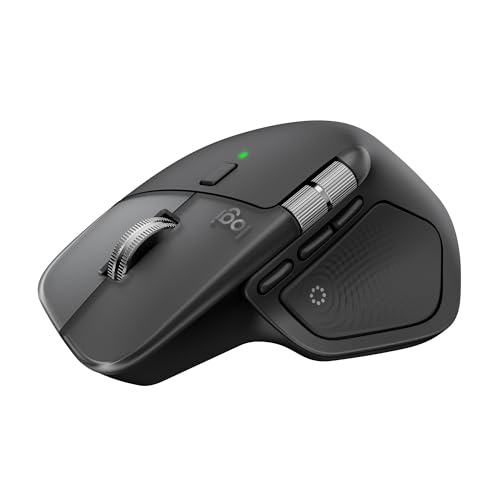
The combination of software accessibility features with thoughtfully designed hardware creates a more comfortable working environment. The Logitech MX Master 3S for Mac exemplifies this approach with its ergonomic shape that positions your hand and wrist more naturally during extended use. The electromagnetic scroll wheel provides precise, near-silent scrolling through long documents, and the 8K DPI sensor tracks accurately on virtually any surface, including glass desktops. For Mac users who spend hours manipulating the cursor, the reduced hand movement compared to flat mice can prevent cumulative strain.
Here's where you can buy the Logitech MX Master 3S for Mac https://www.amazon.com/dp/B09HMV6K1W?tag=zoneofmac-20
Quick-Action Checklist: Setting Up Mac Accessibility
Follow these steps to configure the accessibility features most relevant to your needs:
- Open System Settings from the Apple menu in the top-left corner of your screen
- Click Accessibility in the sidebar, scrolling down if necessary
- Review the Vision category and enable VoiceOver, Zoom, or Display adjustments as needed
- Review the Hearing category and enable Live Captions if you benefit from real-time transcription
- Review the Mobility category and configure Voice Control, Keyboard accessibility, or Pointer Control based on your preferences
- Scroll to the bottom and click Accessibility Shortcut to select features for quick toggle access
- Press Option-Command-F5 to confirm your Accessibility Shortcut works correctly
- Test each enabled feature with your typical applications to verify compatibility
For users transitioning from another platform or setting up accessibility features for the first time, Apple includes an interactive VoiceOver Tutorial directly in macOS. Press Command-F5 to enable VoiceOver, then follow the prompts to launch the tutorial. It walks you through essential navigation commands at your own pace, building confidence before you tackle real work.

Related Posts
Seven Mac Accessories That Turn a Good Desk Into a Great One
Apr 10, 2026
Your Mac Has a Networking Time Bomb That Only a Reboot Defuses
Apr 09, 2026
Your Mac Feels Slow After macOS Tahoe — Here’s What Actually Fixes It
Apr 08, 2026