
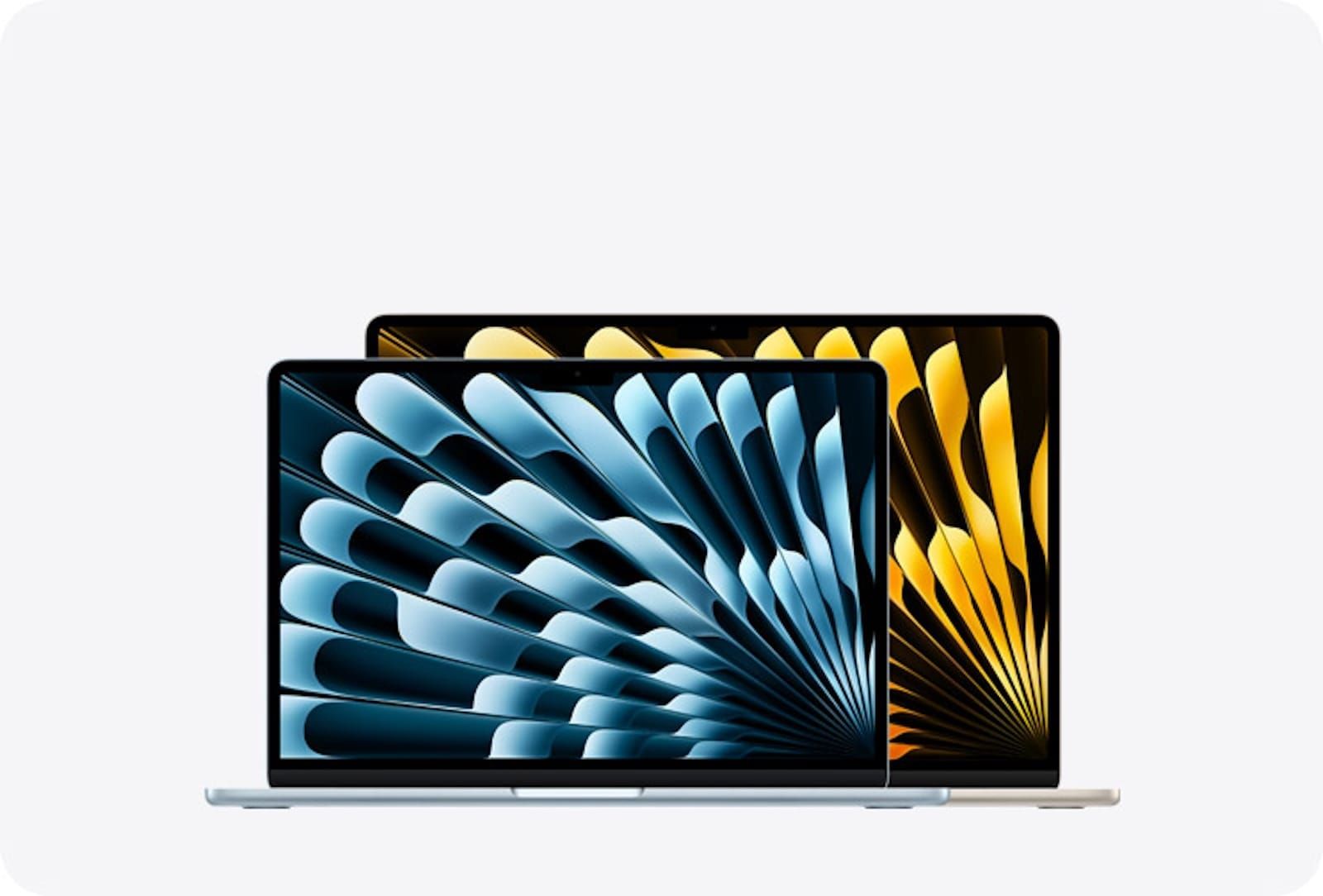

macOS Tahoe 26.4 is in public beta right now, and the feature that deserves your attention first is a new Battery Charge Limit slider buried inside System Settings. For the first time on Mac, you can set a hard ceiling on how high your battery charges, anywhere from 80% to 100% in five-percent steps. The catch: the setting only appears inside a sub-menu that most people will scroll right past, and the default behavior of Optimized Battery Charging remains unchanged unless you actively intervene.
That distinction matters more than it sounds. Optimized Battery Charging learns your daily routine and delays the final push to 100% until you typically unplug. Charge Limit ignores your routine entirely and enforces a permanent cap. Picking the wrong one, or leaving both at their defaults, means either shortening your battery's chemical lifespan or capping your capacity for no reason. The four other changes in this update, Rosetta 2 sunset warnings, Safari's compact tab bar revival, encrypted RCS messages, and new emoji, each carry their own decisions that are worth making before the public release ships this spring.
 Ad
AdHow to Set the Battery Charge Limit in macOS Tahoe 26.4
Open System Settings, select Battery in the sidebar, then click the small info button (the circled i) next to the word Charging. A new panel slides open with a slider labeled Charge Limit at the top. Drag it to your preferred maximum: 80%, 85%, 90%, 95%, or 100%.
The 80% setting follows the same logic iPhone owners have used since iOS 17. Lithium-ion cells degrade fastest when held at full charge for extended periods. A MacBook Air that lives on a desk plugged into a Thunderbolt dock eight hours a day is the textbook case for an 80% cap. A MacBook Pro that travels to coffee shops and needs every minute of battery runway is better left at 95% or 100%.
There is one specific friction point worth knowing about. The slider sits behind that info button, not directly on the Battery pane. During testing, the panel can take a full second to animate open on an Apple MacBook Air with Apple Silicon M4, and the slider itself has a slight tactile detent at each 5% increment rather than scrolling smoothly. It feels intentional, like Apple wanted to discourage casual fiddling, but it also means you need to be deliberate about landing on the percentage you want.
Apple also added Charge Limit as an action in the Shortcuts app. You can build an automation that drops the cap to 80% when you arrive at your office (based on location) and raises it to 100% the night before a travel day. That level of control was previously locked behind third-party utilities like AlDente.
Rosetta 2 Sunset Warnings Signal a Real Deadline
Launch any Intel-only app in macOS Tahoe 26.4 and a new alert appears. The message warns that this application uses Rosetta 2, that Rosetta 2 support will end in a future version of macOS, and that you should contact the developer for a native version. It is not subtle.
The timeline Apple has laid out goes like this: macOS 27, expected September 2026, will drop support for Intel Macs entirely but will still include Rosetta 2 for Apple Silicon Macs running older Intel apps. macOS 28, expected fall 2027, removes Rosetta 2 completely. Apple has said it will keep limited Rosetta support for unmaintained gaming titles and Intel binaries running inside Linux virtual machines, but general-purpose Intel apps are done. If you have been deferring that transition, the clock is now visible on screen. Before you update, run a full Time Machine backup so you have a clean restore point.
To audit your Intel apps right now, open the Apple menu, select About This Mac, then click System Report. Under Software, select Applications. The Kind column shows either Apple Silicon, Intel, or Universal. Sort by Kind and note every Intel entry. Some of those apps may already have Universal updates you have not installed. Others, especially older creative tools, niche utilities, or legacy games, may never get one.
Safari Compact Tabs Return After a Year Away
When macOS Tahoe first shipped in September 2025, Apple removed the Compact Tab Bar option from Safari. The standard Separate Tab Bar, which places tabs on their own row below the address bar, became the only layout. Power users who relied on the Compact layout, where tabs merge into the toolbar to save vertical space, lost the option without a migration path.
macOS Tahoe 26.4 restores it. Open Safari, go to Safari in the menu bar, select Settings, then click the Tabs panel. You will see a toggle between Separate and Compact. The Compact view collapses the tab bar into the toolbar row, giving you roughly 36 pixels of extra vertical space on a 13-inch display. On an Apple iMac with its taller screen, the gain is less noticeable, but on a MacBook Air 13, those pixels matter when you are splitting the screen between Safari and a document.
This table compares the four headline changes in macOS Tahoe 26.4 to help you decide which ones to configure first.
| Feature | Who Benefits | Action Required | Urgency |
|---|---|---|---|
| Battery Charge Limit | MacBook owners who keep laptops plugged in | Set slider in System Settings after updating | Configure on day one |
| Rosetta 2 Warnings | Anyone still running Intel-only apps | Audit and replace before macOS 28 | Start now, deadline in 18 months |
| Safari Compact Tabs | Users who prefer a space-efficient browser toolbar | Toggle in Safari settings after updating | Optional preference |
| RCS End-to-End Encryption | Anyone who texts Android contacts from Messages | Arrives automatically, no setup needed | Passive upgrade |
Encrypted RCS Messages Land on the Mac
macOS Tahoe 26.4 enables end-to-end encryption for RCS messages sent through the Messages app. Previously, RCS texts between iPhone and Android users traveled without encryption, a gap that security researchers and privacy advocates flagged repeatedly. Apple worked with the GSM Association (GSMA) to implement encryption using the Messaging Layer Security (MLS) protocol, upgrading from RCS Universal Profile 2.4 to Universal Profile 3.0. This is the same standards body that shaped the macOS Tahoe 26.3 security patch last week, but the encryption layer is new to 26.4.
You will see a lock icon next to RCS conversations where encryption is active. During the beta, encrypted RCS only works between Apple devices with iMessage disabled, meaning cross-platform encryption with Android phones will arrive in a later 26.x update. No setup is required on your end. The encryption enables itself automatically once both devices support it.
Join The Inner Circle For Serious Apple Users
Exclusive Apple tips. Free to join.
What Else Arrives With macOS Tahoe 26.4
New Unicode 17 emoji characters are included in the update, adding to the set that shipped with macOS Tahoe 26.3. Apple has also addressed the persistent window corner radius rendering bug that first appeared when macOS Tahoe launched. Window corners should now match the rounded rectangle profile they display in the Finder without the occasional pixel misalignment that appeared when resizing windows rapidly. Apple made a similar claim in 26.3, so watch for confirmation once the public build ships.
The update is currently in public beta, available through System Settings under General, then Software Update, then Beta Updates. Based on Apple's recent cadence, a spring 2026 public release is expected. If you are still running apps that depend on Rosetta 2, this is a good time to check where Apple moved your media apps and whether your workflow relies on any Intel-only tools.
Accessibility and Clarity
The Battery Charge Limit slider uses standard macOS slider controls and responds to VoiceOver with percentage announcements at each increment. Keyboard-only users can adjust the slider with arrow keys after focusing it with Tab. The Rosetta 2 warning dialog follows standard alert conventions with a clear Dismiss button accessible via keyboard and screen reader.
Safari's Compact Tab Bar presents a cognitive accessibility trade-off. The merged toolbar-tab layout reduces the number of distinct visual elements on screen, which can reduce clutter for users with attention difficulties. At the same time, the smaller tap targets for individual tabs may present challenges for users with motor impairments. Apple's setting toggle between Compact and Separate makes this a personal choice rather than a forced default. The info button that hides the Charge Limit slider, however, is a low-contrast circled i icon that may be difficult for users with low vision to locate without VoiceOver assistance.
Quick-Action Checklist: Prepare for macOS Tahoe 26.4
- Back up your Mac with Time Machine or a clone tool before updating
- Open System Settings, select Battery, click the Charging info button, set Charge Limit to your preferred percentage
- Open About This Mac, click System Report, select Applications, sort by Kind, note all Intel entries
- Contact developers of Intel-only apps or find Universal alternatives
- Open Safari, go to Settings, then Tabs, toggle Compact Tab Bar if you prefer the merged layout
- Verify RCS encryption by checking for a lock icon in Messages conversations with Android contacts (after the feature enables cross-platform support)
- Check Apple Developer release notes for any API changes that affect your workflow tools

Related Posts
Seven Mac Accessories That Turn a Good Desk Into a Great One
Apr 10, 2026
Your Mac Has a Networking Time Bomb That Only a Reboot Defuses
Apr 09, 2026
Your Mac Feels Slow After macOS Tahoe — Here’s What Actually Fixes It
Apr 08, 2026