
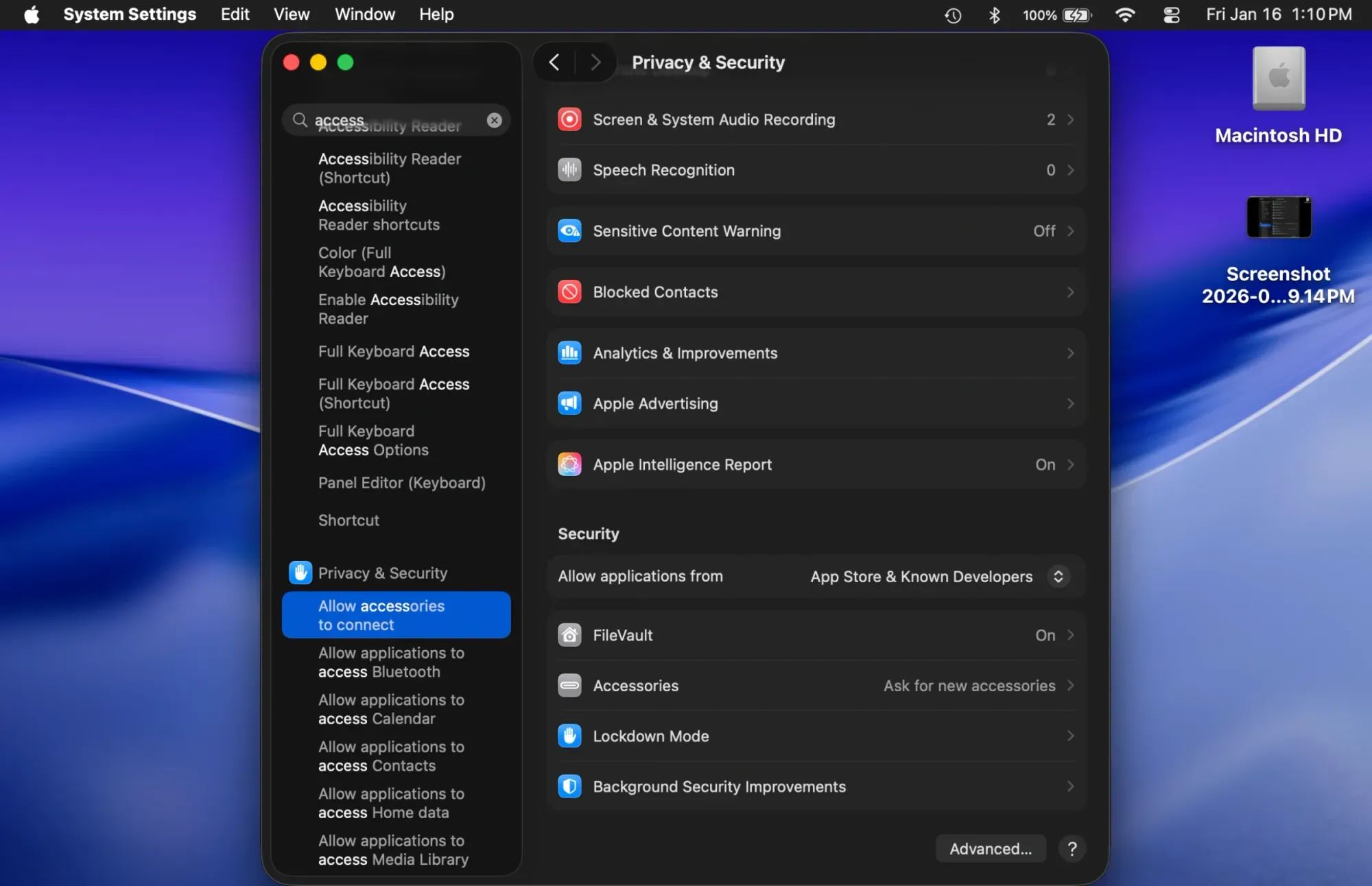

macOS Tahoe packs a layered security system that handles known malware, verifies app signatures, encrypts your entire drive, and scans scripts before they run. Apple’s own security documentation confirms that XProtect, Gatekeeper, System Integrity Protection, and FileVault work together to form a defense stack that runs silently behind every Mac interaction. For recognized threats, this stack works.
The complication is that the fastest-growing attack vectors in 2026 are designed specifically to bypass signature-based defenses. Infostealers like AMOS and MacSync now arrive as code-signed, Apple-notarized applications. Phishing pages targeting Apple Account credentials look pixel-identical to legitimate login screens. And social engineering attacks that trick users into pasting malicious Terminal commands sidestep Gatekeeper entirely, because the user is the one granting permission. The question is not whether macOS Tahoe has good security. The question is where those defenses stop, and what fills the remaining space.
What macOS Tahoe 26.3 Actually Handles
XProtect runs in the background using YARA signature rules to identify and block known malware. Apple updated XProtect to version 5329 on February 10, 2026, adding detection for the latest SOMA/AMOS infostealer variant and expanding its script-scanning module to 17 OSAScript rules. XProtect Remediator, a companion component, runs 22 separate scanning modules on a tiered schedule: fast scans every six hours, standard scans daily, and deep scans weekly.
Gatekeeper verifies that every application is signed by a registered Apple Developer and has been notarized through Apple’s automated malware scan before allowing it to launch. In macOS Tahoe, the override process is deliberately inconvenient. There is no Open Anyway button in the initial dialog. You have to dismiss the warning, navigate to System Settings, open Privacy and Security, scroll to the bottom of the panel, and click Allow from there. That friction is intentional, and it works.
FileVault encrypts your entire startup disk and, starting with macOS Tahoe, activates automatically when you sign in with an Apple Account during setup. The recovery key is now stored in your end-to-end encrypted iCloud Keychain rather than in a basic Apple Account escrow, which means even Apple cannot retrieve it. That is a genuine security improvement, but it also means losing access to both your Mac password and your iCloud Keychain leaves you locked out permanently.
I covered how to run XProtect and use macOS Tahoe’s built-in malware scanning tools in a separate walkthrough. That guide focuses on what Apple gives you for free. This article is about what Apple does not give you.
Where Apple’s Defenses Hit a Wall
XProtect is reactive, not proactive. It can only detect malware for which Apple has written a YARA signature. When a brand-new infostealer appears, there is a window between initial circulation and Apple’s signature update where XProtect cannot see it. That window has ranged from hours to weeks depending on the threat.
Phishing receives almost no native protection on macOS. Safari includes a basic Safe Browsing check that flags known fraudulent URLs, but phishing emails, texts, and sophisticated spear-phishing campaigns that mimic Apple or bank login pages are not intercepted by any macOS security layer. Over 90 percent of cyberattacks begin with phishing, according to multiple industry reports from 2025 and 2026.
Adware and potentially unwanted programs fly under XProtect’s radar. Software that injects ads into browsers, bundles toolbars with legitimate installers, or redirects search queries is technically not malware in Apple’s classification. If it is signed and notarized, Gatekeeper lets it through without complaint. Adware remains the single most common category of unwanted software on macOS.
The built-in firewall only monitors inbound connections. Any application on your Mac can send data out to any server without the firewall raising a flag. This means an infostealer that has already installed itself can exfiltrate your Keychain passwords, browser data, and cryptocurrency wallet files without triggering a single macOS alert.
Social engineering is the gap that no built-in tool can fully close. In January 2026, security researchers documented the MacSync Stealer arriving as a code-signed, Apple-notarized Swift application inside a disk image that poses as a messaging app. That means it passed every automated check Apple has. The only layer that could have stopped it was the user recognizing the download source as fraudulent.
How Real Mac Threats Work Right Now
The AMOS (Atomic macOS Stealer) campaign spreads through fake AI conversation pages that appear in Google search results. A visitor lands on what looks like a helpful technical discussion, follows the instructions, and pastes a curl command into Terminal. That single command downloads a payload that bypasses Gatekeeper’s quarantine flag, prompts for the admin password until the user gives in, installs a LaunchDaemon for persistence, and exfiltrates SmartCard data, cryptocurrency wallets, browser passwords, and Keychain contents.
The GlassWorm campaign targets macOS developers through malicious VSCode extensions on the OpenVSX marketplace. Three extensions accumulated over 50,000 downloads before removal. Once installed, GlassWorm replaces hardware wallet applications and steals GitHub tokens, SSH keys, VPN configurations, and NPM credentials.
SimpleStealth, identified by security firm Mosyle in January 2026, is the first Mac malware sample found in the wild containing code generated by AI models. It spread through a fake website impersonating the Grok AI application, using a look-alike domain convincing enough to catch developers and power users off guard.
macOS Tahoe 26.3, released February 11, 2026, patched 53 security vulnerabilities including CVE-2026-20700, a memory corruption flaw in the dyld dynamic link editor that Apple confirmed was actively exploited in what it called an extremely sophisticated attack against targeted individuals. Google’s Threat Analysis Group reported the vulnerability.
Affiliate disclosure: some links in this article are Amazon Associate links. If you buy through them, Zone of Mac may earn a small commission at no extra cost to you, and we only recommend products that genuinely bring value to your Apple setup.
Where Third-Party Security Tools Earn Their Spot
A good Mac antivirus suite does four things that macOS cannot do on its own: it scans URLs in real time across every browser (not just Safari), it detects adware and potentially unwanted programs that Apple ignores, it uses behavioral analysis to flag zero-day threats before signature updates arrive, and it monitors outbound network connections for suspicious activity.
The table below compares how macOS Tahoe's built-in tools stack up against dedicated third-party antivirus suites across the protection categories that matter most for daily Mac use.
| Protection Category | macOS Tahoe Built-In | Third-Party Antivirus |
|---|---|---|
| Known Malware Detection | Strong (XProtect YARA signatures) | Strong (larger signature databases, heuristic scanning) |
| Phishing and Fake Websites | Basic (Safari Safe Browsing only) | Strong (real-time URL scanning across all browsers) |
| Adware and PUP Removal | Weak (not targeted by XProtect) | Strong (dedicated adware scanning modules) |
| Zero-Day Threat Response | Slow (waits for Apple signature update) | Fast (behavioral analysis, cloud lookups) |
| Outgoing Network Monitoring | None (firewall is inbound-only) | Available (alerts on suspicious connections) |
Intego Mac Internet Security X9 is the only major antivirus suite built exclusively for macOS. While Norton and Bitdefender adapted their Windows engines for Mac, Intego’s VirusBarrier was written from scratch for Apple’s file system, kernel extensions, and app bundle structure. That Mac-native architecture means it integrates with Finder context menus, respects macOS permissions without constant authorization prompts, and uses noticeably less CPU during scheduled scans than cross-platform competitors. The NetBarrier component adds the outbound firewall that macOS lacks, alerting you when any application attempts to send data to an unfamiliar server. The initial scan on a 512GB MacBook Pro with Apple Silicon M4 takes roughly 20 minutes. Subsequent scans, which skip files that have not changed, finish in under four minutes. There is a subtle lag when right-clicking to scan a file in Finder, about half a second, but it is consistent and predictable rather than erratic.
You can grab the Intego Mac Internet Security X9 here https://www.amazon.com/dp/B01HF3G4BS?tag=zoneofmac-20
For households running a mix of Macs, iPhones, and Windows machines, Bitdefender Total Security covers five devices under one subscription and consistently earns top scores in AV-TEST’s macOS detection benchmarks. Bitdefender’s anti-phishing module runs at the network layer, which means it catches fraudulent URLs in Chrome, Firefox, Arc, and any other browser, not just Safari. Its ransomware protection creates safe zones for specific folders, blocking any unauthorized process from modifying files inside them. The installation process is heavier than Intego’s. Expect a 180MB download, a restart, and two separate System Extension approvals in Privacy and Security before full protection is active. The menu bar icon occasionally shows a brief Updating badge after waking from sleep, which takes about three seconds to clear.
Pick up Bitdefender Total Security on Amazon https://www.amazon.com/dp/B07CYFFH4H?tag=zoneofmac-20
Join The Inner Circle For Serious Apple Users
Exclusive Apple tips. Free to join.
Check your inbox for a confirmation link.
Something went wrong. Please try again.
Norton 360 Deluxe bundles antivirus with a full VPN, dark web monitoring for your email addresses and passwords, and 50GB of cloud backup. The VPN alone makes it worth considering for anyone who regularly connects to public Wi-Fi at coffee shops, airports, or hotels, because macOS provides zero protection against packet sniffing on open networks. Norton’s Mac agent is lightweight compared to its Windows counterpart but still heavier than Intego’s. Real-time scanning adds a barely perceptible delay when opening applications for the first time after download. The dark web monitoring feature sends email alerts when your credentials appear in breach databases, which pairs well with macOS Tahoe’s Passwords app for managing recovery keys and login credentials.
Here’s the Norton 360 Deluxe on Amazon https://www.amazon.com/dp/B07Q33SJDW?tag=zoneofmac-20
Accessibility and Clarity
All three antivirus suites support VoiceOver navigation on macOS, though the quality varies. Intego’s interface is the most VoiceOver-friendly of the group, with clearly labeled buttons and scan status announcements that read correctly through the screen reader. Bitdefender’s dashboard uses custom UI elements that occasionally cause VoiceOver to announce generic labels like button without context, requiring the user to explore adjacent elements to understand the function. Norton’s VoiceOver support falls between the two.
For users with motor impairments, macOS Tahoe’s built-in security requires no manual interaction at all. XProtect, FileVault, and Gatekeeper operate automatically. Third-party suites add configuration steps that demand precise mouse targeting, particularly during initial setup when granting System Extension permissions. Keyboard-only navigation works for daily use in all three apps, but the Privacy and Security toggle in System Settings that each suite requires during installation is easier to reach with a mouse than with Tab navigation alone.
From a cognitive accessibility standpoint, Intego’s interface is the simplest: one main window, two large buttons for scan and real-time protection, and no upsell banners. Norton’s dashboard includes promotional tiles for VPN and dark web features that can increase visual clutter, though they are static rather than animated. None of the three suites use flashing elements, auto-playing video, or time-limited prompts that would create barriers for users with ADHD or light sensitivity.
Quick-Action Checklist
- Open System Settings, navigate to General, then Software Update. Confirm macOS Tahoe 26.3 (build 25D125) is installed. This patches 53 vulnerabilities including an actively exploited zero-day.
- Open Terminal and run: sudo xprotect check. Confirm XProtect version 5329 is installed. If it reports an older version, run: sudo xprotect update.
- Open System Settings, navigate to Privacy and Security, then FileVault. Confirm FileVault is turned on. Copy your Recovery Key from the Passwords app and store it in a separate password manager or printed in a secure location.
- Open System Settings, navigate to Network, then Firewall. Turn on the firewall if it is not already active. Enable Stealth Mode to block port scanning.
- Install one third-party antivirus suite from the options above. Run an initial full-system scan. Enable real-time protection and scheduled weekly scans.
- Bookmark the Apple Security Releases page (support.apple.com/en-us/100100) and check it weekly for new XProtect and macOS updates.

Blaine Locklair
Founder of Zone of Mac with 25 years of web development experience. Every guide on the site is verified against Apple's current documentation, tested with real hardware, and written to be fully accessible to all readers.
follow me :
Related Posts
Seven Mac Accessories That Turn a Good Desk Into a Great One
Apr 10, 2026
Your Mac Has a Networking Time Bomb That Only a Reboot Defuses
Apr 09, 2026
Your Mac Feels Slow After macOS Tahoe — Here’s What Actually Fixes It
Apr 08, 2026