
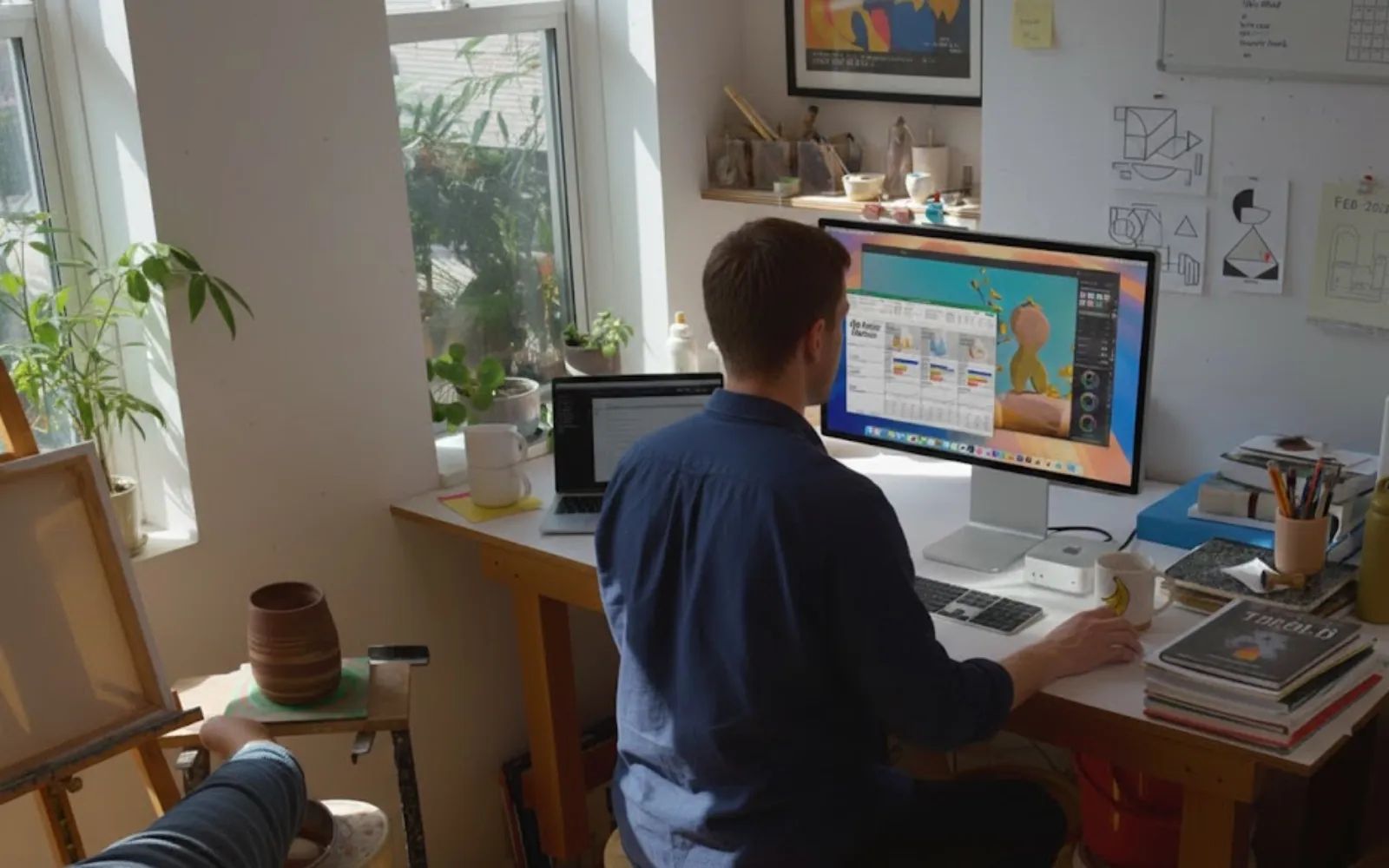
Apple's Mac Mini M4 is a 5-by-5-inch silver cube that runs circles around desktop computers twice its size. It ships with a 10-core CPU, a 10-core GPU, 16 GB of unified memory, and macOS Tahoe, all packed into a machine that starts smaller than a paperback novel. Building a proper workstation around it, though, takes a little planning, because Apple made some bold decisions about what to include and what to leave out.
Key Takeaways
- The Mac Mini M4 has zero USB-A ports; a hub or dock is practically required for most desk setups.
- Front-panel USB-C ports (10 Gb/s) are for peripherals; rear Thunderbolt 4 ports (40 Gb/s) handle displays and fast storage.
- A hub with NVMe SSD support lets you add up to 4 TB of fast storage without cluttering your desk.
- The power button lives on the bottom of the Mac Mini M4, so plan your placement accordingly.
- The M4 Pro model upgrades rear ports to Thunderbolt 5 at 120 Gb/s and supports up to three 6K displays.
- Pair the Mac Mini M4 with a single ultrawide or dual 4K monitors for the most productive layout.
Mac Mini M4 at a glance
The table below compares the two Mac Mini M4 configurations side by side. Use it to decide which model fits your workload before planning the rest of your setup.
| Attribute | Mac Mini M4 | Mac Mini M4 Pro |
|---|---|---|
| Rear Thunderbolt | 3x Thunderbolt 4 (40 Gb/s) | 3x Thunderbolt 5 (120 Gb/s) |
| Max displays | 2x 6K + 1x 5K | 3x 6K at 60 Hz |
| Starting RAM | 16 GB | 24 GB |
| Max configurable RAM | 32 GB | 64 GB |
Both models share the same front ports: two USB-C (USB 3, 10 Gb/s) and a 3.5 mm headphone jack. Both include HDMI 2.1 and Gigabit Ethernet on the back. Neither model has a single USB-A port anywhere on the chassis.
That last detail matters more than you might expect.
The USB-A problem (and why a hub is not optional)
I want to be clear about something: the Mac Mini M4 is one of the best deals in Apple's entire lineup. The base model with 16 GB of RAM and that M4 chip is absurdly capable for photo editing, writing, coding, and even light video work. But Apple built it for the USB-C future, and your desk probably still lives in the USB-A present.
Keyboards, mice, webcams, audio interfaces, external drives, SD card readers, printer cables, and a pile of other peripherals still use USB-A connectors. Dongles work in a pinch, but they create a rats' nest of adapters dangling off a machine that is supposed to look clean on your desk. A proper hub solves this.
Affiliate disclosure: some links in this article are Amazon Associate links. If you buy through them, Zone of Mac may earn a small commission at no extra cost to you, and we only recommend products that genuinely bring value to your Apple setup.
How I'd build the workstation around it
The Mac Mini M4 measures 5 inches square and 2 inches tall. It weighs 1.5 pounds. Picking it up feels like holding a hardcover book. That tiny footprint opens up desk arrangements that would be impossible with a tower PC or even an iMac, but it also introduces a quirk: the power button is on the bottom.
Yes, the bottom. Apple moved it there with the 2024 redesign. You can still reach it by sliding a finger underneath when the Mac Mini sits flat on a desk. It is a slightly awkward maneuver, like fishing for a light switch on the underside of a table. After a few days you stop noticing, especially if you just let the machine sleep instead of powering down. But it does mean you should think about where you place it. Mounting it upside down on the underside of a desk (a popular approach) actually makes the power button more accessible, since it ends up facing outward at the top edge.
For a straightforward desk setup, I would position the Mac Mini M4 to the left or right of your primary display, close enough that cables reach comfortably but far enough from the monitor's base that it gets breathing room. The bottom-mounted fan pulls air in from below and exhausts it through a vent channel around the base, so keeping the unit slightly elevated or on a stand with ventilation helps with thermals during sustained workloads. Setting it directly on a thick desk pad or soft surface is not ideal.
The display decision
The base Mac Mini M4 drives up to two external displays over Thunderbolt 4 (up to 6K resolution at 60 Hz each) plus one additional display over HDMI. Most users will want either a single ultrawide monitor (34 inches at 3440x1440 is the sweet spot for productivity) or a pair of 4K 27-inch panels. Apple's own Studio Display works beautifully but carries a premium price tag, so third-party alternatives are worth considering.
If you already own a monitor or TV with HDMI, the Mac Mini M4 connects directly without any adapter. That HDMI 2.1 port supports up to 4K at 240 Hz or 8K at 60 Hz, which is remarkable for a machine this compact.
Expanding the ports with the right hub
The Satechi Mac Mini M4 Stand and Hub with NVMe SSD Enclosure solves the port problem and the elevation problem in one piece of hardware. It sits underneath your Mac Mini M4 like a matching pedestal, built from the same aluminum with the same 5-inch-square footprint, so the two pieces look like they were designed together. The hub connects to one of the rear Thunderbolt/USB-C ports via a short cable and delivers two USB-A 3.2 ports (10 Gb/s), one USB-A 2.0 port, and a UHS-II SD card reader with speeds up to 312 MB/s. All of those ports face the front, which means you are not reaching behind the Mac Mini every time you need to plug something in.
The standout feature is the built-in M.2 NVMe SSD enclosure. You supply your own drive (sizes 2230 through 2280 are supported, up to 4 TB) and the hub handles it internally, with transfer speeds up to 10 Gb/s through the USB-C connection. A thermal pad and ventilation design keep the SSD cool during long file transfers. For anyone working with large photo libraries, video projects, or even Time Machine backups, having fast expandable storage built directly into the stand is a genuine workflow improvement over juggling loose external drives. If you work with Final Cut Pro projects on external storage, this pairs well with the kind of workflow covered in the Zone of Mac guide to editing Final Cut Pro projects from an external SSD.
One thing to know: the SSD enclosure does not support drives with pre-installed heatsinks or double-sided drives. Single-sided NVMe sticks from Samsung (980 Pro, 990 Pro), Western Digital (SN850X, SN770), and Crucial (P3 Plus) are confirmed compatible. Also, the hub is bus-powered, which means performance is shared across all connected devices. Satechi recommends using one bus-powered drive at a time for optimal throughput.
The dedicated cutout on the back of the hub gives your finger access to the Mac Mini's power button without lifting the machine. That specific design choice tells you Satechi actually used this thing on a desk before shipping it.


Buy the Satechi Mac Mini M4 Stand and Hub with NVMe SSD Enclosure here (Amazon affiliate link):
https://www.amazon.com/dp/B0DV6WJ88D?tag=zoneofmac-20
Keyboard, mouse, and the rest
The Mac Mini M4 ships with nothing except a power cable. No keyboard, no mouse, no display. Apple sells the Magic Keyboard, Magic Mouse, and Magic Trackpad separately. They all connect over Bluetooth 5.3, which means zero USB ports consumed once paired.
If you prefer mechanical keyboards or non-Apple peripherals, those USB-A ports on the Satechi hub become essential. A wireless keyboard with a USB-A dongle, for example, plugs right into the front of the hub instead of dangling off an adapter.
Putting Apple Intelligence to work
The Mac Mini M4 ships with Apple Intelligence built in, running on the 16-core Neural Engine. macOS Tahoe brings systemwide Writing Tools, an upgraded Siri that handles typed and spoken requests, and on-device generative models for text and image tasks. Because the Mac Mini M4 starts with 16 GB of unified memory (double the 8 GB base of the M2 Mac Mini it replaced), Apple Intelligence features run without memory pressure warnings or slowdowns. For anyone building Shortcuts automations with Apple Intelligence, the Zone of Mac guide to building powerful AI Shortcuts on Macwalks through the entire process.
Accessibility and clarity
The Mac Mini M4 supports every macOS Tahoe accessibility feature, including VoiceOver, which provides full screen-reader navigation of every menu, dialog, and notification. Switch Control and Voice Control let users operate the Mac entirely without a mouse or trackpad. Display accommodations for reduced motion, increased contrast, and color filters are all available in System Settings under Accessibility.
From a cognitive accessibility standpoint, the Mac Mini's setup process uses a clean, sequential Migration Assistant that walks through each step without branching paths or hidden options. The predictable layout of macOS Tahoe's System Settings (with a single sidebar and clearly labeled sections) keeps the information architecture straightforward, which reduces cognitive load for users with ADHD or dyslexia.
One consideration for users with limited hand mobility: the bottom-mounted power button requires reaching under the device or lifting it. An accessibility-conscious setup might use the Satechi hub's pass-through button access, or simply keep the Mac Mini in sleep mode and wake it with a keyboard press or mouse click instead.
Join The Inner Circle For Serious Apple Users
Exclusive Apple tips. Free to join.
Quick-action checklist for your Mac Mini M4 workstation build
- Choose your display: single ultrawide (34-inch 3440x1440) or dual 4K (27-inch).
- Connect your primary display to a rear Thunderbolt 4 port using USB-C or to the HDMI port.
- Place the Satechi hub underneath the Mac Mini M4 and connect it to a rear Thunderbolt/USB-C port.
- Install an M.2 NVMe SSD into the hub's enclosure (Samsung 990 Pro or WD SN850X recommended).
- Plug USB-A peripherals (keyboard dongle, webcam, external drive) into the hub's front-facing ports.
- Pair Bluetooth devices (Apple Magic Keyboard, Magic Trackpad) through System Settings, then Bluetooth.
- Enable Apple Intelligence in System Settings, then Apple Intelligence and Siri, to activate Writing Tools and on-device AI features.
- Set your Mac Mini M4 to never sleep the processor under System Settings, then Energy Saver, if you run background tasks overnight.
- Verify display arrangement in System Settings, then Displays, then Arrangement, and drag monitors to match your physical desk layout.

Related Posts
Seven Mac Accessories That Turn a Good Desk Into a Great One
Apr 10, 2026
Your Mac Has a Networking Time Bomb That Only a Reboot Defuses
Apr 09, 2026
Your Mac Feels Slow After macOS Tahoe — Here’s What Actually Fixes It
Apr 08, 2026