

🎧 Listen to this article
Prefer to listen? An audio version of this article is available for accessibility and convenience.
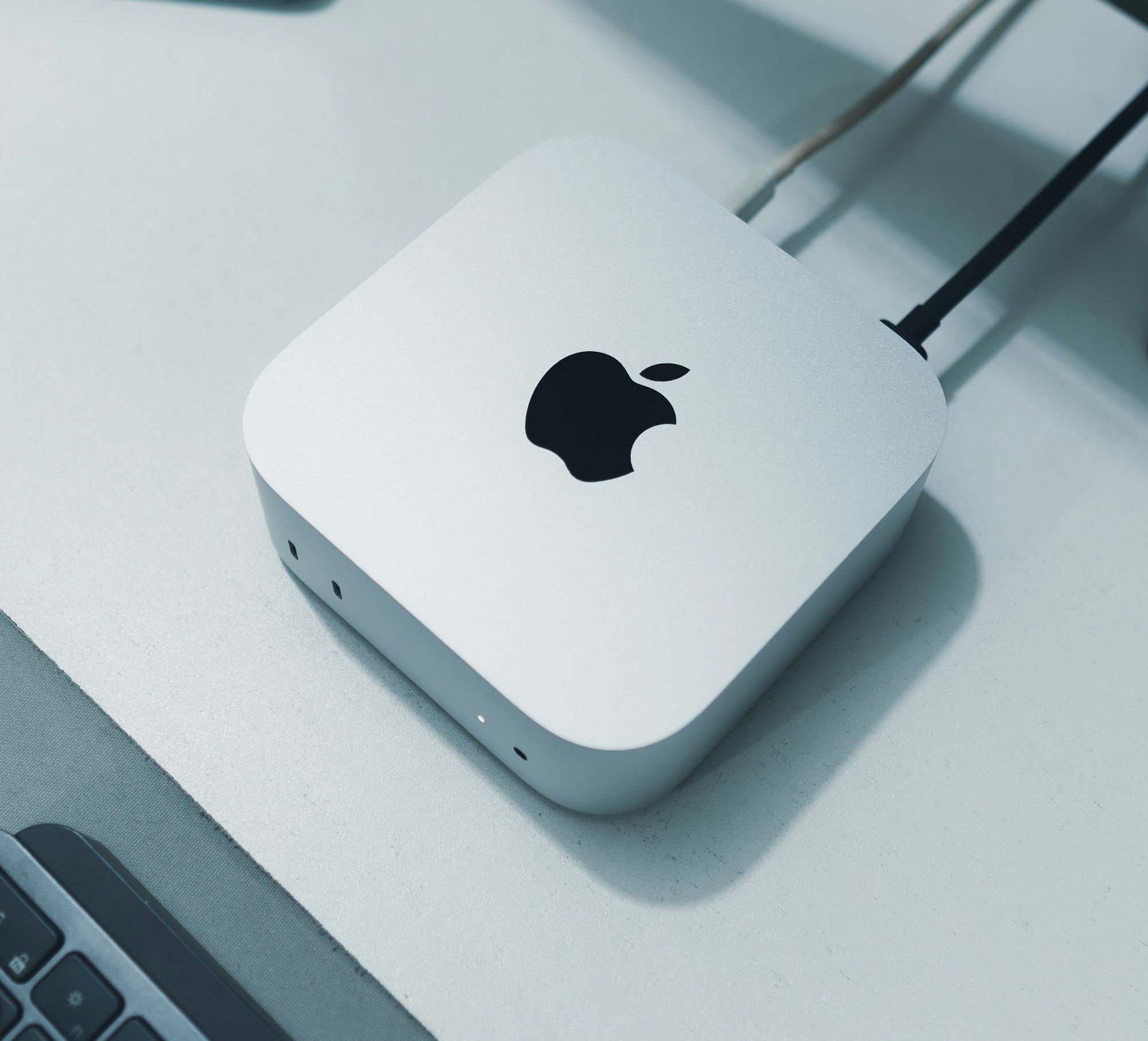
The Mac Mini M4 runs macOS Tahoe with enough muscle to drive three external displays, handle Apple Intelligence requests on-device, and stay nearly silent under sustained loads — all from a five-inch aluminum cube that weighs less than most hardcover books. The catch is that Apple ships it with defaults tuned for the broadest possible audience, which means several of the features you paid for are sitting dormant until you go find them.
That five-inch footprint hides a genuine productivity machine, but the gap between “unboxed and running” and “actually optimized” is wider than you’d expect. I spent a full afternoon going through System Settings after powering mine on, and the difference between the out-of-box experience and what it became after these changes was noticeable enough to write down.
 Ad
AdGet the display configuration right first
The Mac Mini M4 supports up to three external displays — two at 6K resolution through the rear Thunderbolt 4 ports and one at 5K through HDMI. But macOS Tahoe doesn’t automatically detect your optimal arrangement or refresh rate, especially if you’re mixing display brands.
Head to System Settings, then Displays, and click the Arrange button. Drag each display to match where it physically sits on your desk. This sounds obvious, but if you skip it, your cursor jumps to the wrong screen every time you flick toward an edge, and that friction compounds fast over a full workday.
One thing I also really like about the M4’s display settings: you can hold the Option key while clicking Scaled to unlock every resolution your monitor supports, including non-native options Apple hides by default. On a 4K display, this lets you pick a scaling that gives you more desktop real estate without everything looking fuzzy. The default “looks like 1920 × 1080” option wastes a lot of screen on a 27-inch panel.
If you’re using the HDMI port specifically, check that your refresh rate is set correctly under the display’s detail panel. The Mac Mini M4’s HDMI supports 4K at 240Hz or 8K at 60Hz, but macOS sometimes defaults to 60Hz on displays capable of more, and it won’t tell you unless you look.
FileVault is off by default — turn it on
Apple gives you the option to enable FileVault during the initial macOS Tahoe setup assistant, but it’s presented as a choice rather than a recommendation, and plenty of people click past it. The Mac Mini M4 sits on a desk, usually without a lock, in whatever room you put it. If someone walks off with that five-inch cube, every file on it is readable unless FileVault is active.
Open System Settings, click Privacy & Security, scroll down to FileVault, and turn it on. The Apple Silicon M4 chip handles the encryption entirely in hardware, so the performance impact is effectively zero — Apple’s own documentation confirms this for all Apple Silicon Macs. There’s no reason to leave it off. Your recovery key gets stored in iCloud by default, though you can choose a local recovery key instead if you prefer to manage it yourself.
The 16GB memory question nobody answers honestly
The base Mac Mini M4 ships with 16GB of unified memory, and the internet is full of conflicting advice about whether that’s enough. Here’s what I’ve found matters in practice: macOS Tahoe manages memory aggressively through compressed memory and swap, so Activity Monitor almost always shows memory pressure in the green zone even when you’re using most of it. The number that actually tells you something useful is Swap Used at the bottom of the Memory tab.
If Swap Used consistently sits above 2–3GB during your normal workflow, the system is compensating for a genuine memory shortage by writing to the SSD — which is fast on the M4 but still slower than unified memory by orders of magnitude. For web browsing, productivity apps, and even light creative work, 16GB handles the load without meaningful swap. The moment you start running local AI models, working in Logic Pro with large session files, or editing 4K video in DaVinci Resolve, that swap number climbs.
It does, though, mean that checking Activity Monitor during your first week — while you’re running your actual apps, not synthetic benchmarks — tells you more than any spec-sheet debate. If swap stays low, you’re fine. If it doesn’t, the 24GB or 32GB configurations exist for a reason.
 Ad
AdThunderbolt 4 ports are not all equal in practice
The three rear Thunderbolt 4 ports on the Mac Mini M4 are technically identical: 40Gb/s, USB 4, DisplayPort output. But in practice, the port closest to the power connector handles display output most reliably when you’re daisy-chaining Thunderbolt displays or running a Thunderbolt dock. This isn’t documented by Apple, but it’s a pattern confirmed across multiple Mac setup discussions and forums.
The two front USB-C ports are USB 3 only — 10Gb/s, no Thunderbolt, no display output. They’re perfect for a keyboard, a drive, or charging an iPhone, but plugging a Thunderbolt dock into the front port is a mistake you’ll only make once. The port physically accepts the cable, macOS recognizes the dock, but the display output and bandwidth aren’t there.
Turn on Apple Intelligence before you forget
Apple Intelligence is available on every Mac Mini M4, but macOS Tahoe doesn’t enable it automatically. Open System Settings, search for Apple Intelligence & Siri, and toggle Apple Intelligence on. The system downloads a set of on-device models — roughly 3–4GB — and once that’s done, you get Writing Tools across every text field, smarter Siri responses, and notification summaries that actually reduce the noise.
The on-device processing is part of what makes the Apple Silicon M4 chip worth having. The 16-core Neural Engine handles inference without touching your CPU or GPU performance, which means you can run a Writing Tools rewrite while exporting video and the system doesn’t skip a beat. This is one of the genuine advantages of Apple Silicon that only shows up after you enable the feature.
Reduce transparency and motion if the animations bother you
This one is personal, but it matters for extended sessions. The Mac Mini M4 drives a lot of visual transparency effects in macOS Tahoe — sidebars, menus, notification panels all have that frosted-glass look that shifts based on the content behind them. On a large external display, the constant visual motion in your peripheral vision can be fatiguing over a full day.
System Settings, Accessibility, Display: Reduce transparency replaces the frosted effects with solid backgrounds, and Reduce motion swaps animations for crossfades. Neither setting makes macOS feel broken — the interface just becomes calmer. I enable reduce transparency on every Mac I set up, and the difference is most noticeable on ultrawide monitors where the sidebar transparency was pulling my attention constantly.
One setting that protects your SSD
The Mac Mini M4’s SSD is not user-replaceable. What you buy is what you live with for the life of the machine. macOS Tahoe writes swap data, sleep images, and temporary files to that SSD continuously, and while Apple Silicon SSDs are rated for high endurance, reducing unnecessary writes is still good practice.
In System Settings, under Energy, uncheck Enable Power Nap. Power Nap wakes your Mac Mini periodically during sleep to check for email, iCloud updates, and Time Machine backups. On a desktop Mac that’s plugged in all day, these wake cycles add SSD writes for background tasks that would happen the moment you sit down anyway. Disabling it won’t change your workflow — it just reduces wear on a component you can’t replace.

Related Posts
Seven Mac Accessories That Turn a Good Desk Into a Great One
Apr 10, 2026
Your Mac Has a Networking Time Bomb That Only a Reboot Defuses
Apr 09, 2026
Your Mac Feels Slow After macOS Tahoe — Here’s What Actually Fixes It
Apr 08, 2026