

🎧 Listen to this article
Prefer to listen? An audio version of this article is available for accessibility and convenience.
The Mac Mini M4 with 16GB of unified memory handles web browsing, office work, photo editing, and even light video projects without breaking a sweat. At $599, it is genuinely one of the best deals in Apple's entire lineup right now, and for the majority of buyers, 16GB is the right call.
Here is the part Apple does not put in bold on the product page: that memory is soldered directly onto the Apple Silicon M4 chip. There is no upgrade slot. No aftermarket module. No "I'll just add more later." You pick your config at checkout and that number follows the machine for its entire life. So how do you decide between 16GB at $599 and 24GB at $799 when the stakes are literally permanent?
 Ad
AdWhat Your $200 Actually Buys
The base Mac Mini M4 starts at $599 with 16GB of unified memory, a 10-core CPU, a 10-core GPU, and a 16-core Neural Engine. Paying $200 more gets you 24GB — same chip, same cores, same everything else, just 8GB more in the shared memory pool.
“Unified memory” matters here. Unlike a traditional PC where system RAM and GPU VRAM are separate pools competing for bandwidth, the Mac Mini M4’s memory serves the CPU, GPU, and Neural Engine all at once from a single 120GB/s pipeline. So when Apple says 16GB, that pool covers everything your machine does simultaneously. This is why 16GB on Apple Silicon genuinely performs more like 20 to 24GB on a comparable Windows desktop — the architecture eliminates the duplication overhead.
That efficiency is real. But it has a ceiling, and the ceiling is lower than you might expect.
When 16GB Starts Feeling Tight
Open Safari with 25 tabs. Launch Slack. Keep Apple Music streaming in the background. Drop a Zoom call with screen sharing on top. This is not some stress test I invented to make a point. This is a regular Tuesday for a lot of people.
On 16GB, macOS Tahoe handles this workload through memory compression and SSD swap. You probably will not feel a thing. Probably.
Now add Lightroom Classic importing 400 RAW files on top of that Tuesday. Or open a 4K timeline in Final Cut Pro. Or spin up a local large language model through Ollama because you read an article about running AI on your own hardware and wanted to try it. That is where 16GB starts tapping the SSD for overflow. And “tapping the SSD” means your applications slow down while macOS shuffles data back and forth — plus extra write cycles on internal storage that, just like the memory, you also cannot replace in this machine.
The honest version of this decision: if your heaviest workload is a browser with too many tabs and a couple of productivity apps open at the same time, 16GB will carry you comfortably for years. If you regularly stack creative applications, run virtual machines, build code in Xcode, or want to experiment with on-device AI beyond the features Apple bundles by default — 24GB is not a luxury upgrade. It is the baseline for that kind of work.
 Ad
AdApple Intelligence Eats More Memory Than You Think
Every Mac Mini M4 runs Apple Intelligence out of the box. Apple set the 16GB floor specifically because on-device processing — Writing Tools, Image Playground, enhanced Siri, notification summaries — needs dedicated headroom in that unified memory pool.
Here is what the marketing page leaves out. Apple Intelligence runs in the background even when you are not actively invoking it. Notification summaries process incoming alerts automatically. Writing Tools stand ready across every text field. The Neural Engine stays warm. On 16GB, this background overhead is invisible until the one afternoon you are deep in a photo edit and the system quietly borrows enough memory to push your creative application into swap territory. You will not get a warning. You will just notice things feel sluggish, close an app or two, and move on without realizing the tradeoff that just happened.
Apple is only going to ship more AI features over time. Apple’s macOS Tahoe support documentation already shows the expanding scope of on-device intelligence compared to the initial release last fall. I mean think about it — if Apple Intelligence at launch day needed 16GB as a minimum, what happens when they double the feature set over the next two years? The 24GB configuration gives your Mac Mini room to absorb those additions without your actual work applications getting squeezed out.
Here is how the two configurations compare across the factors that actually matter for a buying decision.
| 16GB ($599 base) | 24GB ($799 base) | |
|---|---|---|
| Best For | Web, productivity, light photo editing, streaming | Video editing, music production, local AI, development |
| Apple Intelligence | Runs all current features | Comfortable headroom for current and future AI expansions |
| Heavy Multitasking | Handles typical app stacks via compression and swap | Handles stacked creative workflows without touching swap |
| Upgrade Path | None — soldered permanently onto the M4 chip | None — soldered permanently onto the M4 chip |
How to Choose Without Overthinking It
Ask yourself one question. What makes your current computer feel slow?
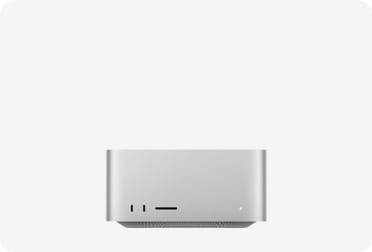
If the answer is “honestly nothing, it runs fine” — get the 16GB Mac Mini M4 at $599 and put that $200 toward a solid external SSD or a better monitor. The Mac Mini M4’s five-inch-square aluminum body sits on any desk and pushes up to three displays through its rear Thunderbolt 4 and HDMI ports. You can build a serious desktop setup around the $599 model and still come in under the price of a MacBook Air with the same chip inside it.
If the answer involves video editing, music production in Logic Pro, compiling code, containerized development environments, or local AI experimentation — go 24GB and do not second-guess it. That $200 now is cheaper than replacing the entire machine two years earlier than you planned because you hit a memory wall doing your normal work.
And if you are sitting there thinking “well, maybe I’ll get into video editing someday” — I hear you. But $200 on a maybe is a real gamble when Apple’s unified memory architecture already makes 16GB punch well above its weight class. Save the cash unless you have a specific workflow demanding more right now, today, not hypothetically.
One thing people miss in the configuration maze: the jump from 24GB to 32GB costs an additional $400, and stepping up to the Mac Mini M4 Pro with 24GB starts at $1,399. Neither jump makes financial sense unless you have a specific, measurable bottleneck you can name out loud. The M4 Pro brings a 12-core CPU and three Thunderbolt 5 ports running at 120 gigabits per second — hardware built for professionals encoding ProRes video or rendering 3D scenes on a deadline, not for someone trying to future-proof a home office against problems that may never actually show up.
Once you lock in your configuration, these are the settings worth changing on day one before you start loading your new Mac Mini with everything you own.
Your Pre-Checkout Checklist
- Open Activity Monitor on your current Mac. Click the Memory tab and watch “Memory Pressure” through a normal workday. If that graph stays green, 16GB will handle your needs without complaint.
- Name your three heaviest applications. If any of them are Final Cut Pro, Logic Pro, Xcode, Docker, Parallels Desktop, or a local LLM runner like Ollama — choose 24GB.
- Budget the full configuration, not just the RAM line item. A Mac Mini M4 with 24GB of memory paired with only 256GB of storage creates a mismatch. Your SSD will bottleneck before your memory does. Pair 24GB with at least 512GB of internal storage.
- Remember the one rule that matters most: memory is permanent, but storage pressure is fixable. You can always connect an external drive for files. You cannot connect external RAM.

Related Posts
Seven Mac Accessories That Turn a Good Desk Into a Great One
Apr 10, 2026
Your Mac Has a Networking Time Bomb That Only a Reboot Defuses
Apr 09, 2026
Your Mac Feels Slow After macOS Tahoe — Here’s What Actually Fixes It
Apr 08, 2026