
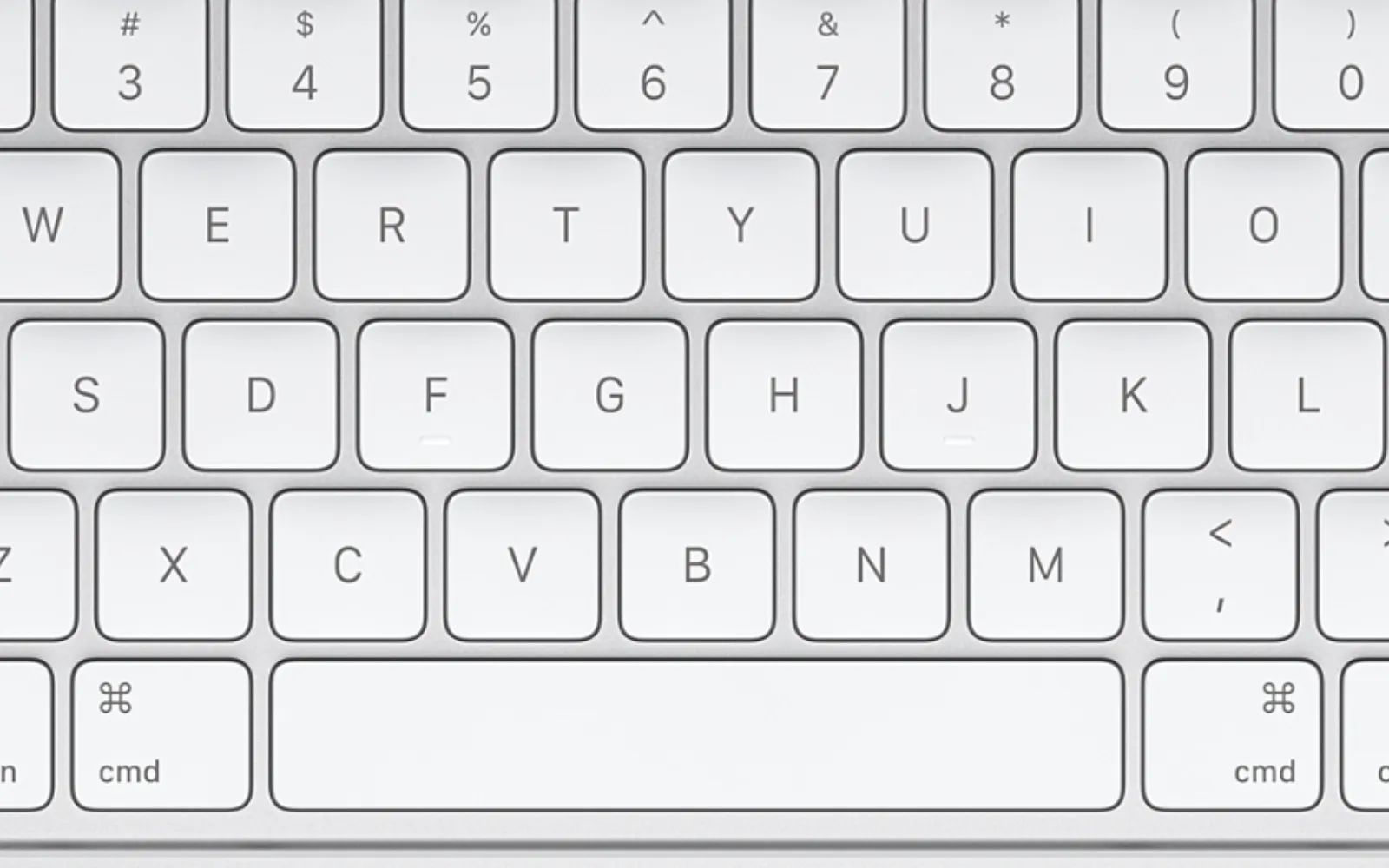
iPadOS 26 gave the iPad a real menu bar, genuine window tiling commands, and a set of keyboard shortcuts that genuinely reduce how often you touch the screen. Pressing Globe + M reveals a Mac-style menu bar across the top of any app, complete with File, Edit, Window, and Help menus. Pressing Control + Globe + Arrow tiles your current window to half the screen. For the first time, the iPad keyboard is not a convenience accessory. It is a control surface.
Key Takeaways
- Press Globe + M to reveal the new iPadOS 26 menu bar inside any app (requires Windowed Apps or Stage Manager mode).
- Use Control + Globe + Arrow to tile windows to the left or right half of the screen without touching the display.
- Command + Tab cycles between open apps, and Globe + Up Arrow opens the full App Switcher.
- Globe + Q opens a Quick Note instantly, even from inside another app.
- The Apple Magic Keyboard for iPad Air connects magnetically with zero pairing or charging required.
- You can create custom keyboard shortcuts through Settings, then Accessibility, then Keyboards, then Full Keyboard Access, then Commands.
At-A-Glance: iPadOS 26 keyboard capabilities compared
The table below summarizes how the keyboard experience differs depending on which multitasking mode you choose in Settings, then Multitasking & Gestures.
| Feature | Full Screen Apps | Windowed Apps | Stage Manager |
|---|---|---|---|
| Menu Bar (Globe + M) | Not available | Available | Available |
| Window Tiling Shortcuts | Not available | Available | Available |
| Globe + Up Arrow (App Switcher) | Available | Available | Available |
| Command + Tab (App Cycling) | Available | Available | Available |
| Traffic Light Window Controls | Not available | Available | Available |
| Keyboard Shortcut Discovery via Menus | Not available | Available | Available |
How to connect a keyboard to your iPad
Two paths exist. Apple's own Magic Keyboard for iPad uses the Smart Connector, which means you set the iPad onto the magnetic mount and it works. No Bluetooth pairing. No charging. The connection is instant and the keyboard draws power from the iPad itself.
For any Bluetooth keyboard, including standalone Apple keyboards or third-party boards, open the Settings app on your iPad, tap Bluetooth, then put your keyboard into pairing mode. It will appear under Other Devices. Tap its name to connect.
One thing to watch: if your Bluetooth keyboard lacks a physical Globe key, you lose access to every Globe-based shortcut listed in this guide. The Globe key is present on all Apple-designed iPad and Mac keyboards, but many third-party boards substitute it with an Fn key that does not map to the same function. Check your keyboard's bottom-left row before buying. Apple documents this in the iPad Magic Keyboard and Smart Keyboard technical reference.
The menu bar changes everything
Before iPadOS 26, discovering keyboard shortcuts required a slightly clumsy trick: hold down the Command key and wait for a translucent overlay to appear. That overlay listed available shortcuts for the current app, but it was read-only and disappeared the moment you let go.
The new menu bar replaces that system entirely. Press Globe + M (or swipe down from the top edge of the screen) and a persistent menu bar appears with standard categories. Every menu item shows its associated keyboard shortcut next to the command name. This is how you learn shortcuts now, directly from the menu.
The menu bar only appears when your iPad is set to Windowed Apps or Stage Manager mode. Open Settings, tap Multitasking & Gestures, and select one of those two options. In the default Full Screen Apps mode, the menu bar does not exist. If you're already using windowed mode for the powerful tiling features in iPadOS 26, you have it.
There is a quirk worth noting. The menu bar is not always visible on screen. It auto-hides and must be summoned each time with Globe + M, a swipe, or by moving a connected trackpad cursor to the top edge. Apple Pencil cannot reveal it. This is a minor friction point, because on a Mac the menu bar is permanently visible. On iPad, you develop a quick Globe + M reflex and it becomes second nature within a day or two.
The shortcuts that actually matter for daily work
There are dozens of keyboard shortcuts documented across Apple's support pages. Memorizing all of them is unrealistic. Here are the ones that deliver the most dramatic speed improvements for everyday iPad use.
System navigation: Globe + H sends you to the Home Screen from anywhere. Globe + A shows or hides the Dock, which is essential when working in full-screen mode and you need to launch a second app. Globe + Shift + A opens the App Library. Command + Space opens Spotlight search, and it even works from the Lock Screen.
App switching: Command + Tab brings up the app switcher strip across the middle of the screen. Keep holding Command and tap Tab repeatedly to cycle through recent apps. Release both keys to jump to the selected app. Globe + Up Arrow opens the full visual App Switcher with window previews.
Window tiling (iPadOS 26 only): Control + Globe + Left Arrow tiles the active window to the left half of the screen. Control + Globe + Right Arrow does the same for the right side. This is the keyboard equivalent of dragging a window to the edge, and it is significantly faster. For a deeper walkthrough of the full tiling system and how to arrange complex layouts, the guide to iPadOS 26 App Windows covers every configuration.
Quick capture: Globe + Q opens a Quick Note overlay, even from inside another app. Jot a thought, paste a link, and dismiss it. The note syncs to the Quick Notes folder in the Notes app across all your Apple devices.
Screenshots: Command + Shift + 3 captures the full screen. Command + Shift + 4 captures the screen and immediately opens Markup for annotation.
Text editing: Command + A selects all text. Command + X, C, and V cut, copy, and paste. Command + Z undoes, and Shift + Command + Z redoes. Globe + D starts Dictation. These mirror macOS exactly, so if you already know Mac shortcuts, your muscle memory transfers one-to-one.
Why the Globe key is the single most important key on the board
Most of the transformative iPadOS 26 shortcuts route through the Globe key. It controls the Dock, the App Switcher, the menu bar, Quick Notes, Control Center (Globe + C), the Lock Screen (Globe + N), full screen toggle (Globe + F), and Dictation. Without it, you are limited to Command-based editing shortcuts and app switching.
Apple's Magic Keyboard and Smart Keyboard Folio both include the Globe key in the bottom-left corner. If you are evaluating third-party keyboards, physically confirm the Globe key exists and is mapped correctly before committing.
Affiliate disclosure: some links in this article are Amazon Associate links. If you buy through them, Zone of Mac may earn a small commission at no extra cost to you, and we only recommend products that genuinely bring value to your Apple setup.
The keyboard that matches the shortcuts
The Apple Magic Keyboard for iPad Air connects through the Smart Connector, so the moment you set your iPad onto the magnetic mount, the keyboard is live. There is no pairing step, no battery to charge, and no Bluetooth lag. The trackpad beneath the keys supports full Multi-Touch gestures, including two-finger scrolling, pinch-to-zoom, and three-finger swipes. The 14-key function row provides physical keys for brightness, volume, and media controls. A USB-C port on the left side handles pass-through charging, which frees the iPad's own port for an external drive or display adapter. The floating cantilever hinge lets you adjust the viewing angle smoothly, and the whole thing folds flat into a protective case.
One physical detail that catches people off guard: the Magic Keyboard adds noticeable weight to the iPad. The combined package feels closer to a small laptop than a tablet. That weight comes from the aluminum chassis and the magnets holding the cantilever in place. It is solid and confidence-inspiring when typing on a lap or a cafe table, but it does change the portability equation. The trade-off is worth it for keyboard-heavy sessions, and you can always detach the iPad with a firm pull when you want a bare tablet again.


Here's where to get the Apple Magic Keyboard for iPad Air 11-inch (compatible with M2 and M3 models as well as iPad Air 4th and 5th generation) https://www.amazon.com/dp/B0DZ78Q48C?tag=zoneofmac-20
Build your own shortcut commands
iPadOS 26 lets you create custom keyboard shortcuts beyond what Apple provides. Open Settings, tap Accessibility, then tap Keyboards, then turn on Full Keyboard Access. Tap Commands to see the full list of available actions. Select any command, press a key combination of your choosing, and tap Done. From that point forward, your custom combination triggers that action system-wide.
This is particularly useful for accessibility workflows. You might map a single key combination to toggle VoiceOver, increase text size, or activate Zoom. The Full Keyboard Access system also enables complete iPad navigation via keyboard alone, including the ability to move focus between on-screen elements using Tab and Arrow keys, which eliminates the need to reach for the touchscreen entirely.
Join The Inner Circle For Serious Apple Users
Exclusive Apple tips. Free to join.
Accessibility and Clarity
The keyboard shortcut system in iPadOS 26 is broadly positive for accessibility. VoiceOver reads menu bar items aloud, so users who rely on screen readers can discover shortcuts through the same menu system as sighted users. Full Keyboard Access provides an alternate navigation path that does not require touch, which benefits users with motor limitations.
The Globe + M menu bar interaction is consistent and predictable. Menus always appear in the same order (app name, File, Edit, Window, Help), and keyboard focus moves linearly through items with Arrow keys. This predictable information architecture reduces cognitive load compared to the previous shortcut overlay, which appeared and disappeared based on whether you held down a key.
One limitation: the auto-hiding menu bar requires either a keyboard shortcut or a precise swipe from the exact top edge to reveal. Users with limited fine motor control may find the swipe gesture difficult. The keyboard shortcut (Globe + M) is the more reliable path, which is another reason a Globe-equipped keyboard is important.
Contrast and visual clarity are not factors here, because keyboard shortcuts operate as invisible commands with no on-screen color dependence. The menu bar text itself follows the system appearance settings, so enabling Bold Text or larger Dynamic Type sizes in Settings, then Accessibility, then Display & Text Size applies to menu labels as well.
Quick-Action Cheat Sheet
Copy and keep this list. These are the iPadOS 26 keyboard shortcuts that eliminate the most screen touches in a typical work session.
Globe + H: Home Screen Globe + A: Show/Hide Dock Globe + M: Show Menu Bar Globe + C: Control Center Globe + N: Lock Screen Globe + Q: Quick Note Globe + F: Full Screen Toggle Globe + Up Arrow: App Switcher Globe + D: Start Dictation Command + Space: Spotlight Search Command + Tab: Cycle Apps Command + W: Close Window Command + M: Minimize Window Command + Shift + 3: Screenshot Command + Shift + 4: Screenshot + Markup Control + Globe + Left/Right Arrow: Tile Window Left/Right

Related Posts
Your iPad Moves Files Six Ways and You're Probably Using One
Apr 08, 2026
Your iPad’s Magic Keyboard Has a Shortcut Layer Most Owners Never Open
Apr 07, 2026
Your Apple Pencil Tip Is Wearing Out and You Can’t Even Tell
Apr 06, 2026