

The gap between iPad and laptop is smaller than the spec sheet suggests
An iPad Pro with the M4 chip runs the same Apple Silicon architecture that powers a MacBook Air. It supports Stage Manager with full external display output, Thunderbolt and USB 4 at 40 Gb/s, and multitasking features in iPadOS 26 that finally give each app its own resizable window. The hardware is ready. The question is whether your accessories keep up.
That question matters because the iPad Pro’s built-in experience has one persistent blind spot: input. The touchscreen handles casual browsing and media consumption without any help, but the moment you try to write a document, manage a spreadsheet, or sketch with precision, you run into friction that the glass alone cannot solve. The accessories you pair with an iPad determine whether it stays a consumption device or becomes the machine that replaces the laptop you carry to every meeting.
I want to walk through the three categories of accessories that close that gap, covering one standout product in each. None of these are impulse buys. Each one changes a specific part of the iPad workflow, and each one earns its spot by solving a problem you will notice the first time you sit down to do real work.
A keyboard case that earns its place on your desk
Affiliate disclosure: some links in this article are Amazon Associate links. If you buy through them, Zone of Mac may earn a small commission at no extra cost to you, and we only recommend products that genuinely bring value to your Apple setup.
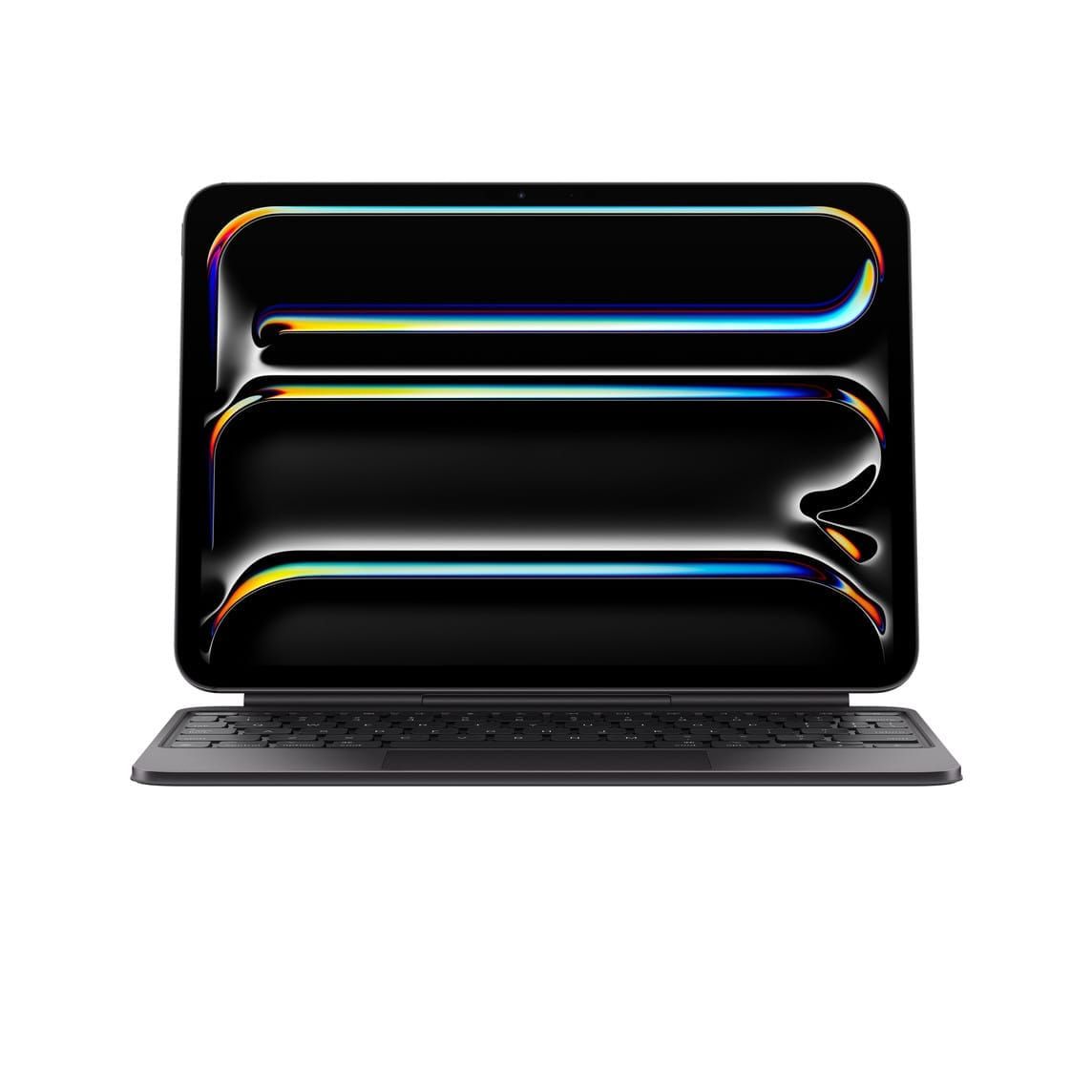
The single biggest upgrade you can make to an iPad Pro is adding a keyboard with an integrated trackpad. Apple’s own Magic Keyboard is the obvious pick, but it comes with a rigid form factor that locks you into a single viewing angle and a price tag that feels like a surcharge for the Apple logo.
The Logitech Combo Touch takes a different approach. It connects through the Smart Connector on the side of the iPad, which means zero Bluetooth pairing headaches and no battery to charge. The keyboard detaches entirely from the kickstand case, so you can prop the iPad up for reading or watching video without carrying the keyboard portion around. That flexibility is the single most important distinction: you get a laptop-style setup when you need to type, and a lightweight tablet when you do not.
The trackpad on the Combo Touch is noticeably smaller than the one on a MacBook, and you will feel that difference during the first hour of use. Cursor acceleration is responsive, but dragging items across the screen in Stage Manager requires a bit more wrist movement than a full-size trackpad would. After a few days, muscle memory adjusts. The backlit keys have a satisfying click with just enough travel to avoid the mushy feeling of ultra-thin keyboards, and the function row along the top provides one-tap access to brightness, volume, and the home screen.
Apple publishes detailed keyboard integration guidelines in its Accessory Design Guidelines (Release R28) for third-party manufacturers, and the Combo Touch follows those specifications closely. The Smart Connector delivers both data and power to the keyboard without draining the iPad’s battery, which is a meaningful detail when you are working through a full day of meetings and document editing.
One edge case worth noting: the kickstand hinge holds its angle firmly on a desk, but on a lap it requires a bit of balancing. A flat thigh is fine; a crossed leg creates a wobble. The Magic Keyboard wins on lap stability because of its weighted base, but loses everywhere else on flexibility.
Pick up the Logitech Combo Touch for iPad Pro 11-inch (M4) on Amazon
A hub that turns one port into a full desk setup
The iPad Pro ships with a single USB-C port. That port supports Thunderbolt and USB 4, which means it can handle an external 6K display, fast storage transfers, and charging simultaneously, but only if you have a hub to split those signals.
The Satechi Aluminum Stand and Hub for iPad Pro solves this with a foldable aluminum stand that cradles the iPad in portrait or landscape orientation while providing six ports through a single USB-C connection: HDMI output at 4K 60Hz, USB-C Power Delivery charging up to 60W, a USB-A 3.0 data port, a 3.5mm headphone jack, and both SD and Micro SD card readers.
What sets this hub apart from generic USB-C dongles is the stand itself. Most hubs are small bricks that dangle from a cable. The Satechi stand holds the iPad at a comfortable viewing height while routing the cable beneath the device, keeping your desk clean. The aluminum body matches the iPad Pro’s finish closely enough that the two pieces look like a single unit, and the foldable design collapses flat for travel. There is a subtle but noticeable weight to the stand, roughly 300 grams, that keeps the iPad stable even when you tap the screen with some force.
The HDMI output is genuinely useful for iPad Pro owners who want to use Stage Manager on an external display. Plug in a monitor, arrange your app windows across both screens, and the iPad stops feeling like a tablet. The SD card reader is a second quiet win for photographers and videographers who shoot on a dedicated camera and want to import directly to Lightroom for iPad without carrying a separate adapter.
One friction point: the USB-C cable between the hub and iPad is short by design, approximately 15 centimeters, to minimize signal degradation. That length keeps the connection stable but means the stand and iPad need to stay close together on your desk. You cannot tuck the hub away in a drawer and run a long cable to the iPad.
You can grab the Satechi Aluminum Stand and Hub here.
Why the iPad’s display needs a second skin for serious pencil work
The iPad Pro’s OLED display on the 13-inch model (and the Liquid Retina on the 11-inch) is brilliant for watching content and browsing, but it has one physical limitation that Apple Pencil users feel immediately: the glass is too smooth. Drawing or writing on polished glass produces a slippery, imprecise feel that makes handwriting look shaky and sketching feel disconnected from the stroke. The tip glides faster than your brain expects, and the result is a constant micro-correction that fatigues your hand over long sessions.
Paper-feel screen protectors add a textured layer that creates drag against the Apple Pencil tip, simulating the tactile resistance of writing on actual paper. The trade-off is always the same: you gain drawing precision and writing comfort, but you lose a fraction of display clarity and brightness because the matte texture diffuses light.
The ESR Paper-Feel Magnetic Screen Protector handles this trade-off better than permanent adhesive protectors because it attaches magnetically and removes in seconds. When you need to draw or take notes, snap it on. When you want to watch a film or edit photos where color accuracy matters, pull it off and drop it back in your bag. That flexibility eliminates the biggest objection to paper-feel protectors: you no longer have to choose between pencil comfort and display quality permanently.
The matte finish reduces glare under overhead lighting, which is a secondary benefit that becomes obvious in coffee shops and open offices where ceiling lights create reflections on the bare glass. The protector works alongside a tempered glass screen protector if you already have one installed, layering magnetically on top rather than requiring a direct bond to the display surface.
The texture itself produces a faint scratching sound when the pencil moves across it, similar to a felt-tip pen on heavyweight paper. That audible feedback is a small thing, but it reinforces the tactile illusion and makes note-taking sessions feel more intentional. One edge case: if you use the Apple Pencil’s hover detection feature frequently, the additional thickness of the magnetic protector (roughly 0.3mm) does not interfere with hover, but the cursor shadow appears very slightly closer to the tip than it does on bare glass.
Here’s the ESR Paper-Feel Magnetic Screen Protector on Amazon.
Join The Inner Circle For Serious Apple Users
Exclusive Apple tips. Free to join.
Check your inbox for a confirmation link.
Something went wrong. Please try again.
Comparing the three at a glance
The table below summarizes what each accessory addresses, who benefits most, and the specific iPad models each one supports. Use it as a quick reference before deciding which gap in your setup to close first.
| Accessory | Primary Benefit | Best For | iPad Compatibility |
|---|---|---|---|
| Logitech Combo Touch | Detachable keyboard with trackpad and adjustable kickstand | Writers, students, anyone replacing a laptop | iPad Pro 11-inch M4, M5 |
| Satechi Aluminum Stand and Hub | Six-port hub built into a foldable desk stand | Desk-bound workflows, photographers, external display users | Any iPad with USB-C |
| ESR Paper-Feel Magnetic Screen Protector | Removable paper texture for Apple Pencil precision | Artists, note-takers, anyone who switches between pencil and media | iPad Pro 13-inch M4, M5 |
Accessibility and clarity
VoiceOver on iPadOS 26 reads every key label on the Logitech Combo Touch accurately, and the physical key spacing (roughly 17mm center to center) gives users with motor impairments a tactile landmark between keys that a flat glass keyboard cannot provide. The Satechi hub’s ports are spaced far enough apart to accommodate adaptive plugs and switch-accessible devices, and the HDMI output allows users who need a larger display for magnification to connect an external monitor through Stage Manager. The ESR screen protector’s matte finish reduces specular reflections that can cause discomfort for users with light sensitivity, and because it removes magnetically, a user who shares an iPad with someone who has different visual needs can swap configurations in under five seconds.
Cognitively, each accessory simplifies rather than complicates: the Combo Touch eliminates Bluetooth pairing steps, the Satechi hub replaces a tangle of individual adapters with one connection point, and the ESR protector removes the permanent decision about display texture. Reducing the number of setup decisions reduces cognitive load, which benefits readers with ADHD or processing differences who may find multi-step accessory configurations overwhelming.
Quick-action checklist
- Check your iPad model (iPad Pro 11-inch M4 or M5, iPad Pro 13-inch M4 or M5, iPad Air M3) to confirm accessory compatibility before purchasing
- If you plan to use a keyboard case daily, open Settings then General then Keyboard and enable Hardware Keyboard to customize key repeat rate and modifier key mapping
- After connecting the Satechi hub, open Settings then Displays to arrange your external monitor position relative to the iPad screen
- When attaching the ESR screen protector for the first time, align it with the iPad powered off so you can see any dust particles trapped beneath the magnetic layer
- Enable Keyboard Shortcuts in Settings then Accessibility then Keyboards to add a globe-key shortcut for toggling Sticky Keys, which lets you execute multi-key commands one key at a time
- For transferring files from a camera SD card through the Satechi hub, open the Files app and navigate to the mounted card under Locations

Tori Branch
Hardware reviewer at Zone of Mac with nearly two decades of hands-on Apple experience dating back to the original Mac OS X. Guides include exact settings paths, firmware versions, and friction observations from extended daily testing.
Related Posts
Your iPad Moves Files Six Ways and You're Probably Using One
Apr 08, 2026
Your iPad’s Magic Keyboard Has a Shortcut Layer Most Owners Never Open
Apr 07, 2026
Your Apple Pencil Tip Is Wearing Out and You Can’t Even Tell
Apr 06, 2026