
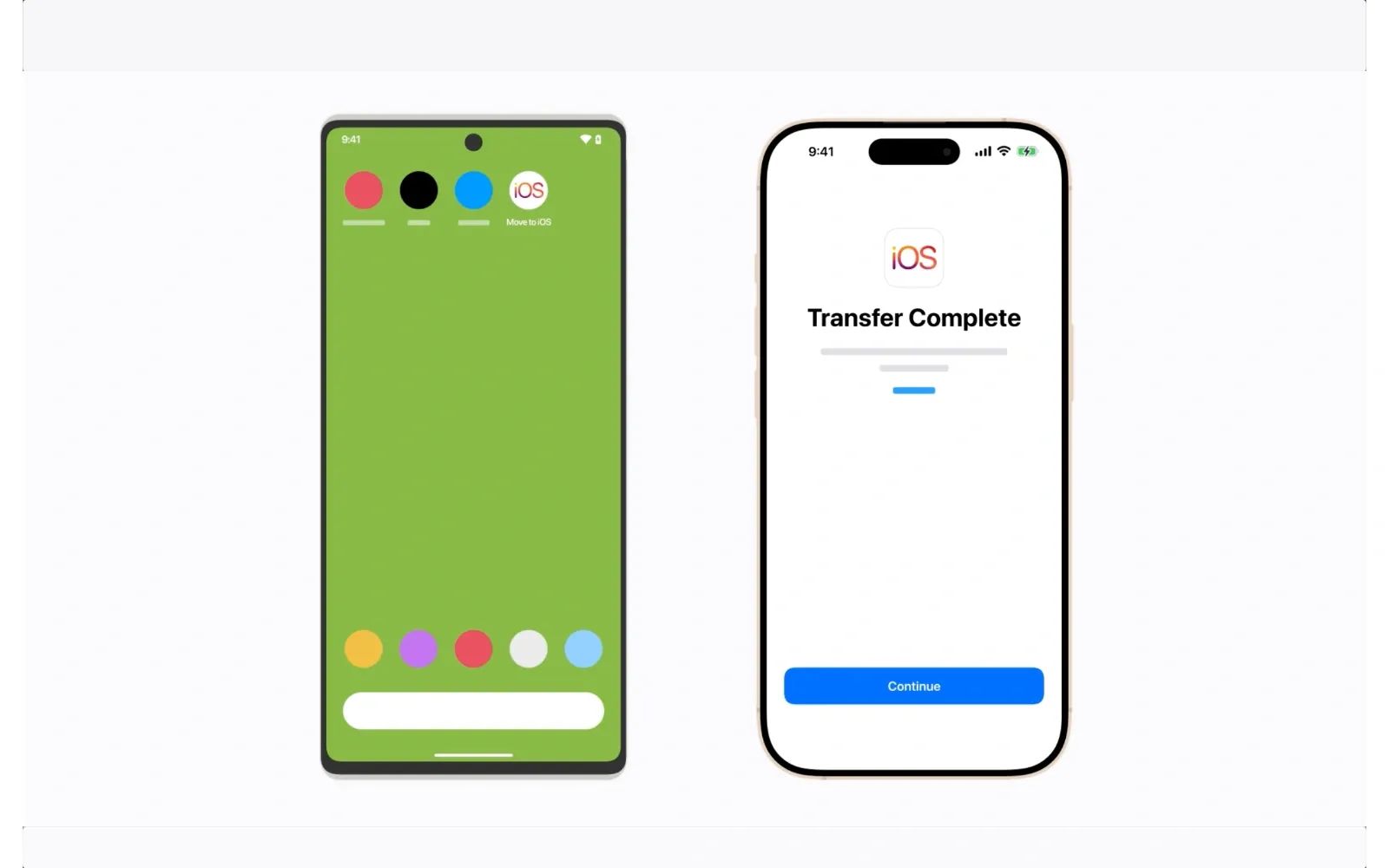
Apple's Move to iOS app transfers contacts, messages, photos, videos, WhatsApp conversations, calendars, mail accounts, and even matched free apps from any Android phone to your new iPhone. The entire process runs during initial iPhone setup and takes anywhere from ten minutes to over an hour depending on how much data you carry. You can speed things up dramatically by connecting both phones with a USB-C cable instead of relying on Wi-Fi alone.
Key Takeaways
- Download Move to iOS from Google Play on your Android phone before powering on your new iPhone
- Connect a USB-C cable between both phones to cut transfer time by more than half compared to Wi-Fi
- WhatsApp messages and media transfer automatically through Move to iOS as of the latest app update
- Free apps that exist on both Google Play and the App Store will install on your iPhone after the transfer completes
- iOS 26.3 introduces a new native cross-platform transfer tool built in collaboration with Google, requiring no separate app download
The following table compares the three main methods for transferring your Android data to iPhone, so you can choose the right approach for your situation.
| Method | Best For | Speed | What Transfers |
|---|---|---|---|
| Move to iOS (Wi-Fi) | New iPhone setup | Moderate | Contacts, messages, photos, videos, WhatsApp, calendars, mail accounts, apps |
| Move to iOS (USB-C Cable) | Large libraries, faster transfer | Fast | Same as Wi-Fi, with significantly reduced transfer time |
| Manual via Google/iCloud | Already-set-up iPhone | Varies | Contacts, photos, documents (requires individual app setup) |
Everything That Comes With You
The list of transferable data has grown considerably over the past two years. According to Apple's official support documentation, Move to iOS now handles: contacts, message history (SMS and MMS), camera photos and videos, photo albums, files and folders, accessibility settings, display settings, web bookmarks, mail accounts, WhatsApp messages and media, Voice Memos, call history, and calendars. Free apps available on both platforms get matched and queued for download automatically.
What does not come over: paid app purchases, app-specific data (game saves, for example), music stored locally on the Android device, PDFs and eBooks outside of standard file folders, and any content protected by DRM. Streaming service libraries like Spotify or Apple Music carry over through their own login systems, so those are not an issue.
What to Do Before You Start the Transfer
Preparation takes about five minutes and saves significant frustration later. Charge both phones to at least 50 percent, because a large transfer can drain batteries faster than you expect. Check your Android's storage usage under Settings, then compare it against the storage capacity of your new iPhone. A 128 GB iPhone, for instance, ships with roughly 115 GB of usable space after the operating system.
Update Chrome on your Android device if you want your bookmarks to transfer. Move to iOS pulls bookmarks from Chrome specifically, not from Samsung Internet or other third-party browsers. Also update WhatsApp to the latest version on Android, because older builds sometimes fail to hand off chat history properly.
Write down which apps you rely on daily. While matched free apps install automatically, anything you paid for on Google Play needs to be repurchased from the App Store. Knowing your list ahead of time means you can budget for any repurchases and set up those apps immediately after the transfer finishes.
Affiliate disclosure: some links in this article are Amazon Associate links. If you buy through them, Zone of Mac may earn a small commission at no extra cost to you, and we only recommend products that genuinely bring value to your Apple setup.
Why a USB-C Cable Cuts Your Transfer Time in Half
Move to iOS supports two connection methods: Wi-Fi and direct USB-C cable. The Wi-Fi method creates a temporary private network between the two phones, which works fine for smaller transfers but slows to a crawl when you have 50 GB or more of photos and videos. The cable method bypasses that bottleneck entirely.
A direct USB-C connection between a modern Android phone and an iPhone 15 or later (all of which use USB-C) can sustain data throughput that finishes in a fraction of the Wi-Fi time. During a transfer of roughly 40 GB, the cable method can complete in under 20 minutes where Wi-Fi might take over an hour on the same dataset. The cable also eliminates the single most common failure point: Wi-Fi interference from nearby routers, smart home devices, or Bluetooth peripherals that can interrupt the temporary network.
The Anker USB C to USB C Cable in the 6-foot length gives you enough slack to place both phones side by side on a desk or couch cushion without tension pulling on either port. The 100W power delivery rating means the cable simultaneously charges whichever phone draws power during the transfer, so you do not lose battery life in the process. The braided nylon exterior resists the kind of kinking that thinner cables suffer from when wedged between couch cushions, and the 5,000-bend rating means this cable outlasts the cheap one that came in your Android box.
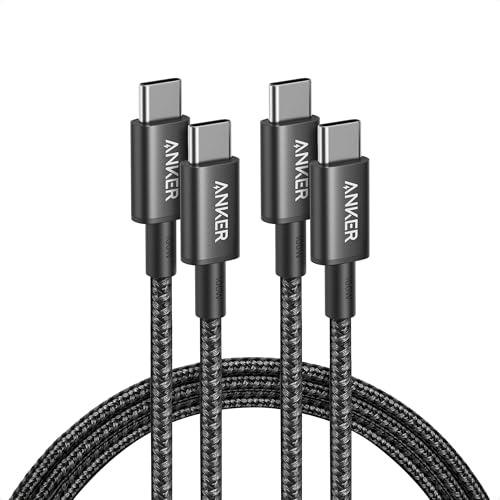

Pick up the Anker USB C to USB C Cable (2-Pack, 6ft) on Amazon https://www.amazon.com/dp/B09LCJPZ1P?tag=zoneofmac-20
How I Walk Through the Transfer Step by Step
Power on your new iPhone. Follow the on-screen prompts until you reach the Quick Start screen. Tap Set Up Without Another Apple Device and continue through Wi-Fi connection and Face ID setup. When you reach the Transfer Your Apps & Data screen, tap From Android.
On your Android phone, open the Move to iOS app. Tap Continue, accept the terms, and tap Next on the Find Your Code screen. Your iPhone will display a six-digit or ten-digit code. Enter it on the Android phone. If you are using a USB-C cable, connect it now. The iPhone creates a temporary Wi-Fi connection (or uses the cable directly), and the Transfer Data screen appears on the Android device.
Select everything you want to move. I recommend leaving all categories checked unless you specifically want to start fresh with certain data types. Tap Continue. A progress bar appears on the iPhone. This is the part where patience matters. Do not use either phone, do not answer calls on the Android, and do not disconnect the cable. Even if the Android shows "Transfer Complete" before the iPhone does, wait until the iPhone's progress bar finishes entirely.
Tap Done on the Android. Tap Continue on the iPhone, then finish the remaining setup steps: Apple ID sign-in, iCloud preferences, and Siri configuration. Once you reach the Home Screen, open the App Store. Any matched free apps will begin downloading automatically.
Join The Inner Circle For Serious Apple Users
Exclusive Apple tips. Free to join.
Missed the Setup Window? Transfer After the Fact
Move to iOS only works during initial iPhone setup. If you already completed setup before transferring, you have two options. The first is to erase the iPhone entirely (Settings > General > Transfer or Reset iPhone > Erase All Content and Settings) and run through setup again with Move to iOS. The second is to transfer data manually using cloud services.
For manual transfer, sign into your Google account on the iPhone under Settings > Mail > Accounts > Add Account. Your Gmail contacts and calendar events sync automatically. For photos, install Google Photos on the iPhone and sign in with the same Google account to access your entire library. Documents stored in Google Drive are accessible through the Google Drive iOS app. This piecemeal approach takes longer and does not transfer SMS history or WhatsApp chats, but it avoids wiping the iPhone.
The New iOS 26.3 Native Transfer Tool
Apple and Google have collaborated on a new cross-platform transfer system that debuted in the iOS 26.3 beta in December 2025. Unlike Move to iOS, this tool is built directly into iOS under Settings > General > Transfer or Reset iPhone. It requires no separate app download on either device. Both phones need the latest software, Wi-Fi, and Bluetooth enabled.
The new tool supports transferring contacts, calendar events, messages, photos, documents, Wi-Fi network credentials, passwords, and even data from certain third-party apps. Health data, Bluetooth-paired devices, and locked notes do not transfer. To start, place the two phones near each other. The Android device displays a QR code that the iPhone scans, or you can use a session ID and pairing code instead. This system was developed to comply with the European Union's Digital Markets Act, but Apple has confirmed it works worldwide.
When the Transfer Stalls or Fails
The most common failure is Wi-Fi interference. If the transfer stalls, go to your Android's Wi-Fi settings and forget all saved networks. This forces Move to iOS to create its temporary connection without competing signals. Disable cellular data on the Android as well, because some phones attempt to fall back to mobile data when they detect an unstable Wi-Fi link, which breaks the transfer.
If the transfer fails partway through, the iPhone may show less available storage than expected. Erase the iPhone and start over. Before retrying, verify that the total data on the Android (check Settings > Storage) fits within the iPhone's capacity. Move to iOS does not compress data during transfer, so 60 GB on Android requires 60 GB free on the iPhone.
Restart both devices before a second attempt. On some Samsung phones, the Smart Network Switch feature aggressively drops Wi-Fi connections it considers unstable, which includes the temporary Move to iOS network. Disable Smart Network Switch under Settings > Connections > Wi-Fi > Advanced before retrying.
Your First Moves on the New iPhone
Once the transfer completes and your apps finish downloading, take ten minutes to lock down your privacy settings. iOS 26.3 gives you granular control over app tracking, location sharing, and notification permissions that Android handles differently. Our guide to securing your iPhone privacy in iOS 26.3 walks through every toggle worth changing on day one.
If you relied on a spam call blocker on Android, you will want to enable Apple's built-in iOS 26 call screening feature. It filters unknown callers and transcribes voicemails in real time, replacing the need for a third-party app entirely.
Check your messages. iMessage activates automatically when you sign in with your Apple ID, but if your phone number does not deregister from Google Messages properly, some Android contacts may still send you texts through the old system. Visit Settings > Messages and confirm that iMessage shows your phone number as active. If group chats from Android appear broken, ask the group creator to start a new thread.
Accessibility and Clarity
Move to iOS transfers your Android accessibility settings to the iPhone, which means display zoom levels, font sizes, and bold text preferences carry over. Once on iOS, VoiceOver provides screen-reading functionality that integrates deeply with every native app. The Move to iOS setup screens themselves are fully VoiceOver-compatible, so visually impaired users can complete the entire transfer independently.
For users with motor limitations, the transfer process requires minimal physical interaction: a few taps to start, then both phones sit untouched until the process completes. The USB-C cable method is especially helpful here because it eliminates the need to troubleshoot Wi-Fi disconnections mid-transfer. Apple's Human Interface Guidelines on accessibility document the full scope of iOS accessibility features available after setup.
Cognitive accessibility is strong in this workflow. The Move to iOS app uses a single linear flow with clear progress indicators and minimal branching decisions. There are no nested menus, no ambiguous icons, and no timed steps that pressure the user to act quickly. Each screen presents one action at a time, which reduces cognitive load for users with ADHD or processing differences.
Quick-Action Checklist
- Charge both phones to 50 percent or higher
- Check Android storage size against iPhone capacity
- Update Chrome and WhatsApp on the Android device
- Download Move to iOS from Google Play
- Power on iPhone and proceed to the Transfer Your Apps & Data screen
- Tap From Android on the iPhone
- Connect a USB-C cable between both phones for fastest transfer
- Enter the code displayed on the iPhone into the Move to iOS app
- Select all data categories and tap Continue
- Wait for both progress bars to complete before touching either device
- Tap Done on Android, tap Continue on iPhone, finish setup
- Open Settings > Messages and confirm iMessage is active on your number

Related Posts
iOS 26.4.1 Fixes the iCloud Bug That Broke Your Apps
Apr 09, 2026
iOS 26.4 Drains Your iPhone Battery. Here’s What Fixes It
Apr 09, 2026
Your iPhone Finally Lets You Create Custom Ringtones in iOS 26
Apr 08, 2026