
Updated January 28, 2026 at 1:52PM EST
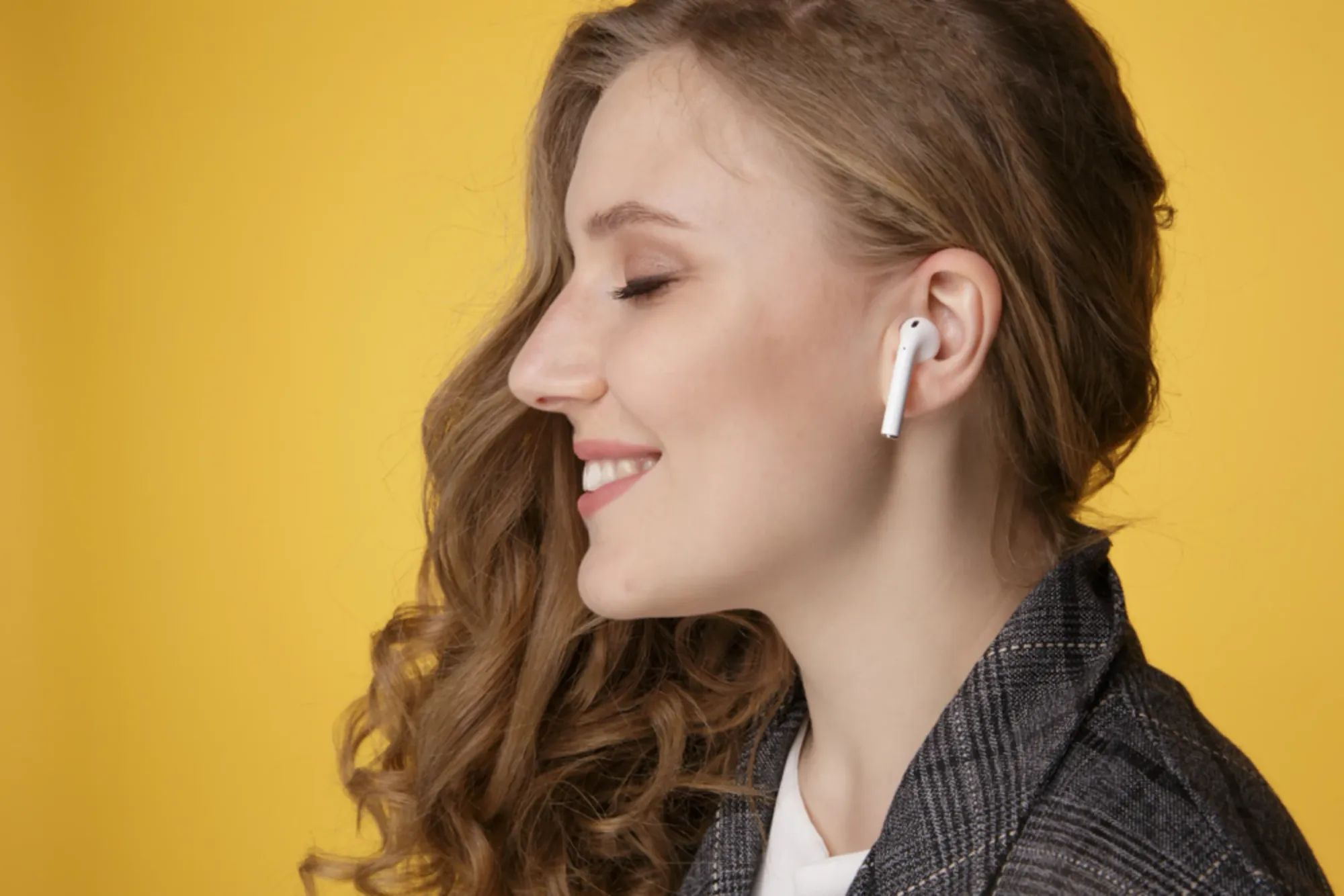
Conversation Awareness on AirPods Pro transforms how you interact with people while wearing earbuds. When you start speaking, your AirPods automatically lower the volume of whatever you're listening to, reduce background noise, and enhance the voice of whoever is standing in front of you. The moment your conversation ends, volume returns to normal. No taps, no stem presses, no removing anything from your ears.
Key Takeaways
- Enable Conversation Awareness via Control Center by long-pressing the volume slider
- The feature works on AirPods Pro 2, AirPods Pro 3, and AirPods 4 with Active Noise Cancellation
- Siri announces when the feature activates for the first time
- Press and hold the stem to immediately return to your original Listening mode
- Memory foam ear tips improve seal and make voice detection more accurate
- Conversation Awareness can sometimes trigger from humming or throat-clearing
At-A-Glance: Conversation Awareness Compatibility
The following table summarizes which AirPods models support Conversation Awareness and the minimum software requirements:
| AirPods Model | Conversation Awareness Support | Minimum iOS Version |
|---|---|---|
| AirPods Pro 2 | Yes | iOS 17 |
| AirPods Pro 3 | Yes | iOS 26 |
| AirPods 4 with ANC | Yes | iOS 18 |
| AirPods 4 (standard) | No | N/A |
| AirPods 3 | No | N/A |
| AirPods Max | No | N/A |
How Conversation Awareness Actually Works
The microphones in your AirPods Pro detect when you speak aloud. Once your voice is recognized, several things happen simultaneously: the volume of your podcast, music, or audiobook drops, Active Noise Cancellation shifts toward Transparency mode, and voices directly in front of you get amplified. Apple refers to this cluster of behaviors as part of its broader Adaptive Audio system, which launched with iOS 17 and expanded with the AirPods Pro 3 release in late 2025.
What makes this feature work well is how it handles the end of a conversation. Rather than cutting off abruptly, Conversation Awareness waits a few seconds after detecting that talking has stopped before gradually restoring your audio. The volume ramp-up is smooth, not jarring. The system assumes you might have a follow-up question or that the other person might reply, so it gives the interaction space to breathe.
One subtle friction point: humming, singing along to music, or clearing your throat can sometimes trigger the feature. It interprets these sounds as the beginning of a conversation. This is annoying when you're alone and just enjoying a song. The workaround is to press and hold the stem of either AirPod, which forces your earbuds back into your previously selected Listening mode instantly.
Join The Inner Circle For Serious Apple Users
Exclusive Apple tips. Free to join.
Enabling Conversation Awareness Step by Step
Before starting, confirm your AirPods Pro are updated to their latest firmware. AirPods update automatically when placed in their charging case near a paired iPhone, but you can verify the current version by opening Settings, tapping your AirPods name near the top of the screen, and scrolling to the bottom where the firmware version appears.
Open Control Center by swiping down from the top-right corner of your iPhone screen. With your AirPods in your ears and connected, touch and hold the volume slider. The slider expands into a larger panel showing your current Listening mode and additional controls. Tap the Conversation Awareness button at the bottom of this panel.
The first time you enable the feature, Siri speaks directly into your AirPods to confirm that Conversation Awareness is now active. From that point forward, the setting persists across device switches. Enable it once on your iPhone and it remains enabled when your AirPods connect to your iPad or Mac.
Alternatively, navigate to Settings, tap on your connected AirPods, scroll to the Audio section, and toggle the Conversation Awareness switch directly. This method gives you the same outcome but requires a few more taps.
Customizing Adaptive Audio for Better Results
Affiliate disclosure: some links in this article are Amazon Associate links. If you buy through them, Zone of Mac may earn a small commission at no extra cost to you, and we only recommend products that genuinely bring value to your Apple setup.
Conversation Awareness performs best when your AirPods Pro form a tight seal in your ear canal. The microphones rely on both external sound pickup and internal voice detection to distinguish your speech from ambient noise. A loose fit introduces air gaps that confuse the system.
Apple includes five silicone ear tip sizes with the AirPods Pro 3, ranging from XS to XL. Run the Ear Tip Fit Test in Settings under your AirPods to check your current seal quality. A green checkmark means your seal is good. A yellow warning suggests trying a different size.
For users who find that even the best-fitting silicone tips still slip during exercise or extended wear, memory foam alternatives solve the problem. Comply TrueGrip MAX tips use heat-activated foam that conforms to your ear canal shape over several seconds. The result is a seal that feels custom-molded. Because the foam compresses before insertion and then expands, it creates consistent contact that silicone cannot match. The improved seal also enhances noise isolation, which in turn makes Conversation Awareness more responsive to your voice.


Here's where you can buy the Comply TrueGrip MAX Memory Foam Tips for AirPods Pro 3 https://www.amazon.com/dp/B0G16D44RJ?tag=zoneofmac-20
When Conversation Awareness Falls Short
The feature works well in most scenarios, but it has limitations worth knowing. Background noise that includes speech can confuse the system. Standing in a crowded café where multiple conversations overlap may cause Conversation Awareness to trigger repeatedly even when nobody is speaking to you directly.
Similarly, environments with loud low-frequency sounds, like subway trains or industrial equipment, can make it harder for the microphones to isolate your voice. In these cases, manually pausing your audio or switching to Transparency mode through the stem press gesture gives you more control.
Another edge case: video calls. Conversation Awareness was designed for in-person interactions. During FaceTime or Zoom calls, the audio routing works differently because the call audio itself is coming through your AirPods. The feature does not lower call volume when you speak, as that would make the conversation unusable.
Accessibility and Clarity
Conversation Awareness provides meaningful accessibility benefits for users with hearing differences. By enhancing voices in front of you and reducing background noise, it functions similarly to a basic hearing aid mode. Apple expands on this with a separate feature called Conversation Boost, found under Settings, Accessibility, Audio & Visual, Headphone Accommodations, and then Transparency Mode. Conversation Boost focuses specifically on amplifying speech frequencies when someone is speaking to you face-to-face, even when you're not playing any media.
For users sensitive to sudden audio changes, the gradual volume transitions in Conversation Awareness are gentle rather than abrupt. The cognitive load remains low because you don't need to remember a gesture or tap pattern. Speaking naturally activates the feature. Stopping speech deactivates it. This predictable flow supports users with ADHD or those who find complex interactions distracting.
VoiceOver users can enable Conversation Awareness through the same Settings path described above. The toggle is clearly labeled and announces its state when activated.
Quick-Action Checklist
Use this checklist to configure Conversation Awareness on your AirPods Pro:
- Update AirPods firmware by placing them in the charging case near your iPhone overnight.
- Open Control Center on iPhone.
- Touch and hold the volume slider with AirPods connected.
- Tap Conversation Awareness to enable.
- Run the Ear Tip Fit Test under Settings to verify seal quality.
- If fit is loose, swap to a different ear tip size or upgrade to memory foam tips.
- Press and hold the stem to manually exit Conversation Awareness mode during false triggers.
- Adjust Adaptive Audio slider in Settings under your AirPods to control how much ambient noise passes through when the feature activates.

Related Posts
Your AirPods Work with Android — Here’s What Apple Holds Back
Apr 10, 2026
Your AirPods Are Collecting Grime That’s Killing Your Sound
Apr 09, 2026
Your AirPods Have a FaceTime Trick That Changes Group Calls
Apr 02, 2026