
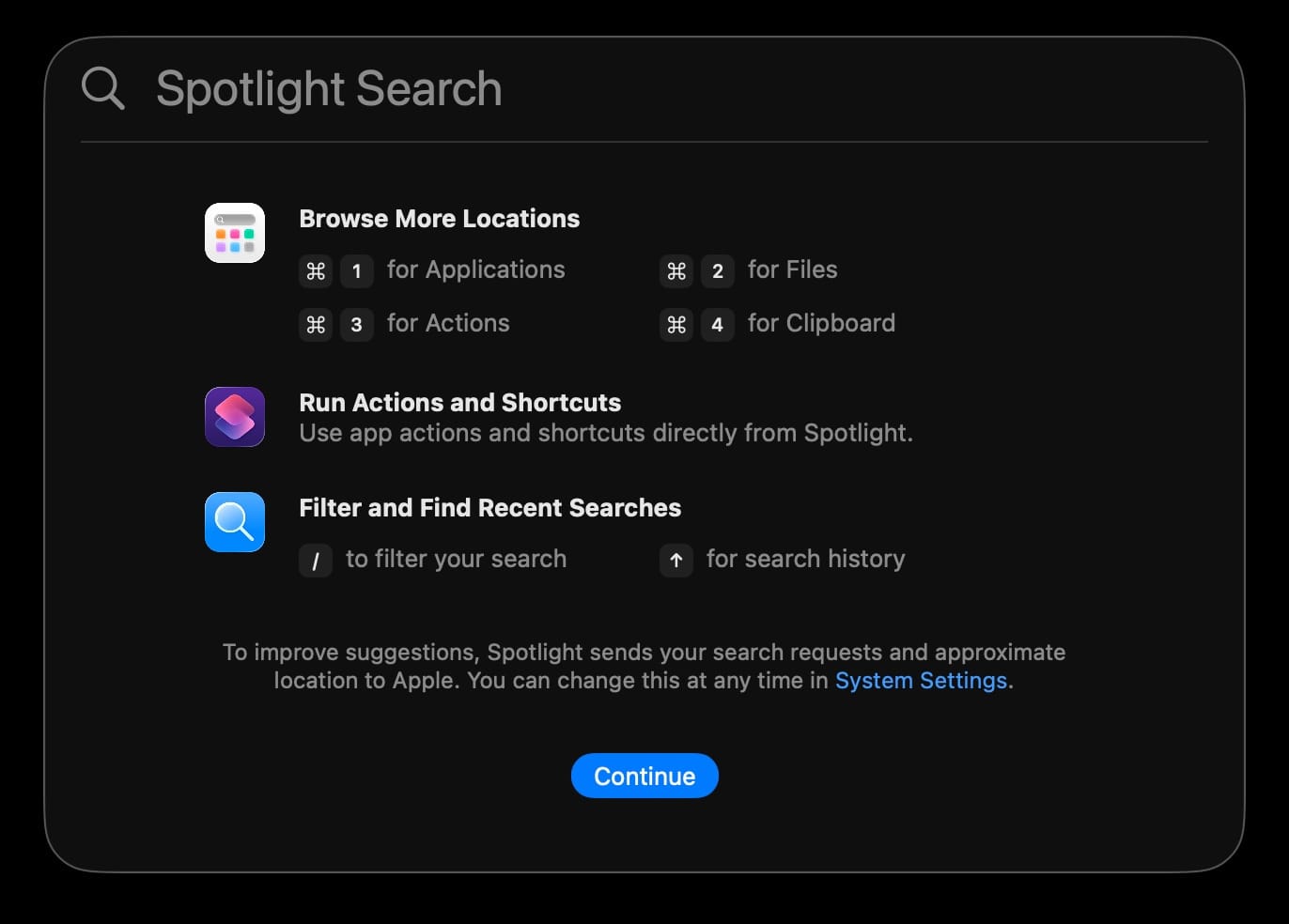

Spotlight in macOS Tahoe is no longer just a search bar. Apple quietly turned it into a clipboard manager, an app-action launcher, and a shortcut engine that handles tasks most Mac users still delegate to paid third-party tools. Press Command+Space and you are sitting on top of a system that remembers everything you copied for the last eight hours, sends messages without opening Messages, and runs entire Shortcuts workflows from a single text field.
The catch is that none of this works until you learn four keyboard shortcuts Apple buried behind the Spotlight bar. Out of the box, Spotlight still looks like the same search field it has been since 2004. The difference in macOS Tahoe is what happens when you press Command+3 or Command+4 instead of just typing a filename and hitting Return.
I used to keep three separate utilities running in my menu bar for clipboard history, quick launching, and text expansion. After spending a week with Spotlight’s new sections in macOS Tahoe, I retired two of them. The third is on notice.
 Ad
AdThe Four Shortcuts That Unlock Everything
Open Spotlight the way you always have — Command+Space. That part has not changed. What changed is the row of small icons that now appears to the right of the search field. Each icon corresponds to a Spotlight section, and each section has its own keyboard shortcut.
- Command+1 opens Applications, a scrollable grid of every app on your Mac.
- Command+2 opens Files, filtered to documents, folders, and downloads.
- Command+3 opens Actions, where Quick Keys and Siri Shortcuts live.
- Command+4 opens Clipboard, your rolling history of everything you have copied.
Apple’s Spotlight keyboard shortcuts documentation lists these, but I have yet to meet a Mac user outside of a tech publication who knows Command+4 exists. That single shortcut eliminated a $10 clipboard manager from my workflow on day one.
Clipboard History Without a Third-Party App
Press Command+Space, then Command+4. A scrollable list of everything you have copied in the last eight hours appears in the Spotlight window. Text, images, links, files — all of it, with visual previews on the left side.
To paste an item, double-click it. That drops it directly at your cursor position in whatever app is behind Spotlight. If you want to set an item as your current clipboard without pasting immediately, click the small arrow button on the right side of the entry, then use Command+V whenever you are ready.
There is a friction point worth knowing. Spotlight strips formatting from copied text. If you copy a bold, hyperlinked sentence from Safari, the clipboard history stores it as plain text only. For most workflows, that is actually a benefit — pasting into a plain text field no longer produces the bizarre font-size jumps that formatted clipboard content causes. But if you rely on preserving rich text formatting across apps, this will trip you up.
The default eight-hour window felt short to me. Thankfully, Apple added a setting to extend it. Open System Settings, click Spotlight in the sidebar, and look for the Clipboard toggle and duration dropdown. As of macOS 26.1, you can push the history window to seven days or shrink it to 30 minutes if you handle sensitive data and want items to vanish fast.
Passwords copied from Apple’s Passwords app are automatically excluded from the history. Items copied via Universal Clipboard from your iPhone or iPad do not appear either, which is a thoughtful compromise — it keeps your Mac clipboard separate from the cross-device stream that might contain banking codes or two-factor tokens.
 Ad
AdQuick Keys Turn Spotlight into a Command Line
This is the feature that convinced me Spotlight has graduated from search tool to system-level launcher. Press Command+Space, then Command+3 to open the Actions section. You will see a list of actions your Mac can perform — Send Message, Start FaceTime Call, Create Note, Send Email, Remove Image Background, Translate Text, and dozens more depending on which apps you have installed.
Each action can have a Quick Key assigned to it. A Quick Key is a two-or-three-character string you type in Spotlight to fire that action instantly. Spotlight suggests initials automatically after you run an action once. "SM" for Send Message. "FT" for Start FaceTime Call. "AR" for Add Reminder.
Here is where it gets genuinely useful. Type your Quick Key followed by a space and the input, and the action runs without an extra step. Type "ft Ashley" and press Return — you are on a FaceTime call before the Messages app even crosses your mind. Type "sm" and Spotlight prompts you for a recipient and message body right there in the search field. You never leave the keyboard.
To assign your own Quick Key, open Spotlight, press Command+3, find the action you want, and click "Add quick keys" next to it. I changed Send Message from "SM" to "MM" because my muscle memory kept reaching for "M" first. The system accepted it without complaint. If you assign a Quick Key that conflicts with an existing one, Spotlight tells you and lets you pick something else.
I think Quick Keys represent the most underappreciated addition to macOS in years. Alfred and Raycast built entire businesses on keyboard-driven actions, and Apple folded a credible version of that concept into a tool that ships free on every Mac. Quick Keys lack the depth of Alfred’s workflow chains or Raycast’s extension library, but for the 80 percent of actions most people actually perform — sending a message, starting a call, creating a note — they are faster because there is nothing to install or configure.
Running Siri Shortcuts Directly from the Search Bar
Any shortcut you have built in the Shortcuts app can now run from Spotlight, provided you enable two toggles. Open the shortcut in the Shortcuts app, click the info panel, and turn on "Show in Spotlight" and "Receive input from Spotlight." Once those are active, typing the shortcut’s name in Spotlight surfaces it as an action.
If you have built Shortcuts that use Apple Intelligence, they gain a new dimension inside Spotlight. The "Use Model" action in Shortcuts offers three processing options: Apple Intelligence on Apple servers, on-device only, or ChatGPT integration. A shortcut that accepts selected text, runs it through Apple Intelligence for a synonym list, and returns the results can execute entirely within Spotlight. You highlight a word, press Command+Space, type the shortcut name, and get your synonym list without opening a browser or a separate app.
I built a shortcut called "Count" that accepts any text from Spotlight and returns the word count, character count, and sentence count in a notification. It took about ninety seconds to build in the Shortcuts app, and it runs every time I type "count" in Spotlight. For a writer, that alone justifies the entire feature.
What Spotlight Still Cannot Do
Spotlight’s clipboard history caps text entries at roughly 16,384 characters. If you copy an entire document, it will not appear in the history. App-specific objects like shapes in Keynote or table selections in Numbers are also excluded. And there is a persistent gap with Mail — content copied from certain Mail views does not reliably populate the clipboard history, which is the kind of edge case that makes you keep a backup utility around.
Quick Keys also lack conditional logic. You cannot set up a Quick Key that behaves differently depending on the frontmost app, the way Alfred workflows or Keyboard Maestro macros can. If your productivity system relies on branching logic or multi-step automations triggered by context, Spotlight’s actions are not a replacement. They are a complement.
For Mac users who want to push further beyond third-party tools, macOS Tahoe’s built-in Terminal commands quietly replace several more paid apps in ways most people overlook.
Here is how macOS Tahoe Spotlight’s built-in tools compare to the paid utilities they quietly replace.
| Feature | Spotlight (Built-in) | Typical Paid Alternative | Key Difference |
|---|---|---|---|
| Clipboard History | Command+Space, then Command+4 | Paste, CopyClip, Maccy | Eight-hour default; extendable to seven days in Settings |
| App Actions / Quick Keys | Command+Space, then Command+3 | Alfred, Raycast, LaunchBar | Quick Keys auto-assign after first use; no configuration file |
| Shortcut Runner | Search shortcut name in Spotlight | Alfred workflows, Keyboard Maestro | Runs Siri Shortcuts natively; supports Apple Intelligence models |
How I Actually Set This Up
My workflow took about ten minutes to configure. First, I opened System Settings, clicked Spotlight, and extended the clipboard history duration to seven days. Then I opened Spotlight with Command+Space, pressed Command+3, and scrolled through the actions list. I assigned Quick Keys to the five actions I use daily: Send Message (MM), Create Note (CN), Start FaceTime (FT), Add Reminder (AR), and Translate Text (TT).
Next, I opened the Shortcuts app and enabled "Show in Spotlight" on four shortcuts I had already built: a word counter, a URL shortener, a Markdown-to-plain-text converter, and a quick screenshot uploader. All four now surface when I type their names in Spotlight.
The combination of Quick Keys and clipboard history has changed how I capture ideas. Instead of reaching for Quick Notes from the corner of the screen, I now press Command+Space, type "CN," and start writing directly into a new note. The difference is three fewer clicks and zero mouse movement. For someone who loses concentration the moment a hand leaves the keyboard, that matters.
Apple rarely advertises features this aggressively hidden behind keyboard shortcuts. Spotlight in macOS Tahoe is, at minimum, a capable clipboard manager and a fast app-action launcher. At best, it is the beginning of a system-wide command palette that makes the Mac feel like it finally respects keyboard-first users. Would you trade your current launcher for what Apple ships free in macOS Tahoe?

Related Posts
Apple’s $599 MacBook Neo vs the MacBook Air M5
Mar 04, 2026
Your Mac Has a Hidden Repair Shop Built Into the Power Button
Mar 04, 2026
Your Mac Is Stuck on an Old macOS Until You Run This Update
Mar 01, 2026