
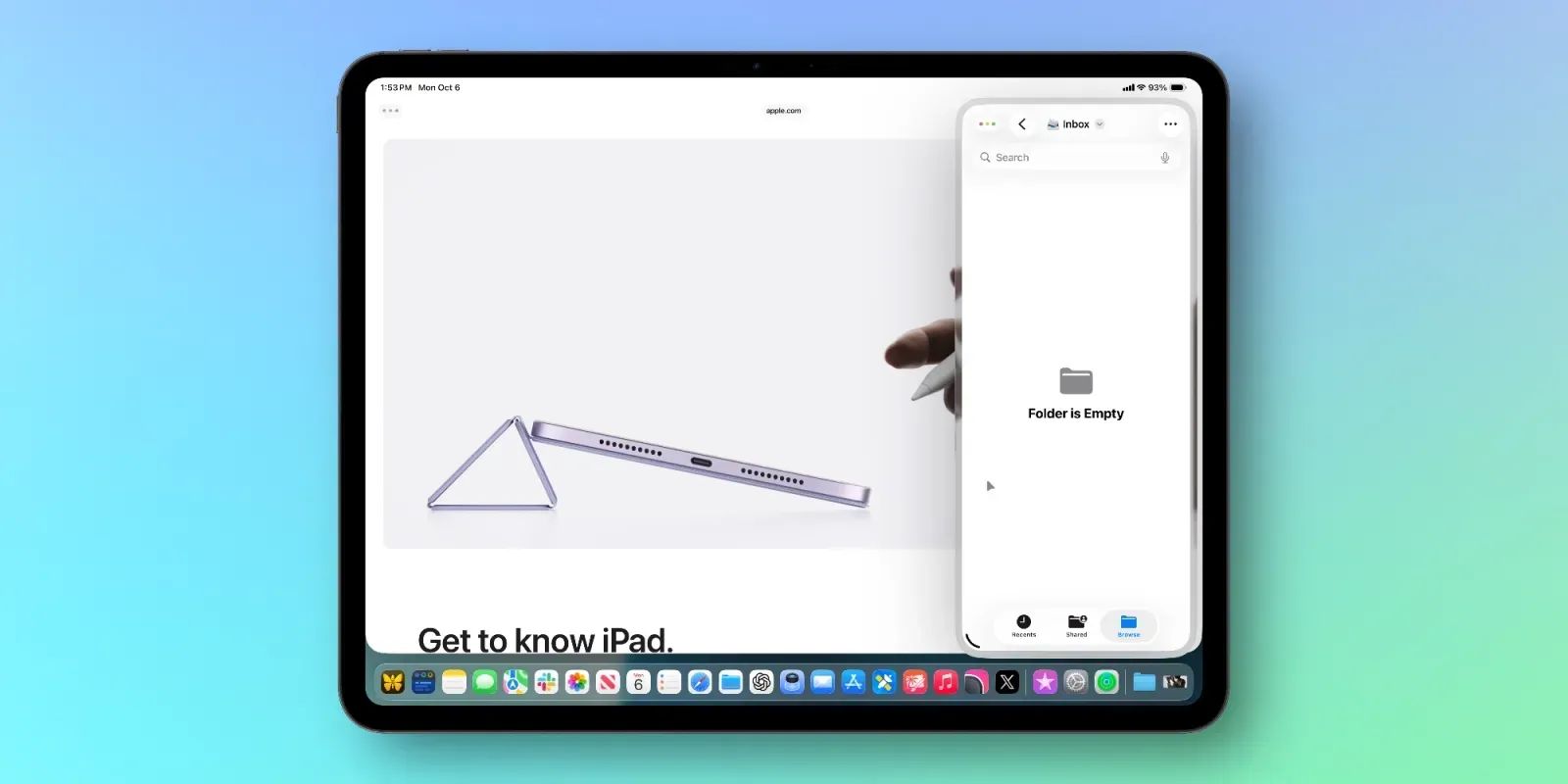

Split View and Slide Over in iPadOS 26 give you two distinct ways to run apps side by side or in a floating window, and both work on every iPad that supports iPadOS 26.3. The catch is that Apple removed these features entirely when iPadOS 26 launched, restored them across two separate updates, and changed the gestures for activating each one. Knowing which mode to reach for, and which gesture triggers it, is the difference between a smooth two-app workflow and accidentally opening a tiny floating window when you wanted a clean 50/50 split.
What Actually Changed Across iPadOS 26.0, 26.1, and 26.2
When Apple shipped iPadOS 26.0 in September 2025, Split View and Slide Over were gone. The new windowed app system replaced everything with freely resizable windows that float, overlap, and stack like macOS. Power users who relied on a locked 50/50 split for comparing documents or dragging files between apps were suddenly without a fast, predictable layout.
Apple heard the pushback. iPadOS 26.1 (November 2025) reintroduced Slide Over, the floating mini-window you can park on the left or right edge of the screen. iPadOS 26.2 restored Split View, the locked side-by-side layout that snaps two apps into fixed columns. By iPadOS 26.3 (the current shipping version as of February 2026), both features sit alongside the windowed app system, giving you three distinct multitasking modes on a single iPad.
Apple’s own Multitask on iPad support page confirms all three modes and their activation methods. The page is worth bookmarking because Apple continues to refine the gesture details with each point release.
How to Activate Split View in iPadOS 26.3
Split View requires one prerequisite: open Settings on your iPad, tap Multitasking & Gestures, and make sure Windowed Apps is selected (not Full Screen Apps). This setting unlocks Split View, Slide Over, and windowed mode simultaneously. If your iPad is set to Full Screen Apps, none of the multitasking gestures described below will respond.
Once Windowed Apps is active, the fastest way to enter Split View is the drag-from-Dock method:
- Open the first app you want on screen.
- Swipe up slowly from the bottom edge to reveal the Dock. The gesture needs to be slow and short; a fast swipe triggers the App Switcher instead.
- Tap and hold an app icon in the Dock until it lifts slightly.
- Drag that icon toward the left or right edge of the screen. A dark outline appears showing where the app will land.
- Release the icon. Both apps now occupy a locked split, and a vertical divider bar sits between them.
You can drag that center divider to adjust the ratio. iPadOS 26.3 supports a roughly 50/50 split and a 70/30 split. There is a subtle physical detent in the drag: the divider resists slightly at each snap point, which helps you land on the intended ratio without overshooting. On older iPadOS versions this divider moved freely with no tactile feedback, so the snap is a welcome change.
The second activation method uses the window controls button (the three-dot icon at the top of any app window). Press and hold it, then select the side-by-side layout. This method works, but it requires an extra tap compared to the Dock drag, so most people settle on the Dock shortcut once they get the swipe speed right.
How Slide Over Works Now (and Why It Feels Different)
Slide Over puts a narrow, floating window on top of a full-screen app. It is the right choice for apps you check frequently but briefly: a calculator, a quick note, a messaging thread.
To open Slide Over from the Dock, use the same drag gesture as Split View but aim for the spot just inside the left or right edge, where a small arrow indicator appears. Drop the app icon on that arrow. The app opens as a floating panel rather than locking into a split. If you miss the arrow and drop onto the main edge zone, you get Split View instead. The targeting is precise enough that you will occasionally trigger the wrong mode during the first few days. Slowing down the drag and waiting for the arrow to appear before releasing is the trick.
You can also convert any windowed app into Slide Over: tap the green window controls icon at the top-left corner of the window, then tap Enter Slide Over. The window shrinks into the narrow floating panel.
The biggest iPadOS 26.3 improvement is that Slide Over windows are resizable. Drag the bottom corner handle to make the panel wider or narrower. Previous iPadOS versions locked Slide Over into a single fixed width, which made it useless for apps that needed more horizontal space. A wider Slide Over panel running Safari next to a full-screen document editor is surprisingly practical.
Swipe the top edge of a Slide Over window to the left or right screen edge to park it off-screen. A small arrow marks where the window is hiding. Swipe inward from that edge to bring it back. This hide-and-reveal gesture is unchanged from older iPadOS versions, which is a small mercy given how much else moved around.
When to Use Split View, Slide Over, or Windowed Apps
The three modes overlap in capability but serve different rhythms of work. If you worked through the iPadOS 26 App Windows guide on Zone of Mac, you already know how freely resizable windows behave. Split View and Slide Over are more constrained on purpose: they give you a predictable, instant layout that does not require positioning or sizing decisions.
This summary compares the core multitasking modes available in iPadOS 26.3 for screen-reader users and quick reference.
| Feature | Split View | Slide Over | Windowed Apps |
|---|---|---|---|
| Layout | Two apps side by side, fixed | Floating window over a full-screen app | Freely resizable, overlapping windows |
| Best For | Comparing documents, drag-and-drop | Quick-reference apps (calculator, notes) | Desktop-style workflows with 3+ apps |
| Resize Options | Drag center divider (50/50 or 70/30) | Drag bottom corner handle | Drag any edge or corner |
| Keyboard Shortcut | Globe + Left/Right Arrow | Window controls menu | Globe + Up Arrow (full screen toggle) |
A practical rule: use Split View when your task involves constant interaction with both apps (dragging photos from Files into Keynote, referencing a PDF while writing in Pages). Use Slide Over when one app is a quick-glance reference you dismiss and recall frequently. Use windowed apps when you need three or more apps visible or want macOS-style stacking.
The Keyboard Shortcuts That Speed Everything Up
An external keyboard transforms Split View and Slide Over from gesture-dependent features into instant-access layouts. Globe + Left Arrow snaps the current app to the left half of the screen; Globe + Right Arrow snaps it right. Open a second app and use the same shortcut to fill the other half. The entire Split View setup takes two keystrokes.
Globe + Down Arrow shrinks the current app into a smaller window, which you can then convert to Slide Over using the window controls menu. Globe + Up Arrow returns any window to full screen. If you use an iPad keyboard daily, these shortcuts replace almost every touch gesture for multitasking. The full keyboard shortcut breakdown is in the iPad keyboard shortcuts guide on Zone of Mac.
Affiliate disclosure: some links in this article are Amazon Associate links. If you buy through them, Zone of Mac may earn a small commission at no extra cost to you, and we only recommend products that genuinely bring value to your Apple setup.
Why a Physical Keyboard Changes Split View Entirely
Split View on a bare iPad screen works fine for media consumption and casual browsing. The moment you need to type in one of those split apps, the on-screen keyboard claims roughly half the remaining screen space, which leaves each app with a sliver barely wide enough to show a full sentence. A physical keyboard eliminates that trade-off completely: the entire display stays available for your two apps, and the keyboard shortcuts described above let you rearrange layouts without lifting your hands from the keys.
The Logitech Combo Touch for iPad Pro 11-inch (M4 and M5) is built around this exact workflow. The keyboard detaches from the case so you can switch between typing mode and tablet mode without removing a protective shell. The trackpad sits below the keys, and trackpad gestures pair with Split View in a way that feels natural: two-finger swipe on the trackpad scrolls whichever split panel the cursor is hovering over, and a three-finger swipe between panels moves focus instantly. The kickstand adjusts to a range of angles, which matters more than it sounds when you are working on a couch or airplane tray rather than a flat desk. The key travel is shallow but distinct; you feel the actuation point without the mushiness that some slim iPad keyboards suffer from.
You can grab the Logitech Combo Touch for iPad Pro 11-inch (M4 & M5) here https://www.amazon.com/dp/B0D3NM94Y9?tag=zoneofmac-20
Join The Inner Circle For Serious Apple Users
Exclusive Apple tips. Free to join.
Check your inbox for a confirmation link.
Something went wrong. Please try again.
Hold Your iPad at the Right Angle for Sustained Split View Work
Working in Split View for longer sessions exposes an ergonomic problem that tablet-only users rarely think about: the viewing angle. Holding an iPad flat on a desk forces your neck into a forward tilt. Propping it against a random object works until it slides. A dedicated stand fixes both issues and turns Split View from a short-burst convenience into a sustainable work position.
The Twelve South Compass Pro is a portable steel stand that folds into three configurations: an upright easel angle for video calls and reading, a lower desktop angle for typing with an external keyboard, and a nearly flat wedge for Apple Pencil markup. The legs lock with a satisfying click, and the steel construction means the iPad does not wobble when you tap aggressively on either side of a Split View layout. The stand folds flat enough to slip into a laptop sleeve alongside the iPad. One minor friction point: the rubber pads on the feet grip smooth surfaces well but tend to slide on textured wood desks, so keep that in mind if your workspace has a rough grain.
Pick up the Twelve South Compass Pro on Amazon https://www.amazon.com/dp/B07VD7GWTK?tag=zoneofmac-20
Accessibility and Clarity
Split View and Slide Over both respond to VoiceOver gestures, which means users navigating by screen reader can move focus between split panels using a three-finger swipe left or right. The center divider in Split View is labeled as an adjustable element in VoiceOver, so repositioning the split ratio does not require precise visual targeting. Slide Over windows announce their presence when they appear and can be dismissed with a VoiceOver flick gesture.
The Windowed Apps setting that enables these features is located at a predictable path (Settings, then Multitasking & Gestures) and does not require navigating nested submenus. Cognitively, the three-mode system (Split View, Slide Over, windowed) is more complex than the old two-mode system, but each mode produces a visually distinct layout that is easy to identify at a glance. Split View shows a thick vertical divider. Slide Over shows a floating panel with a visible grab handle. Windowed apps show title bars. These visual cues help users with ADHD or cognitive processing differences quickly confirm which mode is active without reading labels.
For users with limited hand mobility, the keyboard shortcuts (Globe + Left/Right Arrow) remove the need for the precise drag-from-Dock gesture, which requires holding and targeting a narrow drop zone. An external keyboard paired with your iPad makes the entire multitasking system accessible without complex touch gestures.
Quick-Action Checklist: Set Up Split View and Slide Over in Two Minutes
- Open Settings, tap Multitasking & Gestures, select Windowed Apps
- To start Split View: swipe up for the Dock, drag an app icon to the left or right screen edge, release when the dark outline appears
- To resize Split View: drag the center divider to the 50/50 or 70/30 snap point
- To start Slide Over: drag an app icon from the Dock to the small arrow just inside the screen edge
- To resize Slide Over: drag the bottom corner handle of the floating window
- To hide Slide Over: swipe the floating window off the left or right edge
- To recall hidden Slide Over: swipe inward from the edge where it disappeared
- Keyboard shortcut for Split View: Globe + Left Arrow (snap left) or Globe + Right Arrow (snap right)
- Keyboard shortcut for full screen: Globe + Up Arrow

Blaine Locklair
Founder of Zone of Mac with 25 years of web development experience. Every guide on the site is verified against Apple's current documentation, tested with real hardware, and written to be fully accessible to all readers.
follow me :
Related Posts
Your iPad Moves Files Six Ways and You're Probably Using One
Apr 08, 2026
Your iPad’s Magic Keyboard Has a Shortcut Layer Most Owners Never Open
Apr 07, 2026
Your Apple Pencil Tip Is Wearing Out and You Can’t Even Tell
Apr 06, 2026