
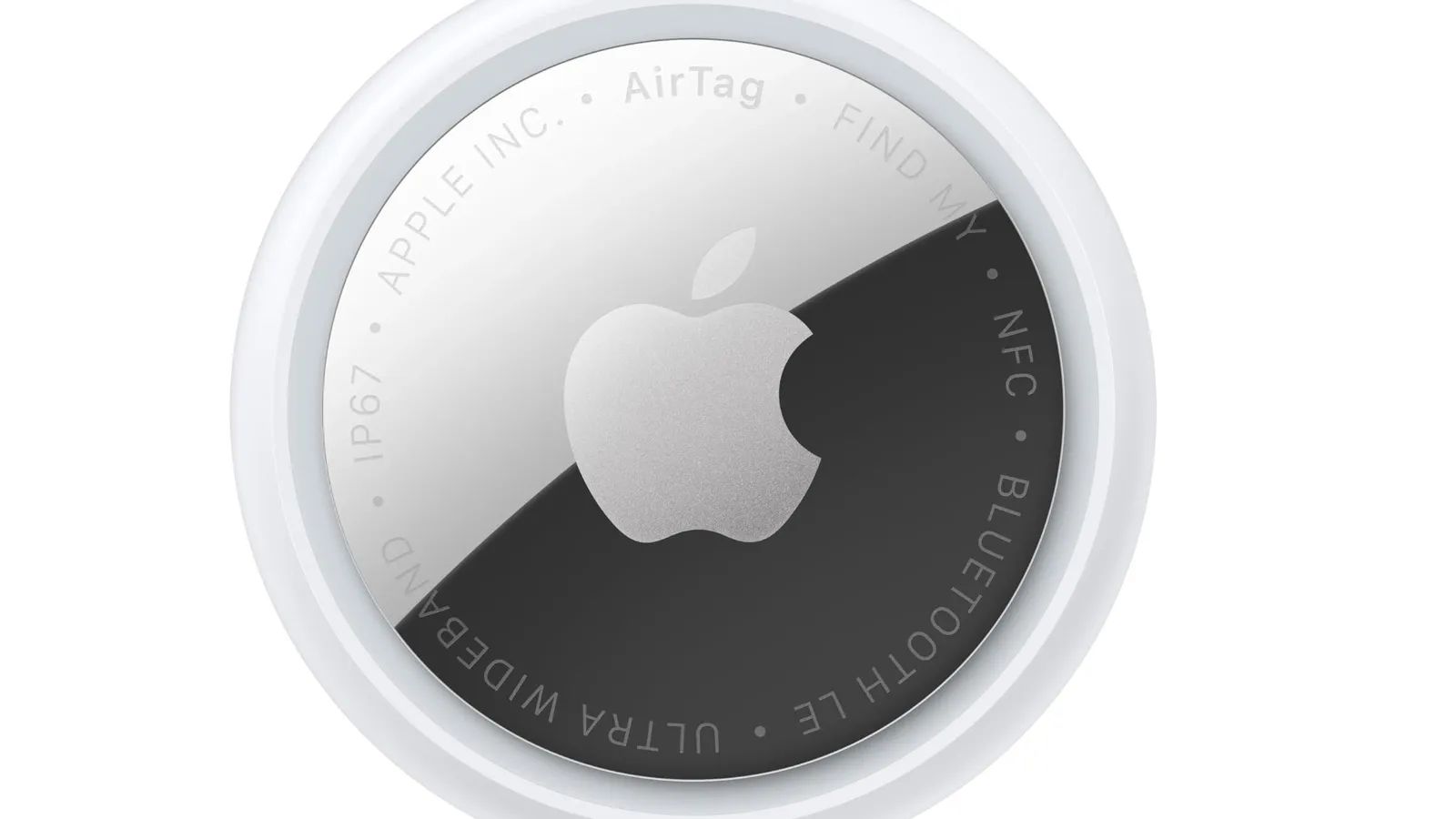

pple's second-generation AirTag brings significant improvements to the original item tracker, including 50% greater Precision Finding range, a 50% louder speaker, and for the first time, full Precision Finding support on Apple Watch. The setup process takes about two minutes once you know the steps, and proper configuration ensures you get every finding advantage the new hardware offers.
Key Takeaways
- Hold AirTag 2 near your iPhone running iOS 26 to trigger automatic pairing
- Name your AirTag descriptively (e.g., "Travel Backpack" rather than "Bag") for clearer Find My results
- Enable Precision Finding from your Apple Watch Series 9 or later by updating to watchOS 26.2.1
- Share Item Location works with over 50 airlines to help recover delayed luggage
| Feature | AirTag (1st Gen) | AirTag 2 |
|---|---|---|
| Precision Finding Range | Standard | 50% farther |
| Speaker Volume | Standard | 50% louder |
| Apple Watch Precision Finding | No | Yes (Series 9+) |
| Price | $29 single / $99 four-pack | $29 single / $99 four-pack |
Affiliate disclosure: some links in this article are Amazon Associate links. If you buy through them, Zone of Mac may earn a small commission at no extra cost to you, and we only recommend products that genuinely bring value to your Apple setup.
Pairing Your AirTag 2 With iPhone
Remove the plastic tab from your AirTag 2 to activate the battery. Hold the AirTag close to your iPhone, and a pairing card appears automatically on screen. Tap Connect, then assign a name from Apple's preset list or create a custom name by selecting Custom Name. Custom names work particularly well for distinguishing between multiple AirTags, such as "Checked Luggage" versus "Carry-On" when traveling.
After naming, the AirTag links to your Apple Account. This connection means your AirTag appears in Find My across every device signed into the same account, including your iPad, Mac, and Apple Watch. The pairing process completes in under 30 seconds when your iPhone runs iOS 26 or later.
One detail worth noting during setup: the confirmation sound from AirTag 2 has a distinctly different chime than the original. The new tone sounds crisper and carries noticeably better across a room, which becomes apparent the first time you use Find My to play a sound on your tracker.
Configuring Precision Finding for Maximum Range
Precision Finding uses the second-generation Ultra Wideband chip inside AirTag 2 to provide directional guidance toward your lost item. When you open Find My and select your AirTag, the app shows both a map view and, when you're within range, an arrow pointing toward the tracker along with a distance measurement.
The new AirTag extends this Precision Finding range by 50% compared to the original. In practical terms, the guidance arrow now appears when you're roughly 15 meters away rather than the previous 10-meter threshold. This expanded range proves especially useful in larger spaces like parking garages or airports.
To use Precision Finding, open the Find My app and tap the Items tab at the bottom. Select your AirTag 2 from the list, then tap Find. Your iPhone displays directional arrows and distance, with haptic feedback intensifying as you get closer. The feature requires an iPhone 11 or later and works best in open areas without significant radio interference.
Using Precision Finding on Apple Watch
For the first time, Apple Watch now supports full Precision Finding for AirTag. This capability requires Apple Watch Series 9, Series 10, Series 11, Ultra 2, or Ultra 3 running watchOS 26.2.1 or later. The watch must also be paired with an iPhone 17, iPhone Air, or any Ultra Wideband-equipped iPhone from the iPhone 11 generation forward.
Open the Find My app on your Apple Watch, scroll to the Items section, and select your AirTag 2. The watch face displays a circular indicator that shifts from red to green as you approach your item, with distance readings updating in real time. Haptic taps on your wrist guide you when looking at the screen isn't practical, such as when searching through a crowded bag or feeling around behind furniture.
Having Precision Finding on your wrist changes how you search for lost items. Instead of walking around with your phone held out in front of you, you can casually glance at your watch while moving through a space. The feedback feels more natural and less conspicuous in public settings.
Share Item Location With Airlines
Apple partnered with over 50 airlines to integrate AirTag directly into luggage recovery workflows through Share Item Location. When your checked bag gets delayed, you can share a secure link that gives airline staff temporary access to your AirTag's location without revealing any other personal data.
To share your AirTag's location, open Find My, select the AirTag attached to your luggage, and tap Share Item Location. The app generates a link you can send to the airline's customer service team via their preferred contact method. According to SITA, airlines using this feature have reduced baggage delays by 26% and cut truly unrecoverable luggage incidents by 90%.
The shared location expires automatically after seven days or when you're reunited with your item. You can revoke access at any time from the Find My app. Only authorized airline personnel can access the link, and the sharing occurs through secure Apple Account authentication.
Protecting Your AirTag With a Quality Case
The AirTag 2 maintains the same physical dimensions as the original, meaning all existing accessories remain compatible. However, placing an AirTag directly on a keychain without protection risks scratches to the polished steel battery cover and potential damage from drops.
A genuine leather keychain holder provides both protection and style while keeping the speaker grille unobstructed for maximum volume. The KEEPXYZ Genuine Leather AirTag Holder uses premium cowhide with a one-piece pressed construction that holds the AirTag securely in place. The double anti-loss design includes a metal snap closure and leather loop to block the entrance, making it nearly impossible for the tracker to slip out during daily use.
Here's where to get the KEEPXYZ Genuine Leather AirTag Holder https://www.amazon.com/dp/B09SKSG3H3?tag=zoneofmac-20
The AirTag 2 itself represents excellent value at the same $29 price point as the original, especially given the hardware improvements. Apple's direct product page offers free engraving if you want to personalize your tracker with initials, an emoji, or text.
Here's where to buy the Apple AirTag 2 https://www.amazon.com/dp/B0GJTFXNRX?tag=zoneofmac-20
Accessibility and Clarity
AirTag 2 integrates directly with VoiceOver on iPhone and Apple Watch. When Precision Finding is active, VoiceOver announces the distance and direction to your AirTag verbally, allowing visually impaired users to locate items without relying on the visual arrow display. The louder speaker also improves accessibility by making the audio chime easier to hear for users with mild hearing impairment.
The Find My interface maintains high contrast throughout, with clear icons distinguishing between different item types. Apple's use of both color coding (green for nearby, red for far away) and numeric distance readings ensures users who experience color vision differences can still interpret the finding interface accurately.
For users with motor difficulties, Precision Finding on Apple Watch reduces the need to hold and manipulate a phone while searching. The wrist-based feedback through haptics provides guidance without requiring visual attention to a screen, which proves helpful when searching in awkward positions like reaching under furniture.
Battery Replacement and Maintenance
AirTag 2 uses the same CR2032 coin cell battery as the original. Apple estimates battery life exceeding one year under typical use. When the battery runs low, your iPhone displays a notification indicating which AirTag needs attention.
To replace the battery, press down on the stainless steel battery cover and rotate counterclockwise. The cover releases after about a quarter turn. Remove the old battery, insert a new CR2032 with the positive side facing up, and replace the cover by pressing down and rotating clockwise until it clicks into place.
One physical quirk becomes apparent when handling the AirTag during battery replacement: the plastic body has a slightly different texture than the original. The enclosure now contains 85% recycled plastic, and while visually identical, it feels marginally less rigid when pressed. This softer feel actually helps when twisting the battery cover, as the body provides slightly more give during the rotation.
Quick-Action Setup Checklist
- Remove the plastic tab from your new AirTag 2
- Hold the AirTag within 2 inches of your iPhone
- Tap Connect when the pairing card appears
- Assign a descriptive custom name to your AirTag
- Update your Apple Watch to watchOS 26.2.1 for Precision Finding
- Test the speaker volume by tapping Play Sound in Find My
- Attach the AirTag to your item using a compatible accessory
- Verify the AirTag appears in Find My on all your devices

Blaine Locklair
Founder of Zone of Mac with 25 years of web development experience. Every guide on the site is verified against Apple's current documentation, tested with real hardware, and written to be fully accessible to all readers.
follow me :
Related Posts
Your iPhone's Liquid Glass UI Has Four Settings You Skipped
Apr 11, 2026
iOS 26.4.1 Fixes the iCloud Bug That Broke Your Apps
Apr 09, 2026
iOS 26.4 Drains Your iPhone Battery. Here’s What Fixes It
Apr 09, 2026