
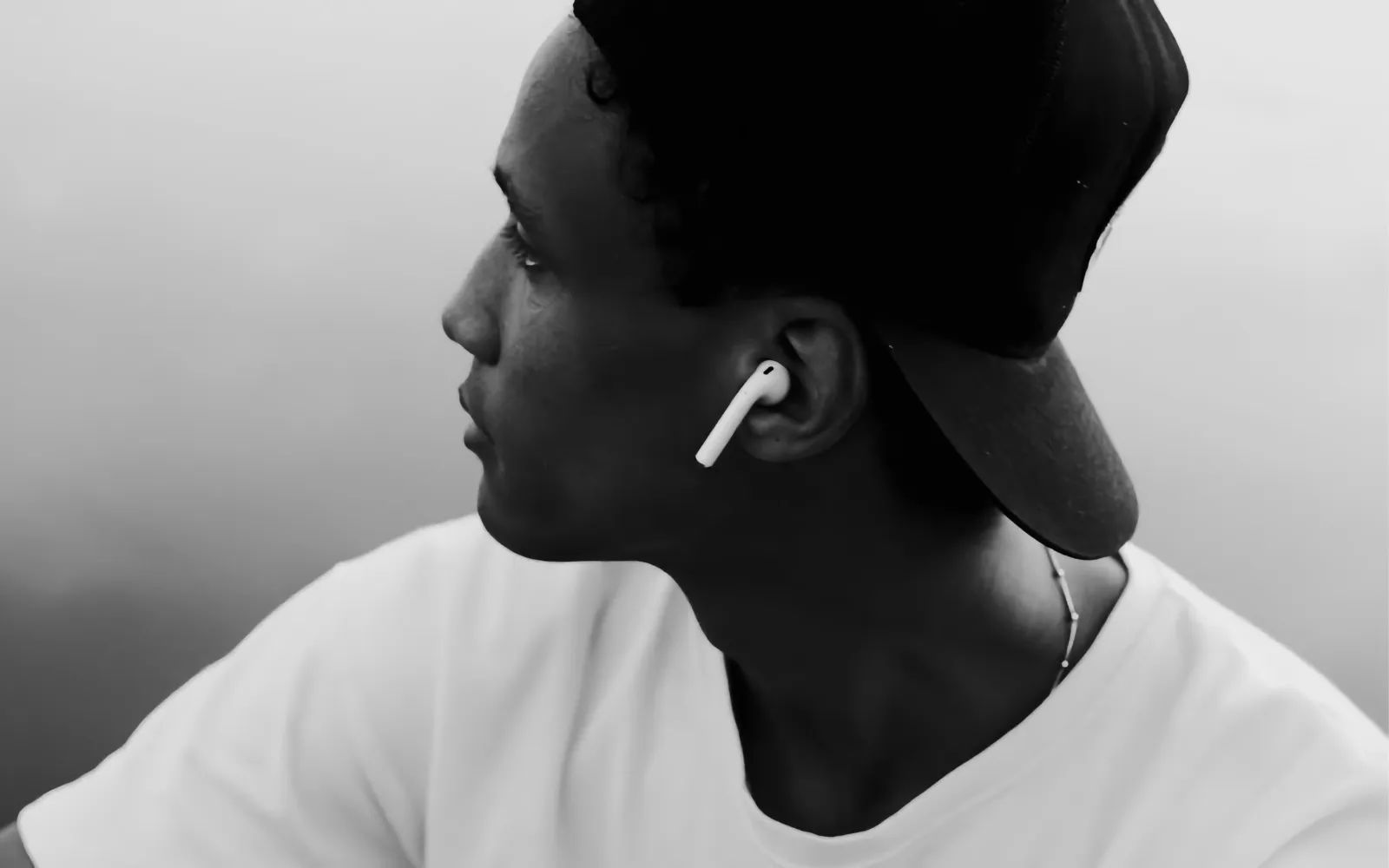

Spatial Audio on AirPods uses head tracking, Dolby Atmos decoding, and a personalized ear scan to wrap sound around you instead of piping it straight into your ear canals. The result, when configured properly, makes movies feel like a private theater and music feel like a live performance happening around you. The complication is that properly is doing heavy lifting in that sentence: Apple ships Spatial Audio turned on by default, but the feature has four distinct layers of configuration, and most AirPods owners are running with only one of them active. The difference between a half-configured setup and a fully tuned one is the difference between a gimmick and a genuine upgrade to how you hear everything.
This guide walks through each layer across Apple Music, Netflix, and Spotify, so you can stop wondering whether Spatial Audio actually works and start hearing it do its job.
What Spatial Audio Actually Does Under the Hood
Traditional stereo sends one signal to your left ear and another to your right. Spatial Audio adds a third dimension by applying directional audio filters that simulate sound arriving from above, below, behind, and beside you. The gyroscope and accelerometer inside your AirPods track your head position, and iOS remaps the sound field so that audio stays anchored to your device even when you turn your head. Turn left, and vocals shift to the right, exactly where your screen still sits.
That head-tracking layer is just one piece. Spatial Audio also includes Dolby Atmos decoding for content mixed in surround formats and Spatialize Stereo, which processes standard two-channel audio through Apple's spatial renderer to give it a wider, more open soundstage. These are separate toggles. You can have head tracking on with Spatialize Stereo off, or Atmos decoding active without head tracking. Understanding which combination suits each app is where the real payoff lives.
The First Step Everybody Skips: Personalized Spatial Audio
Apple introduced Personalized Spatial Audio in iOS 16, and it remains the single most impactful setting most AirPods owners never touch. The feature uses the TrueDepth camera on your iPhone to scan the shape of your ears in three dimensions, then builds a custom audio profile tuned to how sound actually reaches your eardrums. Without it, Spatial Audio applies a generic head-related transfer function that works reasonably well for average ear geometry but sounds hollow or unbalanced for anyone whose ears fall outside that average.
To set it up, connect your AirPods Pro, AirPods 3, or AirPods Max to your iPhone. Open Settings, tap the name of your AirPods near the top of the screen, then tap Personalized Spatial Audio followed by Personalize Spatial Audio. Your iPhone will guide you through capturing a front-face scan and then each ear individually. The whole process takes about 30 seconds. Your profile syncs across every Apple device signed into the same Apple Account running iOS 16, iPadOS 16.1, macOS Ventura, or tvOS 16 and later. Apple's support documentation for Personalized Spatial Audio confirms the full list of compatible devices and requirements.
One friction point worth noting: the ear capture can be finicky in low light. The TrueDepth camera needs a clear view of your outer ear, and if you have longer hair, you may need to pull it back for the scan to register. If the scan fails on the first attempt, moving to a brighter room and holding the phone about 10 to 12 inches from your ear usually solves it.
Configuring Apple Music for Dolby Atmos and Spatial Audio
Apple Music has the deepest Spatial Audio integration of any streaming service. Thousands of tracks in the catalog have been mixed or remixed in Dolby Atmos, and Apple continues adding new ones every week. But the Dolby Atmos toggle and Spatial Audio are independent settings, and getting the most from both requires configuring each one deliberately.
Open Settings on your iPhone or iPad, scroll to Music (or Apps then Music depending on your iOS version), tap Audio, and under Dolby Atmos, select Always On. The "Automatic" option only activates Atmos when compatible AirPods are connected, which sounds reasonable until you realize it sometimes fails to detect the connection quickly enough, leaving you in stereo for the first few seconds of a track. "Always On" ensures Atmos playback is active from the first beat.
If you have already adjusted your Apple Music settings following our guide to Apple Music settings you should change on day one, you are halfway there. The remaining step is controlling how Spatial Audio behaves during playback. While a track is playing, open Control Center, long-press the volume slider, and tap the Spatial Audio icon at the bottom right. You will see three options: Off, Fixed, and Head Tracked. For music, Fixed is usually the better choice. Head tracking anchors the soundstage to your phone's position, which makes sense when watching a movie on a screen but creates a disorienting effect with music if you turn your head while walking or working.
Affiliate disclosure: some links in this article are Amazon Associate links. If you buy through them, Zone of Mac may earn a small commission at no extra cost to you, and we only recommend products that genuinely bring value to your Apple setup.
Join The Inner Circle For Serious Apple Users
Exclusive Apple tips. Free to join.
Check your inbox for a confirmation link.
Something went wrong. Please try again.
Getting Spatial Audio Working on Netflix
Netflix rolled out spatial audio support using Sennheiser's AMBEO 2-Channel Spatial Audio technology, and the library has grown to more than 700 titles with spatial audio mixes. The catch: spatial audio streaming is locked behind Netflix's Premium plan. If you are on Standard or Standard with Ads, the spatial audio tracks simply do not appear.
Assuming you have a Premium subscription, Netflix spatial audio activates automatically on any device with stereo output, including AirPods. There is no toggle inside the Netflix app itself, which confuses a lot of people. The control lives in iOS. While watching a show or movie, open Control Center, long-press the volume slider, and confirm that Spatial Audio is set to Head Tracked or Fixed. For video content, Head Tracked is the better choice here because it anchors dialogue to the screen's location, making it feel like the actors' voices come from the direction of your device even as you shift position on the couch.
If the Spatial Audio icon shows a static blue circle instead of animated waves, the content you are watching does not have a spatial audio mix. Netflix does not label spatial audio availability on the browse screen, so you will need to start playback and check the Control Center indicator to know for sure. Titles like Stranger Things, Wednesday, and Glass Onion all have spatial mixes. Older catalog titles recorded in mono or basic stereo will not benefit from the feature, though iOS can still apply Spatialize Stereo processing to give them a slightly wider feel.
Spotify and the Spatialize Stereo Workaround
Spotify does not natively support Dolby Atmos or Apple's Spatial Audio format. This has been a point of frustration for subscribers who see Spatial Audio working beautifully in Apple Music and Netflix but get nothing from Spotify. The good news is that iOS offers a partial solution through Spatialize Stereo, which takes any standard two-channel audio and processes it through Apple's spatial renderer.
To enable it, start playing a track in Spotify, open Control Center, long-press the volume slider, and tap the Spatial Audio icon. If the content is stereo (which all Spotify content is), the option will read Spatialize Stereo instead of Spatial Audio. Tap it to turn it on. The effect is subtler than true Dolby Atmos playback. It widens the perceived soundstage and adds a sense of depth, but it cannot create the precise directional placement that a proper Atmos mix delivers. For podcasts and acoustic tracks, the difference is noticeable and pleasant. For heavily compressed pop tracks, the processing can sometimes make vocals sound slightly distant.
The setting is per-app, so enabling Spatialize Stereo in Spotify does not affect your Apple Music or Netflix configurations. iOS remembers your preference and applies it automatically the next time you open the app.
Spatial Audio Support At a Glance
The table below compares how Apple Music, Netflix, and Spotify handle spatial audio features. Understanding these differences helps you set the right expectations and toggle the right settings for each app.
| App | Native Spatial Audio | Dolby Atmos Content | Head Tracking |
|---|---|---|---|
| Apple Music | Yes (built-in) | Thousands of tracks | Yes |
| Netflix | Yes (Premium plan only) | 700+ titles via AMBEO | Yes (with AirPods) |
| Spotify | Spatialize Stereo only | No native Atmos | Yes (via iOS) |
Why Your Ear Tips Determine How Good Spatial Audio Sounds
Here is something that no settings menu can fix: if your AirPods Pro do not maintain a tight seal in your ear canals, Spatial Audio loses most of its effect. The spatial processing depends on controlled sound delivery to each ear. A loose seal lets ambient noise leak in and bass frequencies escape, which collapses the three-dimensional illusion back into flat, ordinary headphone sound. Apple's Ear Tip Fit Test (Settings, then tap your AirPods, then Ear Tip Fit Test) can confirm whether your current tips are creating an adequate seal. If the test reports a "Good Seal" on both ears but music still sounds thin during Spatial Audio playback, the stock silicone tips may not be conforming closely enough to your ear canal geometry.
Memory foam ear tips solve this problem by compressing on insertion and then slowly expanding to fill the unique contours of each ear canal. The result is a seal that stays consistent even when you move your jaw, smile, or turn your head, all of which can break the seal on silicone tips. That consistent seal does two things for Spatial Audio: it improves passive noise isolation so the spatial processing does not have to compete with outside sound, and it preserves the low-frequency response that gives Atmos mixes their sense of physical space. If you have tried Spatial Audio and walked away unimpressed, a tip swap is the most likely fix.
The Comply TrueGrip MAX tips use heat-activated memory foam with a patented SmartSkin coating that resists moisture and extends the foam's lifespan to roughly four to six months of daily use. They click securely onto AirPods Pro 1st and 2nd generation stems and fit inside the charging case without modification. The foam compresses thin enough to insert easily, then expands over about 15 seconds to create a custom mold of your ear canal. For Spatial Audio specifically, the difference in bass response and spatial separation between stock silicone and memory foam is immediate and hard to unhear. Pick up the Comply TrueGrip MAX Memory Foam Ear Tips on Amazon https://www.amazon.com/dp/B0F9YXSGHQ?tag=zoneofmac-20
When Spatial Audio Shows 'Not Available' and How to Fix It
The most common reason for the "Spatial Audio Not Available" message is Mono Audio being turned on in Accessibility settings. Go to Settings, then Accessibility, then Audio/Visual, and make sure Mono Audio is toggled off. Mono Audio merges left and right channels into a single stream, which makes Spatial Audio processing impossible.
Other fixes, in order of likelihood: make sure your AirPods firmware is current (Settings, then General, then About, then tap your AirPods name to check the firmware version). Unpair and re-pair your AirPods if the firmware is current but Spatial Audio still does not appear. If you are running into issues with connectivity in general, our walkthrough on pairing AirPods to any Apple device covers the reset process in detail. On Mac, Spatial Audio with head tracking requires Apple silicon and macOS 12.3 or later. Intel Macs support Fixed Spatial Audio but not head tracking. Apple's Spatial Audio support page maintains the authoritative compatibility list.
Fixed Versus Head Tracked: When to Use Each
The choice between Fixed and Head Tracked depends entirely on whether you are watching a screen or just listening. Head Tracked anchors the audio to your device's physical location, so if you turn your head to the right while watching a movie on your iPad, dialogue continues to arrive from the direction of the screen. This creates a convincing illusion that the sound is coming from the device itself rather than from inside your head. For movies, TV shows, and video calls, Head Tracked is the setting you want.
For music, Fixed is almost always better. Fixed applies the spatial processing but does not track your head movements, so the expanded soundstage stays centered and stable regardless of how you move. Head Tracked with music creates an odd sensation where vocals shift left or right as you turn your head, which might be novel for the first 30 seconds but becomes fatiguing quickly. If you have been listening to music with Head Tracked and found Spatial Audio annoying, try switching to Fixed before dismissing the feature entirely.
One lesser-known detail: iOS saves your Spatial Audio preference per app. If you set Apple Music to Fixed and Netflix to Head Tracked, those preferences persist across sessions. You do not need to toggle every time you switch apps. If you have been dealing with other AirPods quirks like unexpected volume changes, our guide on fixing AirPods Conversation Awareness volume issues covers a related but separate setting that can interfere with your listening experience.
Accessibility and Clarity
Spatial Audio's accessibility picture is mixed. On the positive side, Apple's implementation works seamlessly with VoiceOver. All Spatial Audio controls are fully labeled and navigable with screen reader gestures in both Settings and Control Center. The Personalized Spatial Audio setup process includes audio and haptic cues at each step, so users with low vision can complete the ear scan without seeing the screen, though a sighted assistant may help with initial camera positioning.
The head tracking feature has a genuinely useful accessibility application: it can help users who are hard of hearing in one ear by anchoring sound to a fixed spatial position relative to a screen, making dialogue easier to localize. However, for users with vestibular sensitivities, head tracking can cause mild disorientation. If you experience any dizziness, switch to Fixed mode or disable Spatial Audio entirely. The toggle is accessible through Control Center without navigating deep into Settings, which keeps cognitive load low for quick adjustments.
For users with cognitive accessibility needs, the per-app memory feature is a significant benefit. Once you configure your preferred Spatial Audio mode for each app, iOS remembers the setting indefinitely. There is no repeated decision-making or menu navigation required on subsequent sessions.
Quick-Action Checklist: Spatial Audio in Five Minutes
- Open Settings, tap your AirPods name, tap Personalized Spatial Audio, and complete the ear scan
- Go to Settings, then Music (or Apps then Music), then Audio, and set Dolby Atmos to Always On
- Play a Dolby Atmos track in Apple Music, open Control Center, long-press the volume slider, and set Spatial Audio to Fixed
- Open Netflix (Premium plan required), play a supported title, and confirm Spatial Audio shows Head Tracked in Control Center
- Open Spotify, play any track, open Control Center, long-press volume, and enable Spatialize Stereo
- Run the Ear Tip Fit Test (Settings, tap your AirPods, then Ear Tip Fit Test) to verify a proper seal on both ears
- If the test shows a poor seal or bass sounds weak, swap stock silicone tips for memory foam replacements

Olivia Kelly
Staff writer at Zone of Mac with over a decade of Apple platform experience. Verifies technical details against Apple's official documentation and security release notes. Guides prioritize actionable settings over speculation.
Related Posts
Your AirPods Work with Android — Here’s What Apple Holds Back
Apr 10, 2026
Your AirPods Are Collecting Grime That’s Killing Your Sound
Apr 09, 2026
Your AirPods Have a FaceTime Trick That Changes Group Calls
Apr 02, 2026