
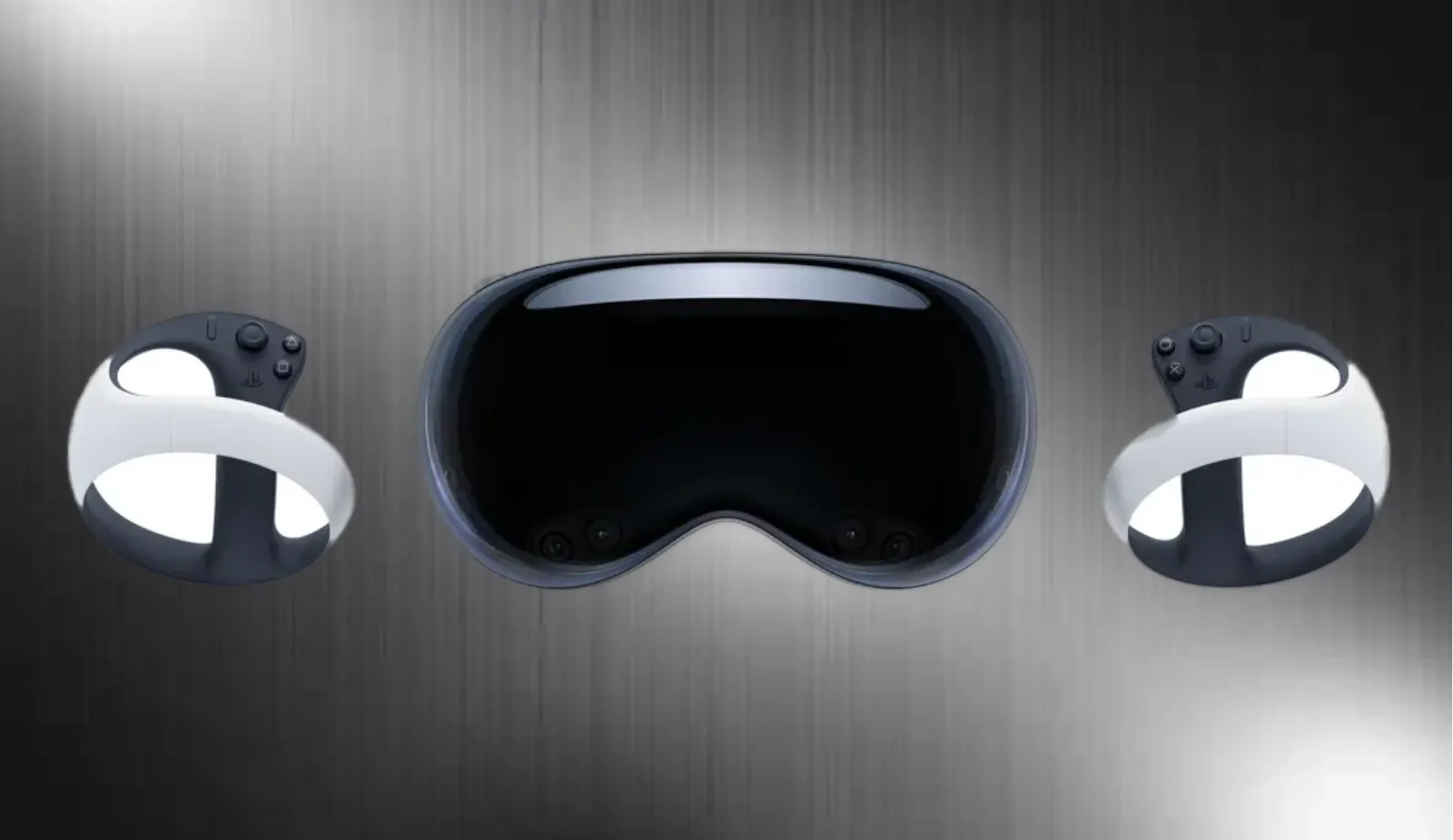

Apple Vision Pro owners can now experience true six-degrees-of-freedom gaming by pairing PlayStation VR2 Sense controllers with their headsets. Starting with visionOS 26, Apple officially supports Sony's tracked motion controllers, opening the door to a new category of immersive games that go far beyond what hand tracking alone can deliver.
Key Takeaways
- PSVR2 Sense controllers pair via Bluetooth in Settings and fully replace hand tracking when active
- Press and hold the PS button plus Create (left) or Options (right) for about five seconds to enter pairing mode
- Apple sells the controllers with a charging dock for $249.95 directly through its stores
- Games must explicitly support the controllers, so check compatibility before purchasing
- The controllers provide 6DoF tracking, finger touch detection, and vibration feedback
- You can switch controllers back to a PlayStation 5 by connecting via USB and pressing the PS button
| Feature | Hand Tracking | PSVR2 Controllers |
|---|---|---|
| Input Type | Gaze and pinch gestures | Physical buttons, triggers, thumbsticks |
| Precision | Variable based on lighting | Consistent 6DoF tracking |
| Gaming Suitability | Casual apps | Fast-paced VR games |
| Battery Life | N/A | 4-5 hours per charge |
Why Controllers Matter for Vision Pro Gaming
Hand tracking works beautifully for navigating visionOS, browsing Safari, and interacting with productivity apps. The problem emerges when you try to play anything requiring quick, precise inputs. Racket sports games, shooters, and rhythm titles all demand a level of accuracy that pinch-and-tap gestures simply cannot provide.
The PSVR2 Sense controllers solve this by giving you physical triggers, thumbsticks, and tracked motion in every axis. According to Apple's visionOS 26 release notes, the controllers provide 6DoF positional tracking, capacitive finger touch detection, and vibration feedback support. When you hold them, Vision Pro disables hand tracking entirely, eliminating accidental inputs. The left thumbstick handles scrolling, either trigger can select, and pressing the PS button opens your Home View.
There is a slight learning curve to the button layout if you are coming from other VR platforms, but the ergonomics feel natural within minutes. The orb-shaped tracking rings sit below your hands rather than above, keeping them out of your peripheral vision during gameplay.
How to Pair Your Controllers
Affiliate disclosure: some links in this article are Amazon Associate links. If you buy through them, Zone of Mac may earn a small commission at no extra cost to you, and we only recommend products that genuinely bring value to your Apple setup.
Before starting, make sure your controllers are charged. A depleted battery will prevent pairing mode from activating.
Step 1: Open Bluetooth Settings
On your Vision Pro, navigate to Settings and select Bluetooth. Keep this panel visible because you will need to see when the controllers appear.
Step 2: Enter Pairing Mode on Each Controller
For the left controller, simultaneously press and hold the PS button and the Create button (the small button near the top-left of the touchpad). Hold them for approximately five seconds until the light on the back begins to flash.
For the right controller, press and hold the PS button and the Options button instead. The flashing light indicates the controller is discoverable.
Step 3: Select the Controllers in Vision Pro
Each controller will appear separately in your Bluetooth devices list. Tap to connect them one at a time. Once paired, the status indicator will show a steady glow, and you will notice your hands are no longer tracked in apps.
If you ever need to forget the controllers and re-pair them, open Bluetooth settings, find the controller name, and choose the option to remove it from your device list.
Keeping Your Controllers Ready
Sony's official charging dock uses magnetic click-in adapters that align the controllers automatically. You connect the dock to power via USB-C, attach the adapters to each controller once, then simply drop the controllers onto the stand when you finish playing.
The official PlayStation VR2 Sense Controller Charging Station works independently of any console and delivers a full charge in under two hours. Because the dock plugs into any USB-C power source, you can keep it right next to your Vision Pro charging cable on your desk. Here's where to get the PlayStation VR2 Sense Controller Charging Station https://www.amazon.com/dp/B0BLZXLHKD?tag=zoneofmac-20
A Third-Party Alternative Worth Considering
If you want to charge both your PSVR2 controllers and a standard PS5 DualSense controller from a single station while also displaying your Vision Pro neatly, the KIWI design D2 offers a compelling all-in-one solution. It features a 22.5W adapter for faster charging, LED status indicators for each controller slot, and a headset display arm that keeps your Vision Pro off the desk surface where it might collect dust or get scratched. The vertical design occupies minimal desk space compared to having separate stands for each accessory. Here's where to get the KIWI design D2 3-in-1 Controller Charging Station https://www.amazon.com/dp/B0DBVKTVDD?tag=zoneofmac-20
Finding Compatible Games
Not every Vision Pro game supports PSVR2 controllers yet. Developers must explicitly add controller input to their visionOS apps, so the library remains relatively small. Resolution Games has announced Pickle Pro, a pickleball simulation built specifically for tracked controller input. Other studios with VR experience on Quest and PlayStation platforms are evaluating ports, though the Vision Pro install base still makes some hesitant.
Apple Arcade may eventually become a key source for controller-compatible spatial games. Apple's acquisition of the Sneaky Sasquatch development studio suggests the company is investing more heavily in gaming, and the new Games app in visionOS 26 provides a dedicated storefront that could highlight controller-ready titles.
Until the library grows, you can still use the controllers for general navigation. Scrolling through Safari with a thumbstick feels oddly satisfying, and the physical triggers make selecting items in menus feel more deliberate than a hand pinch.
For a related guide on navigating visionOS without your hands, see how to scroll with your eyes on Vision Pro using Look to Scroll. You can also learn to turn your room into a smart dashboard with Vision Pro spatial widgets for a complementary way to customize your spatial computing environment.
Join The Inner Circle For Serious Apple Users
Exclusive Apple tips. Free to join.
Check your inbox for a confirmation link.
Something went wrong. Please try again.
Switching Controllers Back to PlayStation 5
If you also own a PS5 and want to use the same controllers between your Vision Pro and console, the process is straightforward but requires a USB cable.
Connect one controller to your PS5 using a USB-C cable. Press the PS button. The controller will re-pair with the console and disconnect from Vision Pro. Repeat for the second controller. Once paired, you can unplug the cable and use them wirelessly on PlayStation as usual.
When you want to switch back to Vision Pro, simply follow the Bluetooth pairing steps again. The controllers remember the last device they connected to, so you will need to re-pair each time you switch platforms.
Accessibility and Clarity
For users with limited hand dexterity or motor control challenges, the PSVR2 controllers offer an alternative input method that does not rely on precise finger gestures. The larger buttons and physical feedback of vibration can help confirm inputs for those who benefit from haptic cues.
The controllers do not require looking at them to operate, which benefits users with visual impairments who prefer spatial audio cues over visual UI elements. visionOS accessibility features like VoiceOver remain active while using controllers, so screen reader functionality continues to work.
However, the controllers are heavier than using no controller at all, which may cause fatigue for users with upper body mobility limitations during extended sessions. Taking breaks every 30 to 45 minutes helps prevent strain.
Quick-Action Checklist
- Charge your PSVR2 Sense controllers fully before first use
- Open Settings, then Bluetooth on your Vision Pro
- Hold PS + Create on the left controller until the light flashes
- Tap the controller name in Bluetooth settings to pair
- Hold PS + Options on the right controller until the light flashes
- Tap to pair the second controller
- Launch a compatible game and confirm controller input works
- To switch back to PlayStation 5, connect via USB and press PS

Deon Williams
Staff writer at Zone of Mac with two decades in the Apple ecosystem starting from the Power Mac G4 era. Reviews cover compatibility details, build quality, and the specific edge cases that surface after real-world use.
Related Posts
Your Entire Steam Library Now Streams to Apple Vision Pro
Apr 08, 2026
The Best Apple Vision Pro Apps Worth Downloading in visionOS 26
Mar 29, 2026
Your Apple Vision Pro Has a Fifth F1 Feed Nobody Mentions
Mar 10, 2026