
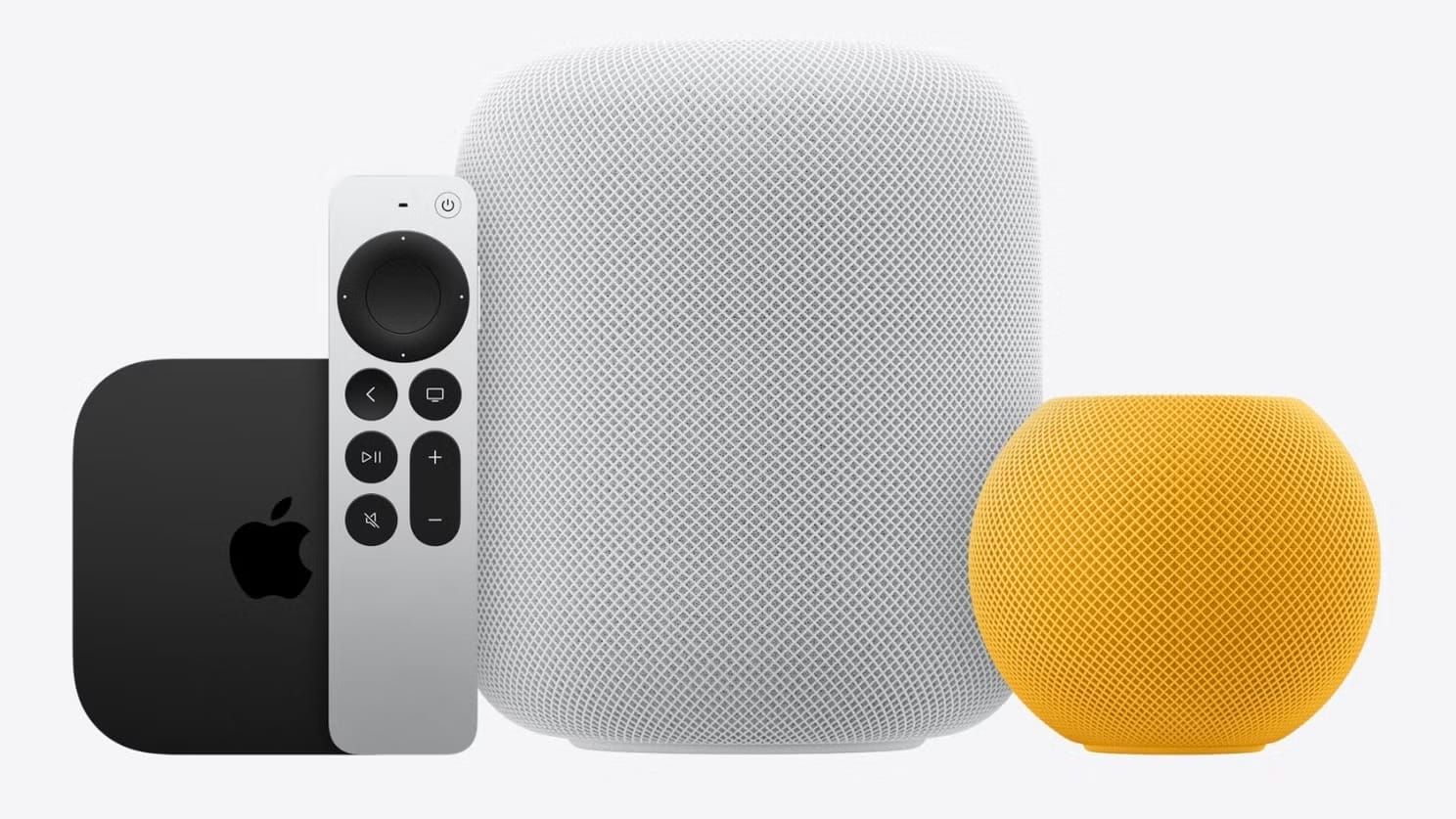

Apple TV 4K became the single hub for Formula 1, Major League Soccer, and a growing roster of live sports in the United States starting in 2026. An Apple TV+ subscription now bundles what used to cost over $200 a year in separate streaming packages into one $12.99 monthly fee, complete with Dolby Vision, Dolby Atmos, and up to four simultaneous streams through Multiview.
The catch is that getting everything running smoothly involves more than tapping "subscribe." F1 requires a separate account-linking step through formula1.com that trips up a surprising number of viewers on race day. MLS streams behave differently from F1 streams in ways that affect your setup choices. And the wrong HDMI cable silently downgrades your picture quality from 4K HDR to washed-out SDR without any warning. The gap between a flawless sports streaming setup and a frustrating one comes down to a handful of decisions you make before the first broadcast.
What Changed for Sports Fans in 2026
Two massive deals reshaped how American viewers watch live sports on Apple hardware. Formula 1 signed an exclusive U.S. broadcasting agreement with Apple TV that moved every Grand Prix, qualifying session, and practice run behind the Apple TV+ paywall. The deal, reported at $750 million, also folded the entire F1 TV Premium catalog into Apple TV+ at no extra charge. That catalog includes onboard driver cameras, live timing data, and the full race archive dating back decades.
MLS followed a different path. The standalone MLS Season Pass subscription ended with the 2025 season, and all Major League Soccer matches are now included as part of Apple TV+ for 2026. Season ticket holders received separate redemption codes from their clubs starting February 12, 2026.
Both changes mean the Apple TV 4K (3rd generation) running tvOS 26 handles more live sports than any previous Apple hardware. The A15 Bionic chip inside powers Multiview, which lets you watch up to four simultaneous sports feeds on a single screen. That feature launched initially for MLS and Friday Night Baseball in 2023, and it now extends to F1 race weekends with support for the main broadcast feed, individual driver onboard cameras, and data overlays running side by side.
Affiliate disclosure: some links in this article are Amazon Associate links. If you buy through them, Zone of Mac may earn a small commission at no extra cost to you, and we only recommend products that genuinely bring value to your Apple setup.
The Hardware You Actually Need
Multiview is exclusive to the Apple TV 4K hardware. It does not work on iPhones, iPads, or Macs through the Apple TV app. If you want four simultaneous F1 camera feeds on one screen, the Apple TV 4K (3rd generation) with Wi-Fi + Ethernet is the device to get. The Ethernet model matters for sports specifically because live streams are latency-sensitive. Wi-Fi drops and buffering during a race overtake or a penalty kick ruin the experience, and a wired Gigabit Ethernet connection eliminates that variable entirely.
The Ethernet model also ships with 128GB of storage and Thread networking support for HomeKit accessories, which is useful if your Apple TV doubles as a smart home hub. The A15 Bionic chip decodes 4K Dolby Vision at 60 frames per second with HDR10+ fallback for TVs that support the Samsung standard instead. HDMI 2.1 output handles the full signal chain without compression.
Pick up the Apple TV 4K Wi-Fi + Ethernet with 128GB here https://www.amazon.com/dp/B0BJMGB95J?tag=zoneofmac-20
The other piece most people overlook is the HDMI cable. The Apple TV 4K does not ship with one. Every HDMI cable looks identical from the outside, but an older HDMI 2.0 cable cannot carry a 4K Dolby Vision signal at 60Hz. The result is a silent downgrade: the Apple TV negotiates the best format the cable supports, and you end up watching F1 in SDR without any error message telling you why the picture looks flat. A certified HDMI 2.1 cable rated for 48Gbps solves this entirely.
The Belkin Ultra HD HDMI 2.1 Cable handles 4K at 120Hz, 8K at 60Hz, and full Dolby Vision passthrough. The braided cable has a satisfying weight to it, and the connectors seat firmly without the wobble you sometimes get with cheaper alternatives. At 6.6 feet, it reaches comfortably from a media console to a wall-mounted TV. One quirk: the connectors are slightly wider than standard, so if your TV's HDMI ports sit close together behind a recessed panel, check clearance before buying.
You can grab the Belkin Ultra HD HDMI 2.1 Cable on Amazon https://www.amazon.com/dp/B097PGJNWT?tag=zoneofmac-20
F1 vs. MLS: How the Two Sports Stream Differently
Here is a quick comparison of how F1 and MLS streaming differ on Apple TV 4K so you can decide which features matter most to your setup.
| Feature | F1 on Apple TV | MLS on Apple TV |
|---|---|---|
| Subscription Required | Apple TV+ ($12.99/mo or $99/yr) | Apple TV+ ($12.99/mo or $99/yr) |
| Multiview Streams | Up to 4 simultaneous feeds | Up to 4 simultaneous matches |
| Onboard Cameras | Yes, every driver | Not available |
| Live Timing Data | Yes, via F1 TV integration | Live stats in Apple Sports app |
| 4K Dolby Vision | Yes | Yes |
| Practice Sessions Free | Yes, no subscription needed | N/A |
| Account Linking Required | Yes, link F1 TV to Apple TV | No, streams natively |
How to Link Your F1 TV Account to Apple TV
F1 requires an extra step that MLS does not. Your Apple TV+ subscription unlocks F1 TV Premium features, but you need to explicitly link your F1 TV account to your Apple Account before race content appears. This process catches people off guard on race weekends because there is no prompt inside the Apple TV app itself.
- Open a web browser on your Mac, iPhone, or iPad and navigate to formula1.com/en-us/subscribe-to-f1-tv
- Sign in with your existing F1 TV account, or create a new free account if you have never used F1 TV before
- Click the Activate button on the subscription page to begin the linking process
- Follow the on-screen prompts to connect your Apple Account to your F1 TV account
- Open the Apple TV app on your Apple TV 4K and navigate to the F1 section, which appears automatically on race weekends
- Verify that onboard cameras and Multiview options appear in the playback controls during a live session
One edge case worth knowing: if the account linking fails or syncs slowly, the F1 TV mobile app on iPhone offers an alternative linking flow that some users report works more reliably than the web method. Open the F1 TV app, sign in, and follow the subscription linking prompts there instead. Keep in mind that the linking can sometimes take several minutes to propagate across devices.
Apple documents the streaming protocols that power these live feeds in its AVFoundation developer documentation, which confirms that Apple TV 4K uses HTTP Live Streaming (HLS) with low-latency extensions for sports content. This is relevant because HLS performance depends heavily on network stability, which is why the Ethernet recommendation matters so much for live events.
Getting MLS Streams Running on Apple TV
MLS is simpler. With a current Apple TV+ subscription, MLS content appears automatically in the Apple TV app. There is no separate account to link. The Apple TV app surfaces a dedicated MLS section during match days, and Multiview lets you follow up to four matches simultaneously.
The Apple Sports app on your iPhone complements the TV experience by pushing live scores, lineups, and match alerts to your Lock Screen as widgets. The combination of a full-screen match on the TV and real-time stats on your phone replicates the kind of dual-screen setup that used to require a laptop and a separate stats site.
For more ways to push your Apple TV beyond streaming, check out our guide to setting up Apple TV 4K for serious gaming in tvOS 26. And if you want a fun group activity, the karaoke stage guide using Apple TV and your iPhone turns the same hardware into a party trick.
Join The Inner Circle For Serious Apple Users
Exclusive Apple tips. Free to join.
Check your inbox for a confirmation link.
Something went wrong. Please try again.
Dial In Your Picture and Audio Settings
Open Settings on your Apple TV 4K, navigate to Video and Audio, and set Format to 4K Dolby Vision at 60Hz. Enable Match Content for both Dynamic Range and Frame Rate. This tells the Apple TV to switch output formats automatically based on what each app sends, so a Dolby Vision F1 broadcast gets native HDR treatment while a standard-definition archive race from 2005 plays without unnecessary upscaling artifacts.
For audio, enable Dolby Atmos if your soundbar or AV receiver supports it. F1 broadcasts use spatial audio mixing that places engine sounds and crowd noise in distinct positions around the room. The effect is subtle but noticeable during onboard camera views, where the engine roar shifts position as the car moves through corners.
One setting that catches people: navigate to Settings, then Video and Audio, then HDMI Output, and confirm it reads "HDMI 2.1" with your current cable. If it shows HDMI 2.0 or lower, your cable is the bottleneck, and the Apple TV will silently limit output quality. There is no pop-up or warning. You have to check manually.
Accessibility and Clarity
Apple TV 4K includes VoiceOver support throughout tvOS 26, which reads aloud menu items, app names, and playback controls. During live F1 and MLS streams, the Siri Remote's raised navigation ring and distinct tactile click on the clickpad make it possible to navigate Multiview and switch between camera feeds without looking at the remote. The ring has enough texture to find the edge by touch, though the remote's symmetrical shape still makes it easy to pick up upside down in a dark room.
Audio Descriptions are available when broadcasts include them, and closed captions display reliably during pre-race and post-match coverage. Live race commentary does not currently support real-time captions through Apple's system, which is a gap worth noting for viewers who rely on text. The interface maintains high-contrast text against the tvOS 26 Liquid Glass background, and all navigation follows a predictable left-right, up-down grid pattern that avoids nested menus or unexpected pop-ups. The Apple Sports app on iPhone supports Dynamic Type for larger text on Lock Screen widgets, keeping live scores readable at arm's length on a coffee table.
Apple TV also works as a voice-controlled hub for your entire smart home. See our walkthrough on transforming your Apple TV into a voice-controlled smart home hub for details on pairing HomeKit accessories with the same device that streams your sports.
Quick-Action Checklist
- Confirm you have an active Apple TV+ subscription ($12.99/mo or $99/yr, also included in Apple One)
- Connect your Apple TV 4K to your TV with a certified HDMI 2.1 cable rated for 48Gbps
- Use Ethernet instead of Wi-Fi for stable live sports streams
- Open Settings on Apple TV 4K: Video and Audio, then set Format to 4K Dolby Vision 60Hz
- Enable Match Content for Dynamic Range and Frame Rate
- Enable Dolby Atmos under Audio Output if your system supports it
- For F1: link your F1 TV account at formula1.com/en-us/subscribe-to-f1-tv
- For MLS: no additional linking needed, matches appear automatically in the Apple TV app
- Download the Apple Sports app on your iPhone for live scores and Lock Screen widgets
- Verify HDMI Output shows HDMI 2.1 under Settings to confirm full signal quality

Blaine Locklair
Founder of Zone of Mac with 25 years of web development experience. Every guide on the site is verified against Apple's current documentation, tested with real hardware, and written to be fully accessible to all readers.
follow me :
Related Posts
Apple TV+ Dropped Six April Premieres and Three Actually Deliver
Apr 10, 2026
HomeKit Ceiling Fans That Earn a Spot in Your Apple Home
Apr 07, 2026
The Apple TV 4K Settings You Skipped Are Ruining Your Movies
Apr 06, 2026