
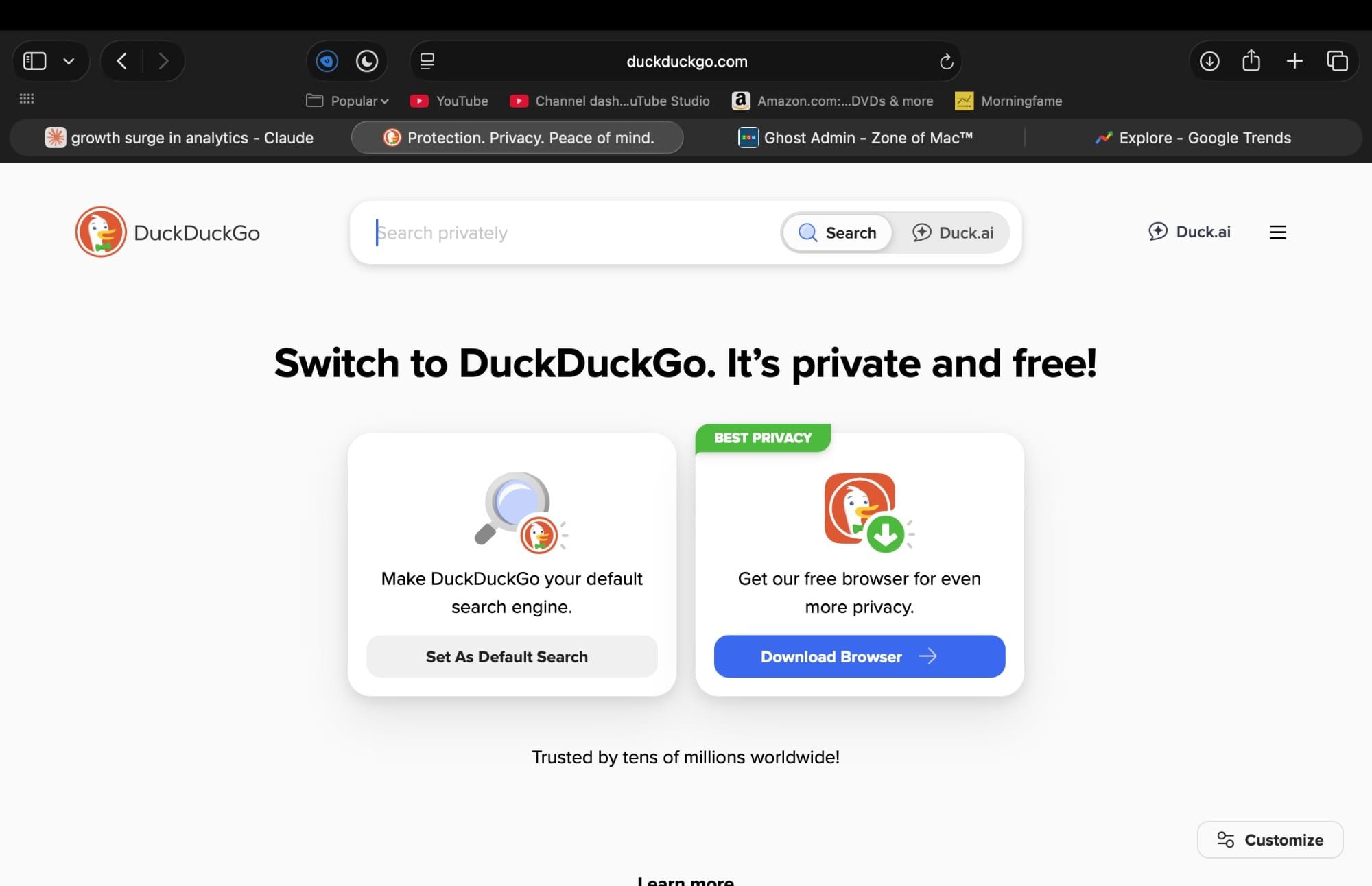

Safari on Mac, iPhone, and iPad includes DuckDuckGo as a built-in search engine option that requires no downloads or extensions. Switching takes a single settings change per device, and every search you run from Safari’s address bar routes through DuckDuckGo instead of Google from that point forward.
The part that most switching guides skip is what actually changes in your daily browsing after you flip the toggle. DuckDuckGo handles several common search patterns differently than Google, and understanding those differences before you commit prevents the frustration that quietly drives many users back to Google within their first week.
Set DuckDuckGo as Your Default Search on Mac
Open Safari on your Mac and click Safari in the menu bar, then click Settings. You can also press Command-comma to reach the same window. Click the Search tab at the top, then click the dropdown menu next to “Search engine” and choose DuckDuckGo.
The change takes effect immediately. Every new query you type into Safari’s address bar now routes through DuckDuckGo. The other options in that dropdown are Google, Yahoo, Bing, and Ecosia, and you can switch between them at any time using the same menu.
One detail worth knowing: this setting controls address bar searches only. If you navigate directly to google.com and type a query there, that search still runs through Google regardless of your default. The default search engine governs what happens when you type words into Safari’s address bar or Smart Search field, not when you visit a search engine’s website manually.
Set DuckDuckGo as Your Default Search on iPhone
Open the Settings app on your iPhone. Tap Apps, then scroll down and tap Safari. Under the Search heading, tap Search Engine, and select DuckDuckGo from the list. Apple documents this exact process in their official support guide for iPhone.
On versions of iOS before 18.2, Safari appeared directly on the main Settings screen without the Apps submenu. If you recently updated to iOS 26 and cannot find Safari where it used to be, look under Settings, then Apps first.
The change applies to every Safari search on your iPhone, including searches initiated from the home screen pull-down when Safari is your default browser. Spotlight searches and Siri web results may still route through different providers depending on your separate Siri and Spotlight settings.
Set DuckDuckGo as Your Default Search on iPad
The steps on iPad mirror iPhone exactly. Open Settings, tap Apps, tap Safari, tap Search Engine, and select DuckDuckGo. iPadOS 26 uses the same settings hierarchy as iOS 26.
The search engine setting applies across all Safari windows on iPad, whether you use Split View, Stage Manager, or a single full-screen window. There is no way to assign different default search engines to different Safari windows or Tab Groups.
Affiliate disclosure: some links in this article are Amazon Associate links. If you buy through them, Zone of Mac may earn a small commission at no extra cost to you, and we only recommend products that genuinely bring value to your Apple setup.
What Actually Changes When You Leave Google
DuckDuckGo does not track your search history, build an advertising profile from your queries, or personalize results based on past behavior. Every search returns the same results regardless of who runs it or where they are. That is a clean win for privacy, but the absence of personalization does change how certain searches feel in practice.
Google’s personalized results learn that when you search “weather” you mean your local forecast, or that “Giants” means the baseball team because of your location and search history. DuckDuckGo does not have that context. You may need to add your city name to weather searches or be more specific with ambiguous queries during the first few days until the adjustment becomes second nature.
DuckDuckGo’s strongest feature for power users is Bangs. Type an exclamation mark followed by a shortcut before your query, and DuckDuckGo redirects you to that site’s own search results. !g sends a query to Google for that single search without changing your default. !a searches Amazon. !w searches Wikipedia. !yt searches YouTube. Over 13,000 Bang shortcuts exist, and they turn DuckDuckGo into a universal search router that defaults to private results but can reach any site on demand.
Map searches default to Apple Maps on Apple devices, which fits naturally into the Mac, iPhone, and iPad ecosystem. Image search returns solid results for common queries but fewer options than Google Images for niche visual searches.
If you want to tighten your iPhone’s privacy configuration beyond the search engine, our guide to locking down iPhone privacy in iOS 26.3 covers every toggle worth reviewing.
Here is a side-by-side look at how DuckDuckGo and Google behave when set as your default Safari search engine.
| Feature | DuckDuckGo | |
|---|---|---|
| Search History Tracking | None | Logs queries, clicks, and timestamps |
| Personalized Results | No personalization | Tailored to your history and location |
| Bang Shortcuts | Over 13,000 site-specific shortcuts | Not available |
| Default Map Provider | Apple Maps on Apple devices | Google Maps |
| Image Search Depth | Solid for common queries | Superior for niche visual searches |
The DuckDuckGo Browser for Mac Takes Privacy Further
Changing Safari’s search engine is the fastest path to removing Google from your browsing, but DuckDuckGo also makes a standalone browser for Mac that bundles additional privacy protections into the browser itself. The DuckDuckGo browser uses the same WebKit rendering engine as Safari, so websites load and render identically, but adds built-in tracker blocking, automatic HTTPS upgrades, cookie pop-up suppression, and a Fire Button that clears all browsing data in one click.
The DuckDuckGo browser is free and available from duckduckgo.com/mac or through the Mac App Store. It imports bookmarks and passwords from Safari during initial setup. Subscribers to DuckDuckGo’s optional premium tier get a built-in VPN, advanced AI chat features, personal information removal, and identity theft restoration.
The browser is separate from the Safari search engine setting. You can use Safari with DuckDuckGo search, use the DuckDuckGo browser instead of Safari, or run both side by side. They do not conflict with each other.
The Physical Key That Closes Your Privacy Loop
Switching your search engine stops Google from logging every query you type. The next exposure point is the accounts themselves, the email logins and banking portals that hold everything behind a password. A hardware security key adds a physical authentication requirement that no phishing attack or stolen password can bypass. The key must be physically present, plugged into a USB-C port or tapped against an NFC reader, before any login completes.
The YubiKey 5C NFC works with Mac and iPad over USB-C, and with iPhone over NFC, covering every Apple device in a single key. It supports FIDO2 passkeys, so Apple’s own passkey system recognizes it as a trusted hardware authenticator. One key protects your Apple ID, email accounts, password manager vault, and banking logins across every service that supports hardware security keys.
The YubiKey feels like a thick house key, about 18mm by 45mm, and weighs almost nothing on a keychain. The USB-C connector slots firmly into a MacBook port without the wobble you get from cheaper security keys, and the body is rated IP68 waterproof so it survives pockets, bags, and rain. On iPhone, the NFC tap is the interaction you use most: hold the YubiKey flat against the back of the phone when prompted and authentication completes in under a second. The tap has an immediacy that typing a six-digit authenticator code cannot replicate.
For a broader look at the security areas where macOS Tahoe leaves gaps, our guide to Mac security gaps that macOS Tahoe cannot close on its own covers what Apple handles and what falls to you.
You can grab the YubiKey 5C NFC here on Amazon.
Join The Inner Circle For Serious Apple Users
Exclusive Apple tips. Free to join.
Check your inbox for a confirmation link.
Something went wrong. Please try again.
Accessibility and Clarity
The search engine setting on all three Apple platforms follows standard OS control patterns that work seamlessly with VoiceOver, Switch Control, Voice Control, and Full Keyboard Access. On Mac, the Safari Settings window presents the search engine option as a standard pop-up button that VoiceOver announces with both its label and current value. On iPhone and iPad, the Settings list displays each search engine as a selectable row with VoiceOver announcing the option name and its selected state.
DuckDuckGo’s search results page maintains a single-column layout with no infinite scroll, no auto-playing video results, and minimal visual distraction. That consistent, predictable structure reduces cognitive load for users with ADHD or attention differences compared to Google’s increasingly dense results pages, which layer ads, knowledge panels, People Also Ask accordions, and video carousels into a layout that shifts with every query.
The DuckDuckGo browser for Mac respects macOS system accessibility preferences, including increased contrast mode and reduced motion settings. The browser’s Fire Button presents a single confirmation dialog rather than a multi-step menu, keeping the interaction architecture flat and predictable.
Quick-Action Checklist
- On Mac: open Safari, press Command-comma, click the Search tab, set DuckDuckGo as your search engine
- On iPhone: open Settings, tap Apps, tap Safari, tap Search Engine, select DuckDuckGo
- On iPad: open Settings, tap Apps, tap Safari, tap Search Engine, select DuckDuckGo
- Learn Bangs: type !g before any query to route that single search through Google
- Download the DuckDuckGo browser for Mac from duckduckgo.com/mac for full tracker blocking
- Secure your accounts with a hardware security key to complete your privacy setup

Blaine Locklair
Founder of Zone of Mac with 25 years of web development experience. Every guide on the site is verified against Apple's current documentation, tested with real hardware, and written to be fully accessible to all readers.
follow me :
Related Posts
Seven Mac Accessories That Turn a Good Desk Into a Great One
Apr 10, 2026
Your Mac Has a Networking Time Bomb That Only a Reboot Defuses
Apr 09, 2026
Your Mac Feels Slow After macOS Tahoe — Here’s What Actually Fixes It
Apr 08, 2026