
Updated January 28, 2026 at 1:24PM ESY
Safari on Mac, iPhone, and iPad ships with a frustrating limitation: scrolling is capped at 60 frames per second, even when your device has a ProMotion display capable of 120Hz. You paid for that smooth display technology, and Safari has been quietly refusing to use it. The fix requires changing exactly one setting in Safari's Feature Flags, and the difference is immediate and noticeable.
Key Takeaways
- Safari defaults to 60fps scrolling even on ProMotion displays—this setting unlocks 120Hz.
- On Mac: open Safari Settings with Command + Comma, enable Developer mode, go to Feature Flags, search for "60fps," and disable the preference.
- On iPhone and iPad: navigate to Settings, then Apps, then Safari, then Advanced, then Feature Flags, and disable the same preference.
- You must force-quit and relaunch Safari after changing the setting.
- The feature works in Safari 26.3 and later (possibly earlier versions as well).
- External monitors need native 120Hz support to benefit from this setting on Mac.
At-A-Glance: Safari 120Hz Setup by Device
The following table summarizes exactly how to reach the Feature Flag setting on each platform. All three methods require you to find and disable the same toggle, though the navigation path differs.
| Device | Navigation Path | Restart Required |
|---|---|---|
| Mac | Safari Settings → Developer → Feature Flags → Search "60fps" | Yes |
| iPhone | Settings → Apps → Safari → Advanced → Feature Flags | Yes (force quit) |
| iPad | Settings → Apps → Safari → Advanced → Feature Flags | Yes (force quit) |
Affiliate disclosure: some links in this article are Amazon Associate links. If you buy through them, Zone of Mac may earn a small commission at no extra cost to you, and we only recommend products that genuinely bring value to your Apple setup.
Why Safari Limits Scrolling to 60fps
Apple introduced ProMotion displays to the Mac lineup with the 2021 MacBook Pro models, bringing adaptive refresh rates up to 120Hz. iPhones have had ProMotion since the iPhone 13 Pro, and iPad Pro models have featured the technology since 2017. Despite this hardware capability, Safari has consistently rendered page scrolling at 60 frames per second.
The reasoning likely traces back to web compatibility concerns and battery management. Not all websites are optimized for higher refresh rates, and pushing more frames requires more processing power. Apple appears to have erred on the side of caution by keeping the cap in place as a default behavior.
The problem is that other browsers moved past this limitation years ago. Chrome, Firefox, and Arc all render at your display's native refresh rate without requiring any special configuration. Safari's artificial limitation has left Mac and iPhone users with noticeably choppier scrolling than users on other platforms—an odd position for Apple, which typically prioritizes the user experience.
How to Enable 120Hz Scrolling on Mac
Getting Safari to respect your Mac's ProMotion display requires accessing the Feature Flags menu, which lives behind the Developer tools. You do not need to write code or understand web development to make this change—the Developer menu simply exposes additional Safari preferences.
Open Safari and press Command + Comma to access Settings (you can also reach this through Safari in the menu bar, then Settings). Click the Advanced tab on the far right of the Settings window. At the bottom of the Advanced pane, check the box labeled "Show features for web developers." This enables the Developer menu in Safari's menu bar and, more importantly, adds a Feature Flags tab to the Settings window.
Close the Settings window and reopen it. You will now see a new tab called Feature Flags on the far right, past Advanced. Click into Feature Flags, then use the search field at the top to search for "60fps." You will find a single result: "Prefer Page Rendering Updates near 60fps." This toggle is enabled by default. Disable it.
Quit Safari completely (Command + Q) and relaunch it. When Safari reopens, page scrolling will render at your display's native refresh rate—up to 120Hz on MacBook Pro with ProMotion, or whatever refresh rate your external monitor supports.
How to Enable 120Hz Scrolling on iPhone and iPad
The process on iOS and iPadOS follows a similar logic but navigates through the Settings app rather than Safari's internal preferences. You do not need to enable Developer mode on iPhone or iPad.
Open the Settings app and scroll down to Apps (this is near the bottom of the main Settings list). Tap Apps, then find and tap Safari in the alphabetical list of applications. Scroll to the bottom of Safari's settings and tap Advanced. At the bottom of the Advanced screen, tap Feature Flags.
The Feature Flags list is extensive. Scroll down alphabetically until you find "Prefer Page Rendering Updates near 60fps." The toggle will be enabled (green). Tap it to disable it.
Return to your home screen and force-quit Safari. On iPhones without a Home button, swipe up from the bottom and pause to enter the app switcher, then swipe Safari's card upward to close it. On iPads, the same gesture works, or you can double-press the Home button if your iPad has one.
Reopen Safari. Scrolling through any webpage should now feel noticeably smoother on iPhone 13 Pro and later, or any iPad Pro with ProMotion.
The Difference You Will Actually Feel
The jump from 60fps to 120fps is not subtle. Text becomes easier to read while scrolling because individual characters remain sharper during motion. The sensation of dragging a webpage feels more directly connected to your finger or trackpad input, with less perceived lag between your movement and the screen's response.
If you have never consciously noticed the difference between 60Hz and 120Hz, try scrolling through a text-heavy article before and after enabling this setting. Pay attention to whether you can read words mid-scroll. At 60fps, text blurs into illegibility during movement. At 120Hz, you can track individual lines of text while the page is still in motion.
The improvement becomes especially apparent when using smooth-scrolling input devices. Apple's Magic Mouse and Magic Trackpad both support gesture-based momentum scrolling, and the MagSpeed electromagnetic scroll wheel on high-end mice delivers particularly fluid input. The Logitech MX Master 4 for Mac pairs exceptionally well with 120Hz Safari scrolling—its MagSpeed wheel can scroll 1,000 lines per second with pixel-perfect stopping precision, and the new Haptic Sense Panel delivers customizable tactile feedback on specific actions and shortcuts. The Mac-optimized design includes an 8K DPI sensor that tracks on virtually any surface, including glass, while the Actions Ring puts your favorite tools and filters directly at your cursor. Quiet clicks reduce noise by 90%, and the ergonomic tilt keeps your hand in a natural posture during extended browsing sessions
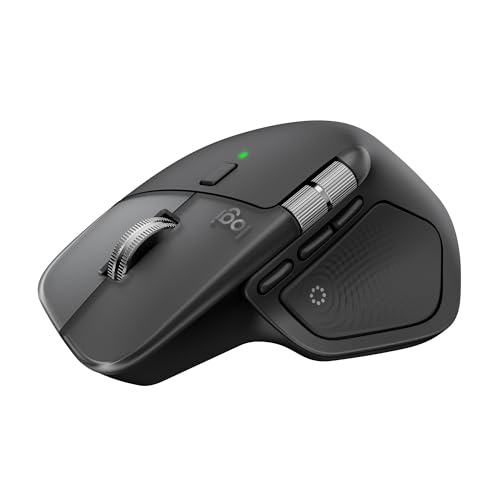

Here's where to get the Logitech MX Master 4 for Mac https://www.amazon.com/dp/B0FC5X4F8G?tag=zoneofmac-20
Accessibility and Clarity
Higher refresh rates provide genuine accessibility benefits beyond the general "smoothness" improvement. Users with motion sensitivity sometimes find lower refresh rates more jarring, particularly during rapid scrolling or animations. The increased frame count creates smaller visual steps between positions, which can reduce the perception of jumpiness that triggers discomfort for some people.
For users with visual processing differences, the ability to read text during motion—rather than waiting for scrolling to stop—improves the overall reading experience and reduces the cognitive load of constantly repositioning within a document.
The setting itself is buried in a location that most users will never discover on their own. This is a missed opportunity for Apple to surface the option in a more accessible location, perhaps in Display settings alongside other motion-related preferences. The Feature Flags menu contains dozens of experimental toggles, and finding this specific setting requires either knowing it exists or stumbling upon it accidentally.
VoiceOver users should note that the Feature Flags interface on both Mac and iOS is fully navigable with assistive technology, though the sheer number of options makes searching by keyword (on Mac) or scrolling alphabetically (on iOS) the most efficient approach.
External Monitors and the 120Hz Question
If you connect your Mac to an external display, the 120Hz scrolling benefit depends entirely on that monitor's capabilities. Most external displays marketed toward Mac users run at 60Hz, including Apple's own Studio Display. The LG UltraFine 5K, a longtime Apple ecosystem staple, also tops out at 60Hz.
To actually see 120Hz Safari scrolling on an external monitor, you need a display that supports 120Hz input over your connection type. Many gaming monitors support 120Hz or higher via DisplayPort or HDMI 2.1, though these often sacrifice color accuracy for speed. Professional displays with both high refresh rates and accurate color reproduction exist but carry premium prices.
The MacBook Pro's built-in ProMotion display remains the most straightforward way to experience the feature. If you primarily work docked with an external monitor, you may not notice the change until you undock and browse on the laptop screen itself.
Join The Inner Circle For Serious Apple Users
Exclusive Apple tips. Free to join.
Potential Issues and Stability
Apple marked this as a Feature Flag rather than a standard preference for a reason. While the setting has been present in Safari since at least version 26.3, it may behave unpredictably on certain websites or in specific configurations.
In practical testing, the setting has proven stable across a wide range of websites, including complex web applications, video streaming services, and standard content sites. The entire web has been rendering at higher refresh rates in other browsers for years, so the underlying content is already compatible.
If you encounter unexpected behavior—visual glitches, rendering issues, or increased battery drain that concerns you—returning to the default 60fps cap is as simple as re-enabling the Feature Flag toggle and restarting Safari.
Battery impact is worth monitoring, particularly on laptops. Rendering more frames consumes more power, though the difference is modest during typical browsing. Apple's ProMotion technology is adaptive, meaning the display drops to lower refresh rates during static content. Safari's 120Hz mode should follow this pattern, ramping up only during active scrolling and dropping back down when the page is stationary.
Making It Permanent
The Feature Flag setting persists across Safari updates and system restarts. You should only need to configure it once per device. However, major macOS or iOS updates have occasionally reset Feature Flags to their defaults, so if you notice scrolling feels choppy after a system update, check whether the setting reverted.
Apple may eventually make this the default behavior, eliminating the need to dig into Feature Flags entirely. Until then, this hidden toggle gives you the browsing experience your ProMotion display was built to deliver.
If you found yourself wishing for related Safari improvements, consider exploring our guide to the Creator Studio bundlefor professional-grade apps that integrate seamlessly with the Apple ecosystem.
Quick-Action Checklist: Enable Safari 120Hz Scrolling
Mac:
☐ Open Safari Settings (Command + Comma)
☐ Go to Advanced tab
☐ Check "Show features for web developers"
☐ Close and reopen Settings
☐ Click Feature Flags tab
☐ Search "60fps"
☐ Disable "Prefer Page Rendering Updates near 60fps"
☐ Quit Safari (Command + Q)
☐ Relaunch Safari
iPhone and iPad:
☐ Open Settings app
☐ Tap Apps
☐ Tap Safari
☐ Tap Advanced
☐ Tap Feature Flags
☐ Find "Prefer Page Rendering Updates near 60fps"
☐ Disable the toggle
☐ Force-quit Safari from app switcher
☐ Relaunch Safari

Related Posts
Seven Mac Accessories That Turn a Good Desk Into a Great One
Apr 10, 2026
Your Mac Has a Networking Time Bomb That Only a Reboot Defuses
Apr 09, 2026
Your Mac Feels Slow After macOS Tahoe — Here’s What Actually Fixes It
Apr 08, 2026