
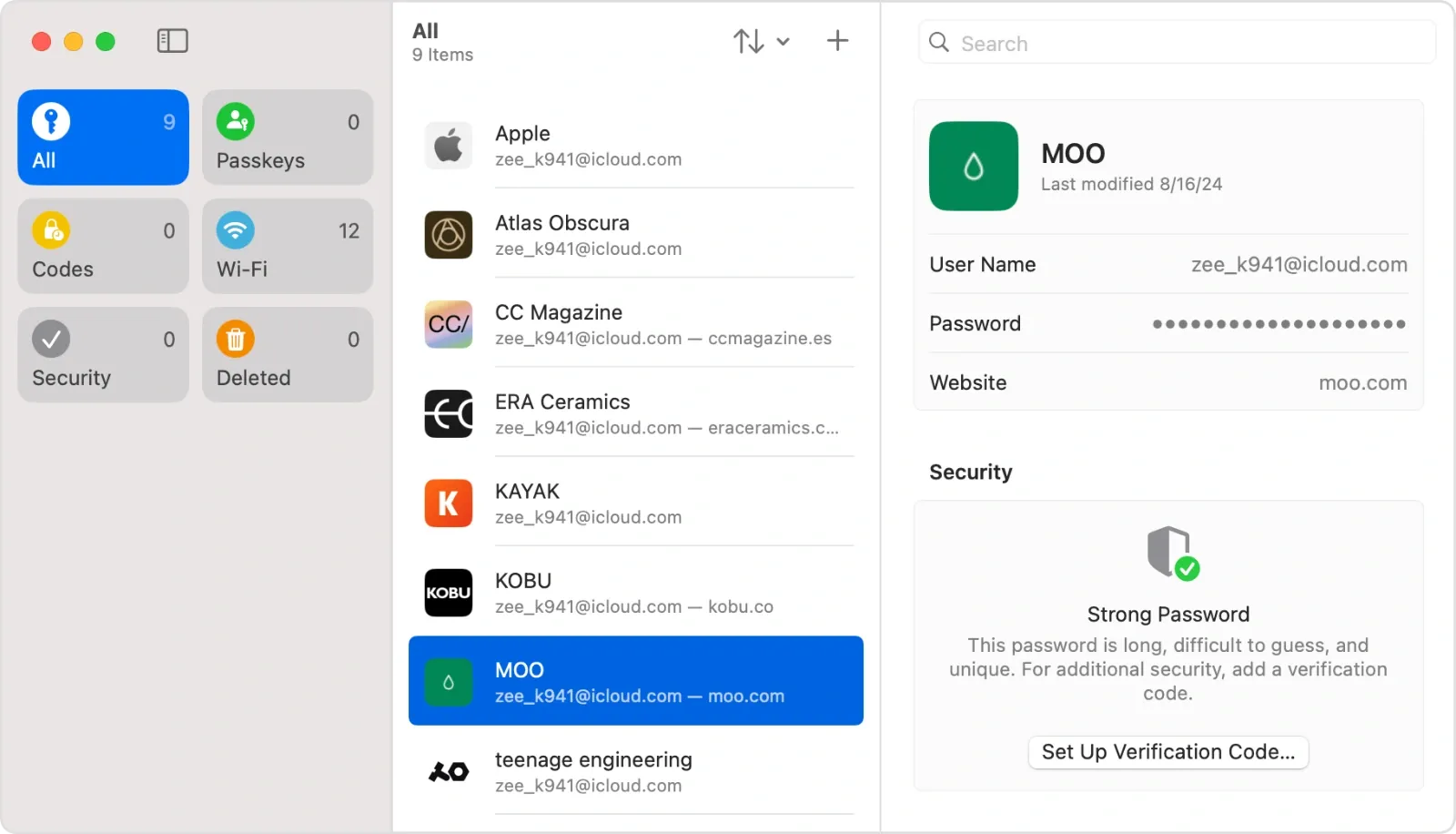
Accidentally overwriting a password ranks among the most frustrating Mac experiences. You update a login, the site rejects the new credentials, and the original password vanishes into the void. macOS Tahoe eliminates this problem entirely with a password history feature built directly into the Passwords app, letting you view and restore previous versions of any saved credential.
Key Takeaways
- The Passwords app in macOS Tahoe automatically stores previous versions of every credential you save
- Access password history by selecting any entry and choosing Edit, then clicking the clock icon in the top-right corner
- Each historical entry shows the exact date and time of the change
- Restore old passwords with a single click, no external tools required
- History syncs across all your Apple devices through iCloud Keychain
- The feature works retroactively on passwords saved before installing Tahoe
| Feature | macOS Tahoe Passwords | Third-Party Managers |
|---|---|---|
| Password History | Built-in | Varies by app |
| Cost | Free | Often subscription-based |
| iCloud Sync | Native | Requires configuration |
| System Integration | Deep | Limited |
The Passwords app debuted as a standalone application in macOS Sequoia, extracting password management from the buried depths of System Settings. With macOS Tahoe, Apple added the history feature that professional password managers have offered for years, finally bringing feature parity to the built-in solution.
Finding the History Feature
Open the Passwords app from your Applications folder or by searching in Spotlight. Select any saved credential from the list, then click Edit in the toolbar or press Command-E. A clock icon appears in the top-right corner of the edit panel. Clicking this icon reveals every previous version of that password, organized chronologically with timestamps showing when each change occurred.
The interface feels familiar if you have used Time Machine or document versioning in Pages. Each historical entry displays the username and password that existed at that point, along with the precise date and time the change was made. This granular tracking means you can identify exactly when a credential changed and determine which version you need to restore.
Affiliate disclosure: some links in this article are Amazon Associate links. If you buy through them, Zone of Mac may earn a small commission at no extra cost to you, and we only recommend products that genuinely bring value to your Apple setup.
Join The Inner Circle For Serious Apple Users
Exclusive Apple tips. Free to join.
Restoring a Previous Password
Recovering an old password requires just two clicks. Open the history panel using the clock icon, locate the version you want to restore, and click the Restore button next to that entry. The Passwords app immediately updates the credential to the selected historical version, and iCloud Keychain syncs the restored password across your iPhone, iPad, and other Macs within seconds.
This restoration capability proves invaluable when third-party apps or services automatically update stored credentials during software updates. Some banking apps and enterprise authentication systems change passwords during mandatory updates, and without history tracking, you might find yourself locked out until customer support intervenes. The Passwords app now serves as your safety net for these scenarios.
What Gets Tracked
Apple tracks changes to both the password itself and the associated username. If a service migrates from email-based logins to username-based authentication, you can recover the original email address alongside the matching password. The app also preserves notes attached to each credential, though note history appears separately from password history in the interface.
Website URLs and other metadata do not maintain historical versions. If you accidentally edit the associated website field, you cannot restore it through the history feature. This limitation makes sense from a security perspective, as URL changes might indicate phishing attempts that should not be easily reversed.
Where Passwords Fall Short
The history feature lacks any way to compare two versions side by side. You must remember or write down the current password before exploring history if you want to compare old and new credentials. Third-party managers like 1Password display password differences visually, highlighting changed characters between versions.
Storage limits remain unclear in Apple's documentation. Testing suggests the app retains at least a year of password changes, though Apple has not published specific retention policies. Heavy users who rotate credentials frequently may eventually encounter limits, though casual users should never approach any reasonable threshold.
For Mac users who prioritize security, pairing the Passwords app with a hardware security key provides an additional authentication layer that software alone cannot replicate. The YubiKey 5C NFC works directly with macOS and iOS for two-factor authentication, supporting FIDO2 passkeys that the Passwords app can store and manage. The physical key requirement means even if someone obtains your password, they cannot access accounts protected by the hardware authentication requirement.


Here's where to get the YubiKey 5C NFC https://www.amazon.com/dp/B08DHL1YDL?tag=zoneofmac-20
Syncing Across Devices
Password history syncs through iCloud Keychain automatically. Changes you make on your Mac appear in the Passwords app on your iPhone and iPad, and historical versions remain accessible from any device. This synchronization occurs in the background, typically completing within a minute of any change.
The feature requires iCloud Keychain enabled on all devices where you want history access. Open System Settings, click your Apple Account name at the top, select iCloud, then scroll to Passwords and ensure the toggle is enabled. On iPhone and iPad, the path follows similar steps through Settings.
If you manage passwords on a Mac used by family members, each iCloud account maintains separate password histories. Family Sharing does not merge or expose password histories between family members, preserving individual privacy even on shared computers.
Accessibility and Clarity
The Passwords app supports VoiceOver throughout the history feature. Screen readers announce each historical entry with its timestamp when navigating the history panel, and the Restore button is properly labeled for accessibility. Users with motor impairments can navigate the entire history interface using keyboard shortcuts, with Tab moving between entries and Return activating the selected restore option.
Visual contrast in the history panel meets accessibility guidelines, though users with light sensitivity may prefer enabling Dark Mode before exploring lengthy password histories. The timestamp text uses a smaller font size than the main credential display, which some users with visual impairments may find challenging to read without zoom enabled.
Practical Workflow Integration
Consider a scenario where you update a password for your company's internal portal, only to discover the change did not propagate to the authentication server. The old password still works, but you have already saved the new one. Without history, you would need to initiate a password reset and potentially involve IT support. With Tahoe's history feature, you simply restore the previous version and wait for the server-side change to complete.
The feature also helps when troubleshooting login issues. If a credential stops working after an unremembered change, browsing the history reveals exactly when modifications occurred. This timeline often helps identify whether the problem originated from a password change or from an unrelated account issue like expiration or lockout.
For detailed guidance on using the Passwords app across your Apple devices, check out our guide on gaining total control of tasks with Apple Reminders in macOS Tahoe, which covers similar system app mastery techniques that apply to password management workflows.
Beyond the Built-In App
The Passwords app history feature handles most credential management needs, but some workflows demand additional capabilities. Users managing hundreds of accounts, sharing credentials with teams, or requiring advanced features like breach monitoring might still benefit from third-party solutions. The good news is that Tahoe's Passwords app coexists peacefully with third-party managers, letting you use Apple's solution for personal accounts while employing specialized tools for work.
Apple continues expanding the Passwords app with each macOS release, and the history feature represents a significant step toward matching dedicated password managers. The tight integration with Safari autofill, iCloud Keychain, and system-wide credential access makes Apple's solution compelling for users already invested in the Apple ecosystem.
For more on securing your Mac setup and leveraging built-in macOS features, explore our coverage of Mac accessibility features that transform how you work.
Quick-Action Checklist
- Open the Passwords app from Applications or Spotlight
- Select any credential from the left sidebar
- Click Edit or press Command-E
- Click the clock icon in the top-right corner of the edit panel
- Browse previous versions sorted by date and time
- Click Restore next to the version you want to recover
- Verify the restored password syncs to your other Apple devices
- Enable iCloud Keychain in System Settings if history does not appear

Related Posts
Seven Mac Accessories That Turn a Good Desk Into a Great One
Apr 10, 2026
Your Mac Has a Networking Time Bomb That Only a Reboot Defuses
Apr 09, 2026
Your Mac Feels Slow After macOS Tahoe — Here’s What Actually Fixes It
Apr 08, 2026