
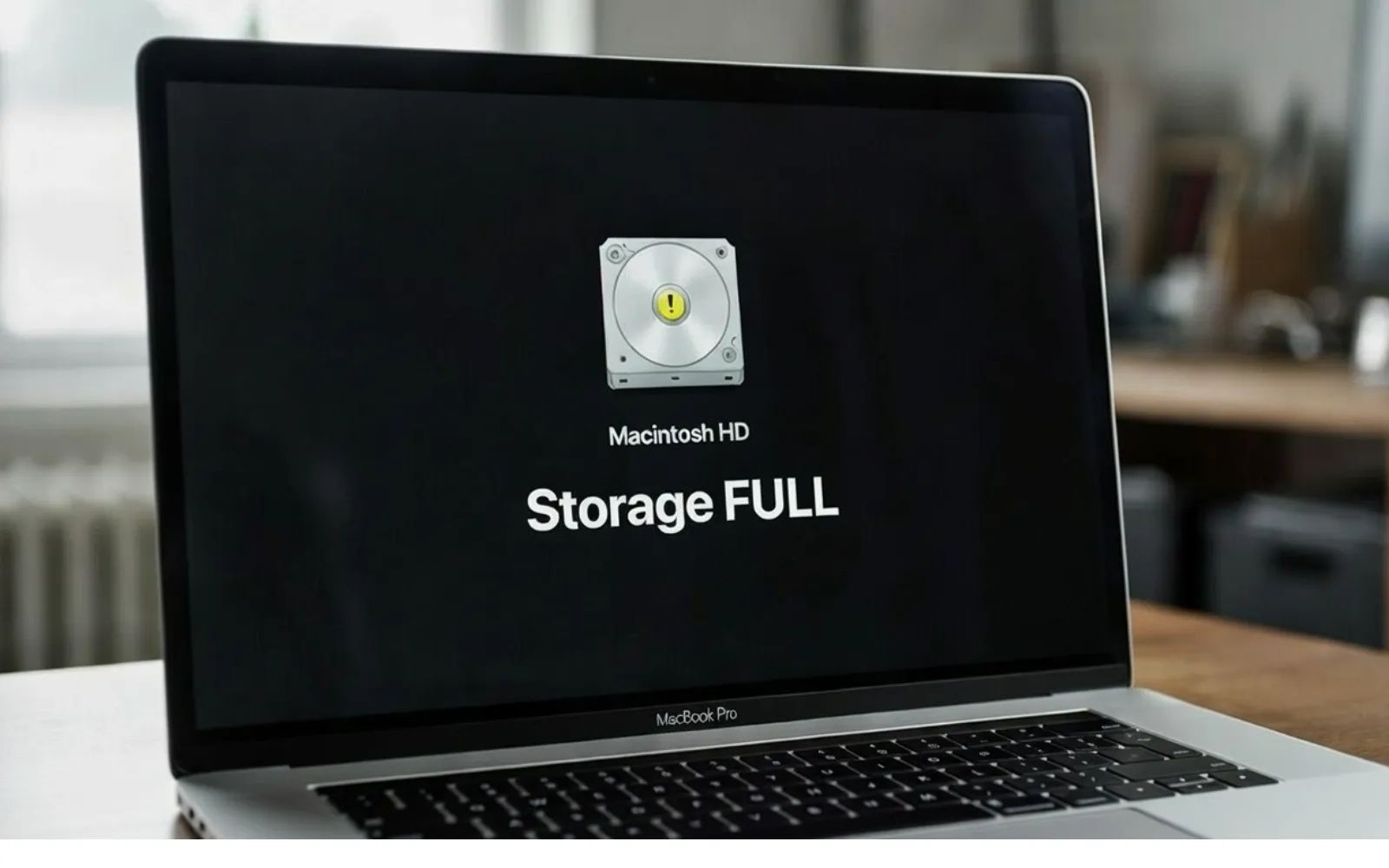
macOS Tahoe gives you a full storage audit and cleanup toolkit built right into System Settings, and most Mac owners walk past it without ever opening it. To check your storage right now, open Apple menu, then System Settings, then General, then Storage. That single screen breaks down every gigabyte by category, surfaces Apple's own cleanup recommendations, and lets you drill into individual apps to see exactly what they are hoarding. The System Data category alone can balloon past 100 GB on Macs that have been through multiple macOS upgrades, and the fixes are simpler than you might expect.
Key Takeaways
- Open Apple menu, then System Settings, then General, then Storage to see your full storage breakdown by category.
- Click the More Info button next to any category (Applications, Documents, Messages) to see individual file sizes and delete directly.
- Use the built-in Recommendations panel to enable Optimize Storage, Store in iCloud, and automatic Trash emptying.
- Delete old iOS device backups stored on your Mac through the Storage panel's iOS Files section.
- Sort your Downloads folder by size using Finder's List View to find forgotten installers and ZIP files.
- Restart in Safe Mode (hold the power button, then select Safe Mode from startup options) to clear system caches temporarily.
The table below compares the three highest-impact cleanup methods available natively in macOS Tahoe, ranked by how much space each typically recovers on a Mac that has never been cleaned.
| Method | Typical Space Recovered | Difficulty | Where to Find It |
|---|---|---|---|
| Delete old iOS backups | 10-50 GB | Low | System Settings, then General, then Storage, then iOS Files |
| Clear Downloads folder | 5-20 GB | Low | Finder, then Go, then Downloads |
| Remove unused apps and their data | 5-30 GB | Medium | System Settings, then General, then Storage, then Applications |
How to Read Your Mac's Storage Breakdown
The Storage panel in macOS Tahoe is more detailed than most people realize. When you open Apple menu, then System Settings, then General, then Storage, macOS calculates usage across every category and renders a color-coded bar at the top. Hover over any segment to see the category name and size. Below the bar, each category gets its own row with a More Info button (a small circled "i" icon) on the right side.
Clicking that More Info button is where the real cleanup begins. For Applications, it shows every installed app sorted by size, with the option to delete directly. For Documents, it surfaces large files and file browser windows sorted by size, last accessed date, or file type. This is the fastest way to find a 4 GB Xcode archive or a 2 GB GarageBand Apple Loops library sitting untouched for months.
One thing to watch for: the System Data category does not have a More Info button. Apple intentionally locks this category because it includes caches, logs, APFS snapshots, and system files that macOS manages automatically. If your System Data is consuming 60 GB or more, the single most reliable fix is restarting in Safe Mode. On Apple Silicon Macs, shut down completely, then press and hold the power button until you see the startup options screen. Select your startup disk, then hold Shift and click "Continue in Safe Mode." macOS clears recoverable caches during this boot. Restart normally afterward and check your storage again. According to Apple's support documentation, Safe Mode clears system caches that are automatically recreated as needed, making it the sanctioned approach for temporary space recovery.
If your Mac has been running macOS Tahoe since its September 2025 release and you have never inspected the Storage panel, start there before installing any third-party software. The built-in tools handle the majority of common storage bloat.
The Downloads Folder Problem
The Downloads folder is the single most neglected storage location on any Mac. Every .dmg installer, every .zip archive, every PDF from a web form lands here and stays here permanently unless you move or delete it manually.
Open Finder, then press Command-Shift-L or choose Go from the menu bar and select Downloads. Switch to List View by pressing Command-2, then click the Size column header to sort largest files first. On most Macs that have gone six months without a cleanup, this folder alone contains 5 to 20 GB of dead weight. Look specifically for .dmg files (app installers you already installed), .pkg files, and .zip archives. Select everything you no longer need, right-click, and choose Move to Trash. Then empty the Trash immediately: right-click the Trash icon in the Dock and select Empty Trash.
A small but important detail: macOS Tahoe does not reclaim storage space until you empty the Trash. Moving files to Trash changes nothing about your available disk space. I have seen Mac owners delete 15 GB of files and then wonder why their storage bar has not moved. The Trash step is the actual deletion.
Old iOS Backups Are Quietly Massive
Every time you back up an iPhone or iPad to your Mac using Finder (or the old iTunes workflow), that backup stays on your internal SSD permanently. If you have backed up multiple devices over several years, these backups can consume 50 GB or more without any visible sign in your day-to-day workflow.
To find and remove them, open Apple menu, then System Settings, then General, then Storage. Scroll down to the iOS Files section and click the More Info button. You will see a list of every device backup stored locally, with its size and date. Delete any backups for devices you no longer own or for devices that now back up to iCloud. Right-click or Control-click on a backup and select Delete to remove it.
Taming the System Data Category
System Data is the storage category that generates the most confusion and frustration. In macOS Tahoe, it can legitimately occupy 30 to 40 GB on a healthy system, but some Mac owners report it ballooning past 100 GB or even 200 GB after a major macOS upgrade. MacRumors forum threads from September 2025 document cases where System Data consumed over 300 GB immediately after upgrading to macOS Tahoe, leaving users with barely enough space to open applications.
The root causes typically include Spotlight re-indexing (which creates large temporary index files after an OS upgrade), APFS local snapshots from Time Machine, and swap files from memory pressure. Here is what actually works to bring System Data under control.
Restart your Mac. Swap files and temporary virtual memory files are purged on restart. If your Mac has been running continuously for days or weeks, a simple restart can recover 5 to 15 GB of swap space.
Boot into Safe Mode. As described above, Safe Mode forces macOS to clear caches that normal restarts leave in place. This is Apple's own recommended approach for temporary space recovery.
Delete local Time Machine snapshots. If you use Time Machine with an external drive, macOS also stores local snapshots on your internal SSD as a safety net. Open Terminal (Applications, then Utilities, then Terminal) and type: tmutil listlocalsnapshots / to see all current snapshots. To delete them, type: sudo tmutil deletelocalsnapshots followed by the snapshot date string. Removing old snapshots can reclaim 10 to 40 GB depending on how long they have been accumulating.
Let Spotlight finish indexing. After a macOS upgrade, Spotlight rebuilds its entire index. This process can take hours on Macs with large file libraries. During indexing, temporary files inflate the System Data figure. The fix is patience: leave your Mac plugged in with the lid open overnight and let the process complete. You can check indexing status by opening Activity Monitor (in Applications, then Utilities), clicking the CPU tab, and looking for the "mds" and "mds_stores" processes. High CPU usage from these processes means Spotlight is still working.
For readers who want a deeper understanding of why their Mac runs slowly when storage gets tight, the guide on why your Mac feels slow and the proven fixes that actually work covers the performance side of the equation, including how full SSDs degrade write speeds.
Using Finder's Built-In Search to Hunt Large Files
Finder has a powerful but overlooked search feature that lets you filter files by size across your entire Mac. Open a new Finder window, press Command-F, and look for the search criteria row at the top. Click the "Kind" dropdown and change it to "Other," then scroll down and select "File Size." Set the condition to "is greater than" and type a threshold like 500 MB or 1 GB.
Finder instantly surfaces every file on your Mac above that size. Sort the results by size, and you will often find forgotten video exports, old virtual machine images, Xcode developer caches, or duplicate photo libraries. This method works faster than any third-party disk analyzer because it uses Spotlight's index, which macOS Tahoe keeps updated in the background.
One edge case to be aware of: some files that appear in these results are inside application bundles or Library folders. Before deleting anything inside ~/Library, make sure you understand what the file belongs to. A good rule is to never manually delete files from ~/Library/Application Support unless you are certain the parent application is already uninstalled.
When Cleanup Is Not Enough: Thunderbolt 5 External Storage
There is a ceiling to how much space cleanup alone can recover. If your Mac has a 256 GB or 512 GB SSD and your working files, photos, music library, and applications genuinely need more room, no amount of cache clearing will solve the underlying problem. Since Apple Silicon Macs have soldered SSDs that cannot be upgraded after purchase, external storage becomes the permanent answer.
Affiliate disclosure: some links in this article are Amazon Associate links. If you buy through them, Zone of Mac may earn a small commission at no extra cost to you, and we only recommend products that genuinely bring value to your Apple setup.
Thunderbolt 5 is the current standard for external Mac storage, and two paths exist: buy a ready-to-go portable SSD, or build your own by pairing a Thunderbolt 5 NVMe enclosure with a bare M.2 drive. Both paths deliver over 6,000 MB/s on Macs with Thunderbolt 5 ports (the M4 Pro and M4 Max MacBook Pro, Mac Mini, and Mac Studio models), and both remain backward compatible with Thunderbolt 4, Thunderbolt 3, and USB4 at their respective maximum speeds.
The Ready-to-Go Path: OWC Envoy Ultra Thunderbolt 5 SSD
The OWC Envoy Ultra is currently the reference Thunderbolt 5 portable SSD for Mac. It ships pre-formatted in Apple File System (APFS), so it mounts the instant you plug it in with zero setup. The built-in captive Thunderbolt 5 cable eliminates the cable-hunting problem entirely. OWC's drive is Thunderbolt Certified, which means it passed Intel's full interoperability testing, and it is IP67-rated for dust and water resistance. The aluminum body dissipates heat passively with no fan, so there is no noise during sustained transfers.
One tactile observation: the captive cable is roughly 20 centimeters long. That keeps the drive close to your Mac on a desk, which works well for a portable shuttle drive, but it can feel tight if you want to route cables behind a monitor arm or through a docking station's cable management channel. The drive itself is genuinely palm-sized and lighter than most people expect.
The 2TB Envoy Ultra is the practical choice for offloading iOS backups, photos, old project archives, and media libraries from your Mac's internal SSD. It handles the offload-and-archive workflow perfectly: move 200 GB of completed projects off your Mac in under a minute, then unplug and store the drive.

Here's where to get the OWC Envoy Ultra Thunderbolt 5 SSD 2TB, which ships APFS-formatted and works immediately with any Mac https://www.amazon.com/dp/B0DMTVGPH8?tag=zoneofmac-20
For Mac owners with larger libraries, particularly photo and video professionals who accumulate terabytes of raw footage, the 4TB Envoy Ultra provides enough room to serve as both a working drive and an archive volume. At 6,000 MB/s sequential reads, it is fast enough to edit 4K ProRes video directly from the external drive without copying files to your internal SSD first. The guide on editing Final Cut Pro projects directly from an external SSD walks through that workflow in detail.
Here's where you can buy the OWC Envoy Ultra Thunderbolt 5 SSD 4TB for professionals who need serious external capacity https://www.amazon.com/dp/B0DMTTTCM2?tag=zoneofmac-20
The Build-Your-Own Path: Thunderbolt 5 NVMe Enclosure + Bare Drive
The alternative to a pre-built SSD is buying a Thunderbolt 5 NVMe enclosure and installing your own M.2 2280 NVMe drive. This path costs less per gigabyte, lets you choose your own drive brand and capacity, and gives you the flexibility to swap drives in the future as larger NVMe options hit the market.
The ACASIS TB501 Pro is one of the first widely available Thunderbolt 5 enclosures. It uses the Intel JHL9480 controller chip (the same silicon behind Intel's Thunderbolt 5 certification program), supports PCIe Gen 4 and Gen 5 NVMe SSDs, and includes a built-in cooling fan with both automatic and manual modes. The fan activates automatically when internal temperature hits 55°C and shuts off at 40°C, which keeps sustained transfer speeds stable during large file moves. There is also a physical button on the enclosure to force the fan on manually before a big transfer, which is a small but thoughtful touch. The aluminum body is tool-free: the back panel slides off without screws, and you slot the M.2 drive in with rubber retaining clips instead of a tiny Phillips screw.
A couple of real-world edge cases to know about. First, the ACASIS TB501 Pro's Thunderbolt 3 backward compatibility is inconsistent. Some 2019 Intel MacBook Pro owners report that the enclosure falls back to USB 10 Gbps speeds instead of the expected Thunderbolt 3 40 Gbps. If you have an older Intel Mac, a Thunderbolt 3/4 enclosure is a safer choice. Second, NVMe drives with factory-attached heatsinks (like the Samsung 990 Pro Heatsink edition) physically do not fit inside the enclosure. Buy the non-heatsink version of whatever drive you choose.


Get the ACASIS TB501 Pro Thunderbolt 5 NVMe enclosure for building your own high-speed Mac storage on Amazon here:
https://www.amazon.com/dp/B0DXF5SV2L?tag=zoneofmac-20
Choosing the Right NVMe Drive for Your Enclosure
The drive you install inside the enclosure determines your real-world performance. To hit the full 6,000 MB/s that Thunderbolt 5 can deliver, you need a PCIe Gen 4 x4 NVMe drive rated for at least 7,000 MB/s sequential reads. The Samsung 990 Pro is the most widely recommended pairing for Thunderbolt 5 enclosures. It delivers 7,450 MB/s sequential reads and 6,900 MB/s sequential writes, uses Samsung's own V-NAND and in-house controller, and has a nickel-coated heat spreader that works within the thermal constraints of an external enclosure. Samsung's 5-year warranty and 1,200 TBW (terabytes written) endurance rating for the 2TB model give it a long working life even under daily professional use.
The 2TB Samsung 990 Pro paired with the ACASIS TB501 Pro enclosure creates a Thunderbolt 5 external drive for less than the cost of a pre-built 2TB Thunderbolt 5 SSD, with the added benefit that you can upgrade the drive later without replacing the enclosure.
Here's where to buy the Samsung 990 Pro 2TB NVMe SSD, which pairs directly with Thunderbolt 5 enclosures for Mac https://www.amazon.com/dp/B0BHJJ9Y77?tag=zoneofmac-20
For the 4TB configuration, the Samsung 990 Pro 4TB provides the same 7,450 MB/s read performance with 2,400 TBW endurance, double the 2TB model. The 4TB capacity makes it a credible replacement for an entire Mac's internal storage when used as a primary working drive. Remember: do not buy the heatsink version (model ending in "CW") for enclosure use. The standard model (MZ-V9P4T0B/AM) is the correct fit.
You can get the Samsung 990 Pro 4TB NVMe SSD for maximum capacity in a Thunderbolt 5 enclosure
https://www.amazon.com/dp/B0CHGT1KFJ?tag=zoneofmac-20
Accessibility and Clarity
macOS Tahoe's Storage panel is fully compatible with VoiceOver. Every category, recommendation, and More Info button is labeled and navigable using keyboard-only interaction. The storage bar at the top provides hover-based category identification, but VoiceOver reads the same information aloud as you navigate with VO-Right Arrow, so visually impaired users can audit their storage without assistance.
For users with motor limitations, the entire cleanup workflow can be performed without precision mouse movements. Keyboard navigation through System Settings uses Tab, Arrow keys, and Return. The Finder's search-by-file-size method described above is also fully keyboard-accessible: Command-F opens the search bar, Tab moves between criteria fields, and Return executes the search.
One area where cognitive accessibility matters is the System Data category. Apple does not explain what System Data contains within the interface itself, and the lack of a More Info button can create anxiety for users who see a large, unexplained number. Understanding that System Data is normal, that it fluctuates, and that Safe Mode is the sanctioned reset is the most important takeaway for anyone feeling overwhelmed by storage management. The information architecture of this guide follows a linear, predictable flow (check storage, clean specific areas, expand if needed) to reduce decision fatigue.
Join The Inner Circle For Serious Apple Users
Exclusive Apple tips. Free to join.
Quick-Action Storage Cleanup Checklist
Copy and follow this checklist the next time your Mac warns you about low storage:
- Open Apple menu, then System Settings, then General, then Storage. Note your current available space.
- Click Recommendations and enable "Optimize Storage" and "Empty Trash Automatically."
- Click More Info next to Applications. Delete any apps you have not opened in six months.
- Click More Info next to iOS Files. Delete backups for devices you no longer own.
- Open Finder, press Command-Shift-L, switch to List View, sort by Size. Delete old .dmg, .pkg, and .zip files. Empty the Trash.
- Open Finder, press Command-F. Set "File Size is greater than 500 MB." Review and delete unnecessary large files.
- Open Terminal. Type
tmutil listlocalsnapshots /and delete old snapshots if present. - Shut down, then restart in Safe Mode (hold power button, then hold Shift while clicking Continue). Restart normally afterward.
- Return to System Settings, then General, then Storage. Compare your new available space to your starting figure.

Related Posts
Seven Mac Accessories That Turn a Good Desk Into a Great One
Apr 10, 2026
The Mac Mini M4 RAM Decision Most Buyers Get Wrong
Apr 07, 2026
Apple's Refurbished MacBook Pro M5 Has a Storage Problem Nobody Mentions
Apr 05, 2026