

What OpenClaw Actually Does on Your Mac
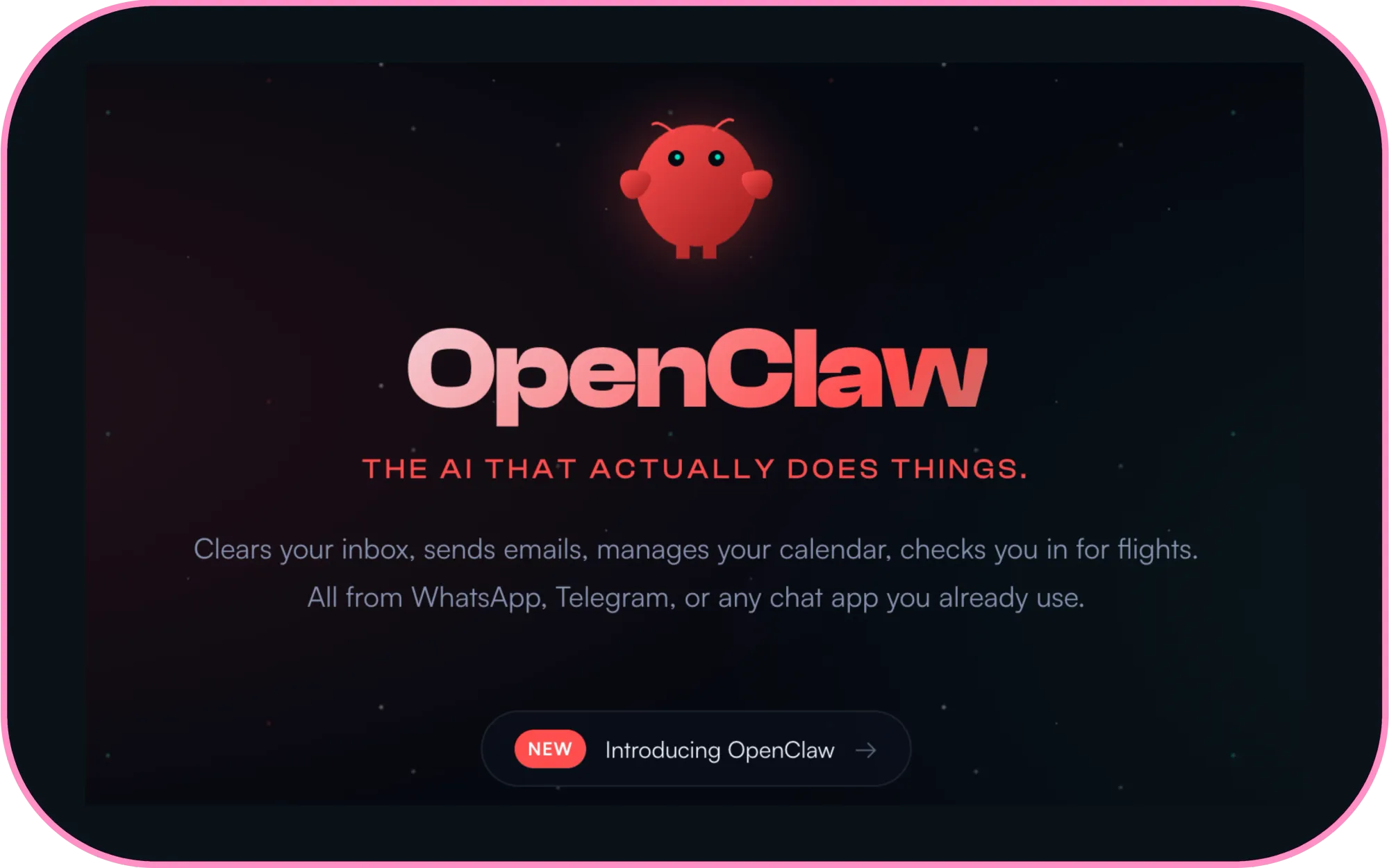
OpenClaw is an open-source AI agent that runs directly on your Mac, connects to your messaging apps, and performs real tasks on your behalf around the clock. Unlike Siri, which forgets your conversation the moment you stop talking, OpenClaw maintains persistent memory across sessions, learns your preferences over time, and can proactively send you briefings, reminders, and summaries without being asked. The catch is that OpenClaw requires genuine setup, real security decisions, and an always-on Mac to function properly, and the difference between a useful personal agent and a security liability comes down to how carefully you configure those first few permissions.
Austrian developer Peter Steinberger, known for years of high-quality macOS development, built OpenClaw as a personal AI assistant project that exploded into a community phenomenon in late January 2026. The project originally launched as Clawdbot in November 2025, underwent two name changes (briefly becoming Moltbot after Anthropic requested a trademark change, then settling on OpenClaw), and now has thousands of active users in its Discord community. The OpenClaw GitHub repository is where the open-source code lives, with active development and frequent releases.
What separates OpenClaw from other AI chatbot wrappers is scope. This is not a browser tab you visit when you have a question. OpenClaw installs as a background daemon on macOS using launchd (the same system macOS itself uses to manage background services), sits in your menu bar as a native companion app, and communicates with you through whatever messaging platform you already use. Text it on WhatsApp from your phone while you are out, and it replies from your Mac at home. Ask it to check your calendar, draft an email, organize a folder, or monitor a stock price, and it executes those tasks with direct access to your file system, browser, and connected services.
Why Mac Users Keep Choosing OpenClaw Over Siri
The frustration is familiar. You ask Siri something on your Mac, get a partial answer, ask a follow-up, and Siri has already forgotten what you were talking about. Apple Intelligence in macOS Tahoe has improved Siri's contextual awareness, but the fundamental architecture remains reactive: Siri waits for you to ask, responds, and moves on.
OpenClaw inverts that relationship. Because it stores your preferences, past conversations, and ongoing tasks as local files in the ~/.openclaw directory, it builds a persistent understanding of how you work. Ask it to compile a weekly summary of your project notes every Friday morning, and it will keep doing that indefinitely without being reminded. That kind of proactive, persistent behavior is what people mean when they describe OpenClaw as "what Siri should have been," and it is why 9to5Mac reported that the project sparked a wave of Mac Mini memes as users rushed to set up dedicated always-on machines.
There is a specific moment during setup that reveals how differently OpenClaw thinks about your Mac compared to Siri. When the onboarding wizard reaches the permissions step, it asks you to grant access to your file system, your browser, and potentially your shell. That permission dialog feels heavier than anything Siri has ever asked for, because OpenClaw is not pretending to be a polite assistant that stays in its lane. It is asking for the keys to your digital workspace. The security implications are real, and the OpenClaw documentation is direct about them: run it on a dedicated machine if possible, enable consent mode so it asks before executing commands, and treat the ~/.openclaw directory like a password vault.
The Mac Mini Has Become the Default OpenClaw Machine
OpenClaw runs as a daemon, which means it needs a computer that stays powered on, connected to the internet, and available at all hours. Your MacBook works for testing, but close the lid and OpenClaw goes silent. This is why the Mac Mini M4 has become the go-to hardware for OpenClaw deployments. It is compact, energy-efficient, powerful enough for the AI workloads OpenClaw routes through cloud APIs, and it runs macOS natively, which unlocks iMessage integration, Apple Reminders access, and the native menu bar companion app that other platforms lack.
Zone of Mac covered how to build a Mac Mini M4 workstation recently, and that guide applies directly here. A base Mac Mini M4 with Apple Silicon M4, 16 GB of unified memory, and a wired Ethernet connection gives OpenClaw everything it needs for cloud-based AI model routing. The machine just sits there, drawing minimal power, running your personal AI agent while you go about your day.
One setup detail that trips people up: once the Mac Mini is tucked behind a shelf or on a desk somewhere, you still need to access its screen occasionally for permission dialogs and system updates. Enable Screen Sharing in System Settings, then navigate to General, then Sharing, and toggle Screen Sharing on. Apple documents how to allow remote access to your Mac in their support library, and VNC from your MacBook or iPad makes managing the headless Mini painless.
Affiliate disclosure: some links in this article are Amazon Associate links. If you buy through them, Zone of Mac may earn a small commission at no extra cost to you, and we only recommend products that genuinely bring value to your Apple setup.
Keep Your AI Agent's Brain on a Dedicated Drive
OpenClaw stores everything locally: conversation history, persistent memory files, skill configurations, workspace data, and the personality profile that shapes how your agent responds. Over weeks of use, this data grows into something genuinely valuable, a record of your workflows, preferences, and accumulated context that makes your agent increasingly useful. Keeping that data on your Mac's internal drive works, but dedicating a fast external Thunderbolt 5 SSD to your OpenClaw workspace means you can back it up independently, migrate your entire agent to a new Mac by plugging in one cable, and keep your system drive focused on macOS itself. The OWC Envoy Ultra reads and writes at over 6,000 MB/s on Thunderbolt 5 equipped Macs, comes pre-formatted in Apple File System, and its built-in captive cable means one fewer loose accessory to manage on your desk.

Here is a quick comparison of how OpenClaw stacks up against the built-in assistants Mac users already know.
| Capability | Siri | OpenClaw |
|---|---|---|
| Persistent Memory | None between sessions | Stores preferences, context, tasks locally as files |
| Proactive Actions | Limited to suggestions | Morning briefings, calendar alerts, file monitoring |
| Messaging Integration | Voice or text to Siri only | WhatsApp, Telegram, Discord, Slack, iMessage, Signal |
| Task Execution | Preset commands only | Shell access, browser automation, file management, email |
Pick up the OWC Thunderbolt 5 SSD for Mac here (Amazon affiliate link):
https://www.amazon.com/dp/B0DMTVGPH8?tag=zoneofmac-20
What OpenClaw Can Actually Do Once It Is Running
The list of capabilities is long, but here are the workflows that stand out for Mac users specifically. OpenClaw can monitor your inbox and surface only the emails that matter, based on rules you define in natural language. It can compile daily or weekly briefings from your calendar, email, and notes, then send them to your phone via WhatsApp or Telegram before you even open your Mac. It manages files directly, organizing downloads by type, renaming batches according to your naming conventions, or summarizing PDFs you drop into a watched folder.
The iMessage integration is exclusive to macOS and deserves special mention. Because OpenClaw runs on a Mac, it can tap into the Messages app through BlueBubbles or the legacy iMessage channel, giving you an AI assistant that lives inside the same green and blue bubbles you already use to text friends and family. Ask OpenClaw to remind you about a meeting, and the reminder shows up as an iMessage from your dedicated OpenClaw number.
For Mac users already experimenting with Apple Intelligence, OpenClaw occupies a different niche. Apple Intelligence handles on-device summarization, Writing Tools, and Siri enhancements within Apple's walled garden. OpenClaw operates outside that garden entirely, connecting to whichever large language model you choose (Anthropic's Claude, OpenAI's GPT, Google's Gemini, or even local models via Ollama) and executing tasks that Apple Intelligence was never designed to touch. If you have already explored building AI Shortcuts on Mac with Apple Intelligence, OpenClaw is the next step: an agent that does not wait for you to trigger a Shortcut but instead acts on its own schedule.
Join The Inner Circle For Serious Apple Users
Exclusive Apple tips. Free to join.
Security Is Not Optional With OpenClaw
I want to be direct about this. OpenClaw is experimental software that requests broad permissions on your Mac. It can read your files, execute shell commands, control your browser, and access connected services. A critical vulnerability (CVE-2026-25253) was discovered in versions before the January 29 update, and the project's own documentation warns users to treat it like a sudo terminal. That means never installing it on your primary personal machine with access to sensitive accounts, always running the latest version, and enabling the exec_approval configuration flag so OpenClaw asks your permission before running destructive commands.
The recommended approach is a dedicated Mac Mini with its own Apple ID and its own set of service credentials. Share only the specific Google Docs, calendar entries, and files you want OpenClaw to access. Bind the gateway to localhost (127.0.0.1 instead of 0.0.0.0) so it is not exposed to your local network. Run openclaw doctor regularly to check for misconfigurations. The official OpenClaw macOS documentation walks through each security setting in detail.
Accessibility and Clarity
OpenClaw's interface model is inherently accessible in one important way: it communicates through text messages. Users who rely on VoiceOver or screen readers can interact with OpenClaw through any messaging app that already supports their assistive technology stack. There is no proprietary UI to learn, no custom interface to navigate. Your existing accessibility settings in WhatsApp, Telegram, or iMessage carry over directly.
The macOS companion app adds voice wake functionality (say "Hey Molty" to activate), which benefits users with motor impairments who prefer voice interaction. The menu bar icon provides status at a glance, though its visual-only status indicator could benefit from VoiceOver labels in future updates. The Terminal-based installation process remains the primary barrier: users unfamiliar with command-line tools will need assistance with initial setup, though the onboarding wizard has reduced the number of manual steps significantly since the project's early days.
Quick-Action Checklist: Get OpenClaw Running on Your Mac
- Dedicate a Mac to OpenClaw (Mac Mini M4 recommended) or accept that closing your MacBook lid stops the agent.
- Install Node.js 22 or later (the OpenClaw installer handles this automatically if missing).
- Run the one-line installer in Terminal: curl -fsSL https://openclaw.ai/install.sh | bash
- Run openclaw onboard and follow the wizard to choose your AI model, messaging channel, and daemon installation.
- Start with one messaging channel (Telegram is the easiest, WhatsApp requires a dedicated phone number).
- Enable consent mode (exec.ask: "on" in config) so OpenClaw asks before executing commands.
- Bind gateway to localhost: change 0.0.0.0 to 127.0.0.1 in openclaw.json.
- Run openclaw doctor to verify your security configuration.
- Enable Screen Sharing on the Mac for remote management (System Settings, then General, then Sharing).
- Message your bot from your phone. Welcome to always-on AI on your Mac.

Related Posts
Seven Mac Accessories That Turn a Good Desk Into a Great One
Apr 10, 2026
Your Mac Has a Networking Time Bomb That Only a Reboot Defuses
Apr 09, 2026
Your Mac Feels Slow After macOS Tahoe — Here’s What Actually Fixes It
Apr 08, 2026