
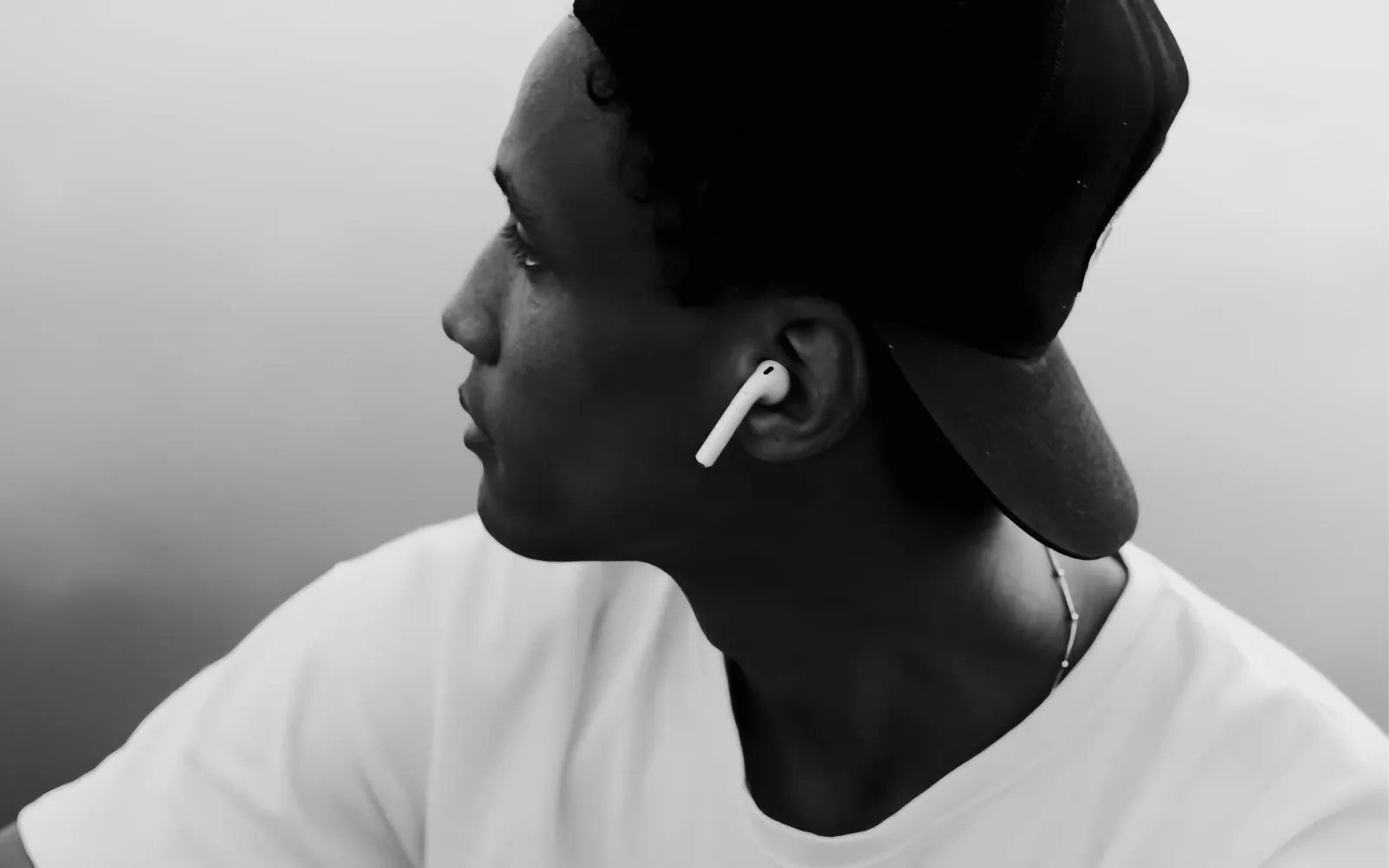

Netflix spatial audio on Apple devices transforms flat stereo into a three-dimensional sound field that wraps around your head, anchored to whatever screen you are watching. You need the Netflix Premium plan, a pair of AirPods (third generation or later), AirPods Pro, or AirPods Max, and about two minutes of setup. The catch is that the feature silently requires specific settings across your iPhone, iPad, Mac, or Apple TV 4K, and if even one of those settings is off, the spatial audio toggle either greys out or vanishes entirely.
I spent an embarrassing amount of time staring at a greyed-out spatial audio icon in Control Center before I realized my Bluetooth connection had quietly downgraded after a firmware update. That experience alone justifies this guide, because the actual activation path is straightforward once you know where every switch lives.
What Netflix Spatial Audio Actually Does to Your Listening
Apple Spatial Audio uses the accelerometers and gyroscopes inside your AirPods to track your head movement in real time. When you turn your head to the left during a scene in Stranger Things, the dialogue stays pinned to your iPhone or iPad screen rather than following your ears. The effect is subtle on a phone held at arm's length, but on a 12.9-inch iPad Pro propped on a desk, it genuinely feels like sound is projecting from the display rather than being injected into your ear canals.
Netflix actually offers two distinct spatial audio technologies, and most people conflate them. The first is Apple Spatial Audio with head tracking, which requires compatible AirPods and an Apple device. The second is Sennheiser AMBEO spatial audio, which Netflix rolled out in partnership with Sennheiser in July 2022 and works on any device with any headphones on any Netflix plan. The Sennheiser version enhances stereo into a wider soundstage, but it does not track your head. The Apple version does.
The distinction matters because when you search "spatial audio" in the Netflix app and see the label on a title, that label refers to the Sennheiser version. The Apple head-tracked experience layers on top of that automatically when your AirPods are connected and correctly configured. There is no separate toggle inside Netflix for Apple's version. It is handled entirely at the operating system level.
Every Device and Headphone Combination That Works
The requirements split into two categories: the AirPods or Beats headphones doing the spatial processing, and the Apple device sending the audio stream.
Compatible headphones: AirPods (third generation), AirPods 4, AirPods Pro (all generations), AirPods Max, Beats Fit Pro, Beats Studio Pro, Beats Solo 4, and Powerbeats Pro 2. First- and second-generation AirPods do not support spatial audio at all.
Compatible Apple devices: iPhone 7 or later running iOS 16 or later, iPad Air (third generation) or later running iPadOS 16.1 or later, any Mac with Apple silicon running macOS Monterey 12.3 or later, and Apple TV 4K running tvOS 15.1 or later.
One detail that caught me off guard: on a Mac, spatial audio for Netflix only works in Safari. Chrome, Firefox, and Arc do not support it. If you are watching Netflix in Chrome on your MacBook and wondering why the spatial audio option never appears, that is why. Safari is the only browser on macOS that hooks into the system-level spatial audio framework.
How I Got Spatial Audio Working on Every Apple Device
The setup is the same conceptual process on every device, but the exact menu paths differ enough to trip people up. I will walk through each one.
iPhone and iPad
Open the Netflix app and start playing any title. With your AirPods connected, swipe down from the top-right corner to open Control Center. Press and hold the volume slider until it expands. In the bottom-right corner, you will see the spatial audio icon, which looks like a small head with radiating arcs. Tap it and choose Head Tracked.
If you do not see the spatial audio icon at all, go to Settings, then Bluetooth, tap the info button next to your AirPods, and make sure Spatial Audio is toggled on. While you are there, I also recommend tapping Personalized Spatial Audio and running the ear scan if you have not already. The scan uses your iPhone's TrueDepth camera to map the shape of your ears in about thirty seconds, and it genuinely improves the spatial positioning. Without it, the effect feels vaguely wide. With it, sounds land in specific locations around your head.
Mac with Apple Silicon
Open Safari, navigate to Netflix, and start a title. Click the AirPods icon in the menu bar at the top of your screen. Under Spatial Audio, select Head Tracked. If the option is greyed out, confirm you are using Safari, not another browser. Also check that your Mac is running macOS Monterey 12.3 or later, because earlier versions do not support spatial audio with AirPods.
A quirk worth mentioning: if you have an external display connected via HDMI with its own speakers set as the audio output, macOS sometimes does not re-route the spatial audio pipeline when you switch to AirPods. I have had to manually select AirPods as the output device in the Sound section of System Settings before the spatial audio controls appear. It does not happen every time, but it happens often enough to note.
Apple TV 4K
During playback, hold the TV button on the Siri Remote to open Control Center. Navigate to the AirPods icon and select Spatial Audio, then choose Head Tracked. The Apple TV 4K needs to be running tvOS 15.1 or later. If you have a surround sound system connected, the Apple TV may default to Dolby Atmos output instead. In that case, go to Settings, then Video and Audio, then Audio Format, and switch to Stereo. Spatial audio through AirPods requires the stereo output path.
Why Personalized Spatial Audio Changes Everything
Standard spatial audio applies a generic head-related transfer function to position sounds around you. Personalized Spatial Audio, which Apple introduced in iOS 16, scans your actual ear geometry using the TrueDepth camera and builds a custom audio profile stored on your device. According to Apple's support documentation, the profile syncs across every Apple device signed into the same Apple Account, and the camera data never leaves your device.
The difference between generic and personalized spatial audio is not dramatic on first listen. It is the kind of thing you notice after a week of use when the effect suddenly feels less precise because you switched to someone else's AirPods. The improvement is most noticeable with dialogue-heavy content. Voices land more precisely at the screen position rather than floating vaguely in front of you. For action sequences with directional sound design, the personalized profile gives rear and side channels a specificity that the generic version smooths over.
To create your profile, go to Settings on your iPhone, tap your AirPods name, then tap Personalized Spatial Audio and follow the scan. Hold your iPhone about twelve inches from your face and slowly turn your head in a circle. The scan captures your right ear, left ear, and frontal profile in three passes. The whole process takes under a minute.
Fixing the 'Spatial Audio Not Available' Error
This is the reason most people search for help with Netflix spatial audio. The toggle disappears or greys out, and Netflix itself offers no error message. Here is every cause I have identified and the fix for each.
Wrong Netflix plan. Apple Spatial Audio with head tracking requires the Netflix Premium plan. The Standard and Standard with Ads plans do not support it. The Sennheiser spatial enhancement works on all plans, but the Apple head-tracked version does not.
AirPods firmware is outdated. AirPods update their firmware automatically when connected to an iPhone and charging near it. But the update can stall. To check, go to Settings, Bluetooth, tap the info button next to your AirPods, and scroll to Firmware Version. If your AirPods Pro 2 are not on the latest firmware, place them in the case, connect the case to power, and leave your iPhone nearby on Wi-Fi for at least thirty minutes.
Bluetooth connection downgraded. Sometimes AirPods reconnect in a basic Bluetooth mode that does not support advanced audio features. The fix is simple: put your AirPods in the case, wait ten seconds, take them out, and let them reconnect. This forces a fresh AAC connection that supports spatial audio.
Wrong browser on Mac. As I mentioned, spatial audio on Mac only works in Safari. No exceptions.
Audio output set to surround sound. If your Apple TV 4K is outputting to a surround sound receiver, the spatial audio option will not appear for AirPods. Switch to Stereo in Settings, Video and Audio, Audio Format.
Spatial Audio toggled off in Bluetooth settings. On iPhone, go to Settings, Bluetooth, tap the info button next to your AirPods, and verify Spatial Audio is turned on. This is the master switch, and it is easy to accidentally toggle off.
How to Find Netflix Titles That Support Spatial Audio
Netflix does not maintain a public list of every title with spatial audio support, which is frustrating. The easiest method: open the Netflix app on your iPhone, iPad, or Apple TV and type "spatial audio" into the search bar. Titles tagged with spatial audio support will appear with a small label next to the description. The library has grown substantially since the 2022 launch. Action and sci-fi titles tend to benefit most from the spatial mix, but I have been surprised by how much it adds to documentary content with ambient environmental sound.
If you have already configured spatial audio on your AirPods for Apple Music, the Netflix setup shares the same system-level toggle. You can find the full AirPods spatial audio walkthrough in our guide to setting up spatial audio on AirPods for Apple Music, Netflix, and Spotify. For AirPods Max owners looking to push audio quality further, our deep dive into the hidden audio power of AirPods Max in macOS Tahoe and iOS 26 covers additional settings that complement the Netflix spatial experience.
The Real Limitations Nobody Mentions
Spatial audio on Netflix sounds impressive in a quiet room with your eyes on the screen. Move around, though, and the illusion fractures. I tried watching a movie on my iPhone while cooking, glancing at the screen every few minutes, and the head tracking became disorienting rather than immersive. The sound kept shifting as my head moved relative to the phone sitting on the counter. Fixed mode, which enables spatial audio without head tracking, works much better for casual background watching.
Battery drain is the other unspoken trade-off. Head tracking keeps the gyroscope and accelerometer active in your AirPods for the entire viewing session. Over a two-hour movie, I noticed roughly eight to ten percent more battery drain on my AirPods Pro 2 compared to watching with spatial audio off. That is not catastrophic, but it means your AirPods might die before the third episode of a binge session. Keeping the charging case nearby is not optional.
Apple's decision to restrict Mac spatial audio to Safari also deserves criticism. The majority of people I know who watch Netflix on a Mac use Chrome. Forcing a browser switch just for spatial audio feels like an artificial limitation designed to push Safari adoption rather than a genuine technical constraint, especially when FaceTime audio already supports spatial processing system-wide regardless of the app.

Olivia Kelly
Staff writer at Zone of Mac with over a decade of Apple platform experience. Verifies technical details against Apple's official documentation and security release notes. Guides prioritize actionable settings over speculation.
Related Posts
AirPods Max and Sony WH-1000XM5 Go Head to Head for Your Ears
Mar 07, 2026
Your AirPods Max Are Collecting Grime You Cannot See
Mar 04, 2026
Your AirPods Have Dozens of Hidden Settings on Your iPhone — Here Is Every One
Mar 03, 2026