
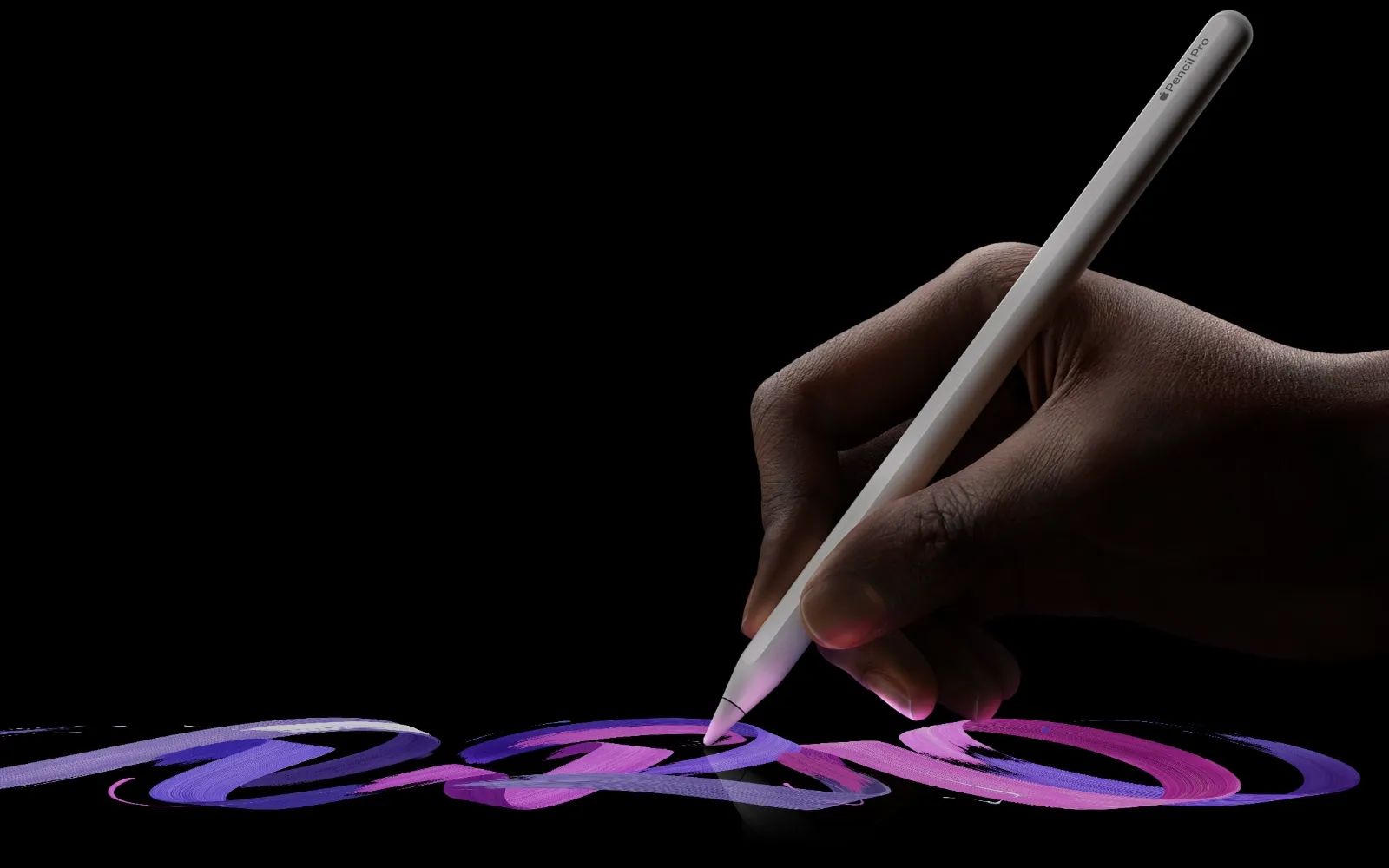
I've been drawing on iPads since the first Apple Pencil shipped with the original iPad Pro in 2015. That's a decade of muscle memory, ten years of knowing exactly how hard to press and how far to tilt to get the stroke I want. So when Apple announced barrel roll for the Apple Pencil Pro, my first thought wasn't excitement. It was skepticism.
Another gesture to accidentally trigger. Another setting to configure. Another thing that sounds great in keynotes and frustrating in practice.
I was wrong. Mostly.
The Part Where I Explain What Barrel Roll Actually Does
Here's the thing Apple's marketing doesn't make clear: barrel roll only matters for brushes that aren't perfectly round. If you're using a basic hard round brush, rotating the Pencil Pro does nothing visible. The brush tip is a circle. Circles look the same no matter how you spin them.
But calligraphy pens, flat brushes, certain textured stamps, anything with an elongated or asymmetrical tip, that's where barrel roll becomes something worth caring about. Twist the pencil and the virtual brush tip rotates in real time. Hold it at an angle before you touch down and you can see exactly how the stroke will land, thanks to hover preview showing the brush shadow.
I spent about two weeks forcing myself to use barrel roll for everything. At first, it felt like patting my head while rubbing my stomach. My brain wanted to tilt the pencil for variation, not twist it. But somewhere around day eight, it clicked. Now I can't imagine going back for certain brush types.
Configuring Barrel Roll in Brush Studio
Procreate doesn't have barrel roll enabled by default on most brushes. You have to turn it on manually in Brush Studio, and the settings are buried in ways that aren't obvious unless you know where to look.
Tap any brush to select it, then tap again to open Brush Studio. The barrel roll controls live in four different places depending on what you want the rotation to affect:
For shape orientation, head to Shape in the left sidebar, then Input Style. You'll find a Barrel Roll slider that controls how much the brush tip rotates as you twist the Pencil Pro. Crank it to max for one-to-one rotation. Lower values give you subtler movement.
For color dynamics, tap Color Dynamics, then look for Color Barrel Roll. This lets you shift hue, saturation, or brightness as you rotate. Useful for certain effects, distracting for others. I keep it off for most brushes.
The Apple Pencil section in Brush Studio has its own Barrel Roll toggle that affects size variation. Twist one direction and the stroke thickens. Twist the other way and it thins. Combined with pressure sensitivity, this creates an almost overwhelming number of variables. I found it useful for about three specific brushes and actively annoying for everything else.
The Wet Mix section includes an Attack setting tied to barrel roll. Honestly, I haven't found a practical use for this one yet. If you're doing heavy paint mixing effects, maybe it's worth exploring.
The Squeeze Situation
Squeeze is simpler than barrel roll. You press the flat sides of the Pencil Pro together and something happens. What happens depends on your settings.
In Procreate's gesture controls under Actions, then Prefs, then Gesture Controls, you can assign squeeze to several shortcuts: show the QuickMenu, switch between your current tool and the eraser, toggle between your two most recent tools, invoke the color picker, or open the Brush Library.
I've settled on using squeeze for the eyedropper. Pinch, sample a color, keep drawing. It saves the two-finger tap gesture I used to use, which occasionally triggered accidental undos when I was sloppy about finger placement.
The haptic feedback when you squeeze is subtle but helpful. You feel a tiny pulse confirming the gesture registered. Same thing when you hit a memory point on the sidebar sliders, which took me embarrassingly long to notice.
Join The Inner Circle For Serious Apple Users
Exclusive Apple tips. Free to join.
The Brushes That Actually Benefit
After testing probably sixty brushes across my library, I've landed on a short list where barrel roll genuinely improves the drawing experience rather than just adding complexity.
Flat brushes for painting are the obvious winner. Twist to vary your stroke angle without lifting and repositioning. Traditional painters do this instinctively with physical brushes. Now you can do it digitally without the wrist contortion.
Calligraphy pens, particularly the ones simulating chisel-tip markers or broad-nib fountain pens, become dramatically more natural. The Procreate default Calligraphy set includes several brushes with barrel roll attributes already configured.
Textured stamps with directional patterns, things like grass, fur, or certain particle effects, rotate with your pencil twist. This beats having to jump into the transform tool constantly.
Round brushes with subtle grain asymmetry pick up subtle variation from barrel roll that I genuinely didn't expect. Even small shape irregularities become visible when you rotate.
What I Wish Worked Better
The rotation feels slightly disconnected from the physical pencil movement when you're drawing fast. There's no perceptible lag, exactly, but the mapping between "how far I twisted" and "how far the brush rotated" doesn't feel quite one-to-one at high speeds. It's close enough that you stop noticing after a while. But coming from years of pressure and tilt feeling perfectly mapped, the barrel roll takes longer to internalize.
Some third-party brush packs haven't been updated to include barrel roll settings. You can add them yourself in Brush Studio, but it's tedious if you have hundreds of brushes you rely on.
And here's the thing nobody talks about: barrel roll is a wrist movement. If you draw from your shoulder or elbow, keeping a relatively fixed wrist grip on the pencil, barrel roll requires changing your entire hand position. I've started drawing more from my wrist when I want rotation control, which isn't necessarily better for ergonomics during long sessions.
Affiliate disclosure: some links in this article are Amazon Associate links. If you buy through them, Zone of Mac may earn a small commission at no extra cost to you, and we only recommend products that genuinely bring value to your Apple setup.
When Your Wrist Needs a Break
Speaking of ergonomics: if you're spending serious time drawing in Procreate, the angle you hold your iPad matters more than any software feature. I switched to a dedicated drawing stand about four months ago after realizing I was hunching over my iPad like some kind of digital goblin. The difference was immediate.
The Sketchboard Pro 2 creates a flat surface around your iPad that mimics working on paper, with magnetic legs for angled positions from 20 to 72 degrees. The flat surround means your drawing hand can rest naturally at the edges of the canvas rather than hovering awkwardly over the iPad's edge. The 13-inch version fits the iPad Pro M5 perfectly, with a cutout for the charging port so you can draw while plugged in during those marathon sessions.
I'll be honest about the downsides: it weighs 3.4 pounds, which isn't nothing if you're throwing it in a bag. The magnetic legs store in slots on the back, but they don't stay put as firmly as I'd like, so I've learned to double-check before picking it up. And at roughly a hundred thirty dollars, it's not an impulse purchase. But my neck stopped hurting after the first week, so.
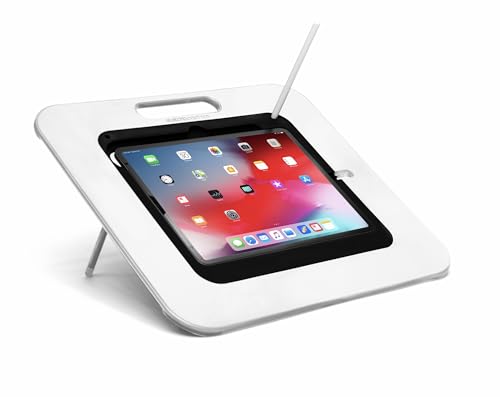

Here's where to get the Sketchboard Pro 2 for iPad Pro 13-inch (M4/M5) https://www.amazon.com/dp/B0DDQPJVLQ?tag=zoneofmac-20
The Liquify Bonus
I almost forgot this one: barrel roll works with Procreate's Liquify tool for the Twirl function. Enable it in Actions, then Prefs, then Gesture Controls, then General, toggle on "Rotate Liquify with Apple Pencil Pro."
Now when you use Twirl Left or Twirl Right in Liquify, you can control the direction by rotating the pencil. It's a small thing, but it makes liquify effects feel more intentional and less like spinning a roulette wheel.
Who This Actually Helps
VoiceOver reads Brush Studio's interface adequately for users navigating with accessibility features, but the barrel roll settings themselves are deeply visual. You're adjusting how brush shapes rotate, which inherently requires seeing the result. If you rely on screen readers, configuring barrel roll settings will likely require sighted assistance, and the real-time benefits of barrel roll, seeing exactly how your brush will land before you touch down, won't translate to non-visual workflows.
For users with motor control variations, squeeze might be easier than double-tap depending on your grip. The haptic feedback confirms gesture registration without requiring you to watch for visual changes. Worth experimenting with both to see which works better for your hands.
The Sketchboard Pro helps with arm fatigue if drawing from a flat surface causes strain. Being able to set a consistent angle means less constant repositioning.
Whether You Should Bother
If you draw casually in Procreate, barrel roll and squeeze are nice-to-haves that won't change your life. The learning curve exists, and the default Pencil Pro behavior is perfectly fine for most uses.
If you do serious illustration work, particularly anything involving calligraphy, traditional painting techniques, or textured brushwork, spend an afternoon configuring your favorite brushes in Brush Studio. The payoff comes weeks later when rotation becomes instinctive and you realize you haven't touched the transform tool in days.
Procreate's official Apple Pencil Pro documentation covers the basics. Zone of Mac has also written about iPad window tiling for multitasking if you're setting up a serious workspace, and iPadOS 26 background tasks if you want Procreate running while you reference images in Safari.
Start with the Calligraphy brush set. Enable barrel roll on the Monoline brush under Shape, then Input Style. Draw some figure eights while twisting. If it clicks, keep going. If it doesn't, you've lost twenty minutes. Either way, at least you'll know.

Related Posts
Final Cut Pro on iPad Replaced Half My Mac Editing Workflow
Feb 19, 2026