

🎧 Listen to this article
Prefer to listen? An audio version of this article is available for accessibility and convenience.
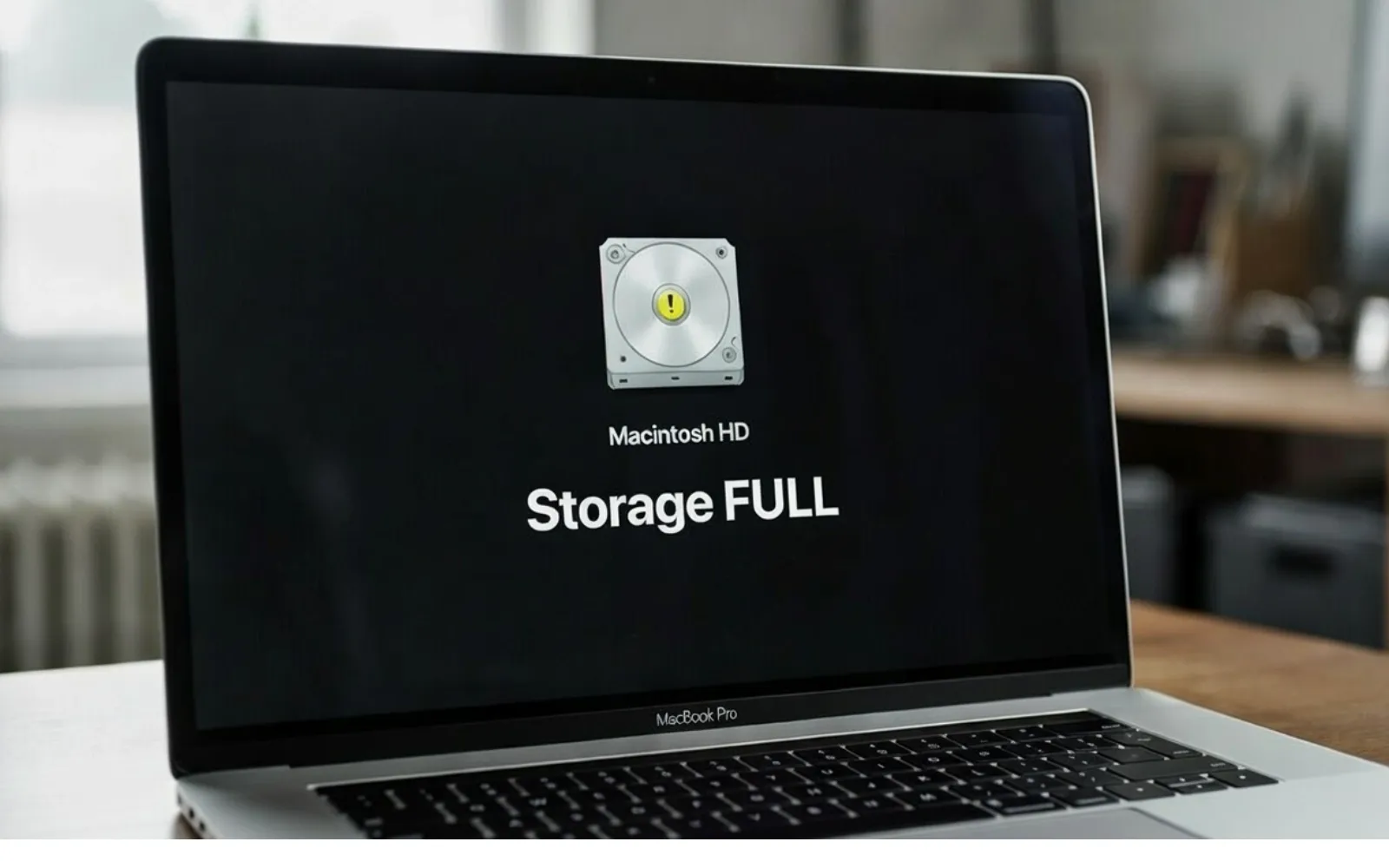
System Data in macOS Tahoe is the storage category Apple defines as “files that don’t belong to any more specific category” — and on some Macs it quietly swells past 100, 200, even 300 gigabytes overnight. The fix requires no third-party cleanup app, but it does require understanding what macOS Tahoe actually stuffs into that opaque bar before you start deleting anything.
I opened System Settings on a MacBook Pro running macOS Tahoe 26.3.1 last week and found 187 gigabytes labeled System Data. The storage bar looked like a parking lot at capacity. Freeing that space took about twenty minutes using only tools Apple ships with every Mac, but the process exposed just how poorly macOS communicates where your disk space goes. What follows is every component hiding inside that bar and the built-in methods that reclaim each one.
 Ad
AdWhat macOS Tahoe Hides Inside “System Data”
Apple’s own support page calls System Data a catch-all, and that undersells how much territory it covers. The bar lumps together at least seven distinct file types that behave completely differently:
- APFS local snapshots — Time Machine creates a read-only copy of your startup disk roughly once per hour. Each snapshot is supposed to expire after 24 hours, but in macOS Tahoe that expiration mechanism fails more often than Apple admits. Snapshots accumulate until they consume whatever free space remains.
- CoreSpotlight metadata — Spotlight’s search index lives in ~/Library/Metadata/CoreSpotlight/ and at the root-level .Spotlight-V100 folder. A documented bug in macOS Tahoe causes the mds_stores process to leak memory and generate excessive indexing data, sometimes adding gigabytes per day.
- Virtual memory swap files — When RAM fills up, macOS writes swap files to /System/Volumes/VM/. Each file is one gigabyte. Forum reports describe Macs generating 20 or more swap files before a reboot clears them.
- Application caches — Every browser, email client, and media app stashes temporary data in ~/Library/Caches/. Safari alone can park several gigabytes there without any visible warning.
- Old iOS and iPadOS device backups — If you have ever synced an iPhone or iPad to your Mac, those backup archives sit in ~/Library/Application Support/MobileSync/Backup/ and count as System Data.
- Staged macOS updates — A downloaded but uninstalled macOS update takes roughly 12 gigabytes. It sits in System Data until you either install it or delete it.
- System and diagnostic logs — Crash reports, kernel logs, and sysdiagnose archives pile up in /var/log/ and ~/Library/Logs/ and rarely clean themselves.
The tricky part is that Finder cannot see most of these files. They live in hidden directories that macOS deliberately obscures, which means the storage bar grows and the user gets no explanation. It does, though, mean that every method in this guide targets specific filesystem paths rather than vague “optimization” steps.
The Tahoe-Specific Bug That Makes It Worse
macOS has always struggled with System Data transparency, but Tahoe introduced a compounding problem. The mds_stores process — the daemon that powers Spotlight search indexing — has a memory leak that was first reported during the macOS 26 beta cycle and persists through macOS Tahoe 26.3.1. When the leak triggers, mds_stores consumes increasing amounts of RAM until the system begins writing swap files to disk at a pace of roughly six per hour. At one gigabyte each, that is 144 gigabytes of System Data growth in a single day.
Apple has not formally acknowledged the bug. Community experts on the MacRumors forums and Apple Support Communities have documented the behavior extensively, and incremental improvements appeared in macOS 26.3 — the system now stops consuming space when roughly 12 gigabytes of free space remain, whereas earlier Tahoe builds would drive free space to nearly zero.
There is also a reporting discrepancy. Running df -H in Terminal on a Tahoe Mac sometimes shows approximately 11 gigabytes of actual system file usage while the Storage panel simultaneously reports 120 gigabytes. The copy-on-write architecture of APFS complicates how macOS calculates remaining disk space, and the storage bar can overcount files that share underlying data blocks across snapshots. In the worst case of your Mac reporting 200 gigabytes of System Data, the real consumption might be half that — which is frustrating, but also means a reboot can reclaim space the system was never actually using.
 Ad
AdHow I Actually Reclaim System Data on a Mac
I work through these in order because the first two methods recover the most space with the least risk. If your Mac is critically low on storage, start with Safe Mode — it can recover 50 gigabytes or more in a single restart.
Safe Mode restart (recovers swap files and system caches)
Shut down your Mac completely. Press and hold the power button until “Loading startup options” appears. Select your startup disk, then hold Shift and click “Continue in Safe Mode.” macOS boots into a minimal environment, clears recoverable caches, flushes swap files, and verifies the startup disk. One MacRumors forum user reported System Data dropping from 365 gigabytes to 45 gigabytes after a single Safe Mode cycle. Restart normally when it finishes — the space stays reclaimed.
Delete stale APFS snapshots (recovers snapshot accumulation)
Open Terminal and type: tmutil listlocalsnapshots / — this lists every local Time Machine snapshot on your startup disk. If you see dozens of snapshots spanning weeks or months, the expiration mechanism has stalled. Delete them individually with sudo tmutil deletelocalsnapshots followed by the date string from each entry, or view them visually in Disk Utility under View, then Show APFS Snapshots. Keep the most recent snapshot as a safety net and remove the rest. Apple documents this process in its Disk Utility guide for viewing APFS snapshots.
Rebuild the Spotlight index (fixes the mds_stores leak)
Open System Settings, click Spotlight in the sidebar, then scroll to the Privacy section. Drag your Macintosh HD volume into the Privacy list — this tells Spotlight to stop indexing the entire drive. Wait ten seconds, then remove it from the list. Spotlight begins a fresh reindex from scratch, which replaces the corrupted metadata with a clean database. The reindex takes a few hours depending on how many files you have, but the bloated CoreSpotlight data disappears immediately. If you’ve been experiencing high CPU from mds_stores, this is the fix.
Clear application caches manually
In Finder, press Command-Shift-G and type ~/Library/Caches/ to jump directly to your user cache directory. Sort by size. You will probably find browser caches from Safari, Chrome, or Firefox taking up multiple gigabytes apiece. Delete the contents inside each app’s subfolder — not the subfolder itself. The apps rebuild their caches automatically on next launch. I also really like checking /Library/Caches/ for system-level caches, though anything there requires an administrator password to remove.
Remove old iOS device backups
Go to System Settings, click General, then Storage Settings. Click the info button next to “iOS Files” if it appears. You may find backups for devices you no longer own consuming 20, 40, even 60 gigabytes. Delete any backup you do not need. If iOS Files does not appear, check ~/Library/Application Support/MobileSync/Backup/ directly — the backups live there regardless of whether the Storage panel shows them.
When the Storage Bar Lies Versus When It Tells the Truth
This breakdown matches common System Data scenarios to their causes and the right response, since not every inflated bar means you have files to delete.
| Scenario | What’s Happening | Real Space Used | Action |
|---|---|---|---|
| Bar shows 50–80 GB after macOS upgrade | APFS retaining pre-upgrade snapshot | Often 15–30 GB actual | Delete old snapshots via tmutil |
| Bar shows 100+ GB, mds_stores at high CPU | Spotlight memory leak writing swap files | Grows hourly until reboot | Reboot, then rebuild Spotlight index |
| Bar shows 120 GB but df -H shows 11 GB | APFS copy-on-write overcount | 11 GB actual | Reboot to reconcile; no files to delete |
| Bar grows steadily over weeks | Cache and log accumulation | Close to reported amount | Clear caches and logs manually |
The distinction matters. Rebooting fixes scenarios two and three almost instantly because it flushes swap files and forces APFS to reconcile its accounting. But scenario one requires manual snapshot cleanup, and scenario four requires digging into cache directories. Knowing which scenario applies before you start deleting avoids both unnecessary work and accidentally removing data macOS still needs.
What I’d Skip Entirely
Every “System Data” search result on Google right now leads to a cleanup app asking for $30 to $50. CleanMyMac, MacKeeper, Dr. Buho, DaisyDisk — they all promise to scan and fix the problem automatically. Some of them are legitimate tools, but none of them can do anything you cannot do yourself with the methods above, and several of them lack the ability to manage APFS snapshots or rebuild the Spotlight index, which are the two largest contributors to Tahoe’s System Data inflation. Paying for a cache cleaner when Safe Mode does the same thing for free is a poor trade.
I also would not recommend the “erase and clean install” nuclear option unless you have genuinely exhausted every built-in method. A clean install does recover all System Data, but it costs an afternoon of reinstalling apps and reconfiguring preferences. For most people, the five methods above recover 80 to 95 percent of the bloated space without erasing anything.
Keeping System Data From Ballooning Again
The Spotlight memory leak means this problem can return after a few weeks if macOS Tahoe has not been patched. Until Apple addresses the mds_stores bug formally, I’d suggest checking Activity Monitor once a week for abnormal mds_stores memory consumption and rebooting when it exceeds a couple of gigabytes. It’s a workaround, not a solution, but it prevents the swap-file spiral from eating your disk space silently.
Keeping macOS updated also helps. Each Tahoe point release — 26.1, 26.2, 26.3, and the current 26.3.1 — has improved storage management incrementally. Apple may eventually fix the root cause, but in the meantime, staying current gives you whatever partial fixes have landed. If you’ve been holding off on updating your Mac, our guide to running macOS updates walks through every step.
One more thing worth noting: if you are a developer running Xcode, your System Data likely includes 40 to 80 gigabytes of derived data and iOS simulator files that none of the standard cleanup steps touch. Open ~/Library/Developer/Xcode/DerivedData/ and delete its contents — Xcode regenerates what it needs per project. Run xcrun simctl delete unavailable in Terminal to purge simulators for iOS versions you no longer test against. Those two commands alone can recover as much space as everything else combined.
The storage bar in macOS Tahoe has a transparency problem, not just a storage problem. Apple’s choice to label hundreds of gigabytes as “System Data” without explaining what that category contains leaves users guessing. The methods here work because they target the actual filesystem paths behind the label. If you’ve reclaimed your space and want to understand how macOS Tahoe handles storage optimization more broadly, our article on reclaiming hidden storage on your Mac covers the complementary tools that keep your startup disk lean month over month.

Related Posts
Your Mac Just Started Warning You About Apps That Will Stop Working
Mar 28, 2026
MacBook Pro M5 Pro vs M4 Pro: The Honest Buying Decision for 2026
Mar 26, 2026
Claude Can Work Your Mac While You Walk Away — Here’s What That Changes
Mar 26, 2026