

🎧 Listen to this article
Prefer to listen? An audio version of this article is available for accessibility and convenience.
macOS Tahoe 26.4 landed on March 24, 2026, and it quietly delivered the battery control feature that MacBook owners have been requesting since Apple Silicon debuted. You can now set a hard charge limit anywhere between 80 and 100 percent, directly in System Settings, no third-party app required. But the charge limit is only one piece of a surprisingly dense update that also brings back a Safari layout Apple inexplicably removed, warns you about apps heading for obsolescence, and patches over 70 security vulnerabilities.
I want to walk through each change that actually matters for your daily workflow, because most of the coverage I have seen focuses on the emoji. The emoji are fine. The battery slider, the Rosetta 2 warnings, and the Safari fix deserve your attention more.
 Ad
AdSafari Gets Its Compact Tab Bar Back
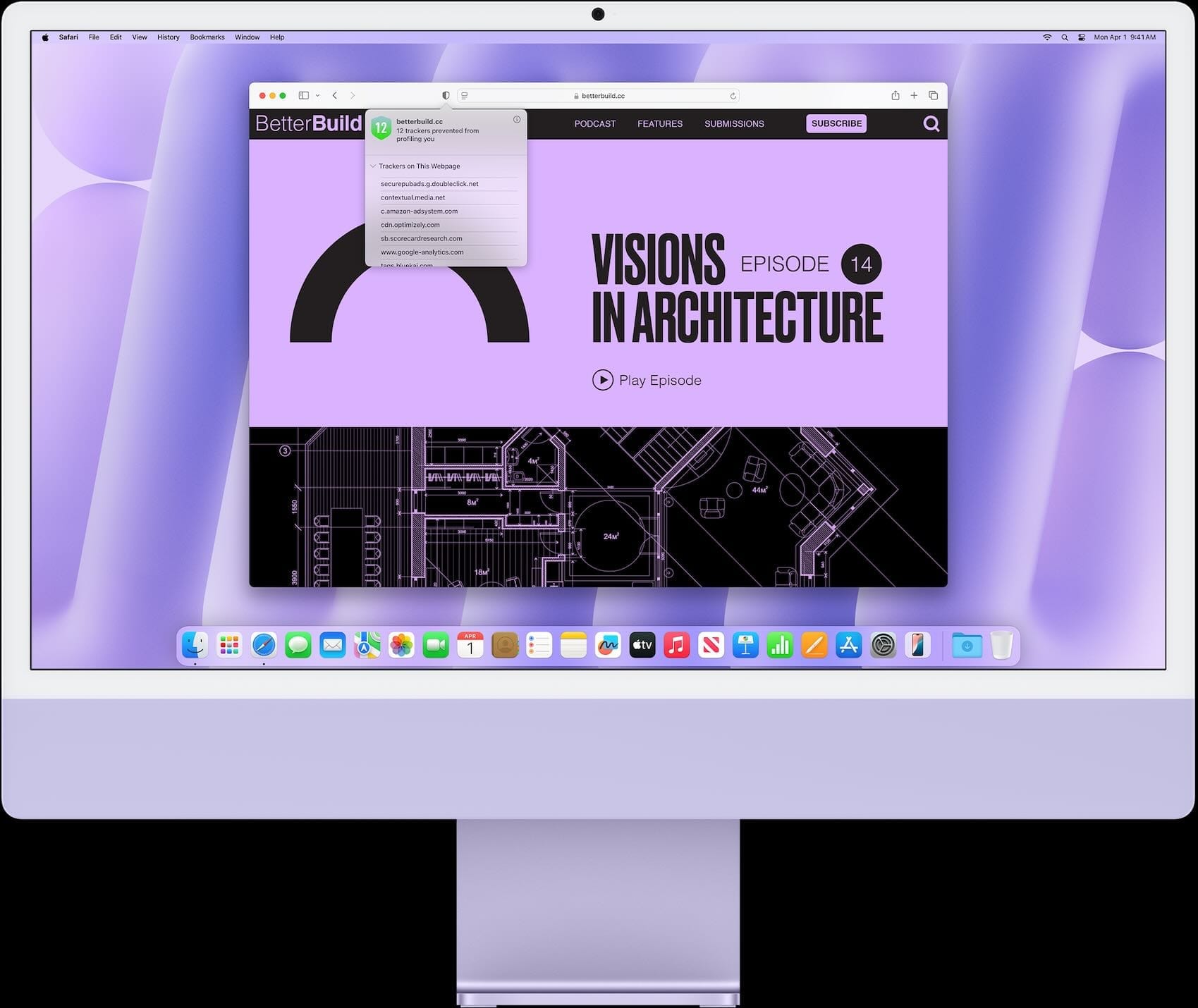
Apple removed the compact tab bar layout from Safari when macOS Tahoe first shipped. It was a baffling decision. The compact layout merged the address bar and the tab bar into a single row, freeing up vertical screen space on smaller MacBook displays where every pixel of height counts. Safari 26.4 restores it as a toggle under Safari, then Settings, then Tabs.
If you spend most of your time in a 13-inch MacBook Air, switch to Compact immediately. The difference is roughly 28 pixels of recovered height, which sounds trivial until you realize that is an entire line of text in most web layouts. On a 16-inch MacBook Pro, the benefit is less dramatic, but still worth trying if you run Safari alongside a tiled code editor.
The setting lives in Safari’s Preferences under the Tabs pane. You will see two options: Separate and Compact. Apple defaults to Separate, so you have to opt in. One small catch: some Safari extensions that add toolbar buttons may render slightly differently in Compact mode, and I noticed the extension icon row compresses in a way that can hide your fifth or sixth extension behind a chevron menu. Not a dealbreaker, but check your extensions after switching.
The Battery Charge Limit That Should Have Shipped Years Ago
Open System Settings, click Battery, and you will find a new Charge Limit slider. Drag it to any value between 80 and 100 percent in five-percent increments, and your MacBook stops charging when it hits that ceiling.
Why does this matter? Lithium-ion cells degrade faster when they spend long periods at full charge. If your MacBook lives on a desk connected to an external display and a power adapter, keeping it pinned at 100 percent slowly erodes the battery’s maximum capacity. Third-party utilities like AlDente have offered this control for years, but requiring a paid app for basic battery charge limits was always an odd gap in Apple’s otherwise health-conscious hardware philosophy. According to Apple’s own battery health documentation, maintaining a charge between 20 and 80 percent maximizes long-term cell longevity.
There is a second, smaller addition here worth noticing. macOS Tahoe 26.4 now displays a Slow Charger indicator in the battery status menu when your connected charger cannot deliver enough wattage for your MacBook model. Plug a 30-watt USB-C charger into a MacBook Pro 16-inch, and you will see an orange “Slow Charger” label appear next to the battery icon. It will not stop you from using the underpowered adapter, but at least you will know why charging overnight still left you at 78 percent.
 Ad
AdRosetta 2 Warnings Are Apple Telling You to Check Your Apps
This is the change that deserves more attention than it is getting. Starting with macOS Tahoe 26.4, every time you open an application that relies on Rosetta 2 translation to run on Apple Silicon, your Mac displays a popup warning that the app will not work starting with macOS 28.
Apple has confirmed that macOS Tahoe is the final macOS release to support Intel-based Mac computers, and Rosetta 2 support ends after macOS 27. That gives developers roughly 18 months to ship native Apple Silicon builds before their apps stop launching entirely.
Well, here is why you should care right now: open every app you rely on this week and see which ones trigger the warning. Some of them will surprise you. Older audio plugins, niche professional tools, certain scientific software, and even a few well-known creative apps still ship Intel-only binaries. If your workflow depends on one of these tools, now is the time to contact the developer or start evaluating alternatives, not when macOS 28 drops and your app refuses to open.
Think of this as Apple giving you a heads-up with enough lead time to actually do something about it. The popup includes a “Learn More” link that takes you to Apple’s Rosetta 2 transition page, though the page itself is thin on specific migration advice.
Freeform Gets Apple Creator Studio Integration
Freeform, Apple’s digital whiteboarding app, updates to version 4.4 and gains integration with Apple Creator Studio. This brings premium stock images through the Content Hub, low-resolution image upscaling, and access to AI-powered image generation through OpenAI’s model. If you use Freeform for presentations or moodboards, the image upscaling alone is worth exploring. Drag a low-resolution reference photo onto a Freeform board, right-click, and the upscale option produces a surprisingly clean result for anything up to about 4x enlargement.
I should note that Creator Studio requires a separate subscription. Freeform itself remains free, but the premium image library and AI generation tools sit behind a paywall. If you already subscribe to Apple Creator Studio for other apps, the Freeform integration comes included.
Reminders, Family Sharing, and the Smaller Fixes
Reminders in macOS Tahoe 26.4 adds a keyboard shortcut for marking items as urgent and lets you filter urgent reminders in Smart Lists. If you manage tasks across multiple projects, being able to surface only urgent items with a single keystroke saves a few clicks per session that add up over a full workday.
Family Sharing now allows adult members to use their own payment methods instead of routing every purchase through the family organizer’s card. If you have been in a Family Sharing group where splitting charges was awkward, this removes that friction entirely.
The Music app updates to version 1.6.4 with performance improvements for large libraries. Shuffling a smart playlist with several thousand tracks used to introduce a brief stutter on the first few transitions. That lag appears to be gone in 26.4. If you have a modest library under a few hundred songs, you probably never noticed the problem in the first place.
And yes, there are eight new emoji, including an orca, a trombone, ballet dancers, a distorted face, and a fight cloud. They are only visible to other users running 26.4 or later, so expect the missing-character squares in group chats for a few weeks.
Over 70 Security Patches You Should Not Ignore
Apple’s security release notes for macOS Tahoe 26.4 list over 70 fixes across native components and third-party dependencies including Apache libraries, Curl, and LibPNG. The most notable is CVE-2026-28826, a sandbox escalation vulnerability that allowed a malicious application to break out of its sandbox. None of the patched vulnerabilities were known to be actively exploited at the time of release, but sandbox escapes are the kind of bug that threat actors reverse-engineer from patches within days. If you ever need to troubleshoot a failed update, knowing your macOS recovery options is essential.
If you have been putting off the update because you dislike change, the security patches alone justify installing it this week. Open System Settings, click General, then Software Update.
The Window Fix Nobody Asked About But Everyone Needed
One last thing. macOS Tahoe shipped with a subtle but annoying visual bug: the resize cursor did not follow the rounded corners of windows correctly. You would hover near a corner expecting the resize arrow and get nothing until you moved your pointer a few pixels inward. Version 26.4 fixes this. It is the kind of fix that nobody lists in a feature roundup but that you feel every time you grab a window corner without the cursor fighting you.
Quick-Action Checklist
- Open System Settings, then General, then Software Update, and install macOS Tahoe 26.4
- Open System Settings, then Battery, and set your Charge Limit between 80 and 95 percent if your MacBook stays plugged in most of the day
- Open Safari, then Settings, then Tabs, and switch to Compact if you want the vertical space back
- Launch every app you use regularly and note any Rosetta 2 warnings so you can plan ahead
- Check Freeform 4.4 for Creator Studio features if you subscribe to Apple Creator Studio

Related Posts
Your Mac Just Started Warning You About Apps That Will Stop Working
Mar 28, 2026
MacBook Pro M5 Pro vs M4 Pro: The Honest Buying Decision for 2026
Mar 26, 2026
Claude Can Work Your Mac While You Walk Away — Here’s What That Changes
Mar 26, 2026