

What macOS Tahoe 26.3 Actually Changes Under the Hood
Apple released macOS Tahoe 26.3 (build 25D125) on February 11, 2026, and the official changelog boils down to one deliberately vague line: “This update provides important bug fixes and security updates.” That undersells it. Buried inside this 1.76 GB download are 52 individual CVE patches, a zero-day fix for a vulnerability Apple confirms was exploited in real-world attacks, and a handful of interface corrections that address long-standing frustrations with Finder and window management. The complication is that one of those “fixes” has already been partially walked back, and knowing which changes actually landed will determine whether you update today or wait for 26.4.
This guide breaks down every confirmed change in macOS Tahoe 26.3, flags the one fix Apple promised but did not fully deliver, and walks through the safest update path for both Apple Silicon and Intel-based Macs.
The Zero-Day That Made This Update Urgent
The most critical patch in macOS 26.3 targets a memory corruption vulnerability in Apple’s dyld dynamic link editor (CVE-2026-20603). Apple’s own security bulletin confirms this flaw “may have been exploited in an extremely sophisticated attack against specific targeted individuals on versions of iOS before iOS 26.” The fix applies improved state management to prevent arbitrary code execution. According to Apple’s security content page, the same vulnerability was patched simultaneously across iOS 26.3, iPadOS 26.3, watchOS 26.3, and tvOS 26.3.
Beyond the zero-day, macOS 26.3 addresses 51 additional CVEs spanning path handling, authorization escalation, out-of-bounds memory access, and privacy-related data leaks. That is the largest single security payload since macOS Tahoe launched. For anyone running an older point release, the risk surface is real and documented.
Affiliate disclosure: some links in this article are Amazon Associate links. If you buy through them, Zone of Mac may earn a small commission at no extra cost to you, and we only recommend products that genuinely bring value to your Apple setup.
Back Up Before You Touch Software Update
Every macOS point release carries a small but nonzero risk of breaking workflows, especially when enterprise tools like FileVault and Platform SSO are involved (both received targeted fixes in 26.3). A full Time Machine backup takes the worry out of the equation entirely. If your Mac already backs up to a network drive or Time Capsule, confirm the most recent snapshot completed within the last 24 hours before you proceed.
For Macs without a dedicated backup target, a portable USB-C SSD is the fastest way to create a bootable safety net. The Samsung T7 Shield handles Time Machine duties without flinching. Its 1,050 MB/s read and write speeds over USB 3.2 Gen 2 mean a 500 GB system backup completes in under ten minutes, and the IP65 dust and water resistance rating means you can toss it in a bag without a protective case. The rubberized shell has a firm, textured grip that feels noticeably different from the smooth aluminum of Samsung’s non-Shield T7, and the USB-C cable seats with a satisfying click that stays put even on a slightly tilted desk. You can grab the Samsung T7 Shield 2TB on Amazon.
The Finder Fix That Was Not Quite a Fix
macOS Tahoe introduced large rounded window corners that pushed the clickable resize area outside the visible window boundary. The resize detection zone measured 19 by 19 pixels near each corner, and with Tahoe’s design, roughly 75 percent of that detection area fell outside the visible window frame. Grabbing a corner to resize a window became a coin flip. Apple’s developer release notes for 26.3 initially stated: “Window resize areas now follow corner radius instead of using square regions.”
Then Apple quietly updated the documentation. The window resize improvement was reclassified from a resolved issue back to a “known issue.” Developer Jeff Johnson documented that while the horizontal scroller in Finder’s Column View was repositioned to stop blocking the column-width resize handle, the vertical scrollers retained their pre-fix height, leaving visible gaps in the interface. Johnson called the result “silly and amateurish” on Daring Fireball. The Column View scroller fix did stick, but the broader window resize correction remains incomplete heading into 26.4.
What this means in practice: if you rely on Column View in Finder, the scroller interference is gone and you will notice the improvement immediately. If you frequently resize windows by dragging corners, the experience is marginally better but still inconsistent near rounded edges.
Enterprise and Authentication Changes
Three targeted enterprise fixes landed in 26.3 that IT administrators should know about. First, FileVault enablement during Setup Assistant now works correctly for standard (non-admin) user accounts, resolving a deployment blocker for organizations that provision Macs with standard accounts. Second, Screen Recording permissions display corrections fix a bug where certain apps appeared to have recording access they did not actually possess. Third, Platform SSO login improvements address authentication failures that occurred when an identity provider password was changed mid-session.
For most home users, these changes are invisible. But if your Mac is managed by an organization, the FileVault fix alone could change your Setup Assistant experience the next time your IT team provisions a machine.
What About Apple Intelligence and Xcode 26.3
macOS 26.3 does not add any new Apple Intelligence capabilities. Those are expected to arrive with macOS 26.4, which Apple is currently testing and which may include expanded Siri functionality and new emoji. The 26.3 update does contain references to unreleased Apple Silicon chips in its firmware (build 13822.81.10), likely pointing to M5 Max and M5 Ultra configurations for upcoming Mac Studio and Mac Pro refreshes.
Separately, Apple released Xcode 26.3 alongside this update, introducing agentic coding support that lets developers work with AI coding agents directly inside the IDE. If you write code on your Mac, Xcode 26.3 requires macOS Tahoe 26.3 as a minimum, so updating the operating system is a prerequisite. If you are building automations on your Mac, our guide to building powerful AI shortcuts with Apple Intelligence covers the foundation you will want in place before Xcode’s agentic features go mainstream.
Here is how macOS 26.3 compares to 26.2 and the upcoming 26.4 across the attributes that matter most for deciding when to update.
| Attribute | macOS 26.2 | macOS 26.3 | macOS 26.4 (expected) |
|---|---|---|---|
| Security Patches | 38 CVEs | 52 CVEs + zero-day | TBD |
| New User Features | Edge Light, Podcasts | None | Siri upgrades, emoji |
| Finder Fixes | None | Column View scroller | Window resize (expected) |
| Enterprise Changes | Minor | FileVault, SSO, Screen Recording | TBD |
| Update Size (Apple Silicon) | ~2.1 GB | 1.76 GB | TBD |
Connectivity During and After the Update
macOS updates occasionally reset network preferences, and 26.3 includes changes to the networking stack as part of its security patches. If your Mac relies on a USB-C hub for Ethernet, external displays, or peripheral connections, verify that the hub’s firmware is current before updating. Outdated hub firmware paired with a fresh macOS security patch is a common source of “my monitor stopped working” reports in the first 48 hours after any point release.
The Anker 547 USB-C Hub (7-in-2) is purpose-built for the current MacBook lineup and works cleanly with Thunderbolt 4 ports. It delivers 4K output at 60Hz over HDMI, passes through USB-C and two USB-A data ports, and reads SD and microSD cards. The hub clips directly onto the side of a MacBook, sitting flush against the chassis without wobbling, though on thicker-bodied MacBook Pro 16-inch models it floats a millimeter or two above the desk surface. That gap is cosmetic, not functional. Pick up the Anker 547 USB-C Hub 7-in-2 on Amazon.
Join The Inner Circle For Serious Apple Users
Exclusive Apple tips. Free to join.
Check your inbox for a confirmation link.
Something went wrong. Please try again.
Which Macs Can Run macOS Tahoe 26.3
macOS Tahoe 26.3 supports every Mac with Apple Silicon (M1 through M4) and four Intel-based models: the Mac Pro (2019), the MacBook Pro (16-inch, 2019), the MacBook Pro (13-inch, 2020, four Thunderbolt 3 ports), and the iMac (2020). macOS Tahoe is the final macOS release to support any Intel Mac. If your machine is not on this list, you are limited to macOS Sequoia 15.7.4 or macOS Sonoma 14.8.4, both of which received their own security updates on the same day.
Apple Intelligence features in macOS Tahoe require Apple Silicon. The four supported Intel Macs can run Tahoe 26.3 and receive every security patch, but Apple Intelligence, Live Translations, and certain on-device machine learning features remain unavailable on those machines. If you are considering whether to trade up from an Intel Mac, our guide to factory resetting your Mac before trading up to MacBook Pro M5 walks through the entire process.
Accessibility and Clarity
macOS Tahoe 26.3 does not introduce new accessibility features, but the security patches themselves have accessibility implications. The Screen Recording permissions fix corrects a misleading display where apps appeared to have recording access they did not possess, which could cause confusion for VoiceOver users relying on the permissions list to audit their privacy settings. The corrected display now accurately reflects which apps hold recording permissions, reducing cognitive load when reviewing privacy configurations.
The Finder Column View scroller fix also benefits keyboard-only and assistive-technology users. The previous scroller positioning blocked the column-width resize handle, forcing users to switch to a different Finder view to adjust column widths. With the scroller repositioned, Column View is once again fully operable without workarounds.
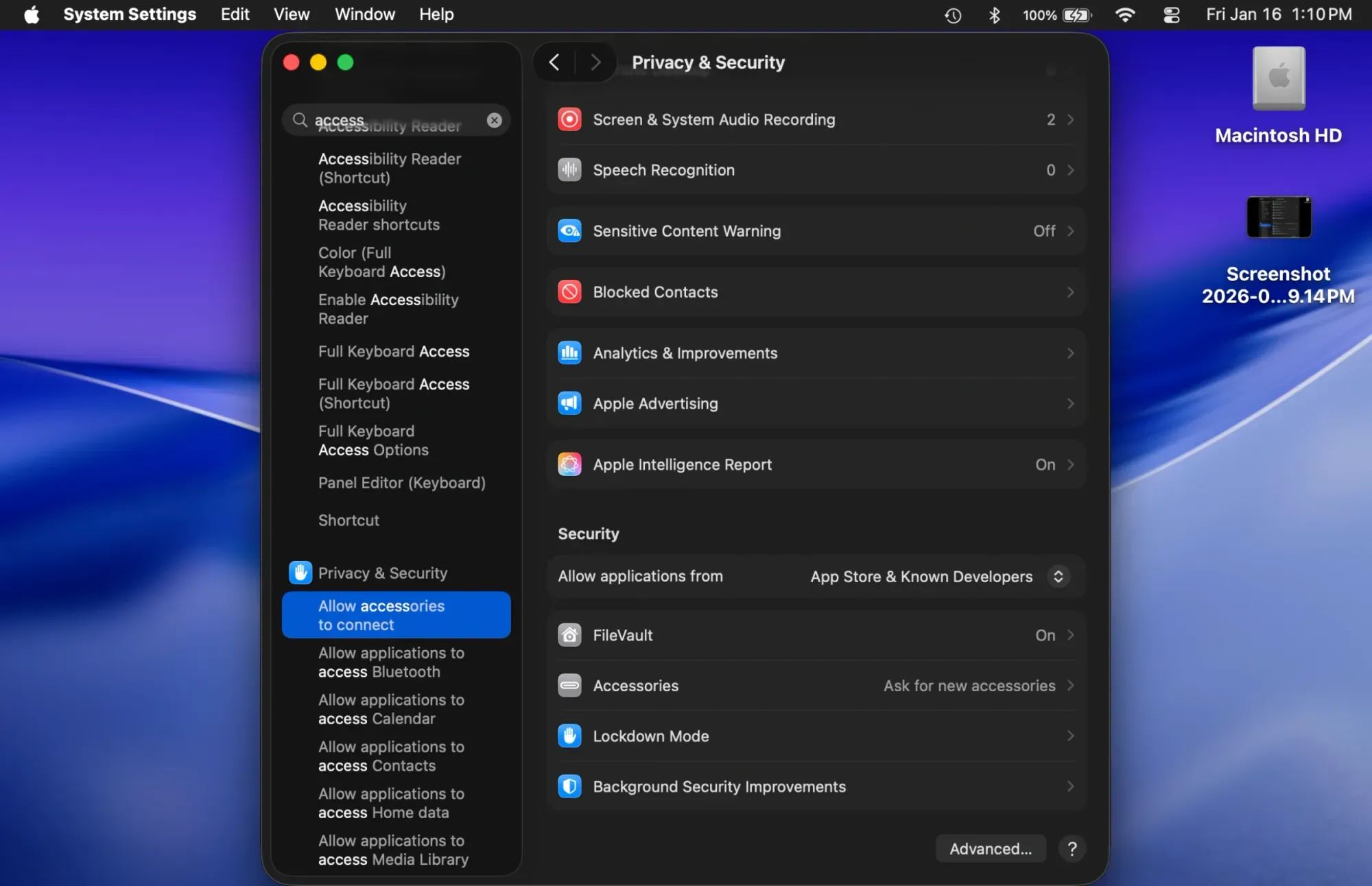
For users with light sensitivity, the update does not change any display or color settings. The System Settings Privacy and Security panel retains its high-contrast layout with clear section boundaries and left-aligned labels, keeping navigation predictable for users with ADHD or dyslexia who benefit from consistent information architecture.
Quick-Action Checklist: Updating to macOS Tahoe 26.3
- Open Time Machine or your backup app and confirm a backup completed within the last 24 hours
- If no backup exists, connect an external SSD and run a full Time Machine backup now
- Check that any USB-C hubs or docks have current firmware (visit the manufacturer’s support page)
- Open System Settings, then click General, then click Software Update
- Download macOS Tahoe 26.3 (1.76 GB on Apple Silicon, 2.96 GB on Intel)
- Click Install Now, and do not close the lid or shut down during installation
- After restarting, open System Settings, then Privacy and Security, then verify your FileVault and Screen Recording permissions display correctly
- Confirm your external displays, Ethernet, and peripherals reconnected automatically

Deon Williams
Staff writer at Zone of Mac with two decades in the Apple ecosystem starting from the Power Mac G4 era. Reviews cover compatibility details, build quality, and the specific edge cases that surface after real-world use.
Related Posts
Seven Mac Accessories That Turn a Good Desk Into a Great One
Apr 10, 2026
Your Mac Has a Networking Time Bomb That Only a Reboot Defuses
Apr 09, 2026
Your Mac Feels Slow After macOS Tahoe — Here’s What Actually Fixes It
Apr 08, 2026