

🎧 Listen to this article
Prefer to listen? An audio version of this article is available for accessibility and convenience.
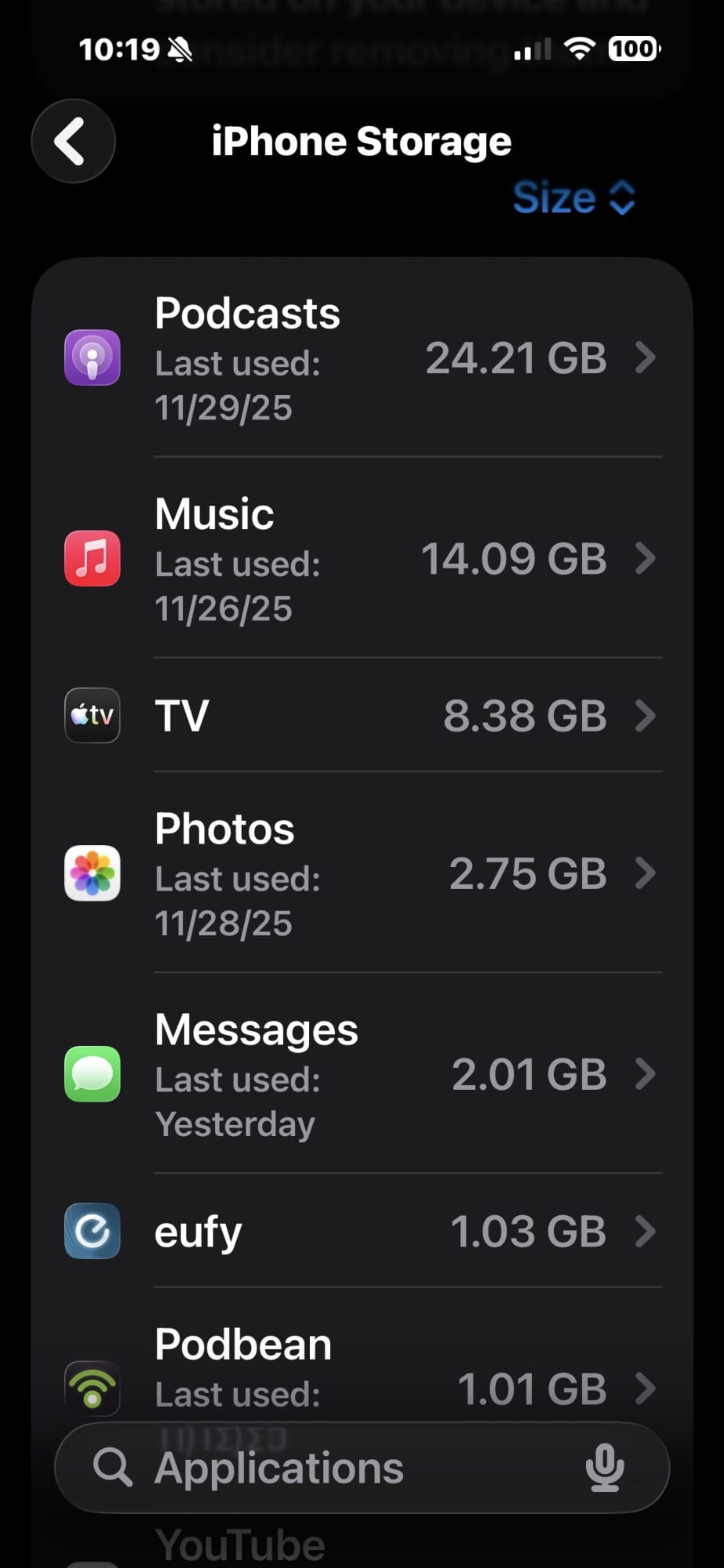
Your iPhone says storage is full. You’ve already paid for iCloud. And yet here you are, still getting that obnoxious “iPhone Storage Full” popup every time you try to take a photo. I get it. The fix isn’t more cloud storage — it’s clearing what’s actually clogging up your phone. Head to Settings > General > iPhone Storage right now and look at that colored bar at the top. That’s your roadmap. You’ll see categories like Apps, Photos, Messages, and the one that causes the most confusion: System Data. Most of the space-saving tricks you’ll find online — offloading apps, clearing Safari’s cache, dumping old message attachments — genuinely work, and I’ll walk through all of them. But the real reason your iPhone storage is full even with iCloud? That gray “System Data” bar is probably eating 20, 30, maybe 50 gigabytes of your phone, and Apple barely explains what it is or how to fix it.
So yeah. iCloud isn’t the answer here. iCloud stores your stuff in the cloud. The problem is what’s stored on your phone that has no business being there. And the worst offender doesn’t even show up with a convenient “Delete” button.
 Ad
AdThe System Data Problem Nobody Explains Well
Here’s what System Data actually is: caches, logs, Siri voices, downloaded fonts, dictionaries, your Spotlight search index, Keychain data, and a pile of temporary files that iOS generates as you use your phone. Apple’s official support page says these cached files “are removed automatically as space is needed.” That sounds reassuring. It is also, in practice, kind of a lie.
After iOS 26 updates especially, System Data has a nasty habit of ballooning. I’ve seen reports on Apple Community forums of people watching System Data consume 30 to 60 percent of their total storage. On a 128GB iPhone, that’s potentially 70 gigs of space eaten by data you never asked for, can’t see, and aren’t given a straightforward way to remove. Apple knows this happens. They just haven’t built a “Clean Up System Data” button, which is honestly baffling for a company that prides itself on the user experience.
Why does it balloon? The short answer is that iOS is aggressive about caching things for performance — streaming data from Apple Music, offline Siri processing, Safari pre-loads, app caches that survive even after you close the app. The system is supposed to clean house when storage gets tight, but it often doesn’t do it fast enough or thoroughly enough to actually matter when you need the space.
Five Things That Actually Free Up Space
Before you go nuclear on System Data, start with the stuff iOS actually lets you control. These five moves can reclaim anywhere from a few hundred megabytes to 15+ gigs depending on how long you’ve been ignoring your phone’s digital junk drawer.
Messages attachments are the silent killer. Every photo, video, GIF, and PDF anyone has ever texted you is sitting on your phone right now unless you’ve manually removed it. Go to Settings > General > iPhone Storage, scroll down and tap Messages, then hit Review Large Attachments. Sort by size. You will be stunned. My buddy Chris found 11 gigs of video clips from a fantasy football group chat in there. That’s a whole season of terrible draft picks preserved in 4K for no reason. Delete what you don’t need.
Safari’s cache gets bloated fast. Settings > Apps > Safari > Clear History and Website Data. Simple. This won’t save you 10 gigs, but it’s an easy win, and on phones that haven’t been cleared in a year or more, it adds up. Every website you’ve visited has been leaving little data presents behind.
Offload apps you barely use. This is different from deleting. When you offload an app, iOS removes the app itself but keeps its documents and data, so if you reinstall it later, you pick up right where you left off. Go to Settings > General > iPhone Storage, tap any app, and choose Offload App. That 2GB game you played once in an airport? Offload it. But here’s the friction point nobody mentions — if you want to clear an app’s cached data, offloading won’t do it. You need to delete the app entirely and reinstall it. That’s the only way to force a cache reset for most apps, and it’s annoying that Apple doesn’t offer a middle option.
Check your Recently Deleted album in Photos. When you delete photos, they aren’t actually gone. They sit in a Recently Deleted album for 30 days. If you just went on a deletion spree to free up space and nothing changed, this is why. Open Photos, go to Albums, scroll to Recently Deleted, and empty it. If you’re running into photo storage problems specifically, there’s a whole iCloud Photos setting that most people skip that makes a massive difference.
Disable automatic update reservations. This one’s less known. iOS 26 reserves somewhere between 10 and 15 gigabytes of storage for automatic software updates. That’s space you can’t use for anything else — just sitting there, waiting for Apple to push an update. Go to Settings > General > Software Update > Automatic Updates and turn it off. You can still update manually whenever you want. You just get that reserved space back. And honestly, if your iCloud storage is already insufficient because Apple gives you a laughable 5GB free tier, the last thing you need is your phone hoarding another 15GB for an update you weren’t ready for anyway.
 Ad
AdWhen System Data Takes Over
You did all five of those things and System Data is still hogging 40 gigs? Yeah. That happens.
There’s a trick that’s been floating around Apple forums for years, and it still works on iOS 26. Go to Settings > General > Date & Time, turn off Set Automatically, and manually set the date three months into the future. Then restart your phone. Wait a minute. Go back and re-enable Set Automatically so your date goes back to normal. This forces iOS to treat a bunch of cached and temporary files as expired, and the system purges them. People regularly report reclaiming 5 to 10 gigabytes this way. Is it elegant? No. Does Apple recommend it? Absolutely not. Does it work? It does.
If even that doesn’t make a dent, the last resort is a full backup and restore. Back up your iPhone to a Mac or PC using Finder or iTunes, then erase the phone completely through Settings > General > Transfer or Reset iPhone > Erase All Content and Settings, and restore from that backup. This forces the entire System Data category to rebuild from scratch, which eliminates the bloated caches, orphaned logs, and corrupted temporary files that have been accumulating. It takes time. It’s inconvenient. But it works when nothing else will, and it’s the closest thing to a guaranteed fix for runaway System Data.
Why doesn’t Apple just build a button for this? Seriously — why can I manually clear Safari’s cache but not the system-level caches that are ten times larger? It’s 2026. This should not require a date hack and a prayer.
Quick-Action Checklist
- Open Settings > General > iPhone Storage and identify your biggest space consumers
- Tap Messages > Review Large Attachments and delete old media
- Go to Settings > Apps > Safari > Clear History and Website Data
- Offload or delete-and-reinstall apps with large cache sizes
- Empty the Recently Deleted album in Photos
- Turn off Automatic Updates in Settings > General > Software Update to reclaim reserved space
- Try the date-forward trick: Settings > General > Date & Time, set date 3 months ahead, restart, then re-enable automatic date
- Full backup and restore as a last resort for stubborn System Data bloat

Related Posts
iOS 26.4 Has Nine Reported Bugs and Every Fix That Actually Works
Mar 29, 2026
iOS 26.4 Gave Your CarPlay Dashboard Two Features Worth the Update
Mar 28, 2026
iOS 26.4 Dropped Three Days Ago and Here Is What You Should Do
Mar 27, 2026