

🎧 Listen to this article
Prefer to listen? An audio version of this article is available for accessibility and convenience.
Your iPhone’s storage screen in iOS 26 breaks your entire device into nine color-coded categories — Apps, Photos, Media, Messages, Mail, Apple Books, iCloud Drive, System Data, and iOS — and most of them are labeled so vaguely that tapping the bar chart raises more questions than it answers. The “Applications” slice alone can account for 30 gigabytes or more, and it doesn’t mean what you think it means.
The real problem isn’t a lack of space. It’s that Apple gives you a visual breakdown designed for quick glances, not informed decisions. I’ve watched my own iPhone 16 Pro’s System Data balloon to 14 gigabytes after a routine iOS 26.3 update, and the only reason I caught it was because I knew where to look — and what that gray bar actually contained. If you want to reclaim storage with confidence, you need to understand what each category hides before you start deleting things you’ll regret.
 Ad
AdThat stacked bar chart you see at Settings, then General, then iPhone Storage takes a few seconds to calculate. Once it loads, each colored segment maps to a specific content type. Here’s what every one of them actually holds — and the ones that quietly waste the most space.
What “Apps” Actually Measures
The red “Apps” segment isn’t just the applications themselves. It includes every app binary, its locally cached data, saved documents, offline content, and anything stored in the “On My iPhone” section of the Files app. A social media app might only be 200 megabytes to download, but after six months of cached videos and saved posts, it can quietly occupy two or three gigabytes.
I also really like how iOS 26 lets you tap any individual app in the list below the bar chart to see a split between “App Size” and “Documents & Data.” That split is where the real surprises hide. If an app’s Documents & Data dwarfs its App Size, you’ve found a cache hoarder — and deleting the app and reinstalling it is often the fastest way to claw that space back. It does, though, mean you’ll lose any offline downloads or local files that app was holding, so check before you pull the trigger.
Photos and Media Are Two Different Problems
Photos — the yellow segment — counts everything in your Photos library: images, videos, Live Photos, and screenshots. Media — a separate category — covers Apple Music downloads, podcasts, audiobooks, ringtones, and Voice Memos. People confuse these constantly, and the distinction matters because the fix for each is completely different.
For Photos, the single most effective move is enabling “Optimize iPhone Storage” under Settings, then Photos. This keeps full-resolution originals in iCloud and stores compressed thumbnails locally. On my iPhone with roughly 40 gigabytes of photos, enabling optimization freed about 28 gigabytes — nearly the entire library — because iOS replaced every original with a fraction-of-a-megabyte placeholder. The catch is that you need enough iCloud storage to hold those originals, and Apple’s free 5-gigabyte tier won’t cover most people’s photo libraries. Apple’s support documentation on managing photo storage is the clearest walkthrough of how optimization interacts with your iCloud plan.
Media is simpler. Open Settings, then General, then iPhone Storage, scroll to Music or Podcasts, and swipe left on albums or episodes you’ve already finished. Downloaded podcast episodes are one of the most common hidden storage sinks, especially if you subscribe to daily shows and forget that each episode sits on your device until you manually remove it.
 Ad
AdThe System Data Mystery — and the One Fix That Actually Works
System Data is the dark gray segment that frustrates more iPhone owners than any other category. It includes browser caches, streaming buffers, Siri voices, font files, logs, and a catch-all pile of temporary data that iOS creates and sometimes forgets to clean up. Apple says System Data should fluctuate — iOS is supposed to purge these files automatically when space gets tight. In practice, I’ve seen it cling to 15 or 20 gigabytes without budging.
The honest answer is that Apple provides no direct button to clear System Data. There are, though, a few approaches that consistently shrink it. Clearing Safari’s cache through Settings, then Apps, then Safari, then Clear History and Website Data removes browser-accumulated junk. Restarting your iPhone forces iOS to flush some temporary files. And if System Data has ballooned past 20 gigabytes — which happened to a large number of iPhone 15 Pro owners after the initial iOS 26 update — the nuclear option works: back up your iPhone to a Mac or iCloud, erase the device through Settings, then General, then Transfer or Reset iPhone, and restore from that backup. It’s aggressive, but it reliably brings System Data back under control. We’ve covered the full System Data deep dive in a separate guide if you want every detail.
What “iOS” Means in Your Storage Bar
The “iOS” label in the storage breakdown represents the operating system itself — the code that boots your iPhone, runs the interface, and powers every built-in feature. On a device running iOS 26.3, this typically occupies between 7 and 13 gigabytes depending on your iPhone model and which Apple Intelligence models have been downloaded to your device. You can’t delete it, and you shouldn’t want to. But it’s worth knowing that this number can grow after major updates because Apple sometimes pre-stages update files or leaves behind old installation assets.
If the iOS segment looks suspiciously large — say, above 15 gigabytes — try restarting your iPhone. A reboot often clears staged update files that iOS no longer needs. In the worst case of iOS consuming an unreasonable amount of space, a backup-and-restore cycle resolves it the same way it resolves bloated System Data.
Messages, Mail, and the Categories You Forget About
Messages might be the sneakiest storage consumer on your iPhone. Every photo, video, GIF, and voice message exchanged in iMessage lives on your device indefinitely by default. Over a year or two of active group chats, Messages can quietly accumulate 5 to 10 gigabytes. Open Settings, then Messages, then scroll to Message History and change “Keep Messages” from Forever to 1 Year or 30 Days. This won’t touch your current conversations immediately, but iOS will automatically prune older threads going forward.
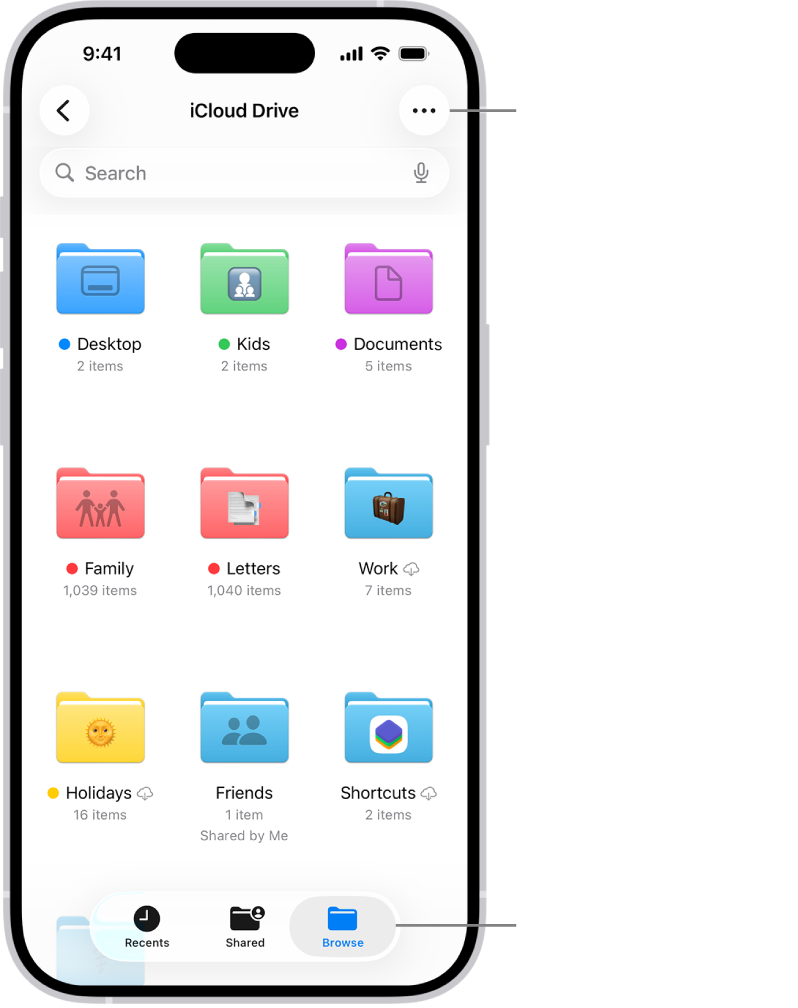
Mail, Apple Books, and iCloud Drive are usually modest — a few hundred megabytes each unless you’ve downloaded large attachments or kept dozens of PDFs locally. For iCloud Drive specifically, remember that anything you’ve marked as “Downloaded” in the Files app consumes local storage even though the file also exists in iCloud. If you need to free space quickly, open Files, tap Browse, then iCloud Drive, and look for large downloads you no longer need on-device. Our breakdown of how iCloud Shared Albums and Shared Library handle storage differently is worth reading if you’re trying to understand which iCloud features count against your plan and which don’t.
The Offload Trick That Backfires
iOS 26 offers “Offload Unused Apps” under Settings, then Apps, then App Store. When enabled, it automatically removes apps you haven’t opened recently while keeping their data intact — indicated by a small cloud icon on the home screen. Tap the icon, and the app reinstalls with your settings preserved.
This sounds perfect, and for most people, it works well. But there’s an edge case that caught me off guard. If you offload hundreds of apps over time, the preserved data files accumulate, and iOS counts that preserved data as part of System Data. Several iPhone 15 Pro owners after the iOS 26 launch discovered that their System Data had ballooned specifically because of mass offloading. If your System Data is unusually large and you’ve been offloading aggressively, try deleting — not just offloading — apps you genuinely don’t plan to reinstall. The difference between offloading and deleting matters more than Apple’s wording suggests.
A Faster Way to Audit Your Biggest Storage Offenders
Skip the bar chart entirely and scroll down the list below it in Settings, then General, then iPhone Storage. iOS sorts apps by size, largest first. The top five apps almost always account for the majority of recoverable space. In my case, it’s typically a video streaming app holding cached content, a messaging app stuffed with media, and a photo editing app with a duplicate library.
For each one, tap it. If “Documents & Data” exceeds the “App Size,” that app is hoarding cache. Delete it, reinstall from the App Store, log back in, and the cache is gone. This is more surgical than a full device erase, and it targets the actual storage hogs rather than nuking everything.

Related Posts
The iPhone 17e Gives You Apple’s A19 Chip for $200 Less Than You’d Expect
Mar 04, 2026
Your iCloud Runs Out of Space Because Apple Buries the Fix Three Menus Deep
Mar 04, 2026
Your iPhone Has a Privacy Display Mode You Have Never Turned On
Mar 03, 2026