
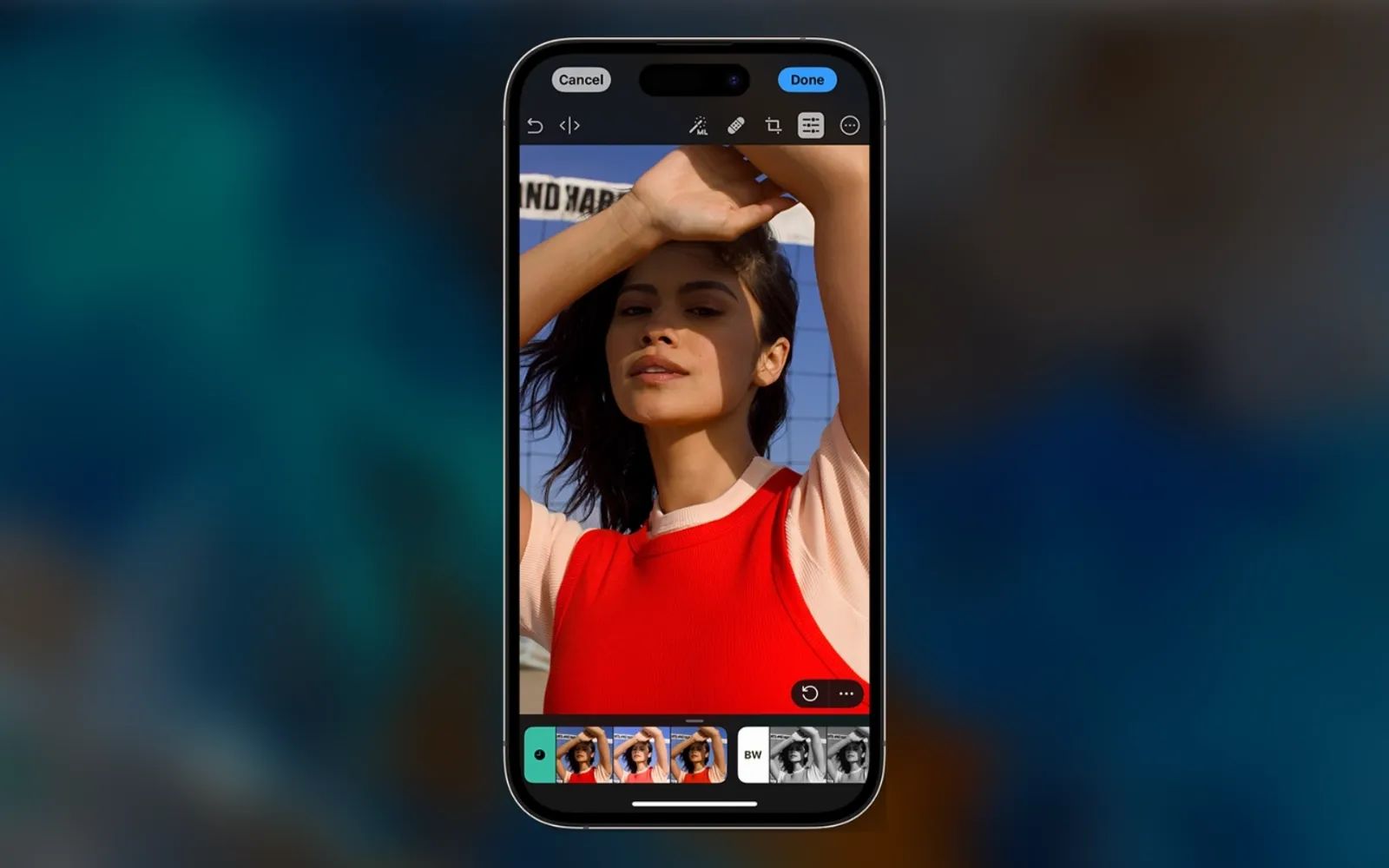
The best photo editing apps for iPhone in 2026 are Photomator for serious RAW work, Darkroom for fast batch processing and Live Photos, Snapseed for free one-off edits, Pixelmator Pro for layer-based compositing, and Apple Photos for quick adjustments that sync everywhere. Each one was built specifically for Apple hardware, which means they tap into the iPhone's computational photography pipeline, support ProRAW and HEIF natively, and sync edits across your devices through iCloud Photo Library.
That last point matters more than most roundups acknowledge. Editing a photo on your iPhone during a commute and then picking it up on your Mac later without re-importing, re-exporting, or losing metadata is the kind of workflow you only get when the app is built around Apple's PhotoKit framework. Generic cross-platform editors often skip that integration entirely.
Key Takeaways
- Photomator handles over 750 RAW formats including Apple ProRAW and uses machine learning to enhance exposure, color, and detail in a single tap
- Darkroom reads directly from your iCloud Photo Library without importing, so you edit in place and every change syncs to your other Apple devices automatically
- Snapseed from Google is completely free with no subscription, no watermarks, and no ads, and it handles RAW files surprisingly well for a zero-cost app
- Pixelmator Pro arrived on iPad in January 2026 through Apple Creator Studio, making it the first Apple-owned editor with full layer support on a tablet
- Apple Photos in iOS 26 supports Apple Intelligence cleanup, background isolation, and adjustment copying across multiple photos at once
- A MagSafe camera grip like the ShiftCam SnapGrip Pro gives your iPhone a physical shutter button and steadier hold, which means sharper source photos that need less editing work afterward
At-a-Glance Comparison
This table compares the five editors covered in this article across the criteria that matter most for iPhone photographers who work across multiple Apple devices.
| App | Best For | Sync | Cost |
|---|---|---|---|
| Photomator | RAW editing, AI enhancements | iPhone, iPad, Mac via iCloud | Free trial, then $4.99/mo |
| Darkroom | Batch editing, video and Live Photos | iPhone, iPad, Mac via iCloud | Free tier, $6.99/mo for full |
| Snapseed | Quick one-off edits, no subscription | iPhone, iPad (manual export) | Completely free |
| Pixelmator Pro | Layer-based design and photo work | Mac and iPad via iCloud | $49.99 one-time or Creator Studio |
| Apple Photos | Basic adjustments, always available | All Apple devices via iCloud | Free (built-in) |
Affiliate disclosure: some links in this article are Amazon Associate links. If you buy through them, Zone of Mac may earn a small commission at no extra cost to you, and we only recommend products that genuinely bring value to your Apple setup.
Better Photos Start Before You Open an Editor
Every editing app on this list performs better when it has a sharp, well-exposed source image to work with. That sounds obvious, but the single biggest improvement most iPhone photographers can make has nothing to do with software. It is holding the phone steady.
The iPhone 17 Pro shoots 48-megapixel ProRAW files that capture an enormous amount of detail, but handheld shake at that resolution shows up fast, especially in low light. A dedicated camera grip changes the physics of the shot. Your fingers wrap around a contoured handle instead of pinching flat glass, and a physical shutter button lets you fire without jabbing the touchscreen and introducing micro-movement at the worst possible moment.
The ShiftCam SnapGrip Pro snaps onto any MagSafe iPhone magnetically, so there is no clamp to fiddle with and no case to swap. It includes a 5,000 mAh Qi2 battery that charges your phone at 15 watts while you shoot, a Bluetooth shutter button that pairs instantly with the native Camera app, and a built-in tabletop dock for hands-free framing. The grip weighs just over 150 grams and folds flat enough to slip into a jacket pocket, which makes it a realistic carry for everyday walks and not just planned shoots. When the source image is sharper and better exposed, every editing step after that becomes lighter and faster.


You can grab the ShiftCam SnapGrip Pro here: https://www.amazon.com/dp/B0DMSTDBNX?tag=zoneofmac-20
Photomator: The RAW Powerhouse Built for Apple Silicon
Photomator comes from the Pixelmator team, which Apple acquired in late 2024. Despite the acquisition, Photomator remains available as a standalone purchase on the App Store and continues to receive updates. It supports over 750 RAW formats, including Apple ProRAW and compressed Fujifilm RAWs, and it writes edits back into your iCloud Photo Library nondestructively. That means every slider adjustment you make on your iPhone appears immediately on your Mac and iPad without creating a separate export file.
The app's ML Enhance button is where the machine learning investment shows. One tap analyzes exposure, white balance, tone curves, and sharpness simultaneously and applies a correction that is genuinely usable, not the blown-out overcorrection you often see from automatic presets. For photographers who shoot ProRAW during golden hour or in mixed artificial lighting, this single feature can cut per-image editing time from several minutes to seconds. Selective adjustments let you mask the sky, the subject, or any brushed region and apply independent corrections to each, which puts Photomator in the same functional tier as Lightroom without requiring a Creative Cloud subscription.
One friction point worth noting: Photomator's color grading controls feel slightly shallow compared to Darkroom's curve editor. If fine-tuned color science is your priority, Darkroom may feel more precise. But for RAW processing speed and iCloud integration depth, Photomator is hard to beat.
Darkroom: Batch Editing and Live Photos Without Friction
Darkroom connects directly to your iCloud Photo Library on launch, which means there is no import step and no separate gallery to manage. Open the app, tap any photo in your library, and start editing. This sounds simple, but many competing editors (including Lightroom on iOS) require you to import photos into a separate catalog first. Darkroom skips that step entirely, and it makes a surprisingly large difference to the editing rhythm.
Batch editing is where Darkroom separates from the pack. Copy the adjustments from one photo, paste them across fifty, and watch the app tear through the batch in seconds on any recent iPhone. The curve editor supports individual RGB channels, which gives you the kind of split-toning and color grading precision that editorial photographers expect. Live Photo editing is fully supported, including keyframe trimming, and video editing uses the same adjustment stack as stills, so your visual language stays consistent across media types.
The free tier is generous enough for casual use, but the color grading tools and preset management that make Darkroom genuinely powerful sit behind the subscription. At the time of writing, that subscription costs about seven dollars a month, which is competitive with Lightroom and cheaper than most standalone preset packs.
Join The Inner Circle For Serious Apple Users
Exclusive Apple tips. Free to join.
Snapseed: The Completely Free Editor That Punches Way Up
Google's Snapseed has been free since 2012 and has never introduced a subscription, a watermark, or an in-app purchase. That alone makes it remarkable in 2026's app landscape. The editing toolkit includes curves, selective brush adjustments, a healing tool, perspective correction, and a structure slider that adds midtone contrast without the haloing artifacts you see in cheaper sharpening algorithms. RAW support covers DNG files, so if you shoot ProRAW on your iPhone, you can process those files in Snapseed at full quality with zero cost.
The stacking workflow is the feature that keeps power users coming back. Every adjustment you make lives as a separate, reorderable layer in a nondestructive stack. You can go back to the third edit you made, change its intensity, delete it entirely, or reorder it relative to later edits. Very few free apps offer that level of revision control. The main limitation is sync: Snapseed does not integrate with iCloud Photo Library the way Photomator and Darkroom do. You export your finished image manually, which breaks the seamless cross-device workflow. For one-off edits where you want maximum control without spending a cent, Snapseed remains unmatched.
Pixelmator Pro: Apple's Own Editor Comes to iPad
In January 2026, Apple launched Pixelmator Pro for iPad as part of the new Apple Creator Studio subscription bundle. This is the first time Apple has offered a full layer-based image editor on iPad with Apple Pencil support, nondestructive editing, and iCloud document sync back to the Mac version. The app supports over 750 RAW formats, vector shapes, text layers, and a machine learning-powered Enhance feature that shares its DNA with Photomator.
Pixelmator Pro occupies a different space from the other apps on this list. Where Photomator and Darkroom are photo processors designed around a library workflow, Pixelmator Pro is a compositing and design tool. You would use it to combine multiple images, add text overlays, build social media templates, or remove a complex background using layer masks. For photographers who also do graphic design, having one app that handles both disciplines (and syncs documents across Mac and iPad via iCloud) eliminates an entire category of export and reimport headaches.
The trade-off is that Pixelmator Pro requires either a $49.99 one-time Mac purchase or an Apple Creator Studio subscription at $12.99 per month. The iPad version is subscription-only. If you are already paying for Final Cut Pro and Logic Pro on iPad, the bundle pricing actually makes the upgrade nearly free. If you only want a photo editor, though, Photomator or Darkroom will cost less and do the photo-specific work faster.
Apple Photos: The Editor You Already Own
It is easy to overlook Apple Photos because it ships preinstalled and does not market itself as a pro tool. That is a mistake. The editing suite inside Photos on iOS 26 includes exposure, brilliance, highlights, shadows, contrast, brightness, black point, saturation, vibrance, warmth, tint, sharpness, definition, noise reduction, and vignette sliders. It supports selective color adjustments, curves, and levels. Every edit syncs nondestructively across all your Apple devices through iCloud Photo Library. And in iOS 26, Apple Intelligence adds a Clean Up tool that removes unwanted objects from photos using on-device processing, without sending your images to a cloud server.
The copy-and-paste adjustments feature is especially useful for batch consistency. Edit one photo from a series, copy the adjustments, select the rest of the series, and paste. Apple Photos applies the same corrections across all selected images in seconds. For photographers who shoot events or product flat-lays and need consistent color and exposure across dozens of frames, this native feature removes the need for a third-party batch editor entirely.
The limitation is creative control. Photos does not support layers, advanced masking, or the kind of fine-grained curve manipulation that Darkroom and Photomator offer. Think of it as the first pass: quick corrections, object cleanup, and exposure balancing. If you need to go deeper, hand the image off to Photomator or Darkroom, both of which appear as editing extensions inside Photos, so you never leave your library.
How I Would Set Up a Three-App Workflow
Rather than picking one editor and forcing every photo through it, a better approach layers them by task. Use Apple Photos for the first cull: delete the duds, crop the keepers, and apply basic exposure corrections. For photos that need real color work, open them in Photomator (for RAW processing and AI-driven corrections) or Darkroom (for manual color grading and batch preset work). If you need to composite, add graphics, or design something from a photo, hand it to Pixelmator Pro. Snapseed sits in the toolbox for those moments when you need a quick heal or perspective correction on a single image and want zero subscription overhead.
This approach keeps each app doing what it does best, and because Photomator, Darkroom, and Apple Photos all hook into the same iCloud Photo Library, your edits follow you across devices automatically. The friction between apps nearly disappears.
If your iPhone photography extends into video capture, especially in ProRes or Apple Log, the storage demands scale up fast. The guide to recording iPhone 17 Pro ProRes video to external SSDs covers how to handle that workflow without filling your internal storage in a single afternoon session.
Accessibility and Clarity
All five editors support Dynamic Type, which means their interface text scales with your system-wide font size preference in Settings, Display and Brightness, Text Size. Photomator and Darkroom both render adjustment sliders large enough to operate without fine motor precision, and both respond well to VoiceOver for navigating between editing tools, though the actual visual preview of slider changes is inherently visual. Snapseed's gesture-based adjustment model (swipe up and down to choose a parameter, left and right to adjust intensity) works well for users with limited reach, since the entire interaction stays within a thumb-sized arc. Pixelmator Pro on iPad benefits from Apple Pencil input for users who find direct touch less precise.
For users with light sensitivity or visual fatigue, all five apps support Dark Mode on iOS and macOS. Apple Photos and Darkroom both default to a dark canvas background that reduces glare when editing in dim environments. None of the apps use color as the sole indicator of adjustment direction or intensity; sliders include numerical readouts alongside the visual indicator, which keeps the interface accessible to colorblind users.
Quick-Action Checklist: Set Up Your iPhone Editing Workflow
- Open Settings, then Photos, and confirm iCloud Photos is toggled on so your library syncs across devices
- Download Photomator from the App Store and grant it access to your photo library when prompted
- Download Darkroom from the App Store and enable iCloud Photo Library access in its settings
- Download Snapseed from the App Store for free, zero-cost editing on standalone images
- Open Apple Photos, tap Edit on any image, and explore the full adjustment panel (swipe left past the auto-enhance suggestions to find curves and selective color)
- If you use Pixelmator Pro on Mac, open the App Store on iPad and search for Pixelmator Pro to add the iPad companion (requires Apple Creator Studio subscription or iPadOS 26)
- In Apple Photos, tap the three-dot menu on any image and check whether Photomator and Darkroom appear as editing extensions; if not, open each app once so iOS registers them
- Test the workflow: shoot a ProRAW image, apply a quick ML Enhance in Photomator on your iPhone, then open the same photo on your Mac to confirm the edit synced through iCloud

Related Posts
iOS 26.4.1 Fixes the iCloud Bug That Broke Your Apps
Apr 09, 2026
iOS 26.4 Drains Your iPhone Battery. Here’s What Fixes It
Apr 09, 2026
Your iPhone Finally Lets You Create Custom Ringtones in iOS 26
Apr 08, 2026