

Updated January 28, 2026 at 4:42PM EST with updated SSD options.
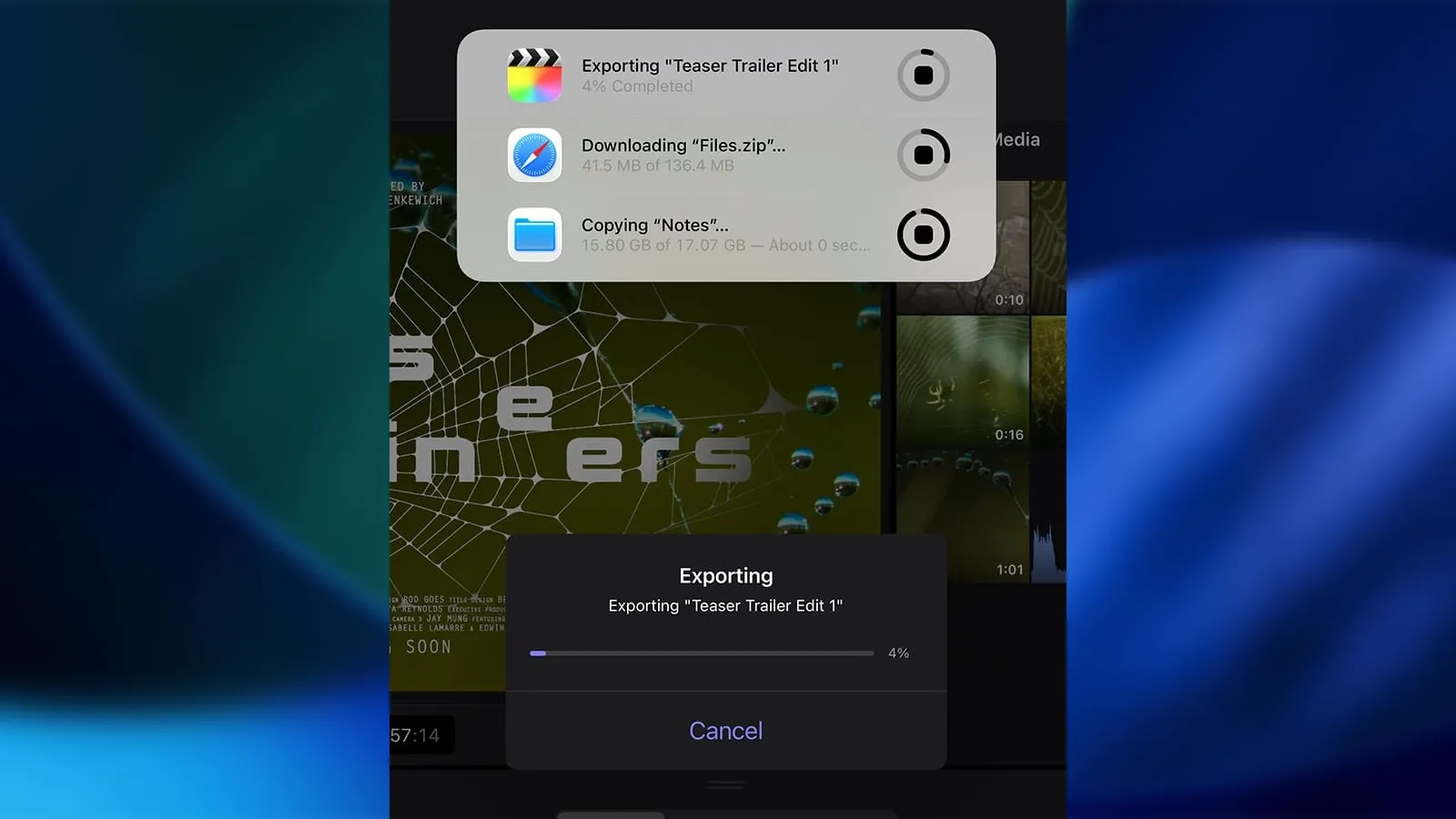
iPadOS 26 Background Tasks let you run video exports, file downloads, and computational processes while you continue using other apps on your iPad. The feature works through a new system API that keeps resource-intensive operations active even when you switch away from the originating app, tracked through Live Activities on your Lock Screen.
Key Takeaways
Press the Home button or switch apps during a video export, and iPadOS 26 keeps rendering in the background Track progress through Live Activities on your Lock Screen without returning to the original app Compatible apps include LumaFusion and will soon include Final Cut Pro for iPad Background Tasks work on all iPads running iPadOS 26, not just M-series models External USB-C storage allows exporting directly to portable drives while working Battery life impact is minimal when iPads are connected to power during lengthy operations
At-A-Glance Comparison
| Feature | Before iPadOS 26 | With iPadOS 26 |
|---|---|---|
| Video Export Behavior | App must stay active | Runs in background |
| Progress Tracking | Return to app required | Live Activities on Lock Screen |
| Multitasking During Export | Not possible | Fully supported |
| App Compatibility | N/A | Requires developer update |
How Background Tasks Actually Work
The days of staring at a progress bar are over. When you begin a video export in a supported app like LumaFusion, you can now swipe up and move to Safari, Notes, or any other app without interrupting your render. The export continues invisibly, using system resources intelligently so your foreground apps remain responsive.
Apple built this capability into iPadOS 26 as part of a broader push toward desktop-class functionality. The underlying API manages thermal throttling, battery optimization, and memory allocation automatically. You do not need to configure anything beyond ensuring your apps have been updated with Background Tasks support.
A Live Activity appears on your Lock Screen showing export progress. Tap it to jump directly back to the originating app if you need to check details or cancel the operation. This notification persists until the task completes, ensuring you never lose track of background processes.
The Creative Workflow Revolution
Video editors using iPad Pro have dealt with a frustrating limitation since the tablet gained serious creative software: exports locked your device into a single task. A 10-minute 4K export meant 10 minutes of watching a progress bar. No email, no research, no thumbnail creation.
Affiliate disclosure: some links in this article are Amazon Associate links. If you buy through them, Zone of Mac may earn a small commission at no extra cost to you, and we only recommend products that genuinely bring value to your Apple setup.
Background Tasks removes this constraint entirely. Start your LumaFusion export, switch to Photomator for thumbnail work, and check Messages when notifications arrive. Your iPad finally behaves like a desktop workstation rather than a single-purpose appliance during demanding operations.
The practical impact compounds with each task. Consider a typical video production session: you capture footage, edit in LumaFusion or Final Cut Pro, export multiple versions for different platforms, and create promotional graphics. Previously, exports fragmented your workflow with forced waiting periods. Background Tasks let these phases overlap naturally.
Setting Up Your External Storage Workflow
Background Tasks become even more powerful when combined with external storage. iPadOS 26 handles Thunderbolt drives seamlessly, and exporting directly to portable SSDs means you free internal storage while creating files ready for immediate transfer to other devices.
The OWC Envoy Ultra 2TB uses Thunderbolt 5 to deliver transfer speeds over 6,000MB/s, up to twice as fast as Thunderbolt 4 and USB4. The rugged, fanless aluminum housing is waterproof, dustproof, and shockproof, making it ideal for location shoots where equipment takes a beating. Its bus-powered design with a built-in Thunderbolt cable means no adapters or external power required. The drive works with Macs, iPad Pros, PCs, Chromebooks, and Surface devices, and remains backward compatible with Thunderbolt 3, Thunderbolt 4, and USB4 ports.

Here's where to get the OWC Envoy Ultra 2TB Thunderbolt 5 SSD https://www.amazon.com/dp/B0DMTVGPH8?tag=zoneofmac-20
For professionals handling 4K ProRes or 6K RAW footage, the additional capacity of larger drives makes a measurable difference. The OWC Envoy Ultra 4TB delivers the same revolutionary Thunderbolt 5 speeds over 6,000MB/s with double the storage capacity. This matters when you need to edit directly from the drive or transfer 150GB of footage in under a minute. The IP67-rated waterproof design and integrated cable provide rugged reliability on par with professional field gear. Here's where to buy the OWC Envoy Ultra 4TB Thunderbolt 5 SSD https://www.amazon.com/dp/B0DMTTTCM2?tag=zoneofmac-20
Configure your export destination in your video app's settings to point directly at your external drive. When Background Tasks runs your export, files write straight to portable storage without consuming precious internal space.
Accessibility and Clarity
Background Tasks improves accessibility for users who rely on VoiceOver or have motor limitations. The Live Activity interface provides clear status updates without requiring users to navigate back through app hierarchies. VoiceOver announces progress percentages and completion notifications clearly.
The cognitive load reduction matters too. Rather than maintaining mental awareness of which app needs attention and when, users can focus on their current task while the system handles notifications. This represents genuine accessibility progress for users with attention challenges or those who simply work better without artificial interruptions.
What About Final Cut Pro?
Apple highlighted Final Cut Pro's future Background Tasks support during iPadOS 26's announcement, describing it as the ideal use case for the new API. However, as of January 2026, Final Cut Pro for iPad has not shipped with this capability enabled.
Apple typically updates Final Cut Pro around the annual Final Cut Pro Summit, originally scheduled for November 2025 but postponed to April 2026. The feature will arrive, but the timeline remains uncertain.
In the meantime, LumaFusion already supports Background Tasks fully. Third-party developers have embraced the API faster than Apple's own creative apps, which may frustrate users who chose Final Cut Pro specifically for first-party integration. If your primary tool is Final Cut, keep an eye on software updates over the coming months.
Join The Inner Circle For Serious Apple Users
Exclusive Apple tips. Free to join.
Practical Tips for Background Tasks
Monitor your thermal state during complex renders. iPads throttle performance when temperatures rise, and Background Tasks cannot override these protections. Keep your iPad on a cool surface or use a stand that promotes airflow when running lengthy exports.
Connect to power for substantial tasks. While Background Tasks function on battery, extended renders drain cells quickly. A plugged-in iPad runs at full performance without the compromises battery management requires.
Check your available storage before starting. Background Tasks cannot complete if your drive fills mid-export. The Files app shows available space on both internal storage and connected drives, making quick verification straightforward.
Which iPads Support Background Tasks?
Every iPad compatible with iPadOS 26 gains Background Tasks support. Unlike Stage Manager's original M-series restriction, this feature runs on A12 chips and newer. The 8th-generation iPad, 3rd-generation iPad Air, and 5th-generation iPad mini all qualify.
Performance scales with your hardware. An M4 iPad Pro processes exports faster than an A12-equipped model, but both can multitask during the operation. Budget-conscious users do not need to upgrade hardware to benefit from Background Tasks.
The Bigger Picture
Background Tasks represents one piece of iPadOS 26's desktop-class ambitions. Combined with the new windowing system, menu bar, and expanded Stage Manager compatibility, Apple has addressed long-standing criticism that iPad software artificially limited iPad hardware.
The capability feels obvious in retrospect. Desktop computers have run background processes since their inception. But iPadOS evolved from iOS, which prioritized battery life and app isolation over concurrent operations. Background Tasks breaks that inheritance thoughtfully, maintaining iOS efficiency while enabling desktop workflows.
For creative professionals who invested in iPad Pro hardware expecting desktop performance, Background Tasks delivers on promises made years ago. The iPad finally works as hard as you do, even when you look away.

Related Posts
Your iPad Moves Files Six Ways and You're Probably Using One
Apr 08, 2026
Your iPad’s Magic Keyboard Has a Shortcut Layer Most Owners Never Open
Apr 07, 2026
Your Apple Pencil Tip Is Wearing Out and You Can’t Even Tell
Apr 06, 2026