

🎧 Listen to this article
Prefer to listen? An audio version of this article is available for accessibility and convenience.
Apple’s Messages app in iOS 26 is a fundamentally different texting tool than what shipped with iOS 18. It now filters spam from unknown senders into a separate inbox, creates polls inside group chats, translates incoming messages in real time, and lets you set custom wallpapers for individual conversations. The catch is that nearly all of these features are either buried in Settings, gated behind Apple Intelligence hardware requirements, or simply not obvious from the default interface.
I updated to iOS 26 on launch day and didn’t discover the spam filter until two weeks later — by accident, while scrolling through the Messages settings for something else entirely. That’s the running theme here. Apple built genuinely useful tools into the Messages app and then did almost nothing to tell you they exist.
This walkthrough covers every meaningful Messages change in iOS 26, what each one actually does when you turn it on, and the one incoming feature in iOS 26.5 that finally addresses the biggest security gap in iPhone texting.
 Ad
AdThe Spam Filter That Quietly Became the Best Feature
Before iOS 26, unknown senders showed up in the same list as your real conversations. Apple’s old Filter Unknown Senders toggle technically separated them, but it was clumsy — you either saw everything or saw nothing, with no middle ground. iOS 26 rebuilt this from scratch.
The new Unknown Senders filter in Messages screens incoming SMS, MMS, and RCS messages from numbers not in your contacts. It routes them into a dedicated tab at the top of your Messages list, separate from your actual conversations. Notifications from filtered messages are muted by default, so you stop getting pinged by every two-factor code and delivery notification from a number you never saved.
To enable it, open Settings, tap Apps, then Messages, and look for the Filter Unknown Senders toggle. Turn it on.
Here’s what I appreciate about this implementation: the filtered messages are not hidden. They are one tap away in their own tab. So when you are expecting a delivery text from a number you have not saved, you can still find it without scrolling through spam. That is a design decision that shows someone at Apple actually uses this feature. The old system punished you for turning it on. This one rewards you.
Polls in Group Chats Solve a Real Problem
Group chat coordination is a mess. “Where should we eat?” turns into fifteen conflicting opinions and no resolution. iOS 26 added inline polls to Messages, and they are surprisingly well done.
To create a poll, tap the plus button in any group conversation and select Poll. Type your question, add up to five options, and send. Every participant sees the poll as a native card in the chat — not a link, not an image, an actual interactive element. They tap their choice, and the results update live for everyone.
A few things worth knowing. Polls only work in iMessage group chats right now, not in RCS or SMS groups. Each person gets one vote by default, and the poll creator can close voting whenever they want. There is no anonymous option — everyone sees who voted for what. For family group chats where “what’s for dinner” is a nightly debate, this feature alone justifies the iOS 26 update.
Conversation Backgrounds Let You Tell Chats Apart at a Glance
This one sounds like a small thing. It is not. iOS 26 lets you assign a unique wallpaper to any individual conversation. Open a chat, tap the contact name at the top, and you will see a Background option in the info screen.
You get Apple’s built-in wallpapers and the option to use any photo from your library. The practical benefit is instant visual recognition — when you open a conversation with your partner, your boss, or your family group chat, the background immediately tells you where you are before you even read a word. No more accidentally sending a sarcastic comment to the wrong thread.
The friction point worth mentioning: the wallpaper selector is nested two taps deep inside the conversation info screen, not in a central Settings location. There is no way to manage all your conversation backgrounds from one place. You have to set each one individually, inside each chat. If you want to customize more than a handful of conversations, set aside ten minutes and do them in a batch. It is tedious, but it is a one-time setup that pays off every day.
 Ad
AdLive Translation Reads Incoming Messages Without Leaving the Chat
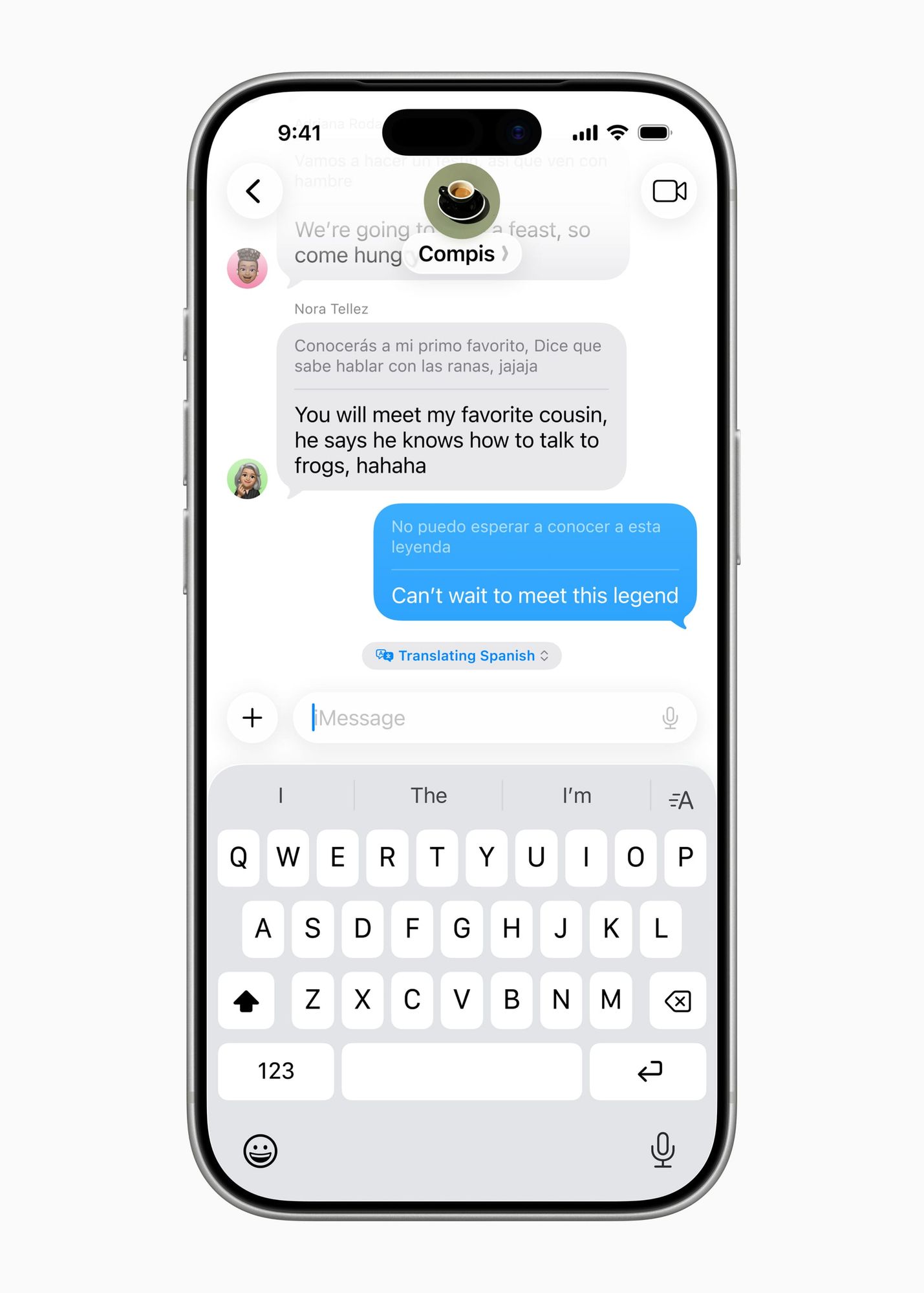
Apple Intelligence brought a translation layer to Messages in iOS 26 that operates inline. When someone sends you a message in a language you do not speak, iOS can translate it right below the original text — no switching apps, no copy-pasting into a separate translator.
This requires an iPhone 15 Pro or newer, which is the Apple Intelligence hardware floor, and the language packs need to be downloaded first. Go to Settings, then Apple Intelligence and Siri, then Translation, and download the language pairs you expect to need.
The translation appears as a secondary line beneath the original message, labeled with the target language. It handles conversational messages well. Technical or idiomatic text still trips it up occasionally, but for day-to-day chatting across languages, this is a legitimate quality-of-life improvement that most competing messaging apps charge a subscription for.
Apple documents the full list of supported languages in their Apple Intelligence feature availability documentation, and the roster has grown since the initial iOS 26 release.
Apple Cash Splits Bills in Group Texts
Splitting dinner, pitching in for a gift, collecting dues for a group trip — Apple Cash now handles all of this inside a group chat. In iOS 26, you send and request money directly within a group conversation. Tap the plus button, select Apple Cash, and choose whether to send or request. You can request from all participants or just specific people.
This only works in iMessage groups where every participant has Apple Cash set up through Wallet. It removes one more reason to open a separate payment app, though Venmo and Zelle still reach more people across platforms. For all-Apple households and friend groups, this is seamless.
RCS Encryption Arrives in iOS 26.5 — and It Changes the Whole Picture
The biggest texting change in iOS 26 has not shipped yet. Right now, when you text someone on Android from your iPhone, those messages travel over RCS — which iOS 26 adopted last year — but without end-to-end encryption. Your carrier, law enforcement with a warrant, or a sufficiently motivated attacker can read those messages in transit.
iOS 26.5, currently in public beta, adds end-to-end encryption to RCS conversations between iPhone and Android. When it ships publicly, your cross-platform texts will carry the same encryption protection that iMessage conversations between Apple devices have had for over a decade.
This is the direct response to the FBI’s December 2024 warning that told Americans to stop texting between iPhone and Android. Apple took the warning seriously enough to overhaul RCS support across the entire iOS stack. The feature is real, it works in beta, and it addresses a privacy gap that has existed since the iPhone launched. If you want the full breakdown of what this means for your daily texting security, the deep dive into how iOS 26.5 closes the biggest privacy gap on iPhone covers every technical detail.
What the Liquid Glass Redesign Actually Changed in Messages
The visual overhaul in iOS 26 hit Messages harder than most apps. The navigation bar is translucent with Apple’s Liquid Glass treatment, conversation bubbles have subtly softer corners, and the compose bar along the bottom feels cleaner and less cluttered than iOS 18’s version. None of this changes how you text, but the overall feel is noticeably different if you spend any time comparing.
One UI change that IS functional: the contact photos in conversation lists are larger and more prominent. Combined with the custom backgrounds, it is genuinely easier to find the right conversation when you are scrolling quickly. The old list felt like a wall of identical blue dots and gray timestamps. This one has breathing room.
If you have been adjusting other system-level settings since updating, the walkthrough of seven iOS 26.4 settings worth changing covers the broader tweaks outside of Messages that are easy to miss.

Related Posts
iOS 26.4.1 Fixes the iCloud Bug That Broke Your Apps
Apr 09, 2026
iOS 26.4 Drains Your iPhone Battery. Here’s What Fixes It
Apr 09, 2026
Your iPhone Finally Lets You Create Custom Ringtones in iOS 26
Apr 08, 2026