

🎧 Listen to this article
Prefer to listen? An audio version of this article is available for accessibility and convenience.
Stolen Device Protection on iPhone blocks the most damaging things a thief can do with your phone — changing your Apple Account password, turning off Find My, wiping your data — by requiring Face ID or Touch ID with no passcode fallback. iOS 26.4 turned this feature on by default for every iPhone, which means your device is already harder to exploit than it was a month ago. The catch is that the protection only activates automatically when your iPhone detects you’re away from familiar locations, and that distinction creates a gap worth understanding before you actually need it.
I started paying closer attention to this feature after reading about how phone thieves actually operate. The typical scenario is almost absurdly simple: someone watches you type your passcode at a bar, a transit station, or a coffee shop counter. They grab your phone. Within minutes, they’ve changed your Apple Account password, disabled Find My, and locked you out permanently. Stolen Device Protection exists to break that chain, and the way it does it is more layered than most people realize.
 Ad
AdHow the two protection tiers actually work
The feature splits sensitive actions into two categories, and the distinction matters.
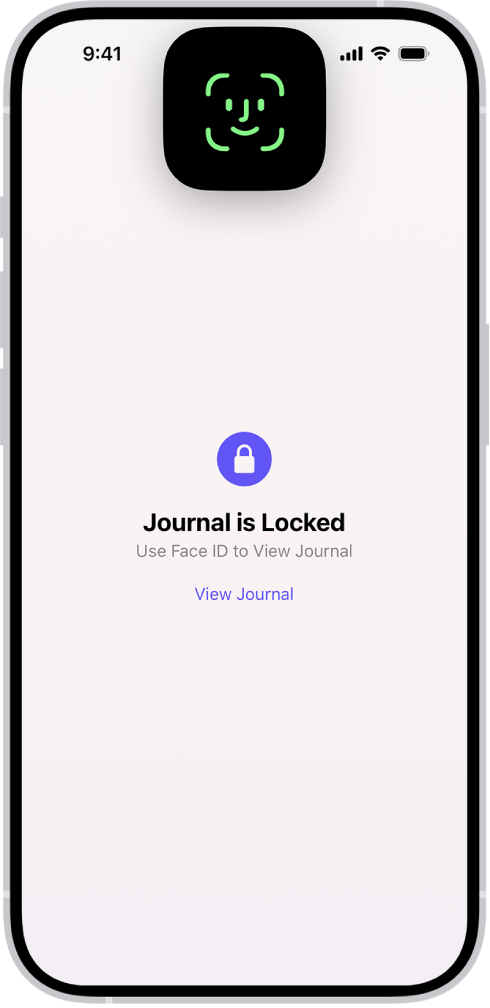
The first tier covers accessing saved passwords in iCloud Keychain, viewing payment methods in Safari, applying for Apple Card, and disabling Lost Mode. When Stolen Device Protection is active and you’re away from a familiar location, these actions require Face ID or Touch ID. A passcode won’t work. If the thief can’t match your face or fingerprint, they’re stuck.
The second tier goes further. Changing your Apple Account password, signing out of your account, modifying your passcode, enrolling a new face in Face ID, or turning off Stolen Device Protection itself — all of these trigger a one-hour security delay. Your iPhone demands biometric authentication, makes you wait sixty minutes, then demands it again before completing the change. A thief sitting in a parking lot with your stolen phone has to clear two biometric gates an hour apart. That’s not a door you brute-force.
Apple Pay transactions still work with a passcode alone, which makes sense — Apple doesn’t want to block you from buying a coffee because your face is cold and wet. But everything that could permanently compromise your account is gated behind biometrics, as Apple’s own support documentation confirms.
 Ad
AdThe familiar-location blind spot
Here’s where Apple made a choice I find debatable. Stolen Device Protection only activates by default when your iPhone decides you’re away from a “familiar location.” Your home and workplace are automatically recognized through Significant Locations, a feature buried in Settings under Privacy & Security that tracks where you spend the most time.
Why does this matter? If someone steals your phone at home — a guest at a gathering, a contractor with a few unsupervised minutes, anyone who caught your passcode over your shoulder in your own kitchen — the protection doesn’t fully engage. At home, a thief with your passcode can still change your Apple Account password without biometric authentication.
Apple presumably made this choice to reduce everyday friction. Nobody wants a one-hour security delay when changing their own passcode on the couch. It does, though, mean the feature has a genuine blind spot, and the fix is only one tap away.
In Settings, open Face ID & Passcode, scroll to Stolen Device Protection, and switch from “Away from familiar locations” to “Always.” This enforces biometric requirements and security delays everywhere. The tradeoff is real — that hour-long wait applies to you, too — but for anyone who travels constantly or shares living space with people outside their immediate trust circle, “Always” is the stronger call.
Why Apple waited two years to flip the default
Apple introduced Stolen Device Protection in iOS 17.3 back in early 2024. For nearly two years, it sat in Settings as an opt-in toggle. Why did Apple wait so long? The reasoning at the time was that the feature introduces friction — security delays, biometric-only gates — and Apple wanted people to choose it consciously.
The reality is that most iPhone owners never open Face ID & Passcode settings unless something goes wrong. A feature that only works when manually enabled is a feature that protects the people who need it least: the security-conscious users who would have found it anyway.
iOS 26.4 flipped the default. Every iPhone running the update now has Stolen Device Protection enabled automatically. You can still turn it off manually if you want, but the security baseline for everyone just moved up. This is the right move. If you’ve already locked down your iPhone with other iOS 26 privacy settings, Stolen Device Protection fills a gap none of those other toggles address: what happens when someone already has your passcode.
Verify your settings in thirty seconds
Open Settings, tap Face ID & Passcode, enter your passcode, and scroll down past the Allow Access When Locked section. You’ll see Stolen Device Protection. If it shows “On,” you’re covered. Tap into it to see whether you’re running “Away from familiar locations” or “Always.”
While you’re here, check one more thing. Scroll to USB Accessories. This controls whether USB devices can access data on your locked iPhone after one hour. Keeping this toggled off adds a physical-access defense layer that complements Stolen Device Protection nicely. For the most aggressive option available, Lockdown Mode goes even further.
Two requirements to keep in mind: Stolen Device Protection needs Find My to stay active and two-factor authentication enabled on your Apple Account. If you disabled Find My at some point, enabling Stolen Device Protection will silently re-enable it — and it won’t let you turn Find My off again while the feature is running. That’s deliberate, since tracking a stolen device requires Find My to function.
Accessibility & Clarity
Stolen Device Protection deliberately removes the passcode as a backup for sensitive actions, which creates a real consideration for users who have difficulty with Face ID or Touch ID. If biometric authentication doesn’t work reliably for you — due to facial prosthetics, certain medical conditions, or environmental factors — you may find yourself locked out of your own passwords and payment methods when away from home. Apple’s Face ID settings allow registering an alternate appearance, and Touch ID supports multiple fingerprints, which helps in many cases. For users where biometrics remain fundamentally unreliable, keeping the mode set to “Away from familiar locations” rather than “Always” ensures restrictions only apply outside your home and workplace — a meaningful compromise that preserves some protection without creating daily barriers.
The trade-in friction and how to handle it
The most practical annoyance with Stolen Device Protection — especially now that it’s on by default — surfaces when you trade in or sell your iPhone. Erasing your device requires disabling the feature first, and disabling it triggers the one-hour security delay. What should take five minutes takes seventy.
The workaround is simple: prepare at home. If you’re using the default “Away from familiar locations” mode, the security delay doesn’t apply at a familiar location. Disable the feature, erase the device, then head to your appointment. If you’ve set it to “Always,” build an extra hour into your schedule.
This is a real inconvenience during something you do maybe once a year. But the alternative — leaving your iPhone vulnerable to a thief who already knows your passcode — is a risk that runs every single day. That math is straightforward.

Related Posts
iOS 26.4.1 Fixes the iCloud Bug That Broke Your Apps
Apr 09, 2026
iOS 26.4 Drains Your iPhone Battery. Here’s What Fixes It
Apr 09, 2026
Your iPhone Finally Lets You Create Custom Ringtones in iOS 26
Apr 08, 2026