

🎧 Listen to this article
Prefer to listen? An audio version of this article is available for accessibility and convenience.
iOS 26.4 introduced a CloudKit sync bug that silently broke push notifications for iCloud-connected apps, and a round of aggressive background reindexing that can eat through your battery for up to 48 hours after the update. Apple shipped iOS 26.4.1 on April 8, 2026 to patch the sync issue, but updating alone won’t solve everything.
The complication is that most of the battery drain people report isn’t from the bug at all — it’s from post-update housekeeping that iOS runs without telling you, combined with default settings that let dozens of apps refresh in the background whenever they please. Knowing which problem you actually have changes which fix actually works.
 Ad
AdThe Two Problems iOS 26.4 Created
The first problem is one Apple acknowledged: a regression in CloudKit push notifications. In plain terms, when data changed on one of your devices, your iPhone running iOS 26.4 never got the memo. Apps that sync through iCloud — including Apple’s own Passwords app — stopped receiving background updates. They’d only catch up when you opened them manually. The practical result was apps kept attempting partial syncs, burning through cycles without completing anything useful.
The second problem is the one nobody warns you about clearly enough. Every major iOS update triggers background reindexing: Spotlight rebuilds its search database, the Photos app re-analyzes your library for faces and scenes, and the system recalibrates app-level performance data. On an iPhone with 50,000 photos and a few hundred apps, this housekeeping can run for a full two days. During that window, your battery will drain noticeably faster than normal, and there is nothing wrong with your phone.
The trouble is distinguishing between the two. If your battery was fine for the first week after updating to iOS 26.4 and then started dropping, the CloudKit bug is the more likely culprit. If the drain started immediately after the update and has been gradually improving, reindexing is probably still finishing.
Update to iOS 26.4.1 Before Trying Anything Else
Apple released iOS 26.4.1 on April 8, 2026, and the single most important thing it does is fix the CloudKit push notification failure. Once you install it, apps that sync through iCloud should receive background updates normally again, ending the wasted sync cycles that were chewing through power.
To update, open Settings, tap General, then Software Update. The download is small. If you’ve been putting off the update because you assume point releases don’t matter, this one genuinely does — the iCloud sync regression affected every CloudKit-based app on your phone, from third-party task managers to Apple’s own Passwords.
It does, though, mean that the update alone won’t help if your drain is coming from post-update reindexing. That process has to finish on its own, and iOS 26.4.1 doesn’t accelerate it.
 Ad
AdThe Settings Worth Checking Right Now
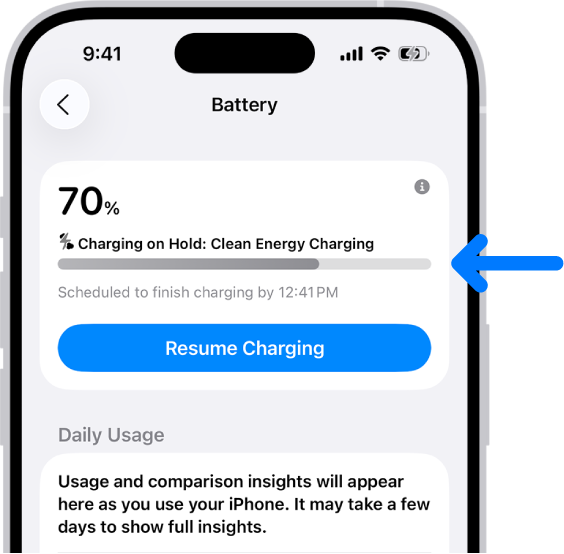
Once you’ve updated, open Settings and tap Battery. The daily usage chart at the top compares your current battery performance against the past seven days — Apple’s own battery diagnostics guide walks through reading this screen, but the most useful piece is the per-app breakdown. Tap any bar and pay particular attention to the “Background Activity” label beneath app names. If an app you barely use is showing significant background time, it’s a candidate for restriction.
Head to Settings, then General, then Background App Refresh. I’d turn off background refresh for any app you open fewer than once a week. Social media apps, shopping apps, news aggregators you installed and forgot about — they all wake up periodically to pull fresh data, and every wake cycle costs battery. The apps still update when you open them; they just stop doing it behind your back.
Location Services is the other setting worth a focused look. Open Settings, tap Privacy & Security, then Location Services. Scroll through the list and check which apps have “Always” permission. Most apps work perfectly fine with “While Using” instead. A weather app that checks your location every few minutes while sitting in your pocket is burning GPS radio time for data you could get by opening the app once.
If you’re on an iPhone 15 or later running iOS 26, you also have access to Adaptive Power — a feature that dynamically adjusts background activity and display brightness based on your charging patterns and current drain rate. It lives in Settings under Battery, and it’s more subtle than Low Power Mode. Where Low Power Mode is a heavy switch that disables features wholesale, Adaptive Power learns your routine and makes targeted cuts. I’d leave Adaptive Power enabled and save Low Power Mode for the days when you genuinely need your phone to last until midnight on a half charge.
Reading Your Battery Health Screen
Open Settings, tap Battery, then Battery Health. On iPhone 15 and later, you’ll see a Maximum Capacity percentage that reflects your battery’s current chemical health relative to when it was new. Apple considers anything above 80 percent to be within normal service parameters. Below that threshold, you may notice shorter runtime and more aggressive power management kicking in.
The detail worth understanding is that Maximum Capacity is a long-term indicator, not a daily diagnostic tool. A phone at 87 percent has simply aged — no software update will restore those lost percentage points. If your Maximum Capacity is well above 80 percent and you’re still seeing unusual drain after updating to iOS 26.4.1 and waiting out the 48-hour window, the problem is almost certainly a rogue app or misconfigured setting, not the battery itself.
Cross-reference this with the Last Charged timestamp and the usage graph to spot patterns. If your phone drops 15 percent overnight with no active use, something is waking it up. Check Screen Time under Settings for any unexpected wake events, and review the per-app battery breakdown for background offenders.
When Patience Is Actually the Fix
The hardest part of post-update battery drain is that the right response for the first 48 hours is to do almost nothing. Keep your iPhone plugged in overnight, let it finish reindexing, and resist the urge to factory reset — which would only restart the entire indexing process from zero.
After 48 hours with iOS 26.4.1 installed, your battery performance should return to its pre-update baseline. If it doesn’t, the Battery Health screen and per-app usage breakdown will point you toward the specific cause. ZOM covered the other iOS 26.4 bugs and their fixes in detail — if your issues go beyond battery, start there.
Apple should have caught the CloudKit regression before iOS 26.4 shipped. A bug that silently breaks iCloud sync across every CloudKit app isn’t minor — it’s the kind of failure that chips away at the “it just works” reputation people pay a premium for. The fix arrived within two weeks, but for millions of users who spent that time wondering why their Passwords app wasn’t syncing across devices, two weeks felt considerably longer.
Update, check your settings, and give the reindexing its full 48 hours. Understanding which battery health number actually matters — and which one is just normal aging — saves you from chasing a problem that doesn’t exist.

Related Posts
iOS 26.4.1 Fixes the iCloud Bug That Broke Your Apps
Apr 09, 2026
Your iPhone Finally Lets You Create Custom Ringtones in iOS 26
Apr 08, 2026
iOS 26 Quietly Rewrote How Your iPhone Handles Every Text
Apr 06, 2026