
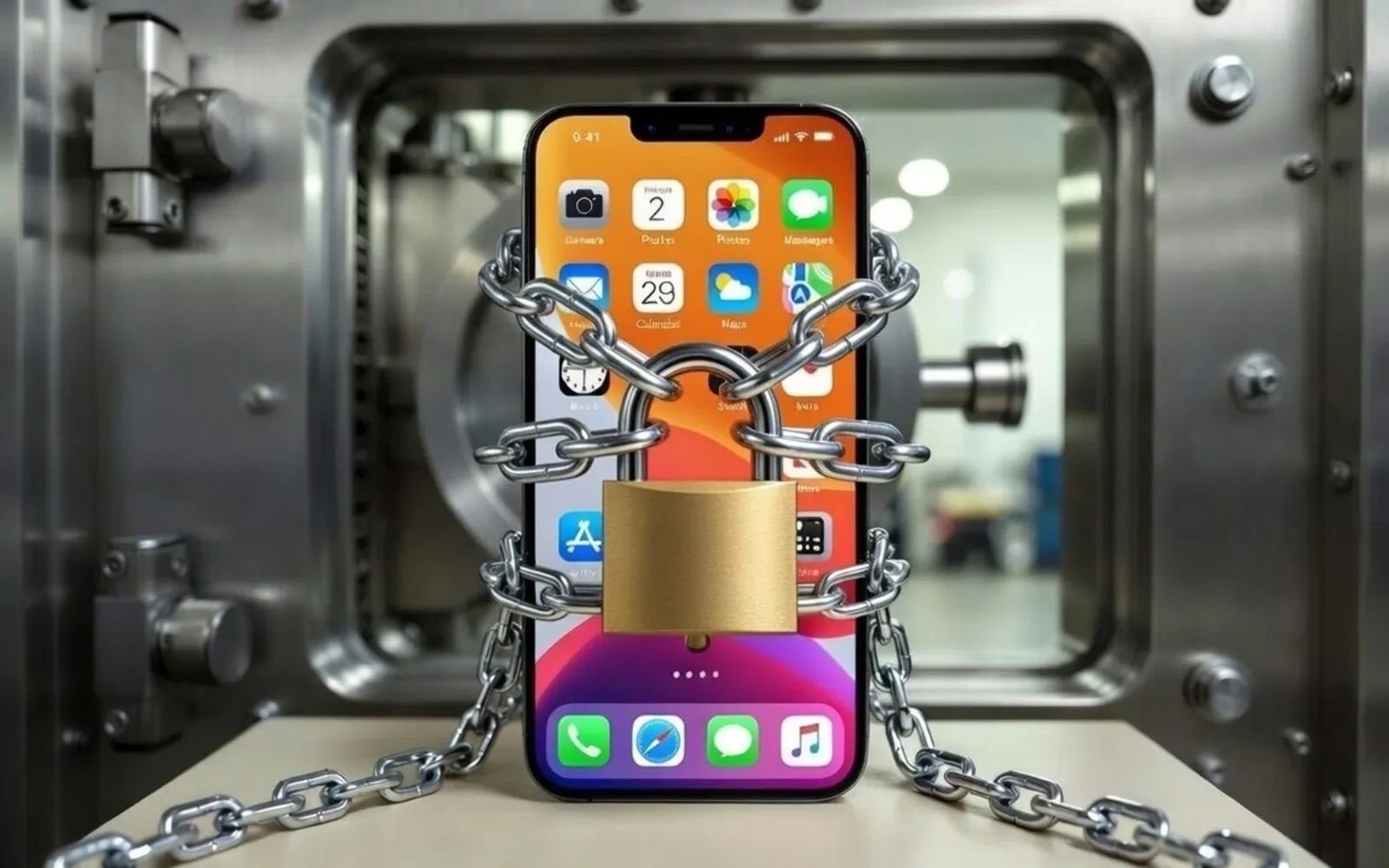

What iOS 26.3 Actually Fixes
Apple released iOS 26.3 on February 11, 2026, and it addresses 37 documented security vulnerabilities across the iPhone’s core operating system. One of those flaws, a memory corruption bug in the dyld dynamic link editor (CVE-2026-20700), was actively exploited before this patch shipped. Apple confirmed the vulnerability was used in what it described as “an extremely sophisticated attack against specific targeted individuals” running earlier versions of iOS. That single disclosure makes this update mandatory for anyone who takes device security seriously.
The complication is that iOS 26.3 also introduces a handful of user-facing features, a Transfer to Android migration tool, a new carrier-level privacy control, and reorganized wallpaper categories. Some of these changes require specific hardware to function, and a few existing users have reported keyboard lag, Mail app errors, and CarPlay instability after updating. The decision to update immediately or wait a few days depends on which of those trade-offs matters most to your daily workflow.
The Security Patches You Cannot Ignore
The 37 patches span nearly every layer of iOS. Three kernel vulnerabilities (CVE-2026-20654, CVE-2026-20626, CVE-2026-20671) address memory handling flaws that could allow a malicious app to gain root privileges or intercept network traffic. A Photos bug (CVE-2026-20642) let someone with physical access to a locked device view stored photos. Two Accessibility flaws (CVE-2026-20645, CVE-2026-20674) exposed sensitive information on the lock screen through VoiceOver and other assistive tools. A Safari extension tracking vulnerability in WebKit (CVE-2026-20676) could reveal browsing habits across sites.
The dyld zero-day (CVE-2026-20700) deserves its own attention. The dyld component is responsible for loading the code libraries that every app on your iPhone relies on. A memory corruption flaw at that level means an attacker could insert arbitrary code into the loading process itself, bypassing sandboxing and app-level protections entirely. Apple patched it with “improved state management,” but the fact that it was exploited in the wild before the fix arrived means the window of exposure was real. Once a vulnerability like this becomes public through a patch disclosure, the risk broadens because the fix itself tells attackers exactly what was vulnerable. Updating closes that window.
Apple’s security release notes for iOS 26.3 are published directly on their support documentation page and list every CVE with its affected component and description.
Transfer to Android: Apple’s Surprising New Migration Tool
iOS 26.3 includes a Transfer to Android option buried inside Settings, accessible through General, then Transfer or Reset iPhone, then Transfer to Android. This is Apple’s first official tool for moving data off an iPhone to a competing platform, built in collaboration with Google as part of ongoing interoperability commitments.
The process works over a direct Wi-Fi connection. Place your iPhone next to an Android device running the required version, scan a QR code, and the transfer begins. Photos, messages, notes, apps, and phone numbers move across wirelessly. Health data, protected keychain items, and Bluetooth device pairings stay behind on the iPhone. The entire transfer runs locally between the two devices without routing through Apple’s or Google’s servers.
The practical limitation is that “Transfer to Android” requires the receiving Android device to run a compatible version of Android (currently Android Canary builds). The feature will become more broadly useful as Android manufacturers push stable builds with the migration receiver built in. For anyone considering a platform switch today, though, the tool already handles the hardest part: getting photos and message history off an iPhone without third-party apps or manual exports.
Affiliate disclosure: some links in this article are Amazon Associate links. If you buy through them, Zone of Mac may earn a small commission at no extra cost to you, and we only recommend products that genuinely bring value to your Apple setup.
How I’d Prep an iPhone Before This Update
The single best habit before running any iOS update is a fresh backup, and the process itself is a good reminder to audit what’s actually on the device. Plug into a Mac or PC, open Finder (or iTunes on older systems), and run a full encrypted local backup. iCloud backups work too, but they skip certain categories of data that a local backup captures, including saved passwords and Health records.
While the backup runs, that charging cable is doing double duty. A full update and reindex cycle can take 30 to 45 minutes of sustained screen-on activity, and starting with anything under 50 percent battery is asking for an interruption. A MagSafe charger makes this painless because the phone can sit on the stand during the entire backup and update process without occupying a Lightning or USB-C port that the backup cable might need.
The Anker 3-in-1 Cube with MagSafe is the charger I keep on my desk specifically for update days. It holds the iPhone upright at a readable angle, charges at the full 15W MagSafe speed, and handles an Apple Watch and AirPods case on the same footprint. The foldable design means it collapses into a 2.5-inch cube when the update is done and the desk needs clearing. The magnetic alignment snaps firm enough that the phone stays locked in place even when tapping through update prompts, though lifting the phone off requires a deliberate pull because the magnets are genuinely strong. You can grab the Anker 3-in-1 Cube with MagSafe here.
The Carrier Privacy Feature That Only Some iPhones Get
iOS 26.3 introduces a “Limit Precise Location” toggle that restricts the location data your cellular carrier can extract from tower connections. With the setting enabled, carriers see your neighborhood rather than your street address. It does not affect GPS-based Location Services, does not degrade signal quality, and preserves full precision for emergency calls.
The catch is hardware. Limit Precise Location requires Apple’s C1 or C1X modem, which currently ships only in the iPhone Air, iPhone 16e, and the cellular M5 iPad Pro. Every other iPhone model, including the iPhone 17 Pro, uses Qualcomm modems that do not support this privacy layer. To enable the setting on a compatible device, open Settings, tap your cellular plan, tap Cellular Data Options, and toggle on Limit Precise Location. A device restart is required for the change to take effect.
Carrier support is similarly narrow at launch. In the United States, only Boost Mobile participates. EE and BT support the feature in the United Kingdom. Telekom covers Germany, and AIS and True are available in Thailand. Apple’s carrier list will expand as more networks adopt the protocol, but right now, most iPhone owners will find the toggle either missing (wrong modem) or grayed out (unsupported carrier). If you want to understand how this setting interacts with your broader iPhone privacy configuration, our guide to locking down iPhone privacy in iOS 26.3 covers the full picture.
Here is a quick comparison of what iOS 26.3 changes across three categories, so you can decide what matters most for your update timeline:
| Category | What Changed | Who It Affects | Action Required |
|---|---|---|---|
| Security Patches | 37 CVEs fixed, including one actively exploited zero-day in dyld | Every iPhone running iOS 26 | Update immediately |
| Transfer to Android | New migration tool for photos, messages, notes to Android devices | Anyone considering a platform switch | No action unless switching |
| Limit Precise Location | Carrier-level location fuzzing via Apple C1/C1X modem | iPhone Air, iPhone 16e, M5 iPad Pro only | Enable in Cellular settings if available |
Join The Inner Circle For Serious Apple Users
Exclusive Apple tips. Free to join.
Check your inbox for a confirmation link.
Something went wrong. Please try again.
Known Bugs and What to Watch For
Early adopter reports on Reddit and the MacRumors forums flag a few recurring issues. Keyboard responsiveness has degraded for some users, with noticeable lag when typing quickly in Messages and Notes. Apple Mail is throwing IMAP connection errors for Gmail accounts, forcing users to delete and re-add their email accounts to restore sync. CarPlay users on newer iPhone models report intermittent disconnections during drives, though some beta testers note that iOS 26.3 actually improved CarPlay stability compared to 26.2.
Battery drain in the first 24 to 48 hours after updating is normal and expected. iOS reindexes Spotlight, Photos, and Siri data in the background after every major update, and that process hammers the battery until it completes. A phone that feels warm and drains faster on update day is doing exactly what it should. If the drain persists past 48 hours, a restart typically resolves any stuck background processes.
The wallpaper reorganization in iOS 26.3 separated Weather and Astronomy wallpapers into their own categories and added new live Weather wallpapers that display current conditions for your location. The change is cosmetic but worth noting because existing Weather wallpaper selections may appear differently after the update. Some users report wallpapers looking “washed out” after updating, which typically resolves by reselecting the wallpaper from the reorganized gallery.
Accessibility and Clarity
iOS 26.3’s security patches directly address two Accessibility-related vulnerabilities (CVE-2026-20645 and CVE-2026-20674) that could have exposed sensitive data through VoiceOver interactions on a locked device. The fixes tighten the boundary between what assistive technologies can surface on the lock screen and what requires authentication first. For VoiceOver users, this means the lock screen is now a more reliable privacy barrier without sacrificing the navigational feedback that VoiceOver provides.
The Transfer to Android workflow uses a QR code scan as its primary connection method, which is accessible to screen reader users because iOS renders QR scanning through the Camera app with VoiceOver announcements for successful scans. The Limit Precise Location toggle follows standard iOS switch patterns and is fully navigable via VoiceOver, Switch Control, and Voice Control. Both features maintain predictable information architecture with no nested modal dialogs or multi-step popups that would increase cognitive load.
One friction point for users with motor limitations: the Limit Precise Location setting requires a full device restart to take effect. iOS does not automate the restart, so enabling the setting means navigating to the restart confirmation manually. For Switch Control users, this adds two additional switch activations beyond what a simple toggle would require. If you are interested in how iOS handles accessibility more broadly, we covered VoiceOver, Switch Control, and other assistive features on Apple Watch in a recent guide that covers many of the same interaction patterns.
Quick-Action Checklist
- Back up your iPhone to a Mac, PC, or iCloud before updating
- Charge your iPhone to at least 50 percent or place it on a MagSafe charger
- Open Settings, tap General, then Software Update, and install iOS 26.3
- After updating, open Settings, then Privacy and Security, and review your Location Services permissions
- If your iPhone has an Apple C1 modem (iPhone Air or iPhone 16e), open Settings, tap your cellular plan, tap Cellular Data Options, and enable Limit Precise Location
- Restart your device after enabling Limit Precise Location
- Allow 24 to 48 hours for background reindexing to complete before judging battery performance
- If Mail stops syncing, delete your email account from Settings and re-add it
- If keyboard lag persists beyond 48 hours, restart and check for a 26.3.1 follow-up patch

Olivia Kelly
Staff writer at Zone of Mac with over a decade of Apple platform experience. Verifies technical details against Apple's official documentation and security release notes. Guides prioritize actionable settings over speculation.
Related Posts
iOS 26.4.1 Fixes the iCloud Bug That Broke Your Apps
Apr 09, 2026
iOS 26.4 Drains Your iPhone Battery. Here’s What Fixes It
Apr 09, 2026
Your iPhone Finally Lets You Create Custom Ringtones in iOS 26
Apr 08, 2026