

The 600-Point Formula Behind Every Competition
Apple Watch Activity competitions sound simple: invite a friend, move for seven days, see who wins. The scoring, though, trips up almost everyone. Points are not based on steps, calories, or workout minutes in any absolute sense. They are based on the percentage of each Activity ring you fill each day, and that single distinction changes your entire strategy.
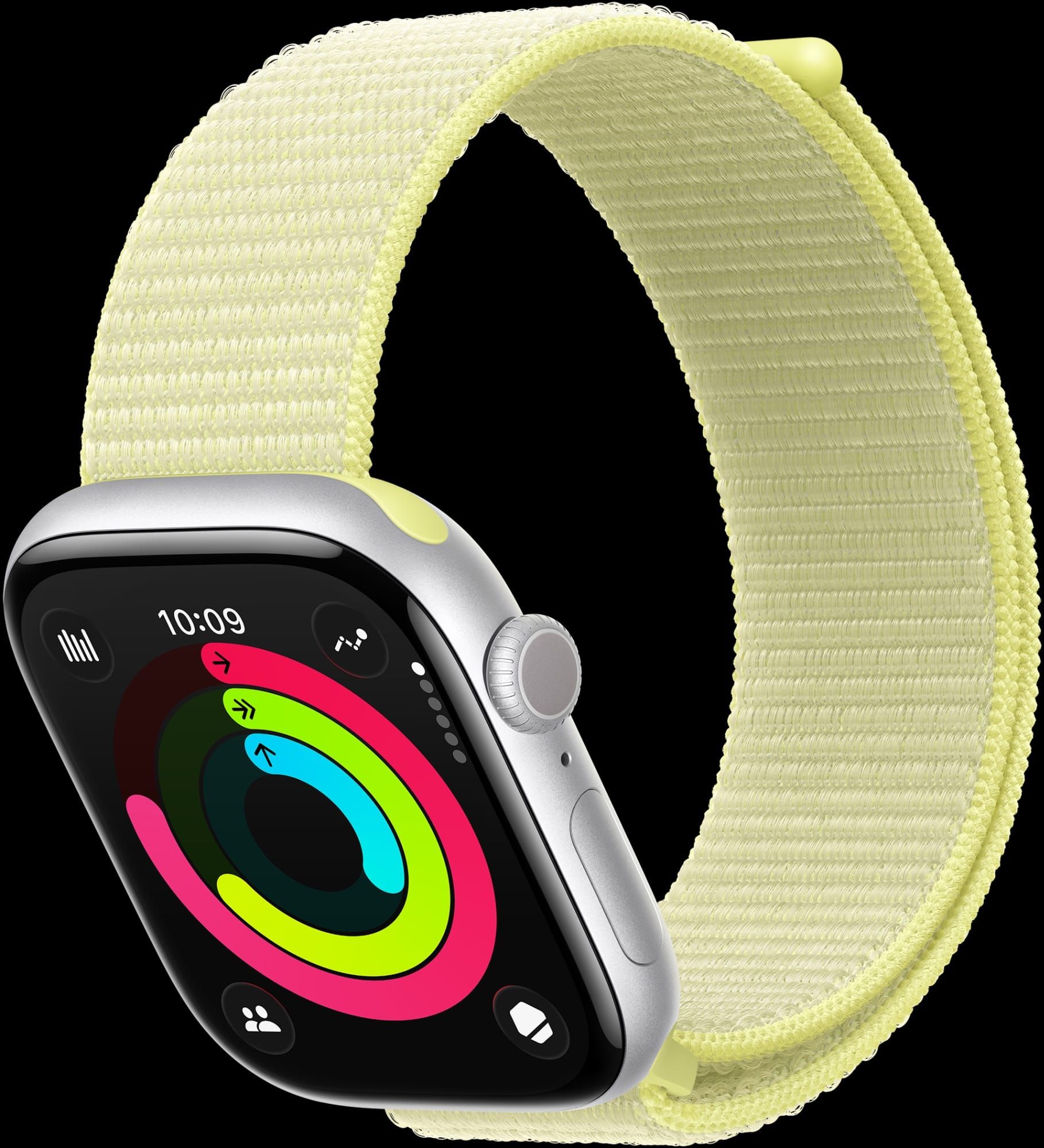
Each of the three rings (Move, Exercise, Stand) contributes up to 200 points per day when you close it to 100%. Close all three, and you bank 600 points. Over seven days, the theoretical maximum is 4,200. Apple confirms this formula in its own share your activity guide, and it means a person with a 300-calorie Move goal who closes their rings every day can outscore someone burning 800 calories who only fills 80% of theirs.
This is where the real strategy begins: your goals determine your ceiling.
Why Lower Goals Do Not Equal Easy Wins
A common misconception is that lowering your Move, Exercise, or Stand goals gives you an unfair advantage. It does make closing your rings easier, but it does not unlock bonus points. The ceiling is 200 per ring, per day, regardless of whether your Move goal is 200 or 800 calories. What changes is your margin for error.
Setting a realistic Move goal that you can consistently double gives you a better shot at banking those extra percentage points above 100%. If your Move goal is 400 calories and you burn 800, you scored 200% on that ring. But the points still cap at 200 for that ring per day. Where the advantage lives is in the difference between closing your ring at 100% every single day versus falling to 90% on two days because your goal was unreachable.
Consistency beats intensity in this scoring model. A person who closes all three rings for seven straight days at exactly 100% earns 4,200 points. A person who doubles two rings but misses a day entirely loses 600 points from that day and finishes with 3,600 at best.
The Three Rings Scored Individually
Each ring operates as its own independent scoring lane, and understanding how points accumulate across them reveals where most people leave points on the table.
The Move ring (red) tracks active calories burned toward your daily calorie goal. Reaching 100% of your goal earns 200 points. Going beyond 100% does not add more points, but it does protect you from losing points if your goal adjusts on a rest day. The Exercise ring (green) tracks minutes of brisk activity. The default goal is 30 minutes, but if you have raised it in watchOS 26, you need to hit your custom target. The Stand ring (blue) tracks hours in which you stood and moved for at least one minute. The default is 12 hours. Each completed hour contributes a fraction of the 200-point allocation for that ring.
One friction point worth noting: the Stand ring is the hardest to recover in a single session. You cannot bulk-close it with a long workout the way you can with Move or Exercise. If you sit through six hours of meetings without standing, those hours are gone.
Affiliate disclosure: some links in this article are Amazon Associate links. If you buy through them, Zone of Mac may earn a small commission at no extra cost to you, and we only recommend products that genuinely bring value to your Apple setup.
Gear That Keeps Your Rings Honest During Workouts
Tracking accuracy matters more during competitions than at any other time, because every percentage point translates to your score. A band that shifts on your wrist during a run can cause the heart rate sensor to lose skin contact, and that gap means lost Exercise credit even though you were clearly active. Apple’s own Sport Band uses a fluoroelastomer that grips without pinching, and its pin-and-tuck closure sits flat enough that it does not catch on sleeves or gym equipment. The material rinses clean under a tap after a sweaty session, which sounds minor until you realize that residue buildup on the sensor window is the number-one cause of erratic heart rate readings on Apple Watch.
The Apple Watch Sport Band (46mm) is available here https://www.amazon.com/dp/B0DGJ8VFJK?tag=zoneofmac-20
For outdoor workouts, trail runs, or gym sessions where your watch takes bumps against barbells, the Spigen Rugged Armor Pro wraps the entire case and crystal in TPU without blocking the heart rate sensor. The band is integrated into the case, so there is no gap between the watch back and your skin. That unbroken contact is exactly what keeps reading accuracy high when you are pushing hard to close your Exercise ring before midnight. The case adds barely noticeable weight and still allows the charging puck to seat properly, which matters when you are charging overnight to start fresh the next competition day.
Pick up the Spigen Rugged Armor Pro for Apple Watch Series 11 on Amazon https://www.amazon.com/dp/B0DFFHJH2Z?tag=zoneofmac-20
How to Start a Competition in watchOS 26
Open the Fitness app on your iPhone, tap the Sharing tab at the bottom, and select the friend you want to compete against. Scroll down and tap Compete. Your friend receives a notification and has 48 hours to accept. Once they do, the seven-day clock starts at midnight local time for both of you.
You can also start a competition directly from your Apple Watch. Open the Activity app, tap the sharing icon, select your friend’s name, scroll down, and tap Compete. Competitions are strictly one-on-one. There is no group competition mode in watchOS 26, so if you want to compete with four friends, you need to run four separate competitions simultaneously.
Apple Watch owners who want to dig deeper into how the Activity rings tie into broader health tracking should look at how Apple Watch detects heart problems before you feel them for context on the sensors powering these metrics.
The February 2026 Heart Month Challenge
Apple launched the Heart Month Challenge on February 14, 2026. The requirement is straightforward: close your Exercise ring on that single day. If your Exercise goal is set to the default 30 minutes, log 30 minutes of brisk activity. If you raised it, you need to hit your custom target. Completing the challenge earns a limited-edition badge in the Fitness app and a set of animated iMessage stickers.
The challenge is separate from any active competition you have running, so it does not directly add competition points. But the workout you log to close your Exercise ring does count toward your competition score for that day, effectively letting you knock out both goals with one session.
A quick comparison of the three Activity rings, their point allocations, and recovery difficulty during competitions.
| Ring | Default Goal | Max Daily Points | Recovery Difficulty |
|---|---|---|---|
| Move (Red) | Varies by user | 200 | Easy: one long workout can close it |
| Exercise (Green) | 30 minutes | 200 | Moderate: requires sustained elevated heart rate |
| Stand (Blue) | 12 hours | 200 | Hard: cannot be recovered in bulk |
Join The Inner Circle For Serious Apple Users
Exclusive Apple tips. Free to join.
Check your inbox for a confirmation link.
Something went wrong. Please try again.
Manually Logging a Workout You Forgot to Track
Missed starting a workout on your Apple Watch? You can still get credit. Open the Health app on your iPhone, tap Search, then tap Activity. Select Workouts, then tap the plus icon in the upper corner. Choose your workout type, enter the calories burned and the start and end time, and tap the checkmark to save. Apple’s support page confirms that manually added workouts update your Move and Exercise rings retroactively.
One important edge case: manually logged workouts update the red Move ring and the green Exercise ring, but they do not add credit to the blue Stand ring. If you logged a 45-minute run but sat at your desk for the rest of the day, those standing hours are still missing. This is a detail that catches people off guard during competitions, because they assume a big manual workout entry covers everything.
Readers who track health metrics alongside fitness should also explore how to set up Apple Watch hypertension notifications for a related workflow that uses the same sensor data.
Accessibility and Clarity
Apple Watch competitions are accessible to wheelchair users through the Roll ring, which replaces the Stand ring and measures push movements. VoiceOver reads competition scores, ring progress, and notifications aloud, so visually impaired users can track their status throughout the day. The Fitness app on iPhone presents competition data in a high-contrast layout with large numerical scores that remain legible for users with low vision.
The information architecture of the competition interface is straightforward: a single screen shows your score, your opponent’s score, and the day count. There are no nested menus or buried settings to manage during an active competition. Haptic notifications tap your wrist when your opponent closes a ring, which serves as a non-visual, non-auditory cue that works for users with both visual and hearing limitations. For users with cognitive accessibility needs, the scoring model is predictable once understood: same three rings, same 200 points each, same seven-day window, every single competition.
Quick-Action Checklist
- Open the Fitness app on iPhone, tap Sharing, select a friend, tap Compete
- Set a realistic Move goal you can close and ideally double every day
- Stand and move for at least one minute every waking hour to protect your Stand ring points
- Log any untracked workouts in the Health app under Search, then Activity, then Workouts, then the plus icon
- Close your Exercise ring on February 14, 2026 to earn the Heart Month Challenge badge
- Charge your Apple Watch overnight so tracking starts fresh at midnight
- Check the competition score on your watch face or in the Fitness app Sharing tab daily

Olivia Kelly
Staff writer at Zone of Mac with over a decade of Apple platform experience. Verifies technical details against Apple's official documentation and security release notes. Guides prioritize actionable settings over speculation.
Related Posts
Build the Custom Apple Watch Face You Actually Want
Apr 06, 2026
Your Apple Watch Band Has a Cleaning Method Most Owners Skip
Apr 02, 2026
Your Apple Watch Has a Sleep System Most Owners Never Touch
Apr 02, 2026