

🎧 Listen to this article
Prefer to listen? An audio version of this article is available for accessibility and convenience.
HomePod Software 26.4 landed on March 24, 2026, and Apple’s release notes are exactly what you’d expect: “performance and stability improvements.” That’s the whole thing. No new features, no flashy announcements, just a quiet patch that makes your HomePod run a little smoother. You open the Home app, you tap update, you watch that white spinning light swirl on top of your HomePod for a few minutes, and you move on with your day. Done.
But here’s what’s been eating at me. HomePod Software 26 — the big release from September 2025 — shipped three genuinely useful features that I’d bet money most HomePod owners never touched. Crossfade for Apple Music. Expanded AirPlay voice commands. Manual Wi-Fi network selection. Three things that actually change how you use the speaker every single day, and they’ve been sitting there for six months collecting dust. So yeah, go install 26.4. But then stick around, because the real story is everything you walked right past in September.
 Ad
AdWhat 26.4 Actually Does (And Doesn’t Do)
Let me be honest with you. HomePod Software 26.4 is a maintenance update. Apple’s support documentation confirms it: performance and stability improvements, full stop. HomePod Software 26.3 dropped back on February 11, 2026, with the same description. These point releases keep the lights on. They squash bugs you probably never noticed and shore up security stuff happening behind the scenes.
There is nothing wrong with that.
Not every update needs to reinvent your living room. But every update is a good excuse to open the Home app and poke around in settings you forgot existed. And that’s exactly what I want you to do today.
Crossfade: The Setting Buried Six Menus Deep
Crossfade with Apple Music is the headline feature from HomePod Software 26, and it’s the one I’m most annoyed about. Not because it doesn’t work — it works great. I’m annoyed because Apple buried the setting so deep that you’d need a treasure map to find it.
Here’s the path: open the Home app, tap More, then Home Settings, then People, then tap your name, then Apple Music, and finally you’ll see Crossfade. That is six taps to reach a toggle that fundamentally changes how music sounds in your house. Six taps. Apple could have surfaced this in the Apple Music app itself, or at least put it somewhere logical, but no. It lives in a submenu of a submenu of your personal profile inside the Home app.
Once you find it, you can set the crossfade duration anywhere from 1 to 12 seconds. I’ve been running mine at about 4 seconds, which gives you that smooth DJ-style blend between tracks without making every song feel like it’s rushing to get out of the way. Go too long — 10 or 12 seconds — and slower songs start to feel like they’re being shoved off stage before they finish their bow. Start at 4, adjust from there.
Now here’s the gotcha, and this one matters. Crossfade only works when Apple Music is playing directly on your HomePod. The moment you AirPlay music from your iPhone to the HomePod, crossfade stops working. Playing Spotify? Doesn’t work. Pandora? Nope. This is an Apple Music feature running natively on the HomePod hardware, and nothing else qualifies. I think that’s a fair trade-off for how good it sounds, but you need to know the limitation before you wonder why your AirPlayed playlist still has hard cuts between songs. I actually wrote a whole breakdown of Apple Music settings you should change on day one that pairs well with this — crossfade on your HomePod is the natural extension of dialing in those settings on your phone.
 Ad
Ad“Hey Siri, Play This Everywhere”
The second HomePod Software 26 feature is one that sounds small but changes the whole vibe of a multi-room setup. AirPlay voice commands got a serious expansion. You can now ask Siri on one HomePod to play audio on another HomePod — or multiple HomePods — and it actually works reliably with any AirPlay stream, not just Apple Music.
Before this update, telling your kitchen HomePod to send a podcast to the living room HomePod was a coin flip at best. Now you just say it and it happens. “Hey Siri, play this in the living room.” “Hey Siri, play this everywhere.” The commands feel natural, the response time is fast, and the handoff between speakers is clean.
Why does this matter? Because most people with more than one HomePod are not using them together nearly as well as they could be. You’ve got speakers in different rooms, probably placed wherever they fit on the counter, and each one lives in its own little audio bubble. That’s a waste. Multi-room audio is one of the strongest reasons to own multiple HomePods, and these voice commands finally make it easy enough that you’ll actually do it. Speaking of placement — where you put those speakers matters more than you think, and I covered the HomePod mini placement mistake that ruins your sound in a separate piece that’s worth a read before you start blasting music through every room.
Wi-Fi Selection: Small Fix, Big Relief
This one is for everyone who has ever wanted to throw a HomePod out a window because it connected to the wrong Wi-Fi network. HomePod Software 26 added the ability to manually select which Wi-Fi network your HomePod connects to, right from the Home app. Before this, your HomePod just picked a network and you hoped for the best. Got a mesh network with a 2.4 GHz and a 5 GHz band? The HomePod might grab the slower one and sit there buffering like it’s 2008.
Manual selection fixes that. You go into the Home app, tap your HomePod, find the Wi-Fi settings, and point it at exactly the network you want. Simple. The kind of simple that should have existed from day one, but I’ll take it now over never. This matters especially if your HomePod doubles as an Apple Home hub running your smart home accessories — a flaky Wi-Fi connection on your hub doesn’t just affect music, it affects every automation and accessory tied to it.
How to Update to HomePod Software 26.4
Updating is painless. Open the Home app on your iPhone or iPad. Tap More in the upper right. Tap Home Settings. Tap Software Update. Your HomePod will show up with the available update. Tap Update and let it do its thing.
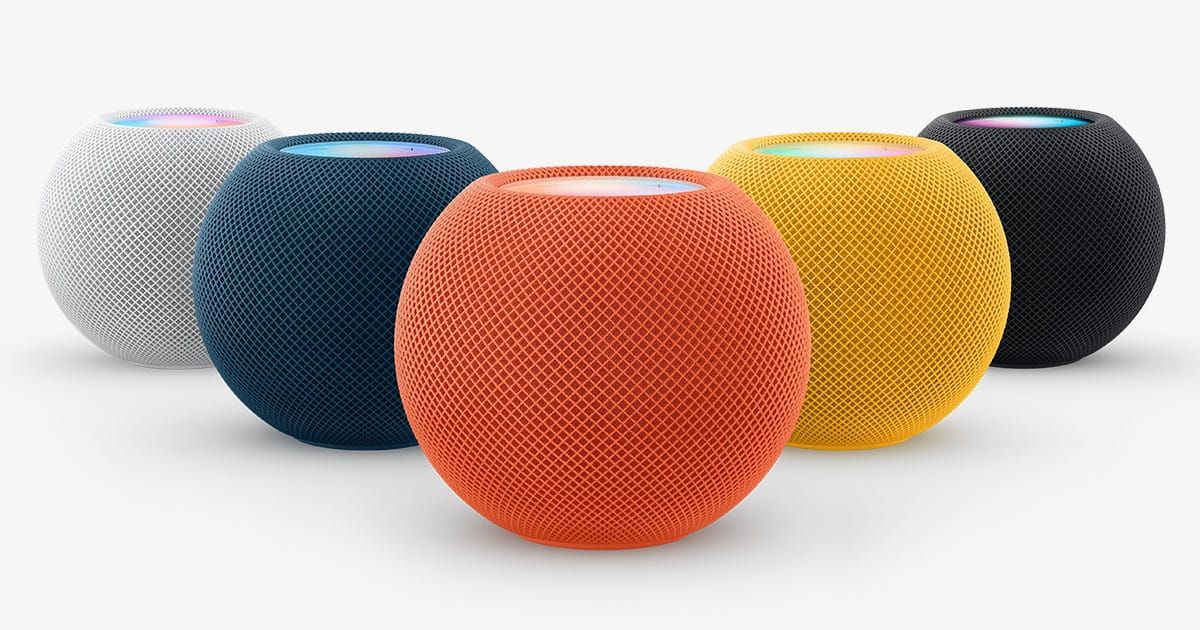
You’ll see a white spinning light on top of the HomePod while it installs. Don’t unplug it. Don’t talk to it. Just let it sit there and spin for a few minutes. When the light goes away, you’re done.
You can also turn on automatic updates in that same menu so you never have to think about this again. I recommend it. These maintenance patches aren’t the kind of thing you want to fall behind on.
Quick-Action Checklist
- Update to 26.4: Home app › More › Home Settings › Software Update › Update
- Enable Crossfade: Home app › More › Home Settings › People › [Your Name] › Apple Music › Crossfade › set to 4 seconds
- Test AirPlay voice commands: Say “Hey Siri, play this in [room name]” to move audio between HomePods
- Check Wi-Fi network: Open Home app › tap your HomePod › verify it’s on your preferred Wi-Fi network
- Turn on auto-updates: Home app › More › Home Settings › Software Update › toggle automatic updates on

Related Posts
HomeKit Ceiling Fans That Earn a Spot in Your Apple Home
Apr 07, 2026
The Apple TV 4K Settings You Skipped Are Ruining Your Movies
Apr 06, 2026
The HomeKit Weather Sensors That Belong in Every Apple Home
Apr 05, 2026