
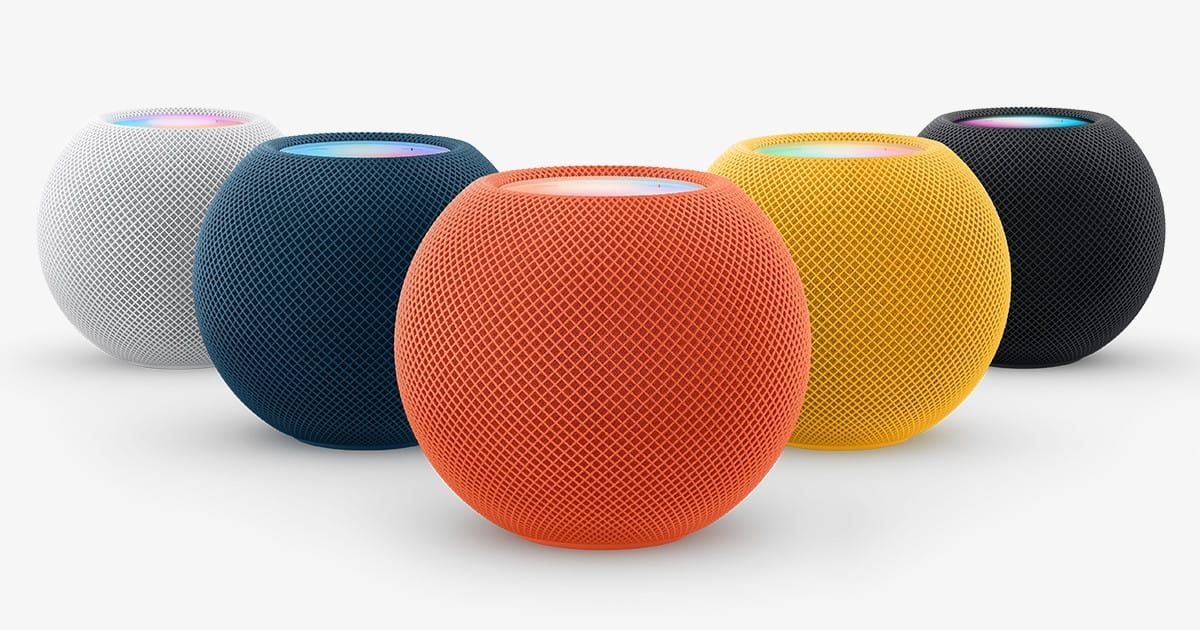

Apple HomePod and HomePod mini have a built-in intercom system that broadcasts voice messages to every speaker in your home, to a single room, or to a specific zone you define in the Apple Home app. The setup takes about two minutes. The catch is that Intercom reaches well beyond HomePod speakers, connecting to iPhones, iPads, Apple Watches, AirPods, and CarPlay, which means the real work is deciding who gets notifications, when they get them, and whether a message should go to the whole house or just the kitchen.
Getting those notification settings wrong is the difference between a genuinely useful household communication tool and a feature everyone in your family disables within a week. I am going to walk you through the complete setup, show you how to target messages by room and zone, and cover the notification controls that keep Intercom from becoming an annoyance.
 Ad
Ad
What HomePod Intercom Actually Does
Intercom is a one-to-many voice messaging feature built into Apple Home. You speak a message, and it plays out loud on every HomePod and HomePod mini assigned to your home. Recipients hear your voice, not a text-to-speech translation, which makes it feel more personal than a notification ping. They can reply instantly, and their reply routes back to the speaker or device you sent from.
The feature supports six device types: HomePod (2nd generation), HomePod mini, iPhone (SE 2nd generation or later, iPhone 8 or later), iPad (5th generation or later, iPad Pro, iPad Air 3rd generation or later, iPad mini 5th generation or later), Apple Watch (Series 3 or later), and AirPods (all models that support Siri). CarPlay-equipped vehicles receive Intercom messages too, so you can tell the house you are on the way home from the car. Each device must be signed into the same Apple Account that owns the Home and running the latest software.
One subtle detail worth noting: Intercom messages are ephemeral. They play once and are gone. There is no message history, no playback queue, no way to re-listen. If someone misses the message, you send it again. This is a deliberate design choice that keeps Intercom lightweight, but it also means timing matters. Sending a message to an empty room is the same as not sending it at all.
How to Set Up Intercom in the Apple Home App
Intercom activates automatically when you add a HomePod or HomePod mini to your home. There is no separate toggle to enable. If you own at least one HomePod or HomePod mini assigned to a room, Intercom is already on. Open the Home app on your iPhone or iPad, tap the three-dot menu button in the upper-right corner, then tap Home Settings. Scroll down to Intercom. You will see controls for who can send messages and how notifications behave.
The Intercom settings screen has two critical sections. The first is notification preferences. You choose from three options: Never, When I Am Home, and Anywhere. "When I Am Home" uses your iPhone location to suppress notifications when you are away, which prevents your phone from buzzing with household chatter while you are at work. "Anywhere" delivers every Intercom message regardless of location, useful if you want to stay connected while traveling.
The second section lists every HomePod and HomePod mini in your home. Each speaker has its own Intercom toggle. Turning off Intercom on a specific speaker means it will neither send nor receive voice messages. This is useful for a speaker in a guest bedroom or a shared office where surprise broadcasts would be disruptive. The toggle is per-speaker, not per-room, so if you have a stereo pair in the living room you can disable one and keep the other active, though in practice you would usually want both on or both off.
Sending Your First Intercom Message
There are two ways to send an Intercom message. The first is Siri. Say "Hey Siri, intercom" followed by your message. For example, "Hey Siri, intercom dinner is ready." Siri will record your voice and broadcast it to every Intercom-enabled HomePod in your home. The second method is the Intercom button in the Home app. Open the Home app, tap the waveform-shaped Intercom icon in the upper-right area of the Home tab, record your message, and release. The message goes out immediately.
Replying works the same way. When a HomePod plays an incoming Intercom message, say "Hey Siri, reply" followed by your response. The reply routes back to the device that sent the original message. On iPhone, you will see a notification banner with a Reply button that opens the same voice recording interface.
Targeting Rooms and Zones Instead of the Whole House
Broadcasting to the entire house is the default behavior, but it is rarely what you want. A message meant for the kitchen does not need to play in the bedroom at midnight. Siri accepts room and zone targets natively. Say "Hey Siri, intercom to the kitchen, dinner is on the counter" and the message only plays on HomePod speakers assigned to your Kitchen room. Zone targeting works the same way: "Hey Siri, intercom upstairs, lights out in ten minutes."
Zones are groups of rooms you define in the Home app. Open the Home app, long-press a room tile, tap Room Settings, then assign the room to an existing zone (like Upstairs or Downstairs) or create a new one. Once you have zones configured, Intercom messages targeted to a zone play on every speaker in every room within that zone. This is where Intercom becomes genuinely practical for multi-story homes. You address an entire floor without blasting the whole house.
A friction point worth mentioning: zone names matter more than you might expect. Siri needs to parse your voice command accurately, so zone names like "Upstairs" and "Downstairs" work reliably. Creative names like "The Hangout Zone" or "Dad's Wing" occasionally cause Siri to misinterpret the command and broadcast to the whole house instead. Stick to descriptive, common-language zone names for consistent results.
This table compares the four ways to send an Intercom message across your Apple Home so you can pick the method that fits your situation.
| Method | Hands-Free | Room Targeting | Best For |
|---|---|---|---|
| Siri on HomePod | Yes | Yes | Broadcasting from a room |
| Home app button | No | Yes | Quiet environments |
| Siri on iPhone or AirPods | Yes | Yes | Sending from away |
| CarPlay Siri | Yes | Yes | Messaging while driving |
Which Devices Receive Intercom and How to Control Them
Every Apple device signed into your Home can receive Intercom messages, but each person in your household controls their own notification preferences independently. On iPhone, open Settings, tap Notifications, scroll to Home, and make sure notifications are allowed. Then open the Home app, go to Home Settings, tap Intercom, and choose your preferred notification timing.
Apple Watch receives Intercom messages as haptic taps with audio playback through the speaker. AirPods play the message directly in your ears, which is ideal for catching messages while mowing the lawn or wearing hearing protection. CarPlay plays Intercom messages through the car speakers and lets you reply hands-free through the vehicle microphone.
A limitation to be aware of: Intercom does not work with non-Apple smart speakers, Bluetooth speakers, or third-party HomeKit accessories. The feature is exclusive to the Apple device ecosystem. If your household includes Android users or non-Apple smart speakers, those devices will be invisible to Intercom. This is a genuine constraint in mixed-device households, and there is no workaround beyond adding those family members to your Apple Home on their iPhones or iPads.
Intercom and the Upcoming Apple Smart Home Hub
Apple is expected to release a new smart home hub this spring, reported under the working names "HomePad" and "HomePod Touch." According to MacRumors and 9to5Mac, the device will feature a 7-inch touchscreen, an A18 chip, Face ID for multi-user recognition, and a 1080p ultra-wide camera for FaceTime video calls. Setting up Intercom now positions your home to take advantage of this new hub when it arrives, since every room with a HomePod becomes an Intercom node that the hub can communicate with. The upcoming device may also introduce video intercom capabilities through its built-in camera, extending Intercom beyond audio-only messaging.
If you are building out your Apple Home for the first time, the guide on how to build your first Apple HomeKit smart home from scratch covers the foundation you need before Intercom becomes useful. For homes that already have an Apple TV serving as a hub, the walkthrough on turning your Apple TV into a voice-controlled smart home hub explains how Apple TV and HomePod work together as home hubs.
Join The Inner Circle For Serious Apple Users
Exclusive Apple tips. Free to join.
Accessibility and Clarity
Intercom is primarily a voice-based feature, which creates an obvious barrier for deaf and hard-of-hearing users. Apple addresses this with Intercom transcriptions. On iPhone, go to Settings, tap Accessibility, tap Subtitles and Captioning, then turn on Show Audio Transcriptions. With this enabled, incoming Intercom messages appear as text notifications on your iPhone screen, converting the audio message to readable text. This transcription feature is also listed as an accessibility feature in Apple's official HomePod 2nd generation specifications on the Apple Support page for HomePod technical specifications.
For users with motor limitations, the entirely voice-driven nature of Intercom is a strength. No buttons to press, no screens to navigate during the actual sending and receiving process. Siri handles everything. The initial configuration in the Home app requires standard touch interaction, but once configured, daily use is fully hands-free. VoiceOver works throughout the Home app settings screens for users who need screen reader support during setup.
Cognitive accessibility benefits from Intercom's simplicity. The feature has exactly one function: send a voice message. There are no nested menus during use, no multi-step workflows, no modal dialogs to dismiss. The most complex decision is choosing between whole-house and room-targeted messaging, and Siri handles that distinction through natural language. The notification settings screen in the Home app uses a straightforward three-option layout (Never, When I Am Home, Anywhere) with no hidden sub-menus or conditional logic. If your household includes a family member who finds complex app interfaces overwhelming, Intercom is one of the most approachable smart home features Apple offers.
When Intercom Stops Working
The most common Intercom failure is a HomePod that dropped off the network. If a speaker shows "Not Responding" in the Home app, Intercom messages will not reach it. Restart the affected HomePod by unplugging it, waiting ten seconds, and plugging it back in. If the issue persists, the HomePod troubleshooting guide covers deeper fixes for unresponsive speakers.
Another frequent issue: Intercom messages play on the wrong speakers or fail to target a specific room. This almost always traces back to room assignments in the Home app. Long-press the HomePod tile in the Home app, tap the gear icon to open settings, and verify the room assignment matches the physical location. A HomePod assigned to "Default Room" instead of "Kitchen" will not respond to room-targeted Intercom commands.
Quick-Action Checklist
- Open the Home app on your iPhone or iPad.
- Tap the three-dot menu button in the upper-right corner, then tap Home Settings.
- Tap Intercom and set your notification preference (Never, When I Am Home, or Anywhere).
- Scroll through the speaker list and confirm Intercom is enabled for each HomePod you want to include.
- Open the Home app, long-press a room tile, tap Room Settings, and assign each room to a zone (Upstairs, Downstairs, or your own label).
- Test a whole-house broadcast: say "Hey Siri, intercom testing one two three."
- Test a targeted message: say "Hey Siri, intercom to the kitchen, testing."
- On each family member's iPhone, open Settings, then Notifications, then Home. Confirm notifications are allowed.
- For deaf or hard-of-hearing household members, go to Settings, Accessibility, Subtitles and Captioning, and turn on Show Audio Transcriptions.

Related Posts
HomeKit Smart Blinds That Earn a Spot in Your Apple Home
Apr 10, 2026
Apple TV+ Dropped Six April Premieres and Three Actually Deliver
Apr 10, 2026
HomeKit Ceiling Fans That Earn a Spot in Your Apple Home
Apr 07, 2026