
Updated January 28, 2026 at 3:47PM EST
Apple Reminders in macOS Tahoe is a full-scale task manager that uses Tags, Smart Lists, and Sections to organize complex workflows without requiring any third-party software. Press Command-L to create lists, type hashtags directly in reminders for instant cross-referencing, and build Smart Lists that auto-populate based on criteria you define.
Key Takeaways
- Press Command-N to create new reminders instantly from anywhere in the app
- Type #tagname directly in any reminder to add tags without opening menus
- Smart Lists update automatically based on date, tag, priority, or location rules
- Sections within lists let you group related tasks without creating separate lists
- Natural language parsing understands phrases like "tomorrow at 3pm" or "every weekday"
- Integration with Calendar, Mail, and Messages creates reminders directly from those apps
At-A-Glance: Reminders Features Compared
The following table summarizes core organization features within Apple Reminders:
| Feature | What It Does | Best Use Case | Accessibility Note |
|---|---|---|---|
| Tags | Cross-reference reminders across multiple lists | Tracking projects that span categories | Fully VoiceOver compatible |
| Smart Lists | Auto-populate based on rules you set | Viewing all high-priority items at once | Announces filter criteria |
| Sections | Group tasks within a single list | Breaking large projects into phases | Tab navigation supported |
| Templates | Reusable list structures with preset items | Recurring checklists like packing or meetings | Screen reader friendly |
Why Reminders Deserves Another Look
The Reminders app shipping with macOS Tahoe bears little resemblance to the basic checklist tool from a decade ago. Apple has layered in organizational depth that mirrors dedicated apps like Things or Todoist, yet most Mac users never discover these capabilities because Reminders lacks the marketing budget of third-party alternatives.
What changed? Apple introduced Tags in macOS Monterey, then added Sections and column view in subsequent releases. The current version in macOS Tahoe represents the culmination of several years of incremental improvements, resulting in a task manager capable of handling projects with dozens of interconnected items.
The real advantage emerges when you combine features. A reminder can belong to a specific list, carry multiple tags, sit within a section, and appear in several Smart Lists simultaneously. That level of flexibility typically requires subscription software.
Building Your First Smart List
Smart Lists are the feature most users overlook, yet they provide the greatest productivity gain. Instead of manually sorting tasks, Smart Lists pull reminders from across your entire library based on whatever criteria you specify.
Open Reminders and click File in the menu bar, then select New Smart List. A sheet drops down with filtering options. You can filter by tag, date, time, priority, flag status, or location. The real utility arrives when you stack multiple conditions.
Consider a Smart List configured to show reminders tagged with "work" that also have a due date within the next seven days and carry high priority. That single Smart List becomes your weekly work dashboard without any manual curation.
The "Match" dropdown at the top determines whether reminders must satisfy all conditions or any condition. Setting this to "All" creates precise filters, while "Any" casts a wider net. Experiment with both approaches depending on how you work.
Smart Lists update in real time. Tag a new reminder with the criteria your Smart List watches, and it appears instantly. Complete the task, and it vanishes from the Smart List while remaining accessible in your completed items.
Tags Transform How You Think About Tasks
Tags break the limitation of hierarchical list organization. A single reminder can carry five tags if that accurately reflects its nature, and you can find that reminder by searching for any one of those tags.
Adding tags requires minimal friction. While typing a reminder, include a hashtag followed by your tag name. Reminders recognizes this syntax and converts the text into an actual tag. Typing "Submit expense report #finance #quarterly #urgent" creates one reminder with three tags attached.
Access your tag library by clicking the Tags item in the sidebar. From there, you can rename tags, delete unused ones, or nest tags within tag groups for further organization. Tag nesting works well for projects with phases: a parent tag for the project name and child tags for individual milestones.
The search field respects tags natively. Type a hashtag followed by a tag name, and results filter instantly. Combine tag searches with text searches to narrow results further.
Join The Inner Circle For Serious Apple Users
Exclusive Apple tips. Free to join.
Sections Add Structure Without Complexity
Sections exist within lists rather than replacing them. They function like headers that group related reminders while keeping everything in one place.
To create a section, click the three-dot menu icon while viewing a list and select Add Section. Give it a name, then drag existing reminders underneath. You can also create reminders directly within sections by clicking below the section header.
Sections work especially well for projects with distinct phases. A list called "Kitchen Renovation" might contain sections for Demolition, Electrical, Plumbing, Cabinets, and Final Touches. Each section collapses independently, letting you focus on the current phase while hiding completed work.
Reordering sections takes seconds. Click and drag the section header, and all reminders within it move together. This beats the alternative of moving individual tasks one by one.
Keyboard Shortcuts That Actually Save Time
Reminders responds to keyboard commands that eliminate mouse travel for common actions. Command-N creates a new reminder. Command-L creates a new list. Command-Shift-N creates a new reminder in a new window, useful when you need to quickly capture something without leaving your current context.
Mark reminders complete with Command-Shift-C. This works on multiple selected reminders, so you can check off five items simultaneously. Toggle the sidebar visibility with Command-Option-S to maximize screen space when you just need to focus on a single list.
The Tab key moves focus between elements in a way that feels natural once you learn it. From the reminder title field, Tab jumps to the notes field, then to date settings. Shift-Tab reverses direction.
For users who prefer minimal visual distraction, Command-Shift-H toggles the completed items view. Hide them when they create clutter, reveal them when you need to reference what you finished.
Natural Language Saves Typing
Reminders parses natural language dates and times better than most users realize. Type "call dentist tomorrow at 9am" and Reminders extracts both the date and time automatically. Phrases like "every Tuesday" or "last day of month" also work.
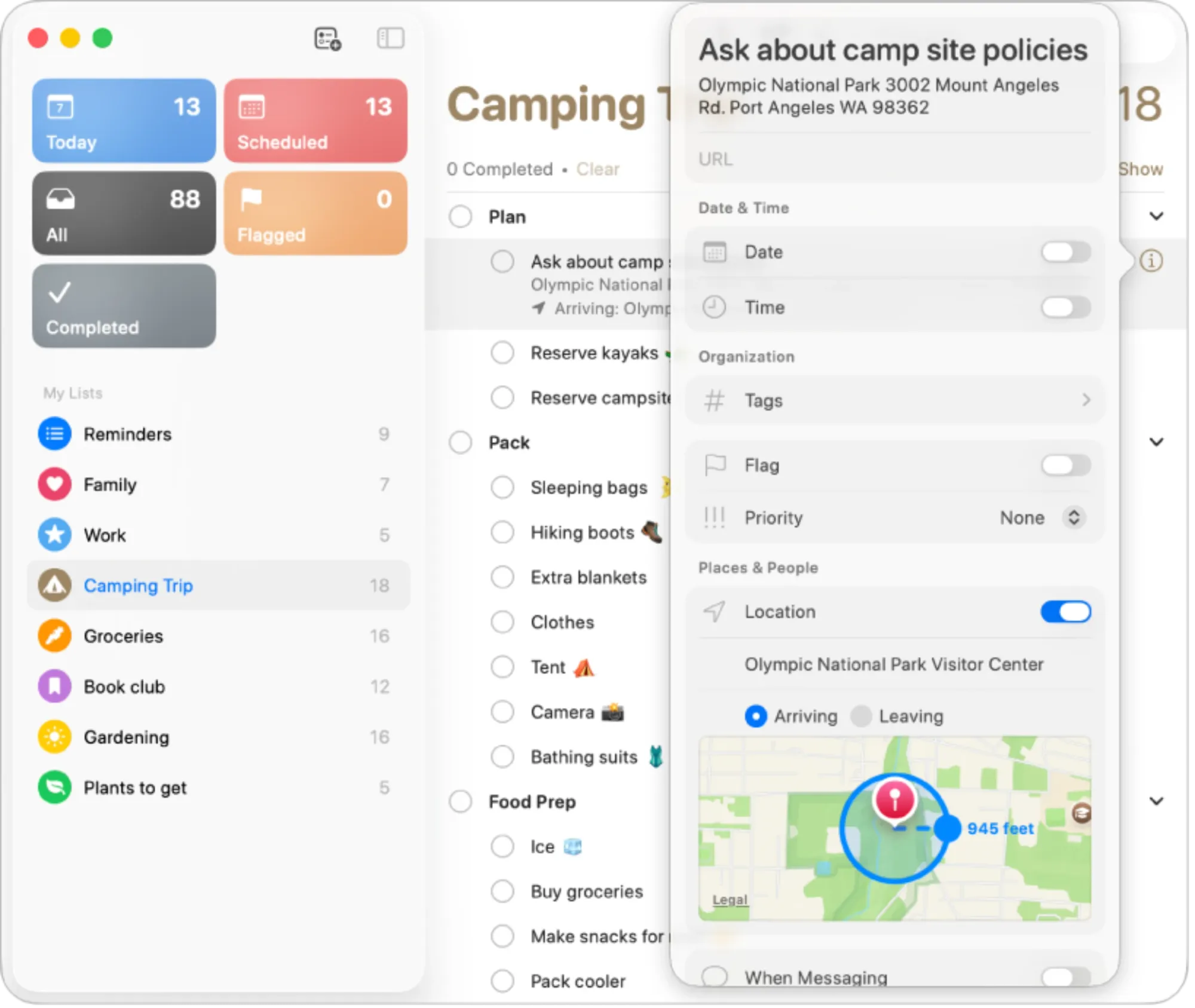
Location-based reminders require precise phrasing. Include "when I arrive at" or "when I leave" followed by a location. Reminders searches your Contacts and Maps data to find matching addresses. You can also drop a pin on a map by clicking the location icon in the reminder detail view.
Recurring reminders accept complex patterns. "Every other Wednesday" creates biweekly recurrence. "First Monday of every month" handles monthly schedules tied to specific weekdays rather than fixed dates.
Accessibility & Clarity
Apple built Reminders with assistive technology in mind from the ground up. VoiceOver announces list names, reminder titles, due dates, and tag information in logical sequence. The app responds to Full Keyboard Access for users who cannot operate a trackpad or mouse.
The interface adapts to Dynamic Type settings, scaling text across the app uniformly. Users with low vision benefit from the high-contrast relationship between the sidebar, list area, and detail pane. There are no color-dependent interactions, so users with color blindness can navigate every feature using spatial position and text labels alone.
Reduce Motion settings in System Settings affect animation speed throughout Reminders. When enabled, transitions between views happen more quickly with less visual flourish, reducing cognitive load for users sensitive to motion.
For users managing ADHD or similar attention challenges, the single-column view and collapsible sections prevent overwhelming visual density. Smart Lists reduce the mental burden of remembering to check multiple locations, since relevant items surface automatically where you expect them.
Affiliate disclosure: some links in this article are Amazon Associate links. If you buy through them, Zone of Mac may earn a small commission at no extra cost to you, and we only recommend products that genuinely bring value to your Apple setup.
Integrations Multiply Utility
Reminders connects to other Apple apps in ways that create genuinely useful workflows. In Mail, right-click any message and select Remind Me. Reminders creates an entry with a link back to that specific email. When the reminder triggers, clicking it opens the original message instantly.
Safari supports the same pattern. Right-click a webpage and select Add to Reminders. The resulting reminder includes the page title and URL. Use this for articles you intend to read later or reference material for active projects.
Messages integration works slightly differently. You can ask Siri to "remind me about this" while viewing a conversation, and the reminder will include context about the chat. Tapping that reminder returns you to the message thread.
Calendar respects Reminders deadlines by displaying them in your daily or weekly view, depending on your Calendar settings. This dual visibility ensures time-sensitive tasks appear alongside meetings and appointments.
Working Faster With a Precision Mouse
When you manage dozens of reminders daily, the input devices you use affect how quickly you can reorganize, tag, and complete tasks. Dragging reminders between lists, hovering over detail icons, and accessing contextual menus all benefit from precise cursor control.
The Logitech MX Master 4 for Mac brings haptic feedback to specific actions, customizable scroll wheel behavior, and an 8K DPI sensor that tracks on any surface including glass. The Actions Ring feature places frequently used shortcuts directly under your cursor through a customizable overlay, which works particularly well when batch-processing reminders. You can assign one ring position to open tags, another to set due dates, and a third to mark complete, all without visiting menus.


Here's where to get the Logitech MX Master 4 for Mac https://www.amazon.com/dp/B0FC5X4F8G?tag=zoneofmac-20
Templates Eliminate Repetitive Setup
Reminders Templates let you save entire list structures for reuse. Create a checklist once, save it as a template, and generate fresh copies whenever needed.
To create a template, set up a list with the items, sections, and structure you want to preserve. Then click the three-dot menu icon and select Save as Template. Give the template a name that clearly indicates its purpose.
Templates work exceptionally well for recurring events. A packing list template ensures you never forget chargers or medications when traveling. A meeting prep template standardizes the questions and materials you bring to every client call.
When you generate a list from a template, Reminders creates an entirely new list. Changes to the new list do not affect the template, and vice versa. Update your templates periodically as your needs evolve.
The Friction You Will Encounter
Apple Reminders lacks certain capabilities that power users may miss. There is no Gantt chart view for visualizing project timelines. Dependencies between tasks do not exist, so completing one item cannot automatically unlock another. Time tracking features are absent entirely.
Collaboration features exist but feel rudimentary compared to dedicated team tools. You can share lists via iCloud, and other participants can add or complete reminders. Real-time presence indicators and commenting are not available.
The iOS and macOS versions maintain feature parity, which is good for consistency but sometimes frustrating when the Mac could support richer interactions due to its larger screen and more capable input methods.
These limitations matter less if you work primarily alone on personal or small-scale projects. They matter more if you manage teams or complex initiatives with many moving parts.
Quick-Action Checklist
Copy the following commands to keep nearby while learning Reminders:
- Command-N – Create new reminder
- Command-L – Create new list
- Command-Shift-C – Mark selected reminder(s) complete
- Command-Option-S – Toggle sidebar
- Command-Shift-H – Toggle completed items
- Tab – Move to next field within reminder
- #tagname – Add tag while typing reminder title
- "tomorrow at 3pm" – Natural language date parsing
For a related guide on managing your Mac workflow efficiently, see how to transform your Mac with these powerful accessibility features. If you use ChatGPT alongside your Apple devices, the ChatGPT Health reads Apple Watch data complete setup guide shows another productivity integration worth exploring.

Related Posts
Your Mac Has a Networking Time Bomb That Only a Reboot Defuses
Apr 09, 2026
Your Mac Feels Slow After macOS Tahoe — Here’s What Actually Fixes It
Apr 08, 2026
The Mac Mini M4 Settings Worth Changing on Day One
Apr 07, 2026