
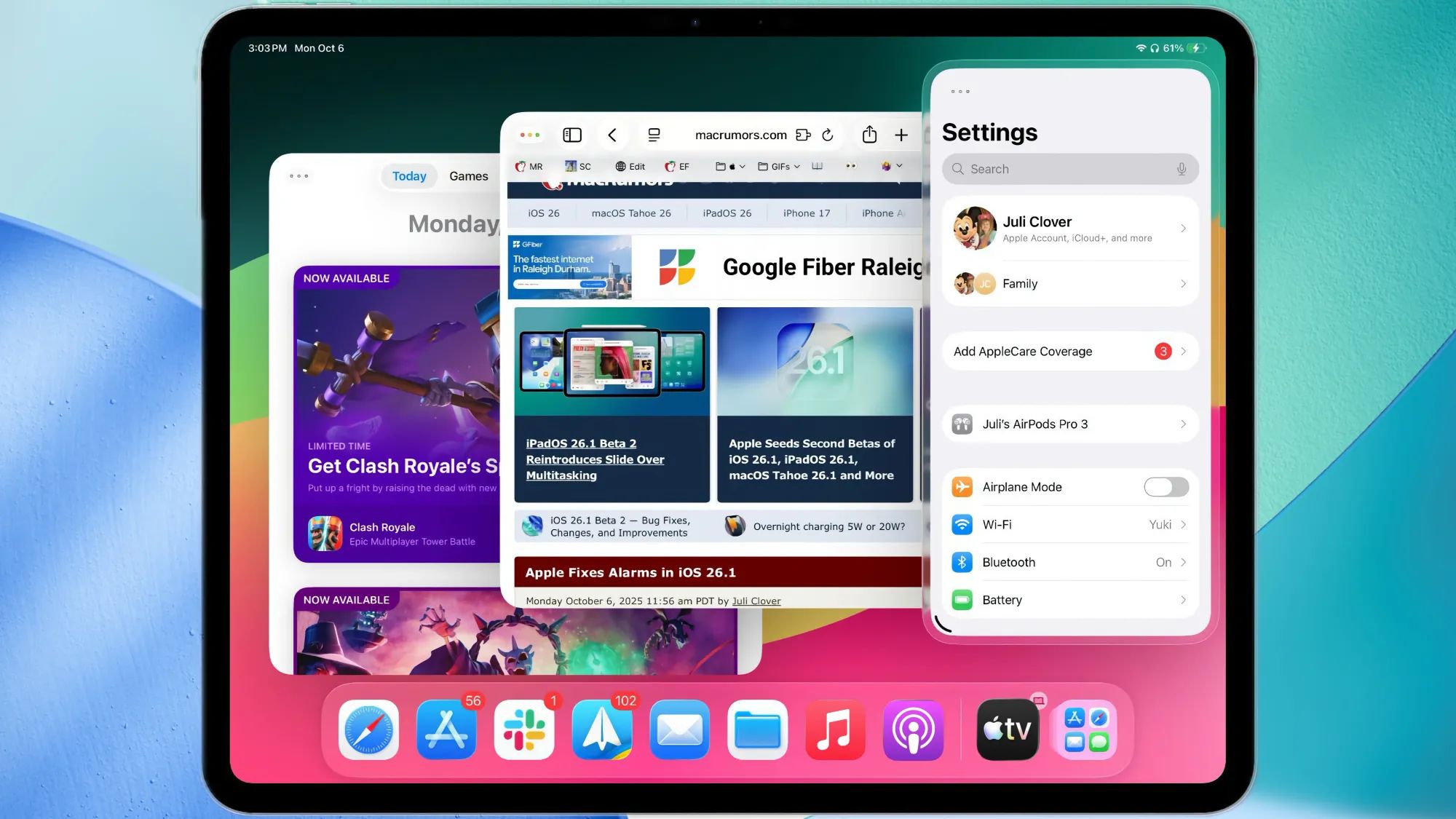
Apple's redesigned window management system in iPadOS 26 represents the most significant multitasking upgrade the iPad has received since Stage Manager debuted in 2022. The new app windows framework lets you resize, reposition, and overlap windows with the fluidity you expect from a desktop operating system. For iPad Pro and iPad Air owners running M-series chips, this transforms how you work.
Key Takeaways
- Drag any window corner or edge to resize freely without preset constraints
- Snap windows to screen edges or corners using drag-to-edge gestures for automatic sizing
- Press Globe + Tab to cycle through open windows across all apps instantly
- Enable Desktop Mode in Settings to unlock smaller minimum window sizes and tighter snap zones
- Connect an external display to extend your workspace with independent window arrangements
- Use three-finger swipe down on any window title bar to minimize it to the App Shelf
| Feature | iPad Pro (M-series) | iPad Air (M-series) | Standard iPad |
|---|---|---|---|
| Resizable Windows | Yes | Yes | No |
| External Display Support | Up to 6K | Up to 6K | Mirroring Only |
| Desktop Mode | Yes | Yes | No |
| Minimum Window Size | Compact | Compact | N/A |
The window system in iPadOS 26 feels fundamentally different from what came before. Previous iterations of Stage Manager constrained you to predefined window sizes and limited overlap configurations. Now, windows behave more like what you find on macOS Tahoe. You grab a corner, drag it wherever you want, and the content reflows accordingly. The system does enforce a minimum size per app to prevent content from becoming unusable, but that floor sits low enough that you can comfortably arrange four or five windows on the 13-inch iPad Pro display without feeling cramped. If you want to push your iPad even further as a workstation, the new background tasks capabilities in iPadOS 26 let apps continue processing when minimized to windows.
Affiliate disclosure: some links in this article are Amazon Associate links. If you buy through them, Zone of Mac may earn a small commission at no extra cost to you, and we only recommend products that genuinely bring value to your Apple setup.
What Actually Changed in iPadOS 26 Window Management
The technical foundation shifted considerably. Apple rebuilt the window compositor to handle overlapping content without the performance penalties that plagued earlier Stage Manager releases. Windows now cast proper shadows, respond to pointer hover states, and animate smoothly when you drag them across the screen. There is a subtle but noticeable snap resistance when a window edge approaches another window or the screen boundary, giving tactile feedback through your trackpad or Magic Keyboard.
For anyone who has connected a Magic Keyboard or Logitech keyboard case to their iPad, the improvements become immediately apparent. The cursor moves across windows without stuttering. Clicking a background window brings it forward instantly. Keyboard shortcuts like Globe + Left Arrow to snap a window to the left half of the screen work reliably. These seem like basic expectations, but they represent genuine progress from where iPadOS stood eighteen months ago.
Window titles now display in a persistent title bar that you can grab to reposition. Double-clicking that title bar toggles between your custom size and a maximized state. This mirrors the behavior macOS users have relied on for decades, and its arrival on iPad removes one more friction point for people who switch between platforms throughout their day.
The Logitech Combo Touch for iPad Pro 13-inch pairs exceptionally well with the new window management system. Its integrated trackpad gives you precise cursor control for grabbing window edges, and the backlit keyboard provides every modifier key combination iPadOS 26 supports. The adjustable kickstand lets you position the display at comfortable angles whether you are editing documents with multiple reference windows visible or sketching in Procreate with a palette window pinned to the side.


You can get the Logitech Combo Touch iPad Pro 13-inch here (Amazon affiliate link):
https://www.amazon.com/dp/B0D3NKVVM6?tag=zoneofmac-20
Mastering the Snap Zones
Snap zones work by detecting when you drag a window edge or corner toward specific screen regions. Drag to the left edge and you see a translucent preview showing the window will occupy the left half of your display. Continue dragging to the top-left corner, and the preview shifts to show a quarter-screen placement. Release, and the window snaps into position. The animation is quick but not jarring.
You access additional snap layouts by holding a window against the top edge. A panel drops down offering preset arrangements: two windows side by side, three columns, or a primary window with two smaller ones stacked beside it. Selecting a layout places your current window in one position and highlights the remaining slots, letting you choose which open apps fill them. This guided approach helps when you want to establish a consistent workspace for specific tasks without manually positioning each window.
The keyboard shortcuts accelerate everything. Globe + Control + Left Arrow snaps the focused window to the left half. Adding Shift to that combination snaps it to the left quarter instead. Globe + Control + Up Arrow maximizes. Globe + Control + Down Arrow returns the window to its previous custom size.
Desktop Mode: The Hidden Setting
Apple tucked a significant option inside Settings that many users will overlook. Navigate to Settings, then Multitasking & Gestures, then scroll to find Desktop Mode. Enabling this reduces the minimum window size apps can adopt and tightens the snap zone boundaries. The result feels closer to working on a Mac, with more granular control over where windows land and how small they can shrink. For Mac users who want similar power, Apple Reminders in macOS Tahoe also received substantial workflow upgrades.
Desktop Mode also unlocks additional external display behaviors. With the setting enabled and a monitor connected, you gain the ability to place the Dock on either the iPad screen or the external display independently. Windows can span different spaces on each screen. Apple refers to this as Extended Desktop, and it finally delivers the promise Stage Manager originally hinted at.
The external display support requires a USB-C or Thunderbolt connection depending on your iPad model. HDMI adapters work but may limit resolution or refresh rate. For the best experience with a 4K or 5K monitor, use a direct USB-C to DisplayPort or Thunderbolt cable. The iPad Pro with M4 or M5 chip supports resolutions up to 6K at 60Hz, matching what Apple offers on its Mac lineup. Apple's iPad Pro technical specifications confirm these display output capabilities.
Join The Inner Circle For Serious Apple Users
Exclusive Apple tips. Free to join.
Practical Workflows That Benefit
Writers juggling research alongside their manuscript will appreciate pinning a browser window on one side while their writing app occupies the remainder. The window arrangement persists when you close the iPad and return later, reconstructing automatically.
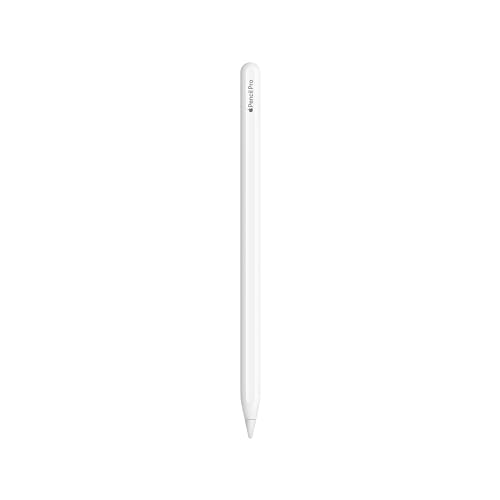
For anyone using Apple Pencil Pro alongside the new window management, the combination opens creative workflows that previously required workarounds. You can keep a reference image floating in a compact window while you sketch in Procreate, then flick it aside temporarily with a three-finger swipe without closing the reference entirely. The Pencil's squeeze gesture to switch tools continues working regardless of which window currently has focus. Here's where to buy the Apple Pencil Pro https://www.amazon.com/dp/B0D3J71RM7?tag=zoneofmac-20
Developers testing apps benefit from running their code in one window while keeping documentation or console output visible in adjacent windows. Xcode on iPad now supports the full window management capabilities, letting you arrange source files, Interface Builder canvases, and debugger output across your available screen space.
Accessibility & Clarity
Apple built several accessibility considerations into the new window system. VoiceOver users can navigate between windows using rotor gestures, and each window announces its app name and position on screen when focused. The title bar supports Dynamic Type, growing larger for users who enable increased text sizes in Settings. High contrast mode applies proper borders to window edges, ensuring they remain distinguishable against varied backgrounds.
For users with motor impairments, the snap zones provide larger target areas than free-form resizing would require. AssistiveTouch gestures can replicate the keyboard shortcuts, so you do not need fine cursor control to snap a window to a preset location.
Cognitive accessibility benefits from the consistency of behavior. Every app that adopts Apple's window frameworks behaves identically when you grab an edge or invoke a keyboard shortcut. Users who prefer simpler arrangements can keep Split View and Slide Over enabled without ever touching the advanced window management features.
Where the Friction Still Lives
Not every app embraces the new possibilities. Some third-party applications default to full-screen behavior and resist resizing below a certain threshold regardless of Desktop Mode settings. Check the App Store for updates if your essential apps behave this way, as most developers have begun adopting the new window size specifications.
Memory pressure becomes a consideration when you run many windows simultaneously. The iPad Air with 8GB of RAM handles four or five windows comfortably. The iPad Pro models with 16GB fare better, maintaining state across a larger number of concurrent windows. Battery consumption increases moderately when you keep the display filled with active content, so plugging into power during extended work sessions remains practical.
Quick-Action Checklist
- Open Settings, then Multitasking & Gestures, then enable Stage Manager if it is not already on
- In the same menu, scroll down and enable Desktop Mode for advanced window behaviors
- Drag any window corner to resize freely; drag edges for width-only or height-only adjustments
- Drag a window to any screen edge to reveal snap previews; release to snap into place
- Hold a window against the top edge to access preset multi-window layouts
- Press Globe + Tab to cycle through all open windows regardless of app
- Press Globe + Control + directional arrows to snap the focused window to halves or quarters
- Connect an external display via USB-C or Thunderbolt to extend your workspace
- Use three-finger swipe down on a window title bar to minimize it to the App Shelf
- Close unused apps periodically to free memory for the windows you need most

Related Posts
Your iPad Moves Files Six Ways and You're Probably Using One
Apr 08, 2026
Your iPad’s Magic Keyboard Has a Shortcut Layer Most Owners Never Open
Apr 07, 2026
Your Apple Pencil Tip Is Wearing Out and You Can’t Even Tell
Apr 06, 2026