
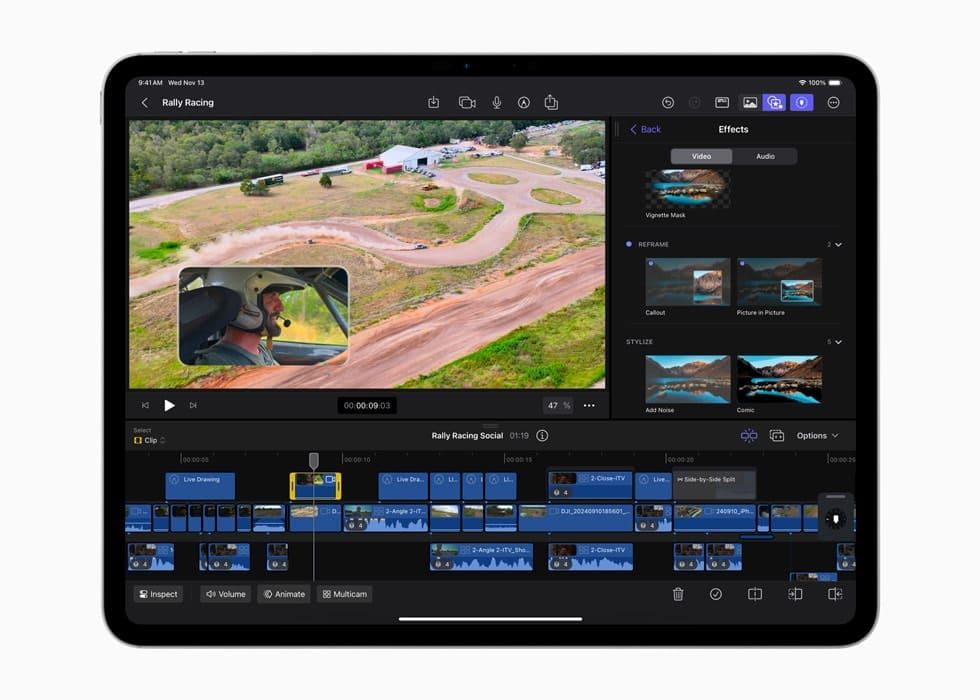

Final Cut Pro 3.0 for iPad is a real video editing application that handles 4K multicam, AI-powered transcript search, beat-synced cuts, and external monitor playback on an iPad Pro with an Apple M4 chip. That first sentence would have been fiction two years ago. The complication worth understanding before you reorganize your editing workflow: the iPad version still cannot touch custom LUTs, has no timeline markers, and caps multicam at four angles. The gap between what Final Cut Pro on iPad can do and what it cannot do is exactly where your decision lives.
Apple shipped Final Cut Pro for iPad 3.0 on January 28, 2026, and this update closes several gaps that kept the iPad version in toy territory. Transcript Search lets you type a word and jump directly to the moment someone says it in your footage. Visual Search does something stranger and more useful: describe what you are looking for ("the shot with the red bike") and it surfaces matching clips using on-device machine learning. Beat Detection maps the rhythm of any song onto your timeline as a visible grid, so aligning cuts to music becomes a spatial task rather than a guessing game. These are not gimmicks bolted onto a simplified editor. They run on the same Apple Neural Engine that powers the Mac versions.
What Actually Changed in Version 3.0
The headline feature for working editors is external monitor playback. Connect your iPad Pro to any external display via USB-C, tap the More button below the viewer, enable External Monitor Playback, and your video fills the entire second screen during editing and playback. The iPad stays as your editing surface while the external monitor shows a clean, full-resolution preview. This single feature eliminates the biggest complaint professionals had about editing on a 13-inch display: you could not see your footage at any reasonable size while the timeline, effects panel, and browser were all open.
Montage Maker is the other addition that changes daily editing. Point it at a collection of clips, choose a song, and it identifies visual highlights, edits them to the beat, and auto-reframes everything for vertical social media formats. For anyone producing content across YouTube, Instagram, and TikTok simultaneously, this replaces an hour of manual reframing per project. The AI features (Transcript Search, Visual Search, and Montage Maker) require iPadOS 26 and work on any supported iPad. Beat Detection and external monitor playback work on iPadOS 18.6 or later.
Background exports with Live Activities tracking round out the update. Start an export on your M3 or M4 iPad Pro, switch to another app, and a Live Activity on your Lock Screen shows the progress bar. This sounds minor until you consider that a 20-minute 4K export previously meant staring at the Final Cut Pro interface with nothing else to do. Now you can answer email, review footage in Photos, or write your video description while the export finishes.
Where the Mac Version Still Wins (and Why It Matters)
Color grading is the hard line. Final Cut Pro on iPad has basic color correction tools, but no Color Wheels, no Color Curves, no Hue/Saturation Curves, and no support for custom LUTs. Apple’s own documentation states explicitly that "camera LUTs built into Final Cut Pro should not be confused with custom LUTs, which are not supported in Final Cut Pro for iPad." If your workflow depends on applying a branded color grade or matching footage to a client’s LUT package, you need the Mac version. There is no workaround.
Timeline markers do not exist on iPad. Neither does a timeline index. If you edit long-form content (podcasts, documentaries, corporate training) and rely on markers to annotate decisions, flag review points, or note sync issues, the iPad version will frustrate you. Compound clips are absent too, which limits how you organize complex sequences. You cannot detach audio from video, and slip and slide edits are not available.
Audio plugin support is another gap. The Mac version accepts third-party Audio Unit extensions. The iPad version does not. You get a single-band EQ and a simplified compressor. For music video work or anything requiring iZotope RX, Waves, or FabFilter processing, the Mac is the only option.
The saving grace is the one-way transfer path. Send any iPad project to a Mac for finishing, and all your edits, titles, and timing carry over. Color grade on the Mac, apply your custom LUTs, add markers, and export. You cannot send Mac projects back to iPad, but for most workflows, you would not need to. The iPad handles assembly, rough cuts, and on-location editing. The Mac handles the final grade and delivery.
Affiliate disclosure: some links in this article are Amazon Associate links. If you buy through them, Zone of Mac may earn a small commission at no extra cost to you, and we only recommend products that genuinely bring value to your Apple setup.
The iPad Pro Setup That Makes This Work
Final Cut Pro for iPad runs on any iPad with an M1 chip or later, plus the iPad (A16) and iPad mini (A17 Pro). But for serious editing, the 13-inch iPad Pro with the M4 chip is the only model that does not feel like a compromise. The M4 has a 10-core GPU and hardware-accelerated ProRes encoding, which means 4K exports finish significantly faster than on an M1 or M2 iPad. The 13-inch Ultra Retina XDR display with its 2,000-nit peak HDR brightness lets you evaluate HDR footage without an external reference monitor, something even a MacBook Air cannot do.
The keyboard situation matters more than most people realize. Final Cut Pro on iPad supports a full set of keyboard shortcuts that mirror the Mac version: J-K-L for shuttle control, I and O for setting in and out points, Command-B for blade cuts, and dozens more. Editing without a physical keyboard means tapping tiny timeline buttons with your finger, which is technically possible but painfully slow for anything longer than a 60-second clip. The Magic Keyboard for iPad Pro adds a function row with dedicated volume, brightness, and media controls, a glass trackpad with haptic feedback for precision timeline scrubbing, and a USB-C passthrough port for charging while an external SSD occupies the iPad’s own USB-C port. The hinge holds the iPad at a comfortable viewing angle, though the cantilever design can feel top-heavy when used on a lap. On a desk or table, the typing feel is nearly identical to a MacBook Pro keyboard, with satisfying key travel and consistent actuation across every key.
Pick up the Apple Magic Keyboard for iPad Pro 13-inch (M4) on Amazon
Storage is the other constraint that a single accessory solves completely. The base iPad Pro ships with 256 GB, which fills up after roughly 90 minutes of 4K ProRes footage. Final Cut Pro 2.0 added the ability to edit projects directly from an external SSD, so you can keep your entire media library on a portable drive and edit from it without copying files to internal storage first. The Samsung T7 Shield connects via USB-C, reads at up to 1,050 MB/s and writes at 1,000 MB/s, which is fast enough for smooth 4K timeline scrubbing with no dropped frames. The rubber exterior and IP65 dust and water resistance mean it survives being tossed into a camera bag between shoots. One edge case worth noting: if the drive disconnects during an active edit (someone bumps the cable, the USB-C connector is not fully seated), you can lose unsaved changes. Always use the eject function in Files before physically unplugging.
You can grab the Samsung T7 Shield 1TB Portable SSD here
At-A-Glance: Final Cut Pro iPad vs. Mac in 2026
| Capability | iPad Pro (FCP 3.0) | Mac (FCP 11) |
|---|---|---|
| 4K Multicam Editing | Up to 4 angles | Unlimited angles |
| AI Transcript Search | Yes (iPadOS 26) | Yes |
| Color Grading Tools | Basic corrections only | Color Wheels, Curves, Custom LUTs |
| External Monitor Output | Yes (new in 3.0) | Yes |
| External SSD Editing | Yes (USB-C) | Yes (USB-C, Thunderbolt) |
| Beat Detection | Yes (new in 3.0) | Yes |
| Markers and Timeline Index | No | Yes |
| Third-Party Audio Plugins | No | Yes |
How Apple Creator Studio Changes the Math
Apple launched Apple Creator Studio in January 2026, bundling Final Cut Pro, Logic Pro, Motion, Compressor, MainStage, and Pixelmator Pro into a single subscription. New subscribers pay $12.99 per month or $129 per year. Students and educators pay $2.99 per month. If you already had a standalone Final Cut Pro for iPad subscription at the legacy $4.99 per month rate, that pricing is grandfathered and you keep access to the Creator Studio versions of the apps on iPad.
The bundle makes the iPad version considerably more attractive for anyone who also uses Logic Pro for music or Pixelmator Pro for image work. Previously, subscribing to Final Cut Pro and Logic Pro separately on iPad cost $9.98 per month. The Creator Studio bundles both plus four additional pro apps for $3 more. ZOM covered the full breakdown of the Apple Creator Studio bundle when it launched, including which apps are new to iPad for the first time.
Join The Inner Circle For Serious Apple Users
Exclusive Apple tips. Free to join.
Check your inbox for a confirmation link.
Something went wrong. Please try again.
The Workflow That Actually Works on iPad
The strongest use case for Final Cut Pro on iPad is not replacing a Mac editing station. It is extending one. Shoot on location with an iPhone, import directly to the iPad over AirDrop or a USB-C cable, do your rough cut on the iPad Pro with the Magic Keyboard while the footage is still fresh, then send the project to a Mac for color grading and final delivery. The iPad excels at the assembly and review phase: scrubbing through footage, making selects, building a rough timeline, trying different music beds with Beat Detection, and searching for specific moments with Transcript Search.
Social media creators have an even simpler path. Shoot, edit, and publish entirely on iPad. Montage Maker handles the vertical reformat. The built-in share options push directly to YouTube, Vimeo, and social platforms. For short-form content under five minutes, every tool you need exists in Final Cut Pro 3.0 without touching a Mac. The 120fps timeline support (added in version 2.1) means slow-motion footage from an iPhone 17 Pro plays back natively without conforming headaches.
One friction point that only surfaces after extended use: the iPad version organizes projects in a flat list rather than the Libraries and Events structure on Mac. With five or six active projects, this is fine. With twenty, finding a specific project involves scrolling. There is no search function for the project browser itself. Naming conventions become critical. I would suggest prefixing every project with a date code (2026-02-ClientName) to keep the list navigable. The right iPad accessories also make a meaningful difference in how comfortable long editing sessions feel.
Accessibility and Clarity
Final Cut Pro on iPad supports VoiceOver for navigating the interface, and the large touch targets in the timeline are easier to hit than the small click targets in the Mac version for users with limited fine motor control. The Transcript Search feature has a secondary accessibility benefit: instead of visually scanning through hours of footage, users with low vision can search for spoken content by typing text. Beat Detection’s visual grid overlay uses high-contrast lines against the timeline background, making rhythm-aligned editing accessible to users who cannot rely on audio cues alone.
The Magic Keyboard’s trackpad eliminates the need for precise finger targeting on small timeline elements, which reduces fatigue for users with repetitive strain conditions. One limitation: the Effects panel uses small icon buttons without text labels in some views, which can be difficult to distinguish for users relying on magnification. Enabling VoiceOver or Zoom in iPadOS Settings before opening Final Cut Pro provides readable labels for every control. The overall information architecture follows a predictable left-to-right flow (browser, viewer, inspector) with consistent placement across sessions, which reduces cognitive load for users with ADHD or processing differences.
Quick-Action Checklist: Set Up Final Cut Pro on iPad Pro
- Update your iPad Pro to iPadOS 26 (Settings > General > Software Update) to unlock Transcript Search, Visual Search, and Montage Maker
- Subscribe to Apple Creator Studio ($12.99/month) or use your existing standalone Final Cut Pro subscription
- Connect your Magic Keyboard and enable keyboard shortcuts (Final Cut Pro > Settings > Keyboard Shortcuts)
- Plug in your external SSD via USB-C and verify it appears in the Files app before opening Final Cut Pro
- Create a new project, set the resolution to 4K and the frame rate to match your source footage (this cannot be changed later)
- Enable External Monitor Playback (tap More below the viewer > External Monitor Playback) when connected to an external display
- Use Transcript Search (magnifying glass icon in the browser) to find specific spoken words in your imported clips
- Run Beat Detection on your music track (select the audio clip > tap Beats) to reveal the beat grid for rhythm-aligned cuts
- Export in the background (Share > Export > switch to another app) and monitor progress via the Live Activity on your Lock Screen
- Send the finished project to Mac for color grading if needed (File > Send to Mac)

Olivia Kelly
Staff writer at Zone of Mac with over a decade of Apple platform experience. Verifies technical details against Apple's official documentation and security release notes. Guides prioritize actionable settings over speculation.
Related Posts
Your iPad Moves Files Six Ways and You're Probably Using One
Apr 08, 2026
Your iPad’s Magic Keyboard Has a Shortcut Layer Most Owners Never Open
Apr 07, 2026
Your Apple Pencil Tip Is Wearing Out and You Can’t Even Tell
Apr 06, 2026