
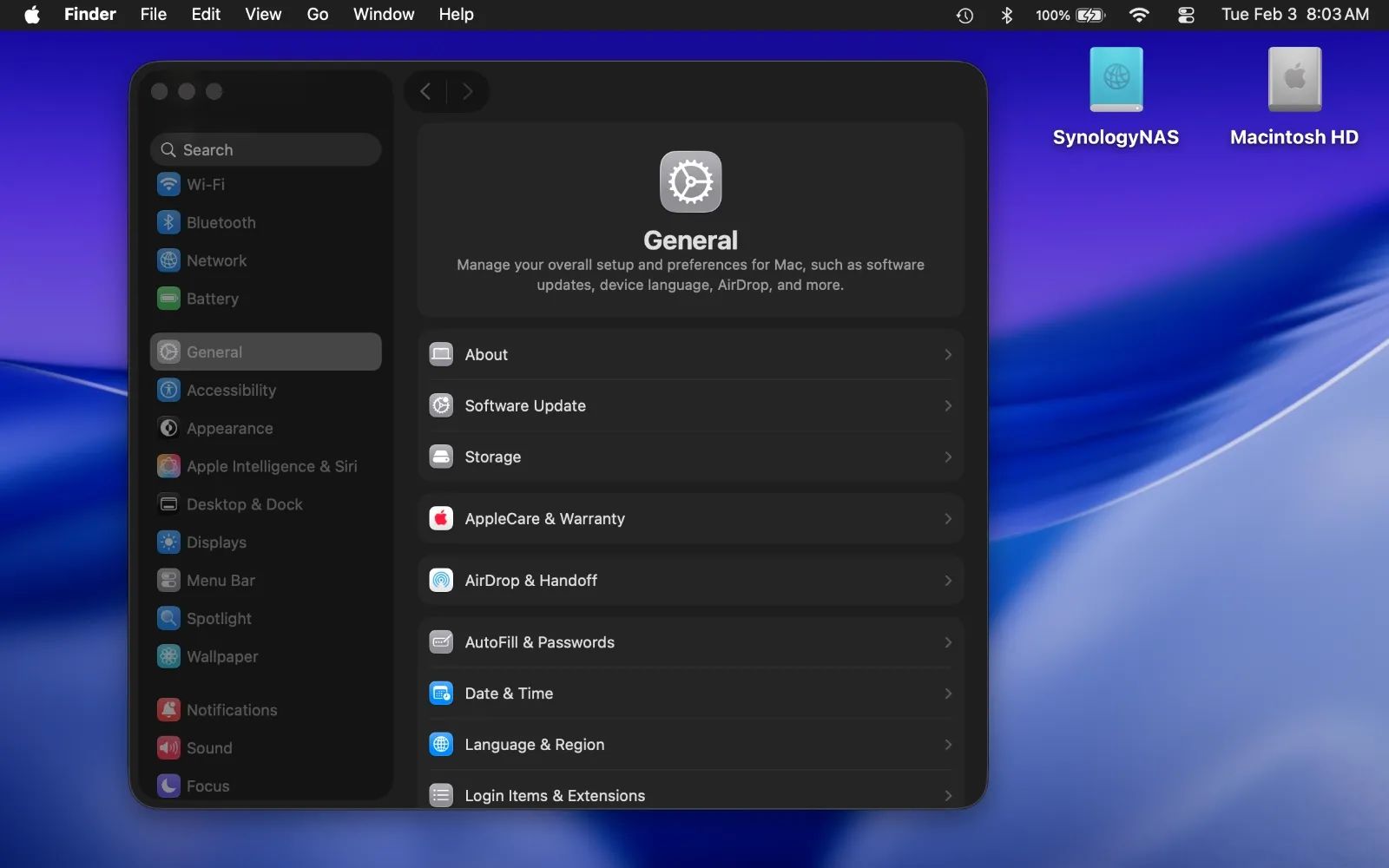
Taking a screenshot on Mac in macOS Tahoe requires nothing more than a keyboard shortcut. Press Shift-Command-3 to capture your entire screen instantly, Shift-Command-4 to select a specific area with a crosshair, or Shift-Command-5 to open the full Screenshot app toolbar with capture and recording options. Add Control to any of those combos, and the image goes straight to your clipboard instead of saving as a file.
Key Takeaways
- Press Shift-Command-3 for an instant full-screen capture saved to your Desktop
- Press Shift-Command-4 to drag a crosshair and capture any selected area
- Press Shift-Command-5 to open the Screenshot app toolbar with timer, save location, and recording options
- Add Control to any screenshot shortcut to copy the image to your clipboard instead of saving a file
- macOS Tahoe 26 introduces HDR screenshot capture in HEIF format for supported displays
- Disable "Show Floating Thumbnail" in Screenshot app Options if captures fail to save after interacting with the preview
Screenshot on Mac: At-A-Glance
The following table summarizes the four primary screenshot methods in macOS Tahoe and what each one does best.
| Method | Shortcut | Captures | Best For |
|---|---|---|---|
| Full Screen | Shift-Command-3 | Entire display | Quick reference saves |
| Selection | Shift-Command-4 | Dragged area | Cropping specific UI elements |
| Screenshot App | Shift-Command-5 | Screen, window, or selection + recording | Timed captures and recordings |
| Touch Bar | Shift-Command-6 | Touch Bar display | MacBook Pro Touch Bar content |
That covers the fast version. But there is a lot more going on under the surface of these shortcuts than most Mac owners realize, and macOS Tahoe 26 added a genuinely useful new feature that changes how screenshots look on high-end displays.
The Three Core Shortcuts (And One Hidden Modifier)
Shift-Command-3 is the workhorse. Press it, hear the camera shutter sound (if your volume is up), and a PNG file lands on your Desktop labeled "Screen Shot" followed by the date and time. Done. No menus, no previews if you skip the floating thumbnail.
Shift-Command-4 transforms your cursor into a crosshair with pixel coordinates. Click and drag to select any rectangular area. Release, and that selection saves as a file. But here is where it gets interesting: after pressing Shift-Command-4, tap the Spacebar before clicking anything. The crosshair becomes a small camera icon, and now hovering over any window highlights it with a blue overlay. Click, and macOS captures that entire window, complete with its drop shadow, as a standalone image. That shadow looks polished in presentations and documentation.
The hidden modifier is Control. Hold Control along with any of the three screenshot shortcuts, and macOS skips saving a file entirely. The screenshot goes straight to your clipboard. Paste it directly into Messages, Mail, Notes, Slack, wherever. For anyone who screenshots purely to share something immediately and not to archive it, this is the fastest path. I think most Mac users save screenshots to the Desktop first and then drag them somewhere else, which is two steps more than necessary.
Shift-Command-6 captures the Touch Bar on MacBook Pro models that have one. If your Mac does not have a Touch Bar, this shortcut does nothing. Straightforward.
The Screenshot App Toolbar Changes Everything
Shift-Command-5 opens the Screenshot app toolbar, and this is where macOS Tahoe genuinely separates itself from other operating systems. A floating bar appears at the bottom of the screen with five capture modes (from left to right): Capture Entire Screen, Capture Selected Window, Capture Selected Portion, Record Entire Screen, and Record Selected Portion.
Affiliate disclosure: some links in this article are Amazon Associate links. If you buy through them, Zone of Mac may earn a small commission at no extra cost to you, and we only recommend products that genuinely bring value to your Apple setup.
The Options menu in this toolbar is where the real customization lives. You can change where screenshots save (Desktop, Documents, Clipboard, Mail, Messages, or Preview), set a 5-second or 10-second timer delay for capturing menus and hover states that disappear the moment you press a key, toggle the floating thumbnail preview on or off, and choose whether to show the mouse pointer in captures.
For screen recordings, Options adds microphone selection so you can narrate as you record. Every one of these settings persists between sessions, so you set them once and forget about them. The one small friction point: the "Show Floating Thumbnail" toggle lives inside the Screenshot app only. There is no System Settings pane for it, so if you want to change it, you need to open the toolbar with Shift-Command-5 each time.
The Floating Thumbnail (And a macOS Tahoe Bug Worth Knowing About)
When you take a screenshot, a small thumbnail preview appears briefly in the bottom-right corner of your screen. You can click it to open a quick markup editor, drag it directly into a document or message, or swipe it to the right to dismiss it and save immediately. That drag-to-insert move is surprisingly useful for dropping annotated screenshots into Apple Notes or Keynote slides without ever opening Finder.
There is a known quirk specific to macOS Tahoe 26, though. If you interact with the floating thumbnail, like clicking it or starting to drag it and then canceling, the screenshot can fail to save entirely. It simply vanishes. Apple has acknowledged the behavior, and the workaround is clean: open Shift-Command-5, click Options, and uncheck "Show Floating Thumbnail." Your screenshots will save directly without the preview step, and the bug disappears. If you value the thumbnail preview, just avoid half-interacting with it. Either drag it somewhere deliberately or let it fade away on its own.
HDR Screenshot Capture: New in macOS Tahoe 26
This is the genuinely new capability in macOS Tahoe 26 that Apple added quietly. On a Mac with a compatible display (Apple's Liquid Retina XDR panels, Pro Display XDR, and similar HDR-capable screens), you can now capture screenshots in HDR.
Open the Screenshot app with Shift-Command-5, click Options, and look for the format selector. You get two choices: SDR, which saves as PNG (the universal standard, compatible with everything), and HDR, which saves in HEIF format. HDR screenshots preserve the extended brightness range of content displayed on your screen, which means specular highlights in photos, bright UI elements, and HDR video stills retain their dynamic range instead of being clipped to the SDR ceiling.
The practical use case: if you are working on HDR photo or video content and need reference captures that accurately represent what you see on your XDR display, SDR screenshots have always been a compromise. They look fine, but they flatten the highlights. HDR capture fixes that.
The trade-off is compatibility. HEIF files do not open everywhere. Sharing an HDR screenshot to someone on Windows or to a web form that only accepts JPEG and PNG means conversion first. For most daily screenshot needs, SDR remains the right default. HDR is for when accuracy to the display matters more than universal compatibility.
Apple documents this feature on their macOS screenshot support page, which is worth bookmarking as the canonical reference for screenshot functionality across macOS versions.
Getting More From Screenshots With the Right Keyboard
Screenshot shortcuts on Mac are entirely keyboard-driven, which means the keyboard you use genuinely matters for this workflow. Dedicated Mac keyboards place the Command key in the correct position relative to Shift without the mental remapping that Windows-layout boards require. The Logitech MX Keys S for Mac is built specifically around this principle. Its Mac-native key layout means Shift-Command-3, Shift-Command-4, and Shift-Command-5 land exactly where your fingers expect them. The Smart Actions feature lets you program custom key sequences, so you could bind a single key to open the Screenshot app toolbar or trigger a clipboard screenshot. The backlit keys with Smart Illumination also make it easy to find the right shortcut combo when you are working in low light, which is a small thing until you are fumbling for the Command key at 11 PM.


Here's where to grab the Logitech MX Keys S for Mac and start using these shortcuts more efficiently https://www.amazon.com/dp/B0BXX499PC?tag=zoneofmac-20
Changing Where Screenshots Go (And What They Are Named)
By default, every screenshot saves to your Desktop with the filename "Screen Shot [date] at [time].png." After a week of heavy screenshotting, your Desktop looks like a tile floor. The Screenshot app toolbar (Shift-Command-5, then Options) lets you redirect saves to any folder. Documents, a dedicated "Screenshots" folder, or even directly to Clipboard if you never want files at all.
For renaming, macOS does not offer a built-in batch rename that changes the "Screen Shot" prefix globally, but Finder's batch rename tool (select multiple files, right-click, Rename) handles it after the fact. Select all the screenshots, choose "Replace Text," swap "Screen Shot" for whatever prefix you want, and done. If you use Quick Notes in macOS Tahoe as a capture workflow alongside screenshots, pairing renamed files with note links keeps everything organized without third-party tools.
Join The Inner Circle For Serious Apple Users
Exclusive Apple tips. Free to join.
Accessibility and Clarity
Screenshot tools in macOS Tahoe are fully accessible through VoiceOver. Every button in the Shift-Command-5 toolbar is labeled, and VoiceOver announces the capture mode, timer status, and save location as you navigate with keyboard focus. The keyboard-only workflow means no mouse precision is required to take a full-screen or clipboard capture, which matters significantly for users with motor limitations.
Instructions in this guide use spatial and textual descriptions rather than color references (for example, "the Close button in the top-left corner" rather than "the red button"), so the steps work regardless of display settings, color filters, or visual ability. For a broader look at how macOS Tahoe supports users with visual, auditory, and motor differences, the Mac accessibility features guide covers the full range of built-in tools.
The consistent keyboard shortcuts (Shift-Command-3, 4, 5) also reduce cognitive load for users with ADHD or learning differences. No nested menus to navigate, no multi-step wizards, no modal dialogs. Press the shortcut, capture the screen, move on.
Quick-Action Screenshot Cheat Sheet
Copy and keep this list. Every screenshot shortcut available in macOS Tahoe, in one place.
- Shift-Command-3: Capture full screen, save to file
- Shift-Command-4: Capture selected area, save to file
- Shift-Command-4, then Spacebar: Capture a specific window
- Shift-Command-5: Open Screenshot app toolbar
- Shift-Command-6: Capture Touch Bar (MacBook Pro only)
- Control + Shift-Command-3: Capture full screen to clipboard
- Control + Shift-Command-4: Capture selected area to clipboard
- Control + Shift-Command-5: Opens toolbar (use Options for clipboard save)
- Shift-Command-5, then Options, then Timer: Set 5-second or 10-second delay
- Shift-Command-5, then Options, then HDR: Enable HDR capture in HEIF format (macOS Tahoe 26, compatible displays only)

Related Posts
macOS Tahoe 26.4.1 Fixes a Hidden Wi-Fi Flaw on M5 MacBooks
Apr 11, 2026
Seven Mac Accessories That Turn a Good Desk Into a Great One
Apr 10, 2026
Your Mac Has a Networking Time Bomb That Only a Reboot Defuses
Apr 09, 2026