
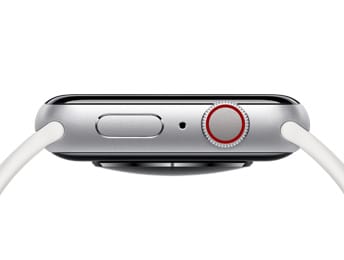

Your Apple Watch has four distinct reset methods in watchOS 26, and each one does something genuinely different — a soft restart, a force restart, a full factory erase, and unpairing from your iPhone — so knowing which one to reach for when things go sideways is the kind of knowledge that’ll save you real time and real data. Here’s the thing, though: picking the wrong method when you’re selling or giving away your Apple Watch leaves Activation Lock turned on, which means the next owner can’t set it up at all, and you’ll get a frustrated text message from someone you were trying to do a nice thing for. Or maybe you force restart your Apple Watch when a simple soft restart would’ve handled the problem just fine, and now that 45-minute outdoor walk you were tracking just vanished into thin air. Every single one of these four methods exists for a specific reason, and I’m gonna walk you through all of them so you always grab the right tool for the job.
I’ve put together a complete breakdown below, starting with the gentlest option and working our way up to the full nuclear erase, so you can jump straight to whatever your Apple Watch needs right now.
 Ad
AdThe Soft Restart That Fixes Most Problems
This is where you start, my friend, because a soft restart on your Apple Watch fixes the vast majority of everyday weirdness — sluggish animations, apps that won’t load after a watchOS 26 update, complications that stopped refreshing, and that general “something feels off” sensation you can’t quite pin down. Here’s how you do it: press and hold the Side Button on your Apple Watch until a screen full of sliders appears, then tap the power icon at the top right and slide the Power Off slider all the way across. Wait about ten seconds once the screen goes dark, then press and hold the Side Button again until the Apple logo shows up, and you’re back in business. The whole process takes roughly 30 seconds from start to finish.
One important detail that catches people off guard every single time — you absolutely must take your Apple Watch off its charger before you try this, because watchOS 26 won’t show you the power-off sliders while the watch is charging. Instead, you’ll see a completely different screen with charging information, and no amount of button-holding will get you to that power menu.
Now here’s a friction observation that’s worth mentioning: the sliders screen in watchOS 26’s Liquid Glass design shows your Medical ID and an Emergency SOS slider sitting right alongside the Power Off slider, and the first time you see all three together, you might genuinely hesitate because it looks like you’re one wrong swipe away from calling 911. You’re not — just tap the power icon and slide the correct slider — but Apple could’ve done a better job separating these options visually.
When Your Watch Won’t Respond — Force Restart
Sometimes your Apple Watch screen is completely frozen, touch isn’t registering at all, and that soft restart I just described isn’t possible because you can’t interact with the display to reach those sliders. That’s exactly when you need a force restart. Press and hold both the Side Button and the Digital Crown at the same time, keep holding them together for at least 10 seconds, and your Apple Watch screen will go black and then the Apple logo will appear as it boots back up. That’s it.
A couple of things to know here: if you’ve got an Apple Watch Ultra, ignore the Action Button entirely during this process and use only the Side Button plus the Digital Crown, because the Action Button doesn’t play a role in force restarts. Also, a force restart doesn’t erase any of your data, settings, or apps — everything stays exactly where it was — but there’s one exception that matters, and that’s any in-progress workout that hadn’t been saved yet. A force restart can cause unsaved workout data to vanish, so if your watch froze mid-run and you force restart, that activity might be gone.
Here’s my honest opinion on this one: Apple really should surface force restart instructions somewhere accessible on the Apple Watch itself, maybe in a low-level recovery screen or even etched on the back of the case, because if your screen is frozen solid, you obviously can’t navigate to Settings to look up how to fix it, and not everyone has their iPhone handy to search for the answer.
At-A-Glance Comparison Table
| Method | Buttons / Path | Data Erased? | Activation Lock Removed? | Backup Created? |
|---|---|---|---|---|
| Soft Restart | Side Button hold > Power Off slider | No | N/A | No |
| Force Restart | Side Button + Digital Crown 10 sec | No | N/A | No |
| Factory Erase (Watch) | Settings > General > Reset > Erase All | Yes | No | No |
| Factory Erase (iPhone) | Watch app > General > Reset > Erase | Yes | Yes | No |
| Unpair from iPhone | Watch app > All Watches > Unpair | Yes | Yes | Yes |
Factory Erase — The Nuclear Option You’ll Need Someday
There will come a day when you need to wipe your Apple Watch completely clean, whether that’s because you’re selling it, trading it in, giving it to a family member, or troubleshooting a problem so persistent that nothing else has worked. You’ve got two paths to a factory erase, and they do not produce the same result, which is critically important to understand.
Path one is directly on the Apple Watch: open Settings, go to General, scroll down to Reset, and tap Erase All Content and Settings. Your Apple Watch will ask for your passcode, confirm you want to erase, and then wipe everything. Path two is from your paired iPhone: open the Watch app, go to My Watch, tap General, tap Reset, and then tap Erase Apple Watch Content and Settings. Both paths erase your Apple Watch. Only one of them removes Activation Lock.
This is where I need to be blunt with you, my friend, because this trips up more people than almost anything else in the entire Apple ecosystem. When you erase directly from the Apple Watch, Activation Lock stays active. The watch is wiped clean, sure, but it’s still tied to your Apple Account, and whoever gets that watch next will hit a wall during setup asking for your password. When you erase from the iPhone — or better yet, unpair from the iPhone, which I’ll cover next — it prompts you for your Apple Account password during the process, which disables Activation Lock and frees the watch for its next owner.
Apple Pay cards get removed instantly during either erase method, and your health data stays preserved on your iPhone and in iCloud, so you won’t lose your historical fitness information. There’s also a forgotten-passcode erase method where you place the Apple Watch on its charger, press and hold the Side Button until the Power Off screen appears, then press and hold the Digital Crown until you see the option to reset — but this method also does not remove Activation Lock, so you’d still need to remove the watch from your Apple Account at iCloud.com afterward.
I’ll say it plainly: the fact that the most visible and obvious reset method on the Apple Watch itself — the one right there in Settings — doesn’t remove Activation Lock is a genuine design problem that catches people every single time they sell or give away a watch. Apple could fix this with a single prompt during the on-watch erase flow, and I genuinely don’t understand why they haven’t.
Unpair From iPhone — The Method That Actually Does Everything
Here we go — this is the one method that handles everything in a single action, and it’s the one you should reach for whenever you’re selling, trading in, or switching to a new Apple Watch. Open the Watch app on your iPhone, tap My Watch at the bottom, tap All Watches at the top, find your Apple Watch in the list, tap the little info icon next to it, and then tap Unpair Apple Watch.
What happens next is genuinely impressive for a single button tap: your iPhone automatically creates a complete backup of your Apple Watch, then it removes Activation Lock so the next owner can set it up fresh, and finally it erases everything on the watch itself. Three critical steps, one action. This is the gold standard.
When your iPhone and Apple Watch share the same Apple Account and iCloud account, that backup restores seamlessly if you pair a new Apple Watch or re-pair the same one later — all your apps, watch face configurations, health settings, and notification preferences come right back. Speaking of watch face setups, if you’ve spent serious time dialing in your complications and layouts, you’ll appreciate knowing that those customizations are part of the backup, and you can learn even more about getting your Apple Watch face exactly right in this guide to customizing every Apple Watch face in watchOS 26.
Beyond the standard features, your Apple Watch also has a surprising number of accessibility options tucked away in watchOS 26 that most people never discover, and pairing fresh after an unpair is a great time to explore those hidden watchOS accessibility features on Apple Watch that might make your daily experience even better.
Which Reset Fixes Your Specific Problem
Let’s match your problem to the right method so you don’t waste time or accidentally erase something you didn’t mean to.
Sluggish performance or minor glitches: start with a soft restart. It handles about 80 percent of everyday oddness.
Frozen screen, completely unresponsive: force restart with the Side Button and Digital Crown held together for 10 seconds.
Persistent battery drain after the watchOS 26.3 update: patience first — your Apple Watch reindexes data after every major update, and that process can take 24 to 48 hours while hammering your battery. Wait it out, then try a soft restart. If battery drain continues after 72 hours, unpair and re-pair your Apple Watch without restoring from backup as an absolute last resort.
Selling or giving away your Apple Watch: always, always unpair from iPhone first. This is non-negotiable.
Forgot your passcode: use the charger erase method — place on charger, hold Side Button, then hold Digital Crown to reset — and then go to iCloud.com to remove the watch from your Apple Account and clear Activation Lock.
And while you’re getting your Apple Watch dialed in after a reset, it’s a perfect time to set up your sleep tracking properly so you can decode your Apple Watch sleep score and actually wake up feeling energized.
Join The Inner Circle For Serious Apple Users
Exclusive Apple tips. Free to join.
Quick-Action Checklist
Soft Restart: press and hold Side Button, tap power icon, slide Power Off slider, then hold Side Button to restart.
Force Restart: press and hold Side Button and Digital Crown together for 10 seconds.
Factory Erase from Apple Watch: Settings, then General, then Reset, then Erase All Content and Settings.
Factory Erase from iPhone: Watch app, then General, then Reset, then Erase Apple Watch Content and Settings.
Unpair from iPhone: Watch app, then All Watches, then tap info icon, then Unpair Apple Watch.
Forgot Passcode Reset: place on charger, hold Side Button until Power Off screen, then hold Digital Crown until Reset option appears.

Related Posts
Apple Watch Cellular vs GPS: The Honest Buying Guide for Every Model in 2026
Mar 01, 2026
The Apple Watch Workout Settings That Quietly Change How You Train
Feb 28, 2026
Every Apple Watch That Runs watchOS 26 and the Features Each One Gets
Feb 24, 2026