
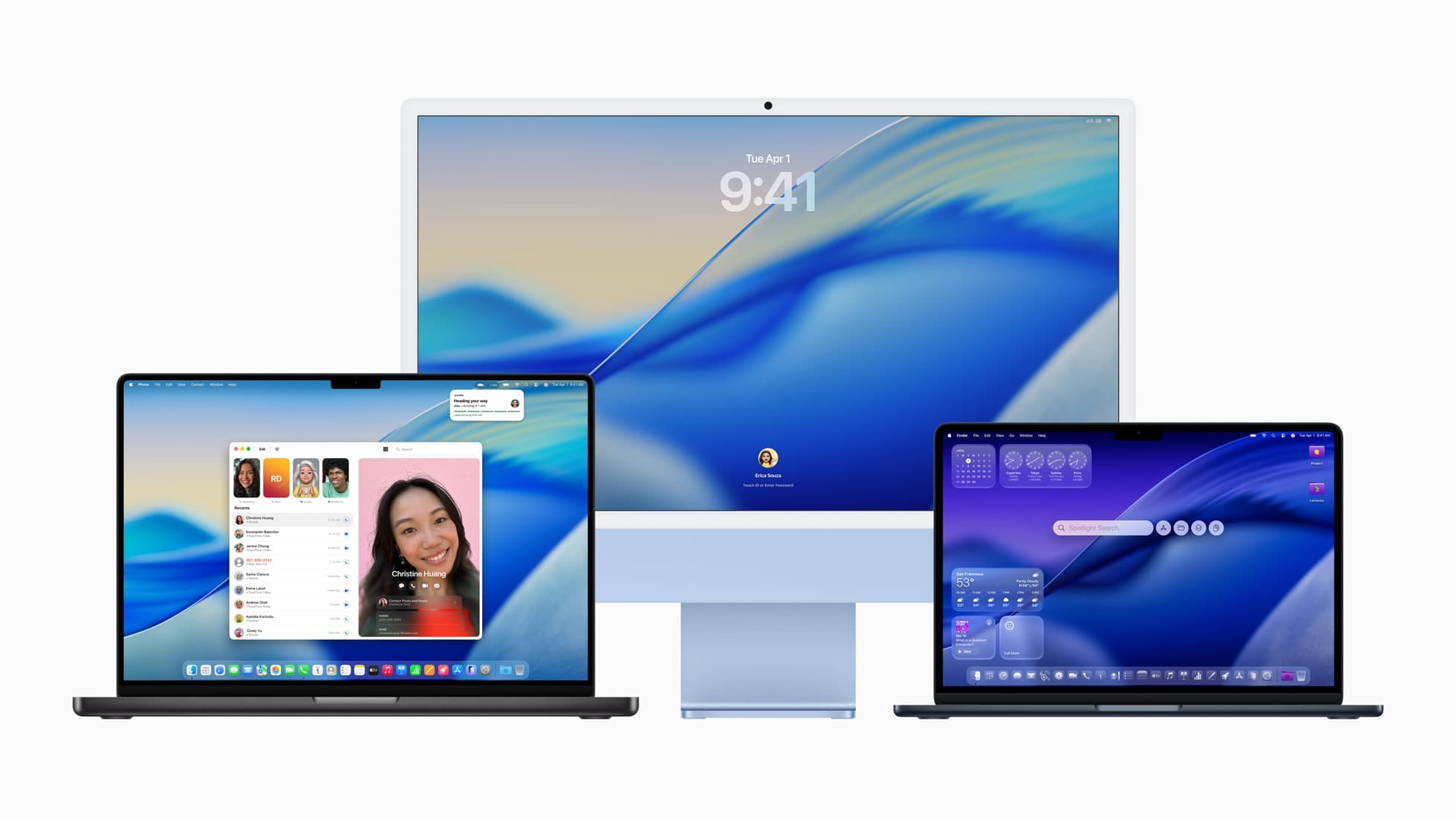

macOS Tahoe runs on every Mac with Apple Silicon and exactly four Intel models. That alone answers the compatibility question for most people. But knowing your Mac can install Tahoe is only half the picture — the features you actually get depend on which chip sits inside your machine, and the gap between an M1 MacBook Air and an Intel MacBook Pro running the same operating system is wider than Apple’s marketing page admits.
The Liquid Glass redesign, Apple Intelligence integration, Live Translation, and the new Phone app all landed in macOS Tahoe 26 when it shipped on September 15, 2025. Six months and several updates later, the current version is macOS Tahoe 26.3.1, with 26.4 arriving any day now. If your Mac made the cut, updating is straightforward. If it didn’t, the situation is more complicated than simply buying the cheapest new Mac on the shelf.
The Complete Compatibility List
Apple published the full list on its support page, and it breaks down cleanly by product line.
MacBook Air: Every model from the M1 (2020) through the M4 (2025) is supported. That includes the 13-inch M1, the 13-inch and 15-inch M2 (2022–2023), the 13-inch and 15-inch M3 (2024), and both M4 sizes from 2025. The MacBook Air has the cleanest upgrade path of any Mac — every Air with Apple Silicon runs Tahoe without qualification.
MacBook Pro: Supported models stretch from the 13-inch M1 (2020) and the 2021 14-inch and 16-inch M1 Pro and M1 Max machines all the way through the current M5 Pro and M5 Max lineup introduced in January 2026. Two Intel models also made the list: the 16-inch 2019 MacBook Pro and the 13-inch 2020 MacBook Pro with four Thunderbolt 3 ports. The two-port 2020 model is not supported — only the four-port configuration qualifies.
MacBook Neo: The brand-new MacBook Neo with its A18 Pro chip shipped with macOS Tahoe 26.3.1 preinstalled. It runs Tahoe natively, though its mobile-derived chip means certain pro workflows behave differently than they do on M-series hardware.
iMac: The M1 24-inch (2021), M3 24-inch (2023), and M4 24-inch (2024) are all supported. One Intel model squeaks in: the 27-inch 5K iMac from 2020. If you have a 2019 iMac or older, Tahoe will not install.
Mac mini: The M1 (2020), M2 and M2 Pro (2023), and M4 and M4 Pro (2024) are all compatible. No Intel Mac mini made the cut.
Mac Studio: Every Mac Studio ever made runs Tahoe — the M1 Max and M1 Ultra (2022), M2 Max and M2 Ultra (2023), M3 Ultra (2025), and M4 Max (2025).
Mac Pro: The 2019 Intel Mac Pro with its Xeon W processor is supported, along with the M2 Ultra Mac Pro from 2023. That 2019 tower is the only Intel desktop that runs Tahoe.
What Intel Macs Actually Lose
Here is where the compatibility list gets misleading. The four Intel models that technically run macOS Tahoe — the 2019 16-inch MacBook Pro, the 2020 four-port 13-inch MacBook Pro, the 2020 iMac, and the 2019 Mac Pro — can install and boot the operating system. They get the Liquid Glass visual redesign, the updated Finder, and most of the standard macOS improvements.
What they do not get is Apple Intelligence. None of it. No Writing Tools, no Image Playground, no Genmoji, no intelligent Siri, no Live Translation, no AI-powered Spotlight summaries. Apple Intelligence requires Apple Silicon with at least 8 GB of unified memory, and every Intel Mac fails that test by architecture alone.
That is a massive feature gap hiding behind a single line in a compatibility chart. If you are running a 2019 Mac Pro with a $6,000 original sticker price, your machine boots the same OS as a $599 MacBook Neo, but the Neo gets Apple Intelligence features the Pro cannot touch. The Neural Engine in the A18 Pro chip handles on-device AI processing that no amount of Intel Xeon cores can replicate.
The practical impact: writing suggestions will not appear in Mail or Messages, smart Spotlight searches will return basic results instead of AI-enhanced ones, and the Shortcuts app will lack the intelligent actions that Tahoe’s marketing highlights. If Apple Intelligence matters to your workflow, only Apple Silicon Macs deliver.
The Update Timeline That Matters
macOS Tahoe has shipped several meaningful updates since its September 2025 launch, and each one added features worth knowing about.
Version 26.1 introduced the optional Liquid Glass visual mode, Apple Music AutoMix over AirPlay, and improved FaceTime audio quality in poor network conditions.
Version 26.2 brought Edge Light for video calls, auto-generated podcast chapters, game library filters with controller support, and the ability to verify AirDrop recipients with codes.
Version 26.3 focused on security patches, and 26.3.1 — the current release — added support for the 2026 Studio Display and Studio Display XDR along with several bug fixes.
Version 26.4 is in release candidate status right now. When it ships, it will add a new Charge Limit slider that lets you cap your MacBook battery between 80 and 100 percent, bring back Safari’s Compact tab layout, and introduce eight new emoji characters. Our full breakdown of the macOS Tahoe 26.4 beta features covers what to expect.
One thing I appreciate about how Apple has structured these updates: if your Mac appears on the compatibility list, it receives every point release. There is no secondary tier where older Macs get updates later or miss point release features, which was a concern some users had after the way Intel Macs were treated during the macOS Ventura cycle. The exclusion is binary — you either run Tahoe with all its updates, or you do not run it at all.
Should You Update an Older Compatible Mac?
The 2019 and 2020 Intel machines that qualify for Tahoe present a genuine decision. macOS Tahoe is the last macOS version that will support any Intel Mac. Apple has confirmed that macOS 27 will require Apple Silicon exclusively. That means your Intel Mac is on its final operating system, and the question becomes whether Tahoe runs well enough on your hardware to justify the upgrade from macOS Sequoia.
The Liquid Glass interface does ask more of the GPU than Sequoia’s design did. The translucent menubar, glass-effect sidebars, and layered dock icons are not free — they require compositing work that hits Intel integrated graphics harder than it hits Apple Silicon’s unified architecture. On a 2019 Mac Pro with a dedicated AMD GPU, the visual load is negligible. On a 2020 iMac with integrated Intel Iris Plus Graphics, you might notice window animations that feel a half-beat slower than they should, particularly when dragging windows between Spaces.
Storage matters too. Apple recommends 50 GB of free space for the Tahoe installation. On a 256 GB Mac that is already carrying years of files, that requirement eats a significant chunk. The installation process needs working room beyond the final OS footprint, and a cramped drive can stall the upgrade midway.
If your Intel Mac is your daily driver and you plan to keep using it through 2027, updating to Tahoe makes sense. You will receive security patches for the remainder of Tahoe’s support window, and staying on Sequoia means losing access to those patches sooner. If you are planning to buy an Apple Silicon Mac within the next six months, there is less urgency — Sequoia remains stable and fully patched through its own support timeline. If your Mac ever gets stuck during an update, our guide to macOS Recovery mode walks through every rescue option built into the power button.
Quick-Action Checklist
- Check your Mac model: Go to the Apple menu, then About This Mac. Compare your model name and year against the list above.
- Verify your storage: Open System Settings, then General, then Storage. Confirm at least 50 GB of free space before starting the upgrade.
- Back up first: Run a full Time Machine backup or clone your drive to an external SSD. macOS upgrades are generally safe, but the only truly safe upgrade is one with a current backup.
- Download and install: Open System Settings, then General, then Software Update. macOS Tahoe will appear if your Mac is compatible. Click Update Now and allow 30 to 60 minutes depending on your internet connection and Mac model.
- Check Apple Intelligence: After updating, go to System Settings, then Apple Intelligence and Siri. If this option does not appear, your Mac has Intel hardware and Apple Intelligence is not available on your machine.

Blaine Locklair
Founder of Zone of Mac with 25 years of web development experience. Every guide on the site is verified against Apple's current documentation, tested with real hardware, and written to be fully accessible to all readers.
follow me :
Related Posts
The iMac M4 Is Apple’s Best All-in-One, but Your Timing Matters
Apr 02, 2026
macOS Tahoe Update Stuck? Every Fix That Actually Works
Apr 01, 2026
macOS Tahoe 26.5 Beta Encrypts Your Android Messages
Apr 01, 2026