
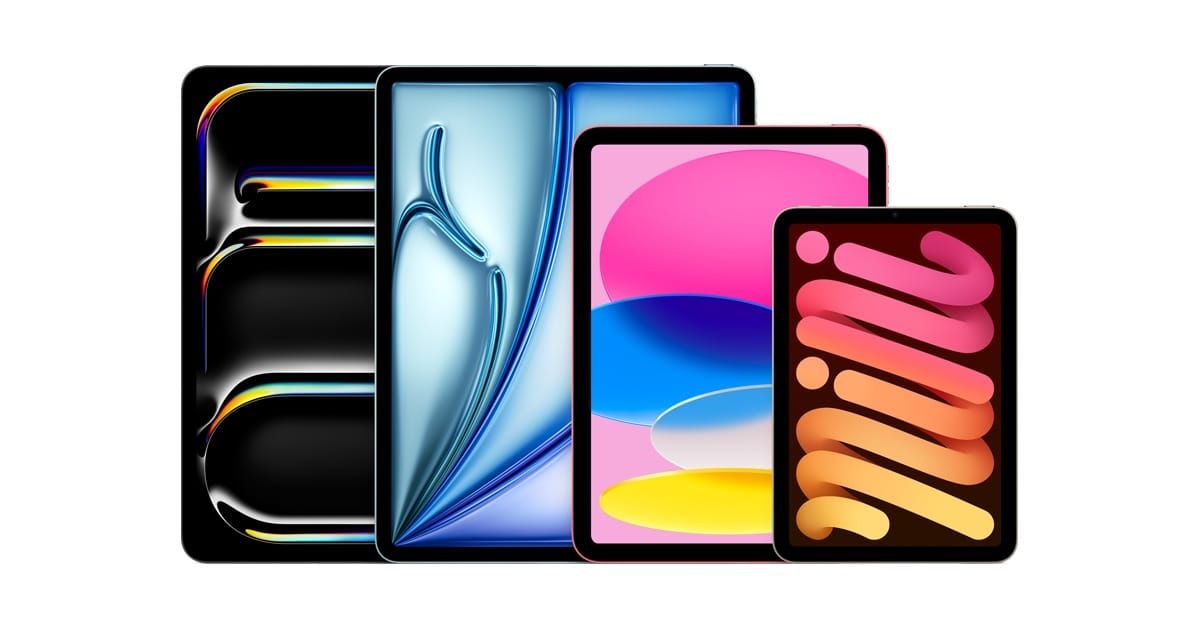

Apple confirmed the full iPadOS 26 compatibility list at WWDC 2025, and the cutoff starts at the A12 Bionic chip. That means every iPad released from 2018 onward stays in the fold, while one model from 2019 finally falls off the supported list. The seventh-generation iPad, powered by the aging A10 Fusion, is the only device that ran iPadOS 18 but cannot install iPadOS 26.
Here is the complication most people miss: running iPadOS 26 and getting every iPadOS 26 feature are two very different things. Apple has built a tiered system where your chip determines which capabilities you actually unlock. Owners of older A-series iPads get the Liquid Glass interface overhaul, Stage Manager improvements, and core system updates. But Apple Intelligence, extended external display support, and spatial lock screen scenes are gated behind specific processors. I will walk through every supported model, the single device Apple dropped, and exactly which features land on which hardware.
If you want the official reference, Apple maintains a support page listing every compatible iPad model for iPadOS 26.
 Ad
AdWhich iPads Support iPadOS 26? The Complete List
Every iPad with an A12 Bionic chip or newer runs iPadOS 26. The current shipping version is iPadOS 26.3, released on February 11, 2026, with iPadOS 26.4 currently in beta testing. Here is every supported model organized by product line.
Standard iPad
The iPad eighth generation with the Apple A12 Bionic chip is the oldest standard iPad on the list. It joins the iPad ninth generation (Apple A13 Bionic), iPad tenth generation (Apple A14 Bionic), and the newest iPad with the Apple A16 chip. All four run iPadOS 26, though none of them qualify for Apple Intelligence since that requires an Apple A17 Pro or Apple Silicon M1 at minimum.
iPad mini
Three iPad mini models make the cut. The iPad mini fifth generation (Apple A12 Bionic) and iPad mini sixth generation (Apple A15 Bionic) both run iPadOS 26 with baseline features only. The current iPad mini with the Apple A17 Pro chip is the standout here because it crosses the threshold for Apple Intelligence, making it the smallest iPad that supports Writing Tools, Image Playground, and the enhanced Siri.
iPad Air
The iPad Air lineup covers five generations. The iPad Air third generation (Apple A12 Bionic) and iPad Air fourth generation (Apple A14 Bionic) sit in the baseline tier. Starting with the iPad Air fifth generation (Apple Silicon M1), you enter the Apple Intelligence tier and gain external display support beyond simple mirroring. The iPad Air M2 in both 11-inch and 13-inch sizes and the iPad Air M3 in both sizes round out the lineup with the same M-series benefits.
iPad Pro
The iPad Pro family has the widest spread. The iPad Pro 11-inch first generation (Apple A12X Bionic) and second generation (Apple A12Z Bionic) are supported but sit in the baseline tier with no Apple Intelligence access. The same applies to the iPad Pro 12.9-inch third generation (Apple A12X Bionic) and fourth generation (Apple A12Z Bionic). Starting with the iPad Pro 11-inch third generation and iPad Pro 12.9-inch fifth generation, both with the Apple Silicon M1, you get the full Apple Intelligence suite plus extended external display support. The M2 generation, the M4 iPad Pro 11-inch and 13-inch models add one exclusive feature on top: 3D spatial scenes on the lock screen, a capability reserved for Apple Silicon M4 and later chips.
The One iPad Apple Left Behind
The iPad seventh generation is the only model that loses support in this cycle. It shipped in September 2019 with the Apple A10 Fusion chip, which was already a generation behind the A12 Bionic cutoff Apple established. If you own this model, you are stuck on iPadOS 18 permanently. Apple will continue to issue security patches for a period, but no new features will arrive.
This is worth noting for anyone buying a used iPad. The seventh-generation iPad still appears in secondhand listings at low prices, and it looks identical to the eighth generation from the outside. The only reliable way to confirm which generation you have is to check Settings, then General, then About, and look at the Model Name field.
What Each Chip Tier Actually Unlocks
Apple does not surface these tiers in a single obvious location, so I have assembled the breakdown based on the feature requirements Apple published across its developer documentation and support pages.
| Feature | A12 to A16 | A17 Pro | M1 / M2 / M3 | M4 and later |
|---|---|---|---|---|
| Liquid Glass UI | Yes | Yes | Yes | Yes |
| Stage Manager | Yes (4 windows) | Yes (4 windows) | Yes (5 windows) | Yes (5 windows) |
| Windowed Multitasking | Yes | Yes | Yes | Yes |
| Apple Intelligence (Writing Tools, Image Playground, Enhanced Siri) | No | Yes | Yes | Yes |
| Live Translation | No | Yes | Yes | Yes |
| Extended External Display | No | No | Yes | Yes |
| 3D Spatial Lock Screen | No | No | No | Yes |
The baseline tier covers more ground than you might expect. Every supported iPad gets the Liquid Glass design language that replaces the iOS 18 interface, the expanded Stage Manager that now works on older chips, and the windowed multitasking system. If you have been waiting to try Split View and Slide Over in iPadOS 26, those features returned with meaningful improvements across all supported hardware.
Apple Intelligence is the headline gating. Writing Tools, which let you rewrite, proofread, and summarize text across any app, require either an Apple Silicon M1 or later chip or the Apple A17 Pro. The same threshold applies to Image Playground, the enhanced Siri with onscreen awareness, and Live Translation. This means the majority of iPad Air models from the third and fourth generations, every standard iPad, and the two oldest iPad mini models are completely locked out of these features despite running the same operating system version.
M-series chips unlock two additional capabilities. The first is extended desktop support on external displays, which gives you a true second workspace rather than just a mirror of your iPad screen. The second is the ability to run up to five concurrent app windows, while older chips max out at four. These differences matter if you use your iPad as a laptop replacement with a keyboard and monitor, and the right accessories can push an M-series iPad surprisingly close to that role.
One friction point I have noticed: there is no in-system indicator telling you which tier your iPad falls into. If you tap on a feature that requires Apple Intelligence and your iPad lacks the chip for it, you get a generic message that the feature is unavailable. It does not explain why or point you to the hardware requirement. This creates confusion for owners who see the feature advertised in the Settings app but cannot activate it. Apple could solve this with a simple chip-check banner, but as of iPadOS 26.3, it does not exist.
Stage Manager and Windowed Multitasking Across Tiers
One of the biggest changes in iPadOS 26 is that Stage Manager now runs on every supported iPad, not just M-series models. Apple expanded compatibility so that even A12-based iPads can use the window management system, though with a lower cap of four simultaneous windows. On M-series iPads, you get five windows and the external display workspace that turns your iPad into a dual-screen setup.
The windowed app model in iPadOS 26 also means that app windows behave more like desktop windows than ever before. You can resize them freely, overlap them, and snap them to screen edges. If you are coming from a laptop workflow, this is the feature set that will feel most familiar.
Join The Inner Circle For Serious Apple Users
Exclusive Apple tips. Free to join.
Accessibility and Clarity in iPadOS 26
iPadOS 26 introduces several improvements that matter for users with visual or physical limitations. The Liquid Glass interface, while visually striking, raised early concerns about contrast and readability. Apple responded by including a dedicated Reduce Transparency toggle and an Increase Contrast setting that works system-wide across the new design language. Both options are found in Settings, then Accessibility, then Display and Text Size.
VoiceOver received updates that improve how it handles the new windowed multitasking layout. Each app window is announced with its position and size relative to the screen, and window management gestures have VoiceOver equivalents that use the rotor. Switch Control also gained new scanning patterns optimized for the multi-window environment, letting users cycle through open windows without needing to invoke Stage Manager directly.
For users with motor limitations, the new window snapping behavior is helpful because it reduces the precision needed to arrange apps. Dragging a window near a screen edge triggers an automatic snap zone, and you can also use keyboard shortcuts (Command-Control-Arrow) to tile windows without touching the screen at all. AssistiveTouch gestures for window management are customizable in Settings, then Accessibility, then Touch.
One area where iPadOS 26 falls short on accessibility: the tiered feature system means that Apple Intelligence's text summarization, which could be extremely useful for users with reading difficulties, is unavailable on older hardware. There is no accessibility exception for this gating. Users who rely on summarization as an assistive tool are locked into needing M-series or Apple A17 Pro hardware to access it.
Quick-Action Checklist: Confirm Your iPad's iPadOS 26 Status
Use these steps to verify your iPad's compatibility and find out which feature tier you are in.
- Open Settings, tap General, then tap About. The Model Name field tells you your exact iPad generation. Match it against the supported list above.
- In the same About screen, look at the iPadOS Version field. If it shows 26.0 or later, you are already running iPadOS 26. If it shows 18.x, check whether a software update is available under Settings, then General, then Software Update.
- To identify your chip, note the Model Name from step one and cross-reference it with the chip list in this article. Alternatively, look at the Chip field if your iPad displays one in the About screen (M-series iPads show this).
- Test Apple Intelligence availability by opening Settings, then searching for "Apple Intelligence." If the setting appears and you can toggle it on, your chip qualifies. If it does not appear, you are in the baseline tier.
- For external display support, connect your iPad to a monitor using USB-C. If you see a separate desktop workspace rather than a mirror of your iPad screen, you have an M-series chip with extended display support enabled.

Related Posts
Your iPad Moves Files Six Ways and You're Probably Using One
Apr 08, 2026
Your iPad’s Magic Keyboard Has a Shortcut Layer Most Owners Never Open
Apr 07, 2026
Your Apple Pencil Tip Is Wearing Out and You Can’t Even Tell
Apr 06, 2026