
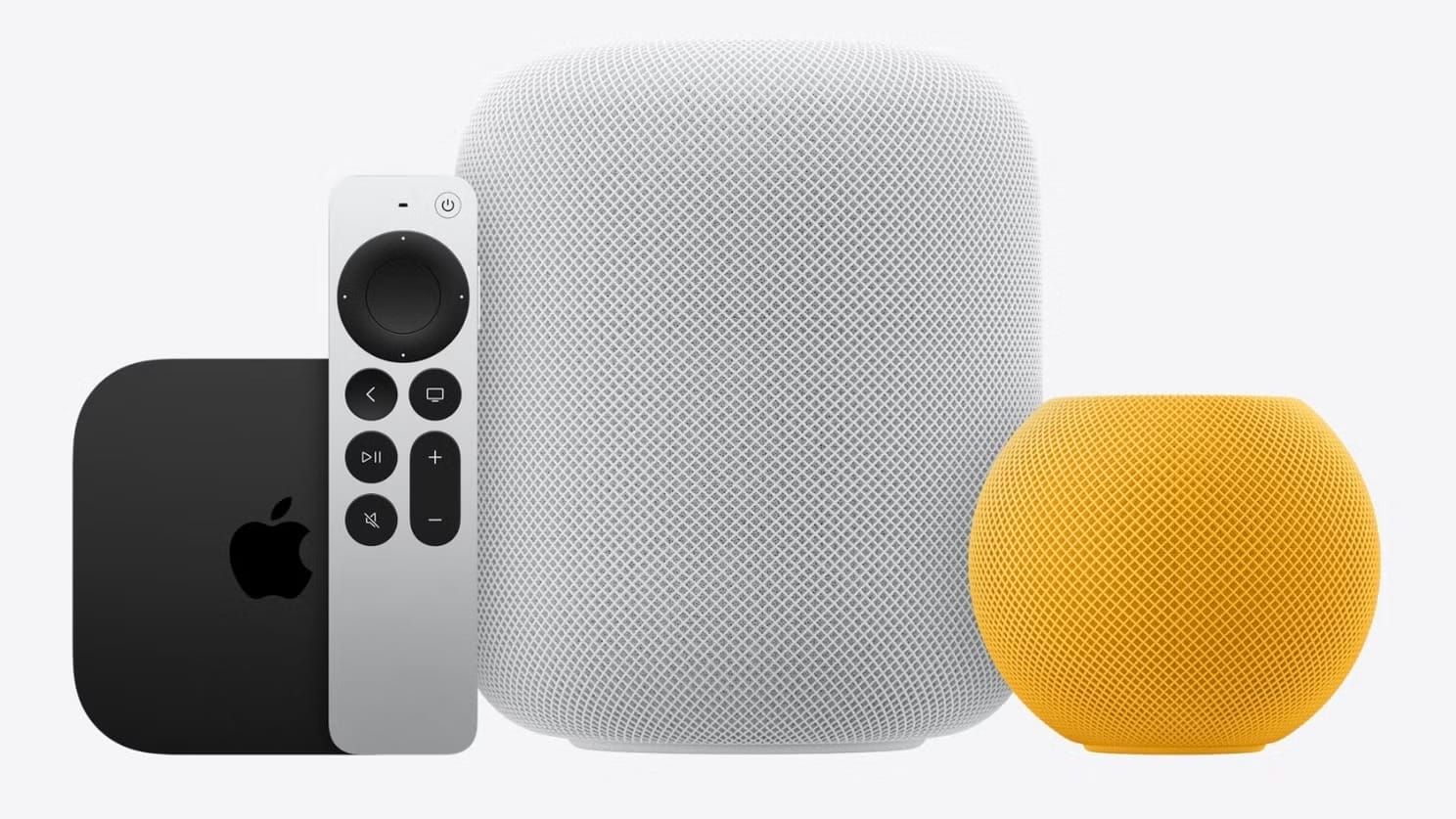

Apple HomePod and HomePod mini respond to voice commands, play music across rooms, and serve as the command center for an entire Apple HomeKit smart home. The catch is that when something breaks, the speaker offers almost nothing to work with: no screen, no diagnostic menu, and a single glowing light that could mean four different things. Most HomePod problems fall into one of four categories, and each one has a specific fix that takes less than five minutes.
This guide covers the exact fixes for the most common HomePod failures: factory resets, Wi-Fi reconnection after a network change, pairing problems during setup, and stuck software updates. These are the steps Apple documents plus the workarounds that Apple leaves out.
What That Spinning Light Actually Means
Before troubleshooting, look at the top of your HomePod. A white spinning light means Siri is processing. A red spinning light means a reset is underway (do not unplug). A white pulsing light signals readiness for setup. A multicolored spin means Siri is listening.
The problem most people hit is no light at all, or a light that flickers once and dies. That points to a power issue, not software. Unplug the HomePod entirely, wait a full 10 seconds (the internal capacitors need time to discharge), and reconnect. A quick unplug-replug cycle skips that discharge window. When the white light appears on reconnection, the processor has cleanly restarted.
How to Factory Reset a HomePod or HomePod mini
A factory reset wipes every setting, removes the HomePod from your Apple Account, and returns it to out-of-box state. There are three methods, and which one you use depends on whether the Home app can still reach the speaker.
Method One: Home App Reset
Open the Home app on your iPhone, iPad, or Mac (signed into the same Apple Account used during setup). Tap your HomePod, tap the Settings icon in the bottom-right corner, scroll down, and select "Reset HomePod," then "Remove Accessory." A white spinning light appears during the process. When it disappears, the reset is complete.
Method Two: The Button Press Sequence
This works when the Home app cannot reach the HomePod. Unplug the speaker, wait 10 seconds, plug it back in, and immediately touch and hold your finger to the center of the top panel. The white light will appear, then turn red. Siri announces the reset. Continue holding until you hear three ascending beeps, then lift your finger.
The timing is the part most guides skip. Place your finger within two to three seconds of plugging in, and hold for roughly 15 seconds total. Lifting before the three beeps cancels everything. The tactile feedback through the glass is subtle: no physical click, just a slight warmth from the touch surface activating beneath your fingertip.
Method Three: USB-C Restore (HomePod mini Only)
HomePod mini has a USB-C port hidden beneath the removable power cable. Disconnect the cable, plug a standard USB-C cable from the mini into your Mac, and open Finder. The HomePod mini appears in the sidebar under Locations. Click "Restore HomePod." This completely reinstalls the software and is the only option when the touch-panel reset fails due to corrupted firmware. Apple documents all three methods on its official HomePod reset support page.
Reconnecting After a Wi-Fi Network Change
HomePod connects to whatever Wi-Fi network your iPhone was on during setup. Change routers, rename your network, or switch providers, and the HomePod shows a "Network Issue" banner in the Home app. Open the Home app, tap your HomePod, and follow the Wi-Fi prompt at the top of the detail view to move it to your current network.
When that prompt does not appear (common when the old network no longer exists), restart your network stack: power off modem and router, wait 30 seconds, power the modem on first, let it stabilize, then power the router on. Reconnect your iPhone, open the Home app, and the HomePod should detect the change. One edge case: if your HomePod was on a guest network, peer-to-peer traffic is likely blocked. HomePod requires peer-to-peer communication. Move it to your primary network. Apple covers additional scenarios on its HomePod network issue support page.
Affiliate disclosure: some links in this article are Amazon Associate links. If you buy through them, Zone of Mac may earn a small commission at no extra cost to you, and we only recommend products that genuinely bring value to your Apple setup.
When Your HomePod Refuses to Pair
A reset HomePod shows a pulsing white light and waits for setup. Bring your iPhone close, and a setup card should appear automatically. When it does not, the issue is Bluetooth. HomePod uses Bluetooth for the initial handshake before switching to Wi-Fi. Toggle Bluetooth off and on in iPhone Settings (not Control Center), close the Home app entirely, reopen it, and bring your iPhone within inches of the HomePod.
If pairing still fails, check that your iPhone runs iOS 26.2 or later. HomePod Software 26.3 (released February 11, 2026) requires that minimum version, and a mismatch silently blocks the handshake without any error message.
The HomePod mini is the most practical starting point for a multi-room Apple smart home because it doubles as a Siri speaker and a HomeKit Thread border router. Thread devices like temperature sensors and smart locks need a border router, and every HomePod mini fills that role automatically. The touch panel on top responds to tap gestures for volume and playback, while the backlit surface gives visual feedback for Siri. Available in five colors, it fits any room at 3.3 inches tall.
Pick up the Apple HomePod mini in Midnight on Amazon https://www.amazon.com/dp/B0F9LPGG9Z?tag=zoneofmac-20
This table compares the four most common HomePod problems with their resolution method and expected time to fix.
| Problem | Fix Method | Time | Difficulty |
|---|---|---|---|
| Unresponsive / frozen | Unplug, wait 10 seconds, reconnect | 30 sec | Easy |
| Wi-Fi won't connect | Home app network reassignment + router restart | 5 min | Easy |
| Persistent errors / pairing failure | Factory reset via button hold or Home app | 2-3 min | Moderate |
| Software update stuck | Force update via Home app Settings | 10-20 min | Easy |
Forcing a Stuck Software Update
HomePod updates install automatically overnight, but they fail silently more often than Apple acknowledges. A speaker stuck on old software loses new features, security patches, and HomeKit protocol improvements. HomePod Software 26.3 is the current release as of February 12, 2026.
To force an update: open the Home app, tap the three-dot menu in the top-right corner, tap "Home Settings," then "Software Update." Each HomePod shows its current version. Tap "Update" or "Update All." If no update button appears, restart the HomePod (unplug 10 seconds, replug, wait two minutes), then check again. Apple documents the manual update process on its support site. A fully updated HomePod performs better as a smart home hub. I covered the complete HomeKit setup in our guide to building your first HomeKit smart home.
Join The Inner Circle For Serious Apple Users
Exclusive Apple tips. Free to join.
Check your inbox for a confirmation link.
Something went wrong. Please try again.
Why Your Stereo Pair Keeps Breaking Apart
Two HomePod speakers of the same model can form a stereo pair, but both must be assigned to the same room in the Home app first. If one is under "Living Room" and the other under "Default Room," the option will not appear. Long-press the HomePod, tap Settings, tap Room, and assign both to the same room. Then return to Settings and tap "Create Stereo Pair." After software updates, pairs sometimes dissolve; the fix is the same reassignment process. Ungrouping a pair is also required before resetting either speaker.
The full-size HomePod (2nd generation) uses a custom high-excursion woofer and five beam-forming tweeters that calibrate to the room using computational audio. The bass is something you feel in your chest from across the room. Two of them in a stereo pair with Apple Music Spatial Audio create a soundstage that fills a living room without traditional speaker placement concerns. It also supports Sound Recognition for smoke and carbon monoxide alarms. For anyone using an Apple TV as a smart home hub, the full-size HomePod as default audio output transforms speaker quality and Siri response speed.
You can grab the Apple HomePod (2nd Generation) in Midnight here https://www.amazon.com/dp/B0FBZ3DWLY?tag=zoneofmac-20
Accessibility and Clarity
HomePod's voice-first design works well for users with visual limitations. Every function operates through spoken Siri commands without visual confirmation. VoiceOver on the paired iPhone reads aloud every HomePod setting in the Home app.
The touch panel provides no tactile markers: flat glass with invisible volume zones, though Siri voice commands eliminate that barrier. The full-size HomePod's power cable is permanently attached, while the HomePod mini uses a detachable USB-C cable that is easier to manage for users with limited hand dexterity. For cognitive accessibility, each troubleshooting method in this guide is self-contained: one symptom, one action, one confirmation, with no need to hold multiple steps in memory.
Quick-Action Checklist
- Unresponsive HomePod: Unplug, wait 10 seconds, reconnect. Watch for white light.
- Factory reset (Home app): Home app > HomePod > Settings > Reset HomePod > Remove Accessory.
- Factory reset (button): Unplug 10s, plug in, hold finger on top until three beeps.
- Factory reset (USB-C, mini only): Plug into Mac via USB-C, open Finder, Restore HomePod.
- Wi-Fi reconnect: Home app > HomePod > follow Wi-Fi prompt, or restart modem/router first.
- Pairing fix: Toggle Bluetooth off/on in Settings, close/reopen Home app, bring iPhone close.
- Force update: Home app > three-dot menu > Home Settings > Software Update > Update.
- Stereo pair fix: Assign both HomePods to the same room, then re-create the pair.

Deon Williams
Staff writer at Zone of Mac with two decades in the Apple ecosystem starting from the Power Mac G4 era. Reviews cover compatibility details, build quality, and the specific edge cases that surface after real-world use.
Related Posts
HomeKit Smart Blinds That Earn a Spot in Your Apple Home
Apr 10, 2026
Apple TV+ Dropped Six April Premieres and Three Actually Deliver
Apr 10, 2026
HomeKit Ceiling Fans That Earn a Spot in Your Apple Home
Apr 07, 2026