
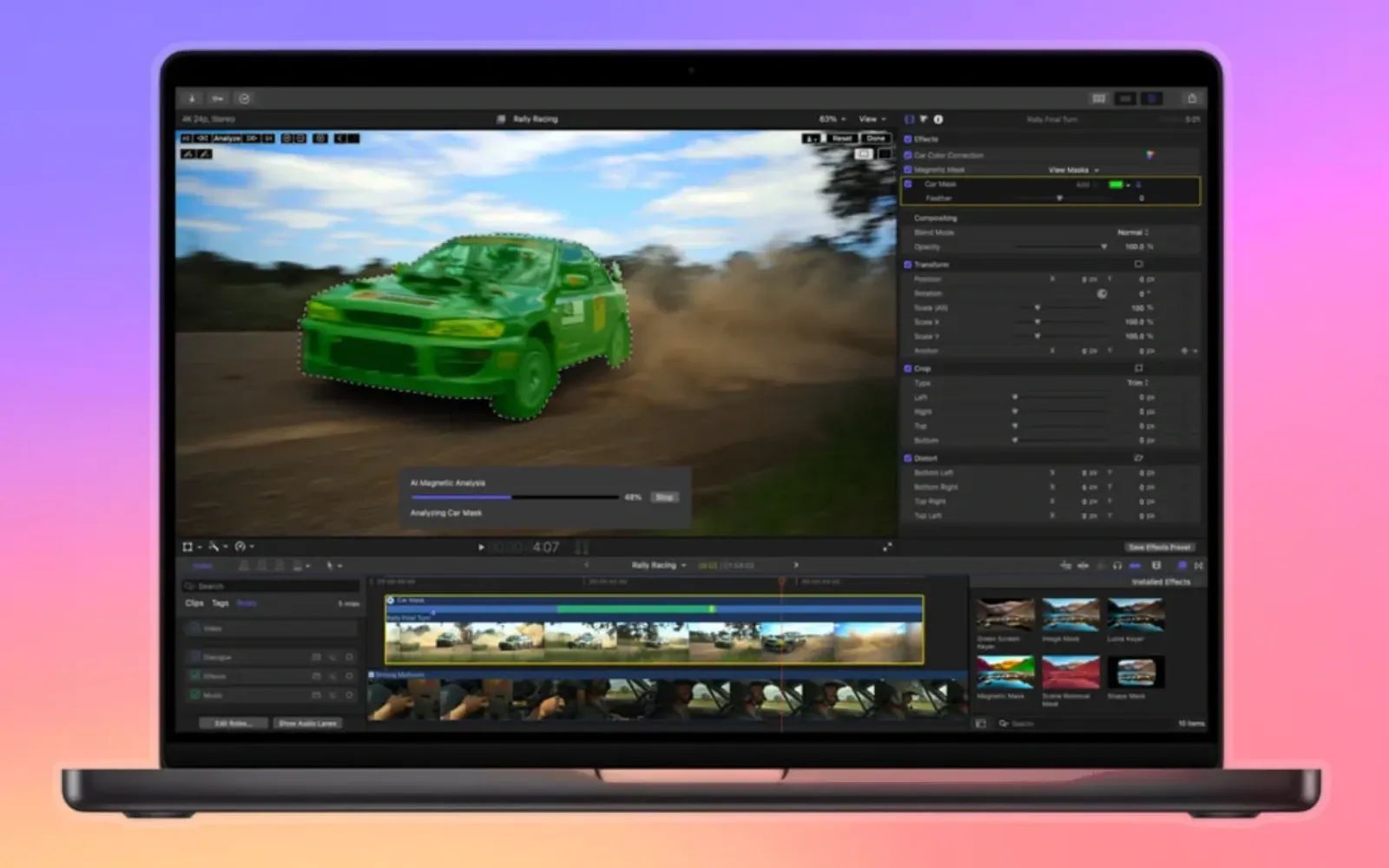

Final Cut Pro libraries no longer need to live on your Mac's internal SSD. Thunderbolt 5 drives deliver read speeds exceeding 6000MB/s, matching or exceeding what most internal Apple Silicon storage can sustain under real editing workloads. The practical result: you can store entire projects on a portable drive, connect it to any M4 Pro or M4 Max Mac, and edit without waiting for proxies or experiencing timeline lag.
Key Takeaways
- Store Final Cut Pro libraries on external Thunderbolt 5 SSDs with no performance penalty on M4 Pro and M4 Max Macs
- Create new libraries directly on external drives using File > New > Library, then selecting your external volume
- Thunderbolt 5 delivers 6000MB/s read speeds compared to 2800MB/s for Thunderbolt 4
- APFS-formatted drives work immediately with macOS without reformatting
- Keep your Mac's internal storage free for the operating system and applications while projects live externally
- Back up external libraries using Time Machine or manual duplication to a second drive
At-A-Glance: External Storage Speeds for Video Editing
The following table compares connection standards relevant to Mac video editors choosing external storage for Final Cut Pro workflows.
| Connection | Max Read Speed | Editing Suitability | Best For |
|---|---|---|---|
| Thunderbolt 5 | 6000+ MB/s | Professional 4K/8K editing | M4 Pro and M4 Max Macs with TB5 ports |
| Thunderbolt 4 | 2800 MB/s | Comfortable 4K editing | Most Apple Silicon Macs |
| USB 3.2 Gen 2 | 1000 MB/s | Proxy workflows only | Backup and archive |
Why Internal Storage Became a Bottleneck
Apple's unified memory architecture changed how creative professionals think about Mac configuration. The M4 Max with 128GB of unified memory can handle massive timelines, color grades, and effects in real time. But storage configuration remained a pain point. Upgrading internal SSD capacity at purchase adds significant cost, and that capacity becomes fixed for the life of the machine. A 2TB internal drive fills quickly when a single day of 8K RAW footage can exceed 500GB.
The traditional answer was external RAID arrays or Thunderbolt docks with NVMe enclosures. These worked, but Thunderbolt 4's ceiling of roughly 2800MB/s meant external storage always felt slower than internal. Scrubbing through dense timelines or rendering to an external drive introduced friction that internal storage avoided.
How Thunderbolt 5 Changes External Storage
Thunderbolt 5 doubles the available bandwidth. The specification supports 80Gbps bidirectional with Bandwidth Boost pushing to 120Gbps for high-bandwidth display scenarios. For storage, this translates to sustained transfers exceeding 6000MB/s in real-world use.
That number matters because it exceeds what most users experience from internal Apple Silicon storage under typical editing loads. Internal SSDs in M4 Macs can hit higher peak speeds in synthetic benchmarks, but sustained writes during rendering or imports often drop below what Thunderbolt 5 external drives maintain. The bottleneck has effectively disappeared for portable workflows.
Join The Inner Circle For Serious Apple Users
Exclusive Apple tips. Free to join.
Setting Up Final Cut Pro for External Library Storage
Creating a library on an external drive requires no special configuration. Connect your Thunderbolt 5 SSD, wait for it to mount, then open Final Cut Pro. Select File > New > Library. In the save dialog, navigate to your external volume and create the library there. Final Cut Pro treats external libraries identically to internal ones.
For existing projects, you can move libraries by quitting Final Cut Pro, then dragging the library bundle from your internal drive to the external volume in Finder. When you reopen Final Cut Pro, use File > Open Library > Other to navigate to the new location.
One workflow consideration: Final Cut Pro's background rendering writes to the library location by default. With a Thunderbolt 5 SSD, this happens fast enough that you may not notice background tasks completing. The Activity Monitor in Final Cut Pro (accessible from Window > Background Tasks) confirms render progress if you want to verify the drive is keeping up.
Affiliate disclosure: some links in this article are Amazon Associate links. If you buy through them, Zone of Mac may earn a small commission at no extra cost to you, and we only recommend products that genuinely bring value to your Apple setup.
The Hardware That Makes This Work
Thunderbolt 5 SSDs remain a small category in early 2026, but the options that exist deliver on the specification's promise. The OWC Envoy Ultra stands out for Mac workflows specifically because it ships APFS-formatted, eliminating the reformatting step that most drives require. The built-in Thunderbolt cable removes the uncertainty of cable quality affecting speeds. OWC rates the drive for 6000MB/s reads and 1350MB/s sustained writes on the 2TB model (1700MB/s on 4TB), with initial write bursts hitting 6000MB/s before thermal management reduces speeds on longer transfers.
The asymmetric read/write profile fits video editing patterns well. Playback and scrubbing hammer read performance, where the Envoy Ultra excels. Exports and renders stress write performance, where the sustained 1350MB/s remains faster than most Thunderbolt 4 drives at peak. The IP67 rating adds practical durability for location shoots where drives get tossed in bags alongside camera gear.

Here's where to get the OWC Envoy Ultra 2TB Thunderbolt 5 SSD for your editing workflow https://www.amazon.com/dp/B0DMTVGPH8?tag=zoneofmac-20
Organizing Projects Across Multiple Drives
Video editors working across multiple clients or long-term projects benefit from dedicating separate drives to separate projects. Final Cut Pro's library model supports this cleanly. Each library is self-contained, holding events, projects, and media. Moving a library to a different Mac requires only copying the library bundle and any externally referenced media.
A practical approach: keep your current active project on a fast Thunderbolt 5 SSD connected to your editing Mac. Archive completed projects to larger, slower drives or network storage. The library list in Final Cut Pro (View > Libraries) shows all open libraries with their locations, making it straightforward to track which drive holds which project.
For teams sharing projects, the external library approach simplifies handoffs. An editor can work on a portable Thunderbolt 5 drive, then physically deliver that drive to a colorist or sound designer. No network transfers, no cloud sync waiting. The recipient connects the drive and opens the library directly. Apple's Final Cut Pro documentation at https://support.apple.com/guide/final-cut-pro/intro-to-libraries-verdbd66ae/mac covers the specifics of library management for collaborative workflows.
Accessibility and Workflow Considerations
External drive workflows interact with accessibility features in ways worth noting. VoiceOver in macOS fully supports navigating external volumes and opening libraries from them. The Finder announces drive connection and ejection, and Final Cut Pro's library browser remains accessible with keyboard navigation.
For users with limited hand dexterity, the OWC Envoy Ultra's built-in cable eliminates the fine motor task of aligning separate Thunderbolt cables. The drive itself weighs under 100 grams and fits in a palm, requiring minimal grip strength to handle. The tactile feedback when connecting Thunderbolt cables deserves attention: a Thunderbolt 5 connection should click firmly into place with no wobble. A loose connection can cause intermittent disconnects that corrupt project files mid-edit.
Light sensitivity may affect users working in dim editing suites. The Envoy Ultra has no status LEDs that flash during operation, avoiding the visual distraction that some drives create. This small detail matters during color grading sessions where ambient light control is critical.
When to Choose External Over Internal
The decision matrix is straightforward. Choose external Thunderbolt 5 storage when you need to move projects between machines, when your internal drive cannot hold your working media, or when you want to archive completed projects without maintaining them on expensive internal storage.
Choose internal storage when you work exclusively on one machine, when your projects fit comfortably within your internal capacity, or when you need the absolute fastest possible sustained write speeds for specific workflows like multicam ingest from multiple capture cards simultaneously.
Most video editors benefit from a hybrid approach: modest internal storage for the operating system and applications, with Thunderbolt 5 external storage for active projects. The Apple Creator Studio bundle at https://www.zoneofmac.com/apple-creator-studio-bundle-unlocks-professional-apps-for-13/ at $12.99/month makes professional tools accessible, and external storage makes those tools portable.
Backup Strategy for External Libraries
External drives fail. The convenience of portable project storage comes with the responsibility of maintaining backups. Time Machine supports external drives as backup sources when configured in System Settings > Time Machine > Options. Add your external project drive to the backup list, and Time Machine captures hourly snapshots when the drive is connected.
For mission-critical projects, maintain a manual duplicate on a second drive. The Finder's copy function works, though Carbon Copy Cloner or SuperDuper provide verification that Time Machine backups lack. The iPadOS 26 background tasks guide at https://www.zoneofmac.com/ipados-26-background-tasks-transform-your-ipad-into-a-real-workstation/covers related concepts for users who extend their editing workflow to iPad Pro with Stage Manager.
Performance Testing Your Setup
After configuring external library storage, verify the drive performs as expected. Blackmagic Disk Speed Test (free on the Mac App Store) measures sequential read and write speeds. Run it targeting your external Thunderbolt 5 volume and confirm reads exceed 5000MB/s. If speeds fall significantly short, check that you are using the Thunderbolt 5 port (not USB-C) and that the drive firmware is current.
Within Final Cut Pro, the best performance test is your actual project. Scrub through a dense timeline with multiple 4K streams. Monitor the Activity Monitor for dropped frames or render warnings. If the external workflow matches or exceeds your previous internal-only workflow, the configuration is working correctly.
Quick-Action Checklist
- Connect Thunderbolt 5 SSD to an M4 Pro or M4 Max Mac's Thunderbolt 5 port
- Verify drive mounts in Finder and shows as APFS format (Finder > Get Info)
- Open Final Cut Pro and select File > New > Library
- Navigate to external volume and create library
- Import media directly to the external library
- Confirm background rendering completes without timeline stuttering
- Run Blackmagic Disk Speed Test to verify speeds exceed 5000MB/s read
- Configure Time Machine to include the external drive in backups
- Test project portability by opening the library on a second Mac

Related Posts
Seven Mac Accessories That Turn a Good Desk Into a Great One
Apr 10, 2026
Your Mac Has a Networking Time Bomb That Only a Reboot Defuses
Apr 09, 2026
Your Mac Feels Slow After macOS Tahoe — Here’s What Actually Fixes It
Apr 08, 2026