
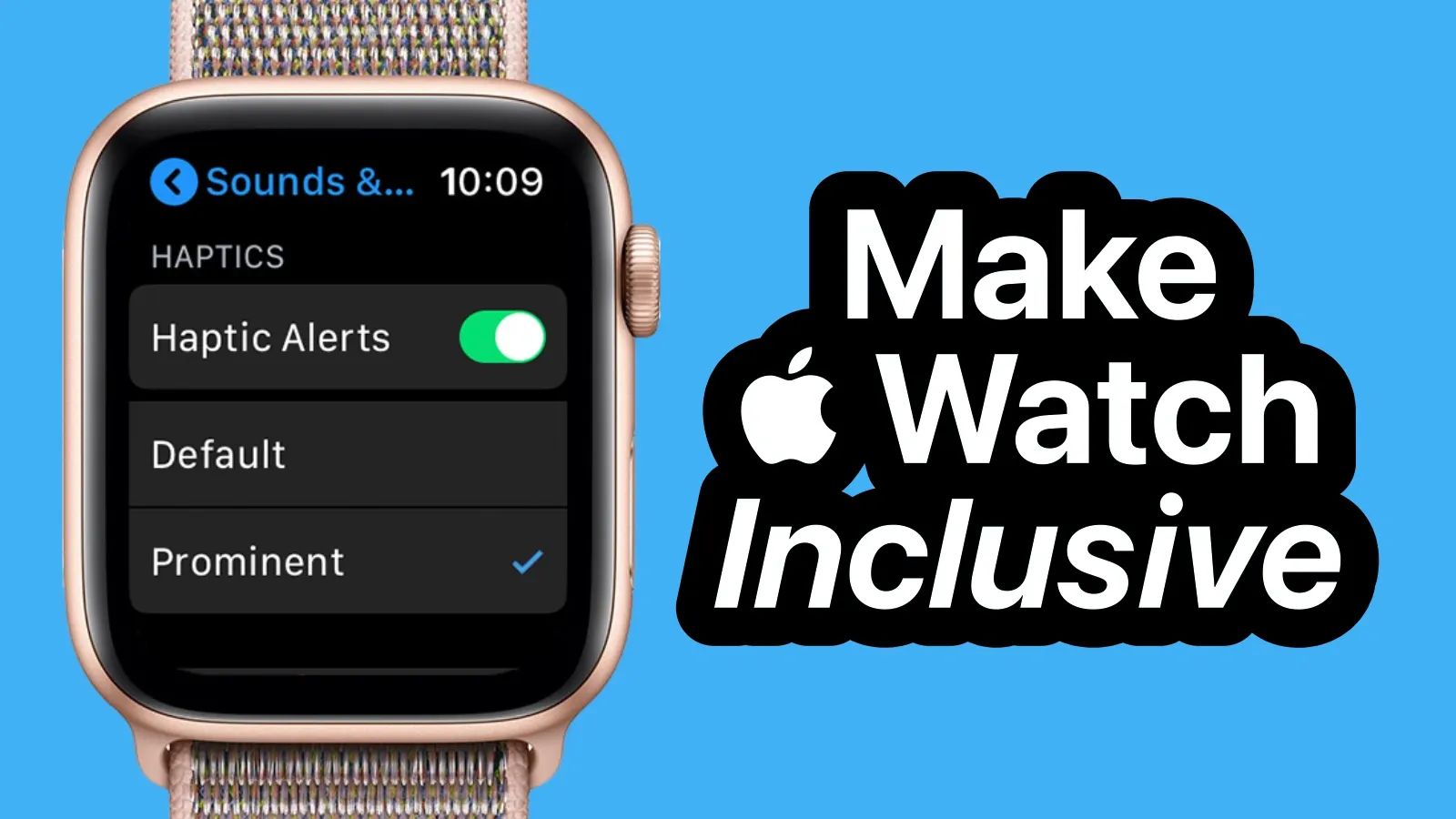
Apple Watch does far more than count steps and show notifications. The wearable contains a comprehensive suite of accessibility features that make the device genuinely usable for people with visual impairments, hearing differences, and motor limitations. These tools transform a fitness tracker into something closer to a personal assistant that adapts to how you interact with the world.
Key Takeaways
AssistiveTouch lets you control Apple Watch entirely through hand gestures like pinching and clenching without touching the screen VoiceOver speaks everything on screen aloud and changes swipe gestures to navigate content sequentially Haptic Time taps distinct patterns on your wrist to communicate the hour and minutes silently Reduce Motion eliminates swooping animations that can trigger vestibular discomfort Bold Text and larger Dynamic Type settings help users with low vision read watch faces and apps Mono Audio combines stereo channels for users with hearing loss in one ear
At-A-Glance: watchOS Accessibility Features by Need
| Accessibility Need | Primary Feature | Setup Location |
|---|---|---|
| Vision (Blind/Low Vision) | VoiceOver | Settings → Accessibility → VoiceOver |
| Motor/Mobility | AssistiveTouch | Settings → Accessibility → AssistiveTouch |
| Hearing | Haptic Alerts, Mono Audio | Settings → Accessibility → Hearing |
| Vestibular/Motion Sensitivity | Reduce Motion | Settings → Accessibility → Motion |
Affiliate disclosure: some links in this article are Amazon Associate links. If you buy through them, Zone of Mac may earn a small commission at no extra cost to you, and we only recommend products that genuinely bring value to your Apple setup.
How AssistiveTouch Replaces Touch Entirely
AssistiveTouch is the headline accessibility feature for anyone with motor impairments or limb differences. Once enabled, you control your entire Apple Watch through hand gestures performed on the arm wearing the watch, without ever touching the display or Digital Crown.
To enable AssistiveTouch, open the Settings app on your Apple Watch, tap Accessibility, then tap AssistiveTouch and toggle it on. You can also enable it through the Watch app on your iPhone by navigating to My Watch, then Accessibility, then AssistiveTouch.
The gesture vocabulary is straightforward. A pinch (touching your index finger to your thumb) moves to the next item. A double pinch moves backward. A clench (making a fist) acts as a tap to select. A double clench brings up the Action Menu, which provides access to the Digital Crown, side button, Apple Pay, Notification Center, and more.
Apple refined these gestures using machine learning, so the system adapts to your specific pinch or clench motion over time. The initial calibration asks you to perform each gesture several times, and watchOS learns your movement patterns. This matters for users whose motor control varies throughout the day or whose gestures differ from the assumed baseline.
AssistiveTouch also enables a motion pointer that moves a cursor around the screen when you tilt and rotate your wrist. This provides a different interaction model closer to mouse navigation. The combination of gestures and motion pointer means someone with limited hand dexterity can still access every Apple Watch function.
The Apple Watch Series 11 brings improvements to the sensors that detect these gestures, making AssistiveTouch more responsive than on earlier models. The thinner, lighter 46mm case reduces wrist fatigue during extended gesture sessions, and the larger display gives more room for the motion pointer interface.
![Apple Watch Series 11 [GPS 46mm] Smartwatch with Jet Black Aluminum Case with Sport Band - M/L. Sleep Score, Fitness Tracker, Health Monitoring, Always-On Display, Water Resistant](https://m.media-amazon.com/images/I/312K597M2uL._SL500_.jpg)


Don't have the Apple Watch Series 11 GPS 46mm in Jet Black yet? Get ut here (Amazon affiliate link):
https://www.amazon.com/dp/B0FQF5BZ8Z?tag=zoneofmac-20
VoiceOver: Complete Screen Reading for Blind Users
VoiceOver is Apple's screen reader, available across all Apple devices, and the Apple Watch implementation works surprisingly well on such a compact display. When VoiceOver is active, the watch speaks the name and type of every element on screen. You navigate by swiping left and right to move between items, and double-tap to activate whatever VoiceOver is currently focused on.
The experience differs substantially from using an Apple Watch without VoiceOver. Swiping no longer scrolls; it moves focus. This sequential navigation model lets blind users explore the entire interface systematically. VoiceOver announces complications, time, battery level, and notification content aloud.
Turning the Digital Crown with VoiceOver enabled reads items in a list one by one as you scroll. You can adjust VoiceOver speaking rate in Settings → Accessibility → VoiceOver → Speaking Rate, and most users who rely on screen readers daily crank this setting considerably higher than the default.
VoiceOver works with Braille displays too. Pair a Bluetooth Braille display to your iPhone, and it will work with your Apple Watch through the connected iPhone. This lets deafblind users access Apple Watch through tactile reading rather than audio.
Haptic Time and Sound Recognition for Deaf Users
Apple Watch communicates constantly through sound, but those audio cues mean nothing for users who are deaf or hard of hearing. watchOS addresses this through extensive haptic feedback customization.
Haptic Time is subtle but powerful. Instead of looking at your watch face to check the time, you can set the watch to tap out the time on your wrist. Navigate to Settings → Clock → Haptic Time and choose from Digits, Terse, or Morse Code. The Digits option taps once for each digit of the time; Terse uses long taps for hours and short taps for minutes; Morse Code taps the time in dots and dashes.
Sound Recognition uses the Apple Watch microphone to detect specific sounds (like doorbells, alarms, or sirens) and delivers a haptic alert when it identifies them. This brings environmental audio awareness to users who cannot hear those sounds directly. Enable it in Settings → Accessibility → Sound Recognition.
The Taptic Engine in Apple Watch excels at subtle, distinct patterns. Different notification types produce different haptic signatures, and after wearing the watch for a few days, you begin distinguishing a text message tap from a reminder tap without checking the screen. This implicit communication channel becomes essential for deaf users.
Accessibility Features for Vestibular and Cognitive Needs
Not all accessibility needs are visible. Users with vestibular disorders (inner ear conditions that affect balance and spatial orientation) often experience discomfort from the zooming, sliding animations throughout iOS and watchOS. Reduce Motion eliminates these animations, replacing them with simple fades.
Find Reduce Motion in Settings → Accessibility → Motion → Reduce Motion. The setting propagates to apps as well, though developers can choose whether to honor it.
Apple Watch also offers On/Off Labels, which adds visual indicators (a "1" and "0") to toggle switches. This helps users who have difficulty distinguishing the position of toggles by color alone, addressing both colorblind users and those with cognitive processing differences.
Accessibility & Clarity
Apple has made meaningful investments in accessibility for Apple Watch, but the small screen size creates inherent limitations. The minimum tap target remains challenging for users with motor impairments who do not wish to use AssistiveTouch. Some watch faces offer better accessibility than others; the Modular face presents information in larger, high-contrast blocks that work well with VoiceOver.
For users with low vision, the Bold Text setting (Settings → Accessibility → Bold Text) and increased text size (Settings → Accessibility → Text Size) meaningfully improve readability. The OLED display provides true black backgrounds that maximize contrast ratios.
The Digital Crown itself presents physical accessibility considerations. It requires fine motor control to rotate and press. AssistiveTouch provides full alternative access, but the Crown's placement on the right side of the case assumes right-hand dominance. Left-handed users can flip the watch orientation in Settings → General → Watch Orientation.
One limitation worth noting: VoiceOver requires reasonable touch precision for the double-tap gesture. Users who struggle with precise tapping may find the combination of VoiceOver and AssistiveTouch together provides the best experience, using hand gestures instead of screen touches to activate elements.
Cognitive accessibility deserves attention too. The information density on Apple Watch can overwhelm users with attention differences. Theater Mode silences notifications and keeps the screen dark until tapped, reducing cognitive interruption. Focus modes inherited from iPhone can filter which notifications reach your wrist.
<div style="text-align: center; margin: 2em auto; max-width: 500px; padding: 24px; border: 2px solid #555; border-radius: 10px; font-family: -apple-system, BlinkMacSystemFont, 'Segoe UI', Roboto, sans-serif;"> <p style="color: #fff; margin-bottom: 0.5em; font-size: 1.25em; font-weight: 600;">Join The Inner Circle For Serious Apple Users</p> <p style="color: #ccc; margin-bottom: 1em;">Exclusive Apple tips. Free to join.</p> <form data-members-form="subscribe" style="display: flex; gap: 10px; max-width: 440px; margin: 0 auto;"> <input data-members-email type="email" placeholder="Your email address" required style="flex-grow: 1; padding: 14px 16px; background: #1a2744; color: #ffffff; border: 1px solid #3a5a8a; border-radius: 6px; font-size: 16px; outline: none;"> <button type="submit" style="background: #166534; color: #FFFFFF; padding: 14px 24px; border: none; border-radius: 6px; font-weight: 600; font-size: 16px; cursor: pointer;">Subscribe</button> </form> <p class="message-success" style="color: #4ade80; margin-top: 12px; display: none;">Check your inbox for a confirmation link.</p> <p class="message-error" style="color: #f87171; margin-top: 12px; display: none;">Something went wrong. Please try again.</p> </div>
Join The Inner Circle For Serious Apple Users
Exclusive Apple tips. Free to join.
Bands That Make a Difference
Band choice affects accessibility significantly. Traditional pin-and-tuck bands require fine motor control and bimanual coordination to fasten. Magnetic bands eliminate this entirely; you simply wrap the band around your wrist and the magnets hold it in place.
The Apple Magnetic Link band in particular wraps around your wrist in one smooth motion. The band has no clasp, no holes, and no loops to thread. It adjusts infinitely within its size range rather than requiring discrete notch positions. For users with arthritis, tremors, or single-hand use, this design difference transforms putting on the watch from a frustrating task into a trivial one. Here's where you can buy the Apple Watch Band Magnetic Link https://www.amazon.com/dp/B0DGJ9WDCC?tag=zoneofmac-20
How to Set Up Accessibility on a New Apple Watch
When you pair a new Apple Watch to your iPhone, the setup process offers to configure accessibility options upfront. Pay attention to this screen rather than skipping through, as it sets VoiceOver, Zoom, and AssistiveTouch before you need to navigate the watch interface to find those settings.
You can also trigger many accessibility features quickly using the Accessibility Shortcut. Go to Settings → Accessibility → Accessibility Shortcut and choose which features you want to toggle. Then triple-click the Digital Crown to quickly enable or disable those features.
If you are setting up a watch for someone else who uses accessibility features, complete the accessibility configuration on your iPhone in the Watch app before handing over the watch. This prevents a frustrating situation where the recipient cannot navigate to enable the features they need.
For an overview of how accessibility features work across the Apple ecosystem, including how iPhone and Apple Watch settings interact, see the detailed walkthrough in the guide to Mac accessibility features that covers the broader philosophy behind Apple's approach.

Related Posts
Build the Custom Apple Watch Face You Actually Want
Apr 06, 2026
Your Apple Watch Band Has a Cleaning Method Most Owners Skip
Apr 02, 2026
Your Apple Watch Has a Sleep System Most Owners Never Touch
Apr 02, 2026